Not every page you run is a WordPress post. Sales pages, funnels and static sites can have the same Accessibility button and panel too, with one line of HTML from the On any page tab.
Where to find it:
Open AiX Accessibility, On any page. The line in the box already carries the button settings from your Reading tools tab.
Add it to a page:

- Press Copy the line. The note says Copied. Paste it in the head of any page, or before its closing body tag.
- Open the HTML of the page you want it on.
- Paste the line inside the page head. Just before the closing body tag also works, but in the head a visitor's remembered choices, such as Dark or larger text, are in place before the page first appears.
- Save the page and open it. The Accessibility button is there.
How it works:
The panel is loaded from your WordPress site. After it loads it makes no server calls and sets no cookies, and a visitor's choices stay in their browser for that site only. The reading fonts are served from your WordPress site too, so nothing goes to any outside service.
It brings the same first-visit question, profiles, colour modes, text controls, reading aids, page map and Listen as your WordPress pages. The reading bar and In short belong to your WordPress posts and are not added.
Three ways to place it:
- In a corner: data-pos.
- Inside an element of your own page, such as your menu bar: data-target.
- Opened from a link or button you already have, with no button of ours printed: data-trigger.
Every option on the line:
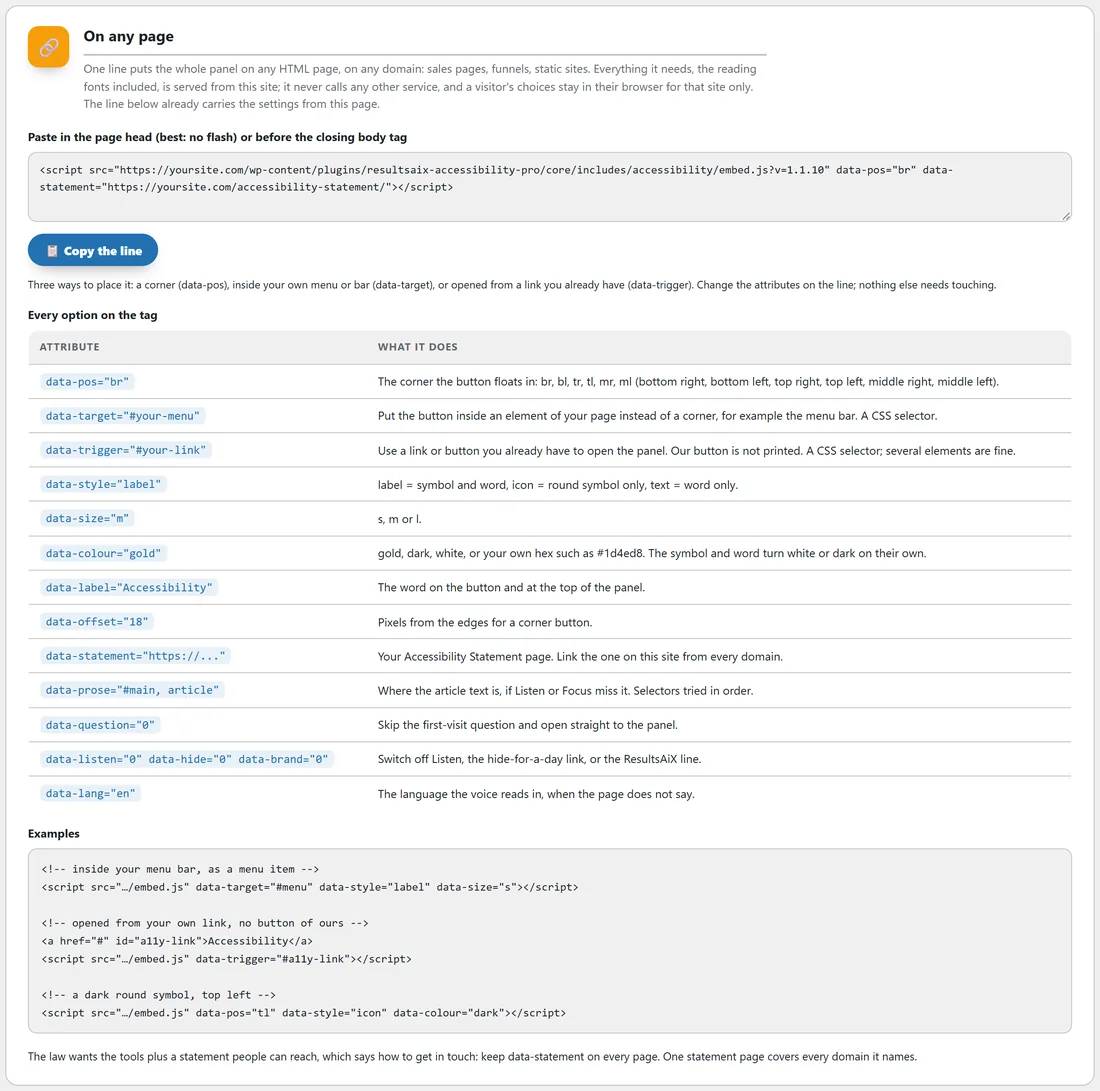
- data-pos: the corner, one of br, bl, tr, tl, mr or ml (bottom right, bottom left, top right, top left, middle right, middle left). Bottom right when left out.
- data-target: a CSS selector for an element to put the button inside, for example #menu. If that element is not on the page, the button floats in its corner instead.
- data-trigger: a CSS selector for your own link or links that open the panel. Our button is not printed. Several elements are fine.
- data-style: label (symbol and word), icon (round symbol only) or text (word only).
- data-size: s, m or l.
- data-colour: gold, dark, white, or your own colour as a hex code such as #2f6f4e. The symbol and word turn white or dark on their own.
- data-label: the word on the button and at the top of the panel.
- data-offset: the distance in pixels from the edges for a corner button. 0 sits it flush to the edge.
- data-statement: the address of your Accessibility Statement page, linked at the foot of the panel. Filled in for you when your WordPress site has one.
- data-prose: CSS selectors for where the article text is, tried in order, if Listen or Focus miss it.
- data-question="0": skip the first-visit question and open straight to the panel.
- data-listen="0", data-hide="0" and data-brand="0": switch off Listen, Hide the button for today, or the ResultsAiX line.
- data-lang: the language Listen reads in, for example en, for a page that does not declare one.
The tab lists every one of these in its Every option on the tag table, with three ready Examples: inside your menu bar, opened from your own link, and a dark round symbol in the top left.
Ready lines for each placement:
Start from the line on your tab and add or change attributes. Keep the src exactly as your tab shows it.
- A round dark symbol in the top left: add data-pos="tl" data-style="icon" data-colour="dark".
- A small button inside your menu bar: add data-target="#menu" data-size="s".
- Opened from your own Accessibility link, no button of ours: add data-trigger="#a11y-link" and give your link id="a11y-link".
- Straight to the options, no first-visit question: add data-question="0".
Testing it:
Open the page in a private window, press the button or Alt + A, and answer the question. Then reload the page: your choice is applied before the page appears when the line is in the head.
A real example:
Green Lane Garden Studio runs a one-page spring offer on a separate page builder at offers.yoursite.com. Maya copies the line from the On any page tab and pastes it into the page head. The line already carries data-statement="https://yoursite.com/accessibility-statement/". Because her menu has an Accessibility link with the id a11y-link, she adds data-trigger="#a11y-link", so the panel opens from her own menu and no extra button is printed.
Changing it later:
Change the attributes on the line and nothing else needs touching. If you change your button settings on the Reading tools tab later, copy the line again for new pages; pages that already have it keep the attributes written on them.
Keep data-statement on every page:
A statement people can reach from every page helps visitors find how to contact you. One Accessibility Statement page on your WordPress site can cover every domain you use the line on.