Everything lives under HTML Pages in your admin sidebar. This tour goes through every screen in the order of the tabs, so you know where each job is done before you need it.
The header and tabs:

Every plugin screen starts with the same header bar: the ResultsAiX mark, the name ResultsAiX Free HTML Pages, the version number (for example v1.9.18) and a link to ResultsAiX.com. Under it runs a row of tabs: Dashboard, Upload HTML Page, All HTML Pages, Settings, Diagnostics, Training, Resources, Share This Plugin and Hub. The tab you are on is underlined. The same items appear in the HTML Pages sidebar menu.
Dashboard:
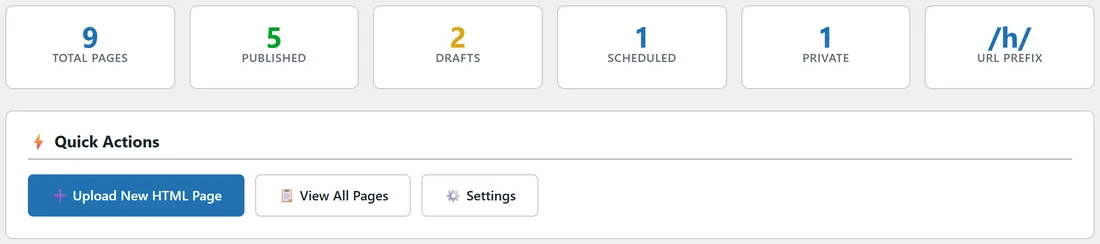
With no pages yet, the Dashboard says No HTML Pages Yet, gives you an Upload Your First HTML Page button and a short How It Works list.
Once you have pages, it shows cards you can click:
- Total Pages: every page that is not in the Trash, whether published, draft, pending, scheduled or private. Opens the full list.
- Published: opens the list filtered to published pages.
- Drafts: opens the list filtered to drafts.
- Pending Review, Scheduled and Private: these cards appear only when you have pages in those states.
- URL Prefix: shows your current prefix, such as /h/. Opens Settings.
Under the cards, Quick Actions gives you Upload New HTML Page, View All Pages and Settings. Below that, short cards sum up the main features: Code Injection, ZIP Uploads, Duplicate Pages, Custom URL Prefix, Auto-Updates, Color Schemes and Share & Grow.
Upload HTML Page:
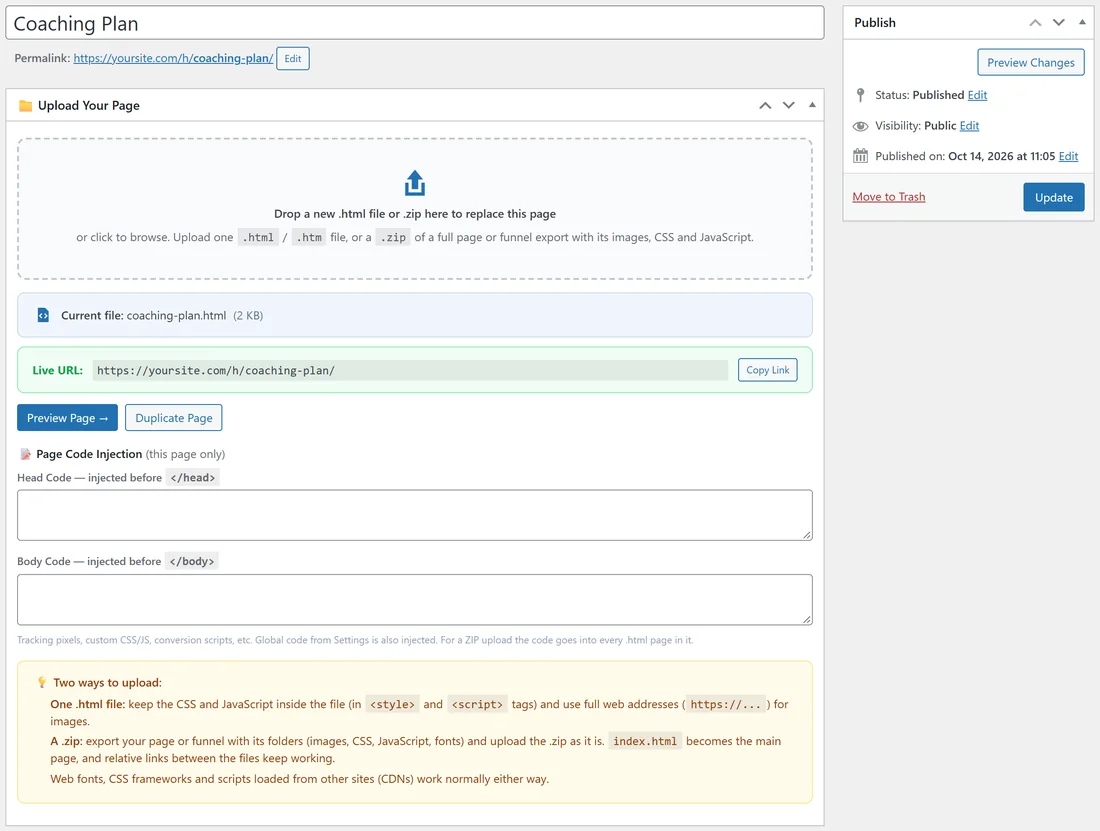
This is the screen for creating or editing a page. From top to bottom:
- The title, with the page's Permalink and an Edit button under it once WordPress has one
- The Upload Your Page box, where you drop or choose your .html or .htm file, or a .zip. On a page that already has a file it says Drop a new .html file or .zip here to replace this page.
- After a file is saved: Current file with name and size (or Current upload with the number of files and the main page for a ZIP), the green Live URL bar with Copy Link (published pages only), and the Preview Page → and Duplicate Page buttons
- Page Code Injection (this page only), with Head Code and Body Code boxes
- A Two ways to upload box, with a short reminder of how to prepare a single file or a ZIP
- The normal WordPress Publish box on the right, with Save Draft, Preview, Publish or Update, the Status, Visibility and date settings, and Move to Trash
An account without the unfiltered HTML permission sees Uploads need extra permission in place of the upload area, and no code boxes.
All HTML Pages:
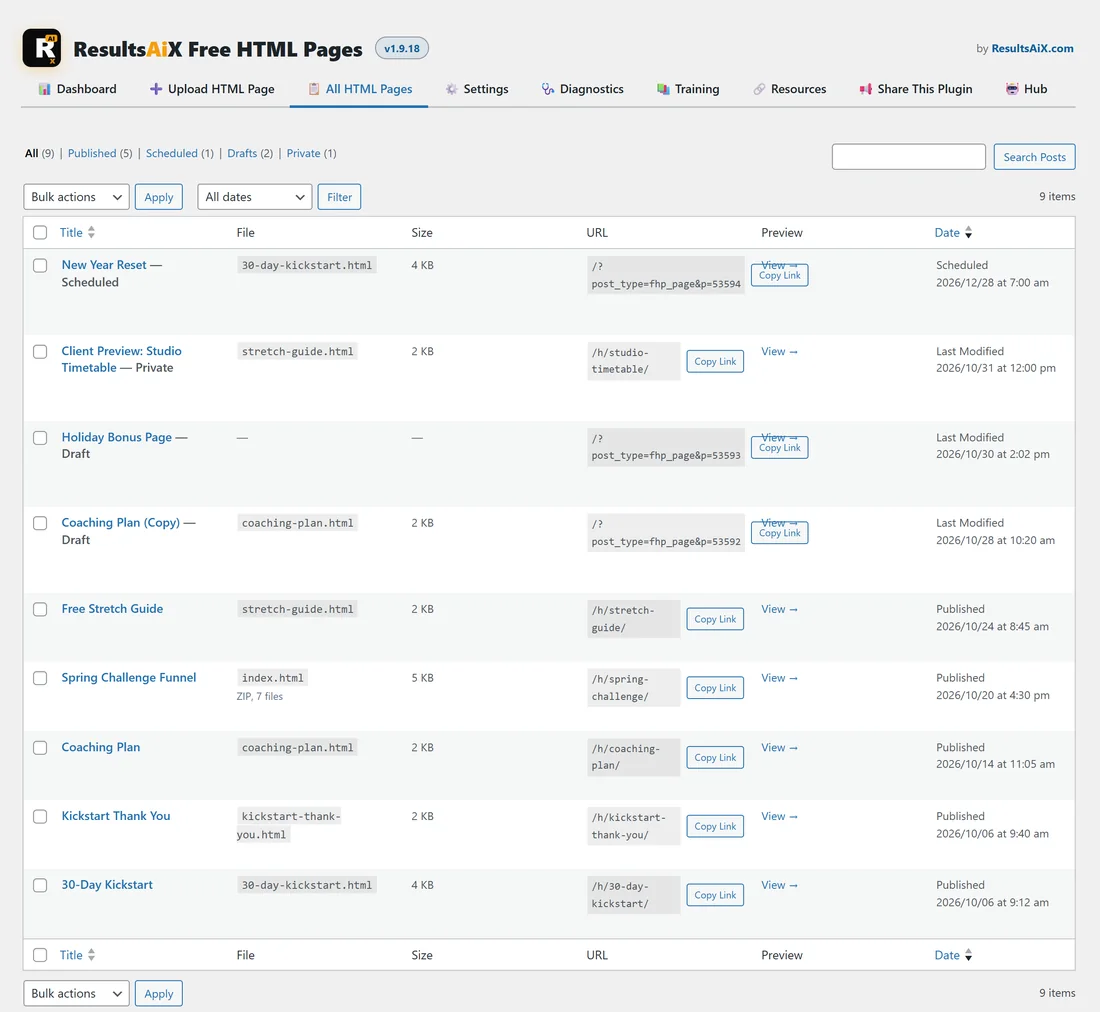
Your list of pages, with these columns:
- Title, with the status after it for anything not published, such as Draft, Scheduled or Private
- File: the name of the uploaded file. For a ZIP it shows the main page and how many files the ZIP holds, such as ZIP, 7 files. A page whose file has gone from the server shows File missing.
- Size: the file size. For a ZIP, the total size of its files.
- URL: the page address with a Copy Link button
- Preview: a View → link that opens the page in a new tab
- Date
Hover over a page's title to see the row links: Edit, Quick Edit, Trash, View and Duplicate. The usual WordPress status links, search, date filter and bulk actions work here too.
Settings:
Your licence, admin colour scheme, URL prefix, site-wide code injection, upload limits, the clean-up choice for when the plugin is deleted, and a Help & your account panel. See Settings Explained.
Diagnostics:

A one-glance health report of the plugin and your server, with a Copy Report for Support button. See Diagnostics And Getting Support.
Training:
A built-in quick guide inside WordPress: a Getting Started Guide, Two Ways to Upload, Code Injection and a short FAQ. The examples in it use your own site address and your own URL prefix.
Resources:
Cards linking to other ResultsAiX tools, grouped into sections such as Plugins & Add-ons, Platforms & Services and Free Tools. Anything already running on your site is marked Installed. Links open in a new tab.
Share This Plugin:
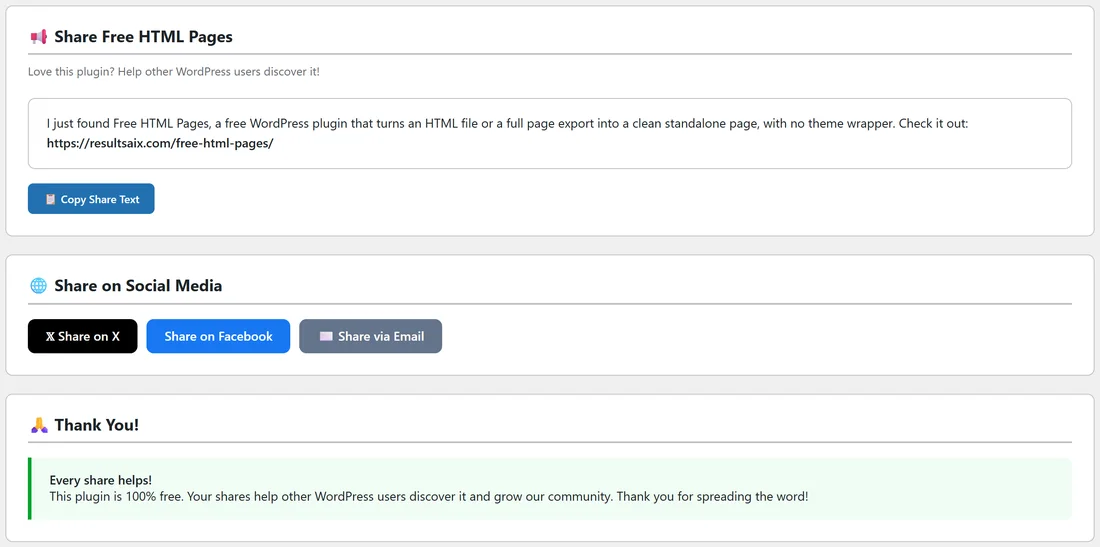
Ready-made share text with a Copy Share Text button, plus Share on X, Share on Facebook and Share via Email buttons. The email button opens your own email program with a message ready to send.
Hub:
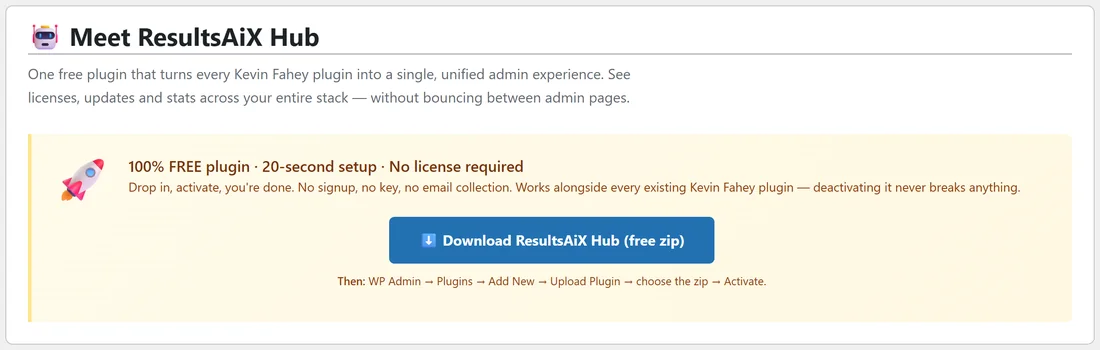
The ResultsAiX Hub is another free ResultsAiX plugin that brings your ResultsAiX plugins together in one place. If the Hub is installed and active, this tab takes you straight to it. If not, the tab explains what the Hub does and gives you a Download ResultsAiX Hub button. You install that zip the same way you installed this plugin.
Announcements:
Now and then a ResultsAiX announcement may appear at the top of admin screens for administrators. Click Hide 7 days to snooze it or Dismiss to hide it for good.
Footer:
Every plugin screen ends with two cards linking to ResultsWithKevin.com and ResultsAiX.com, and a line with the plugin version and a Support link. On the All HTML Pages list the footer sits under the table.
Where to go next:
- Getting Started Guide, to publish your first page
- Settings Explained, for every option on the Settings tab