An HTML page does not have to be public the moment you upload it. Free HTML Pages uses the normal WordPress statuses, so you can keep a page as a draft, show it only to signed-in editors, or schedule it to go live on a set date. This is how Fernwood Fitness prepares its New Year page in December without anyone seeing it early.
Where to find it:

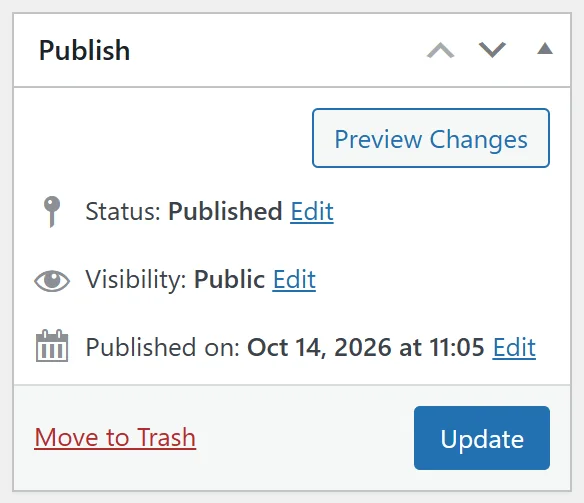
Open any page from HTML Pages, All HTML Pages. The Publish box on the right of the edit screen has the Status, Visibility and date settings. The All HTML Pages list has a status link for each kind of page, for example All (9), Published (5), Scheduled (1), Drafts (2) and Private (1).
The statuses at a glance:
- Published: live for everyone at the page address.
- Draft: hidden from visitors. You and other editors can still open it while signed in.
- Pending Review: a draft waiting for someone to check it. Hidden from visitors.
- Scheduled: goes live by itself at the date and time you set. Hidden until then.
- Private: only signed-in users who can edit the page can open it. Visitors get a "page not found".
The Dashboard counts each of these. Pending Review, Scheduled and Private cards only appear when you have at least one such page.
Save a page as a draft:
- Click Upload HTML Page, add a title and choose your file.
- Click Save Draft instead of Publish.
- The file is uploaded and saved with the page, but the page is not live.
- Click Preview Page → to see it. The preview opens because you are signed in.
When it is ready, click Publish.
Schedule a page:
- Open the page, or start a new one, and choose its file.
- In the Publish box, click Edit next to Publish immediately.
- Pick the date and time, for example 28 December at 07:00, and click OK.
- The blue button changes to Schedule. Click it.
The page shows as Scheduled in the list, with its date. WordPress publishes it at that time and the address starts working for visitors. Fernwood Fitness scheduled its New Year Reset page this way.
Make a page private:
- In the Publish box, click Edit next to Visibility.
- Choose Private and click OK.
- Click Update.
A private page is handy for a client preview: Fernwood Fitness keeps Client Preview: Studio Timetable private while the client signs off the design. The client needs a WordPress account that can edit pages to open it. For a page you want to share without accounts, publish it and share the link only with the people who need it.
Password protection:
The Visibility setting also offers Password protected. HTML pages are served as your own file, so WordPress does not add its password form to them, and a published page opens for anyone who has the link. To keep a page to a few people, use Private as above, or keep it as a draft and preview it while signed in.
How addresses work for hidden pages:
- A published page lives at its clean address, such as yoursite.com/h/coaching-plan/.
- A draft or scheduled page has no clean address yet. Its View → link and Preview Page → button use a temporary WordPress address, and only open for signed-in users who can edit it. In the URL column you see that temporary address until the page is published.
- A page uploaded as a ZIP that is not published yet loads its images, styles and extra pages from a preview address ending in fhp-draft- and the page number, so the preview looks complete. Only signed-in editors can open it, and search engines are told not to index those files.
Publish the page before you copy its link for emails or ads.
See your pages by status:
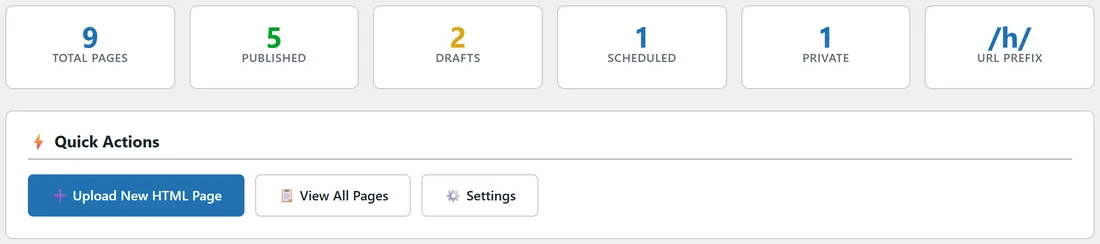
In All HTML Pages, click Drafts, Scheduled, Private or Published above the table to filter the list. On the Dashboard, the cards for each status open the same filtered lists.
A real example:
Fernwood Fitness prepares its New Year Reset page in early December:
- Jamie uploads new-year-reset.html on a new page called New Year Reset and clicks Save Draft.
- Jamie previews it while signed in, fixes a typo, and uploads the file again with Save Draft.
- In the Publish box, Jamie sets Publish immediately to 28 December at 07:00 and clicks Schedule.
- The Dashboard shows 1 Scheduled, and the list shows New Year Reset, Scheduled, with its date.
- On the morning of 28 December the page goes live at yoursite.com/h/new-year-reset/, ready for the New Year email.
Tips:
- Upload and check a page as a draft first, then publish it when the link is going out.
- Use Duplicate to make a draft copy of a live page, edit it in peace, then swap the files over.
- Schedule seasonal pages such as a holiday bonus or a launch page ahead of time, and check the list the day before.
Related: Editing, Replacing And Duplicating Pages, and URLs, Permalinks And SEO.