Once a page is live you will want to update it: a new headline, a fixed link, a second version to test. This article covers each of those jobs, using the Fernwood Fitness Coaching Plan sales page as the example.
Open a page:
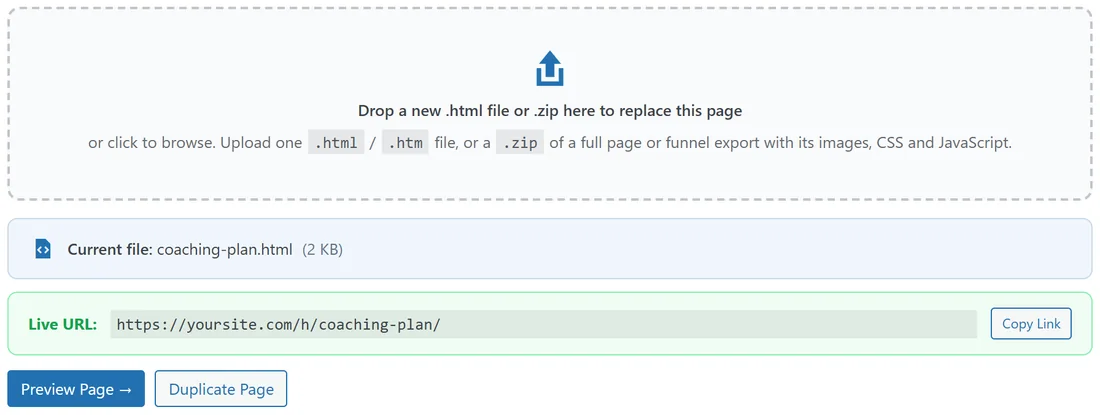
Go to HTML Pages, All HTML Pages and click the page title, or hover over it and click Edit. The edit screen shows the Upload Your Page box with the page's Current file, the Live URL bar, and the Preview Page → and Duplicate Page buttons.
Replace the HTML with a new version:

- Edit your HTML file on your computer and save it.
- Open the page in WordPress.
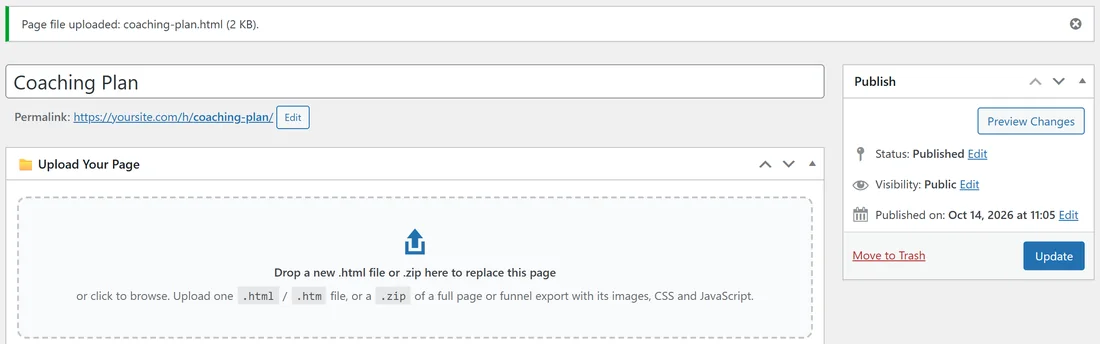
- The upload box now says Drop a new .html file or .zip here to replace this page. Drag your new file onto it, or click it to browse.
- A green tick shows the file you chose.
- Click Update.
- A message at the top confirms it, for example Page file uploaded: coaching-plan.html (2 KB).
What happens during a replace:
Your live page stays online while the new upload is checked. The new file goes into a separate holding folder first, and only once it has passed every check does it take the place of the old one at the same address. If the upload cannot be used, for example a damaged ZIP, you see a message that ends with Your current page was kept, and the page stays exactly as it was.
- You can replace a single file with a ZIP, or a ZIP with a single file.
- The new file can have a different file name. The address comes from the page, not the file.
- The page's own code boxes, title and address stay as they are.
The plugin tells browsers not to keep an old copy, so a normal refresh shows the new version. If you use an outside caching or speed service and still see the old page, clear that service's cache.
Edit the HTML itself:
There is no HTML editor inside the plugin, by design: your file is served exactly as you made it. Keep a master copy of every page on your computer, make your changes in a plain text editor or the tool you built the page with, then replace the file as above.
Change the title:
Change the title and click Update. The title shows in your page list. Once a page is published, changing the title does not change its address.
Change the address:

Under the title, WordPress shows the page's Permalink with an Edit button.
- Click Edit.
- Type the new last part of the address, for example coaching instead of coaching-plan.
- Click OK, then Update.
You can also use Quick Edit in the All HTML Pages list and change the Slug. Update any links that point to the old address.
Duplicate a page:

Duplicating is the quick way to make a variation, for example a second version of a sales page with a different headline.
- Hover over the page in All HTML Pages and click Duplicate, or open the page and click Duplicate Page under the upload box.
- The link changes to Duplicating... for a moment.
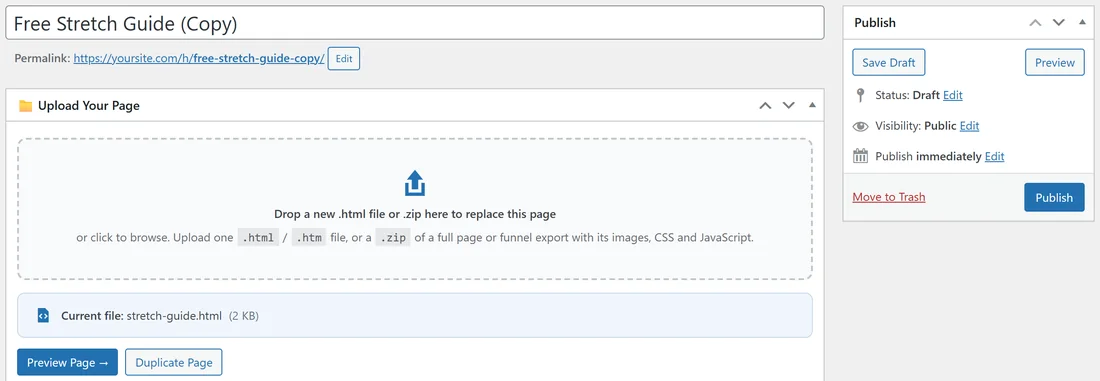
- The plugin makes a new draft with the same title and (Copy) on the end, copies every file of the page into it (all the files of a ZIP page too), copies the page's own head and body code, and opens the copy for you.
- Rename it, drop in a changed file if you want one, and click Publish.
Fernwood Fitness duplicated the Free Stretch Guide this way and got Free Stretch Guide (Copy) as a draft, with stretch-guide.html already in place.
Good to know about duplicates:
- The Duplicate Page button appears once the page has a file and has been saved. The Duplicate link in the list is there for every page.
- The copy starts as a draft, so visitors cannot see it until you publish it.
- The copy has its own files. Replacing the file in the copy never changes the original.
- Duplicating needs an account allowed to upload HTML, which means Administrators and Editors.
Take a page offline without deleting it:
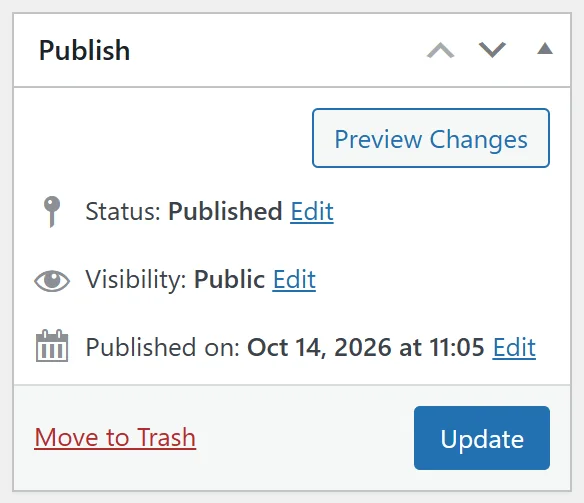
In the Publish box, click Edit next to Status, choose Draft, click OK, then Update. Visitors can no longer see the page, and its address stops answering for them. Publish it again whenever you like. Drafts, Private And Scheduled Pages has more on each status.
A real example:
Fernwood Fitness wants to test a new headline on the Coaching Plan page.
- Duplicate Coaching Plan. The draft Coaching Plan (Copy) opens.
- Rename it Coaching Plan B and change its address to coaching-b.
- Upload the file with the new headline and click Publish.
- Send half the emails to /h/coaching-plan/ and half to /h/coaching-b/, and compare sign-ups.
Change one file inside a ZIP page:
A ZIP page is replaced as a whole. To change one image or one page inside it:
- Make the change in the export folder on your computer.
- Zip the whole folder again.
- Drop the new .zip onto the page's upload box and click Update.
The new set of files replaces the old set in one go, and the address stays the same. Files you removed from the folder are gone from the page too.
Use Quick Edit for small changes:
In All HTML Pages, hover over a page and click Quick Edit. You can change the Title, Slug, date and Status there without opening the page, then click Update. Uploading a new file still happens on the full edit screen.
Delete a page:
See Deleting Pages, Deactivating And Uninstalling.