A ZIP upload is the easy way to publish a page or funnel that comes with its own folders of images, CSS, JavaScript and fonts. You upload the .zip as it is, and the plugin serves every file from your page's own address. Relative links such as images/photo.jpg keep working, with no changes to your HTML.
When to use a ZIP:
- You exported a page or funnel from a page builder or funnel builder.
- You have a PLR page or site folder with css, js and images folders.
- Your page links to its own files with relative paths such as images/photo.jpg and you do not want to change them.
- Your funnel has several pages that link to each other, such as index.html, thank-you.html and offer.html.
For a single self-contained file, upload the .html file as usual.
A real example:
Fernwood Fitness exported its Spring Into Shape challenge from a page builder. The export is a folder called spring-challenge with:
- index.html, the opt-in page
- thank-you.html and offer.html, the next two steps
- css/style.css, js/countdown.js, and images/logo.svg and images/hero.svg
- send.php, a form script from the builder
Jamie zipped the folder as spring-challenge.zip and uploaded it to one HTML Page called Spring Challenge Funnel.
Upload a ZIP:

- Zip the whole export on your computer, keeping its folders. On Windows, right-click the folder and choose Send to, Compressed (zipped) folder. On a Mac, right-click it and choose Compress.
- In WordPress, go to HTML Pages, Upload HTML Page and add a title.
- Drop the .zip onto the Upload Your Page box, or click the box to browse for it. A green tick shows the ZIP's name and size.
- Click Publish, or Update on a page that already exists.
- A message at the top tells you how many files were unpacked and which is the main page.
- Click Preview Page → to check it.
Reading the message after the upload:
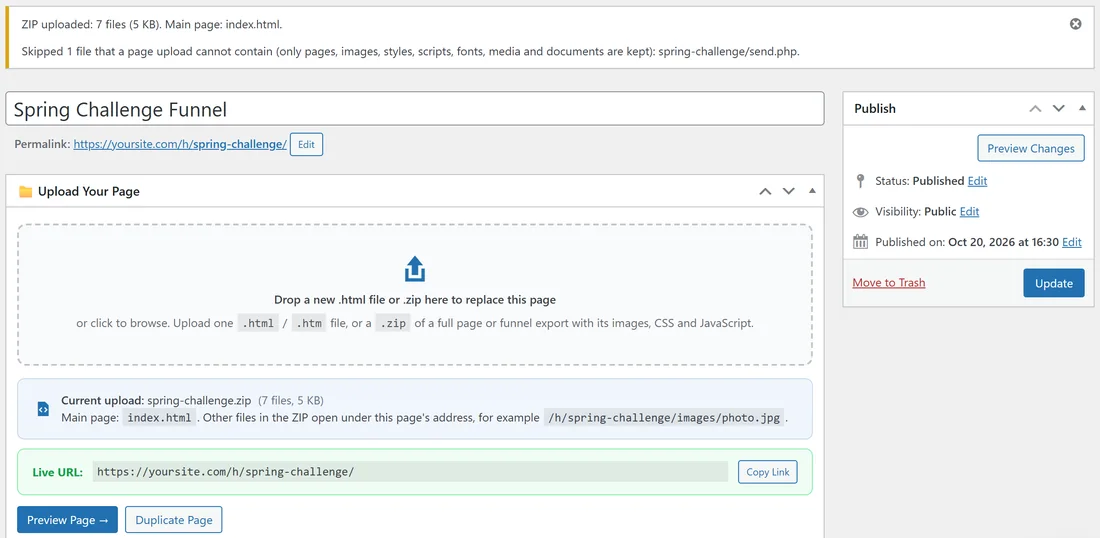
For the Fernwood Fitness funnel the message said ZIP uploaded: 7 files (5 KB). Main page: index.html. A second line listed the file that was left out: Skipped 1 file that a page upload cannot contain (only pages, images, styles, scripts, fonts, media and documents are kept): spring-challenge/send.php. A message with only kept files shows in green. A message that lists skipped files shows in yellow, and the page is still published with everything that was kept. The Upload Your Page box then shows Current upload: spring-challenge.zip (7 files, 5 KB) and the line Main page: index.html.
Which page opens:
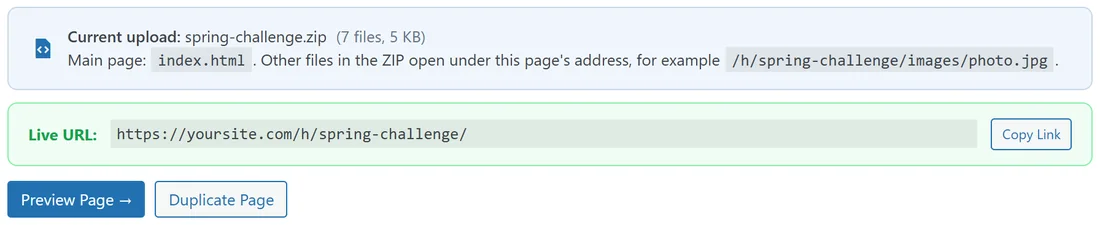
- index.html (or index.htm) at the top of the ZIP is the main page. It opens at your page address, for example yoursite.com/h/spring-challenge/
- If every file sits inside one folder, like spring-challenge/ in the example, that folder is set aside and its contents become the top. So index.html inside a single folder works too.
- No index.html? The only .html file is used. With several, the first one alphabetically is used, and the message after the upload says No index.html was found at the top of the ZIP, so it names the file it used.
Every other file opens under the page address:

- yoursite.com/h/spring-challenge/css/style.css
- yoursite.com/h/spring-challenge/thank-you.html
- yoursite.com/h/spring-challenge/offer.html
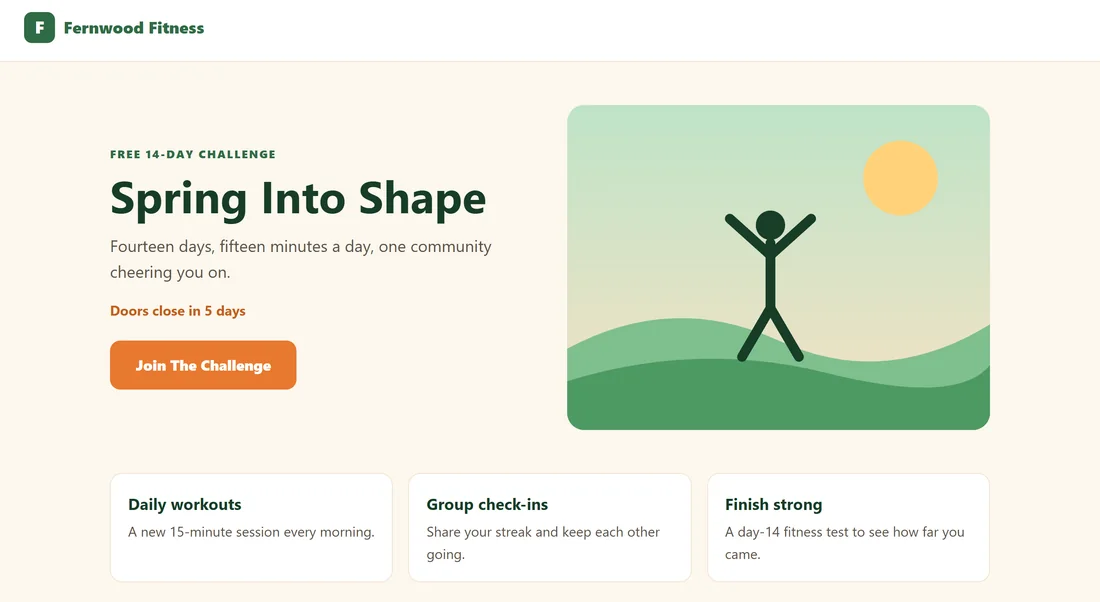
So the Join The Challenge button, which links to thank-you.html, takes visitors to the second step, and that page loads the same stylesheet and logo. A sub-folder with its own index.html opens at its folder address too, for example /h/spring-challenge/bonus/.
What is kept and what is skipped:
Kept: web pages (html, htm), styles and scripts (css, js, mjs, json, map), images (png, jpg, jpeg, gif, webp, avif, svg, ico, bmp), fonts (woff, woff2, ttf, otf, eot), audio and video (mp4, webm, ogg, mp3, wav, m4a), and documents (pdf, txt, xml, csv). Skipped and listed after the upload: anything else, such as PHP files, server settings files and programs, plus hidden files whose names start with a dot. Quietly ignored, never listed: computer clutter such as .DS_Store, Thumbs.db, desktop.ini and the __MACOSX folder a Mac adds to ZIPs. A ZIP that contains a link to another location, or a file path that points outside its own folder, is not used at all. A normal export never has these. Export the page again as normal files and upload the new ZIP.
Limits:
By default a ZIP can hold up to 2,000 files and 100 MB once unpacked, as long as your server accepts an upload that size. Settings, Uploads and the Diagnostics tab show your server's Max upload size, and Diagnostics shows whether ZIP uploads are Ready.
The page in your list:

In All HTML Pages, a ZIP page shows its main page in the File column with ZIP and the number of files under it, and the total size of its files in the Size column.
Code injection, updating and duplicating:
- Site-wide code from Settings and the page's own code go into every .html page in the ZIP.
- To update, open the page and drop a new .zip or .html file onto the upload box. Your live page stays online until the new upload has been checked, then the whole folder is swapped in one go.
- Duplicate copies every file of the page, and its code, into a new draft.
- Trash keeps the files. Delete Permanently removes the page's whole folder.
If the message says the upload failed:
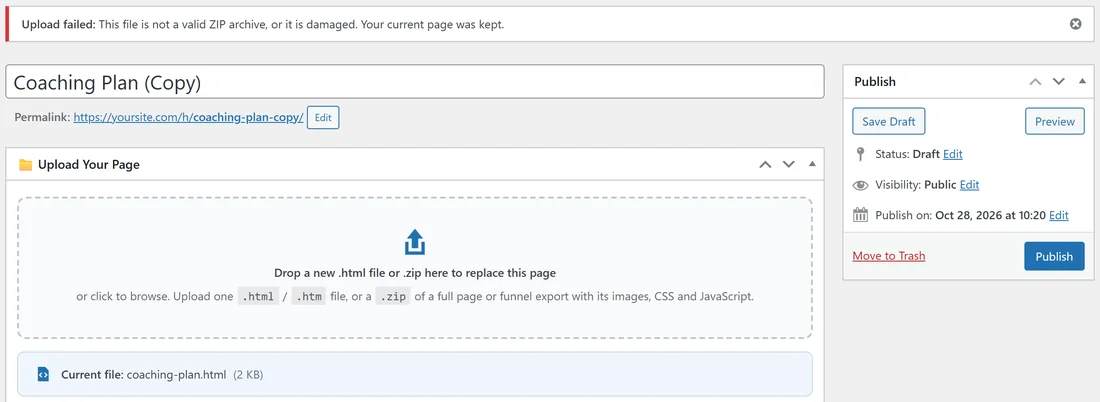
The red message starts with Upload failed and ends with Your current page was kept, so nothing on your site has changed. Fix what it says and upload again. For example This file is not a valid ZIP archive, or it is damaged means the file did not finish downloading or zipping: make the ZIP again from the folder. Troubleshooting lists every message.
Updating a ZIP page:
Fernwood Fitness changed the challenge dates on its funnel:
- Jamie edited index.html in the spring-challenge folder on the computer.
- Zipped the folder again as spring-challenge.zip.
- Opened Spring Challenge Funnel and dropped the new ZIP onto Drop a new .html file or .zip here to replace this page.
- Clicked Update.
The message confirmed the upload, the live funnel kept running while the new ZIP was checked, and the same three addresses served the new files straight after.
Tips:
- Click through every page and button of a funnel after the upload, from the main page to the last step.
- Links that start with a slash, such as /css/style.css, point at the top of your site rather than the page folder. Change them to css/style.css so they stay inside the ZIP page.
- Keep the original export folder on your computer so you can edit and zip it again later.