The Diagnostics tab is a one-glance health check of the plugin and your server. Green badges mean all is well. Open HTML Pages, then Diagnostics.
The two buttons:

- Copy Report for Support copies a plain text report to your clipboard. The button changes to Copied! Paste into your support ticket for a few seconds.
- Open Support opens the support desk at https://kevinfahey.org/contact-support/
No passwords or API keys are ever included in the report.
The Plugin table:
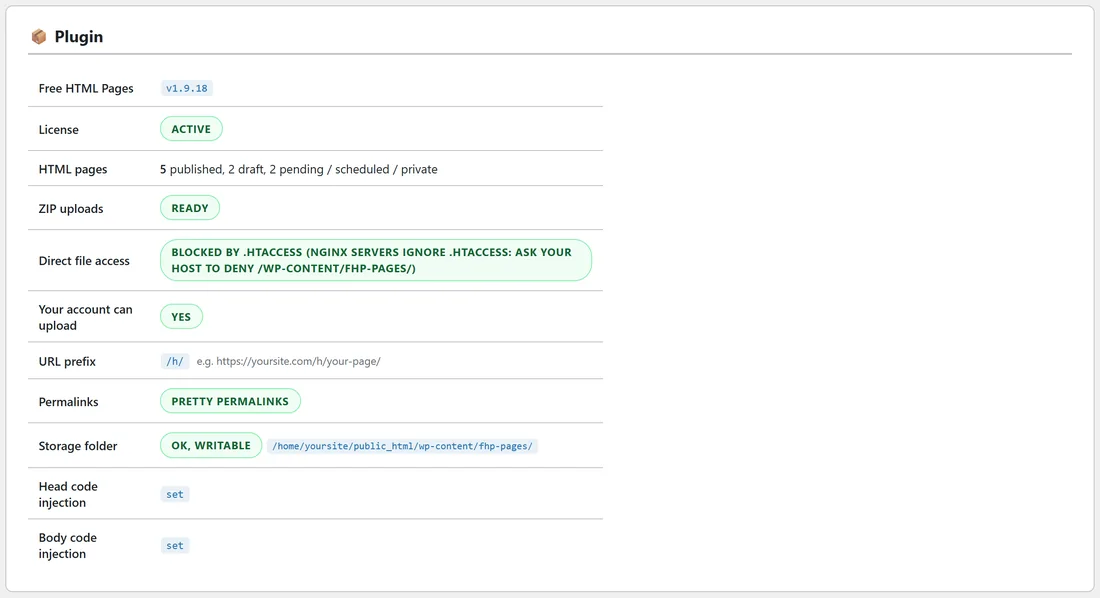
- Free HTML Pages: your plugin version.
- License: Active, or the current status.
- HTML pages: how many are published and how many are drafts, plus any that are pending, scheduled or private. Fernwood Fitness shows 5 published, 2 draft, 2 pending / scheduled / private.
- ZIP uploads: Ready means your server can open ZIP files. If it says the WordPress fallback is in use, ZIPs still work through WordPress's own unpacking, and your host can enable the PHP zip extension for the fastest uploads.
- Direct file access: shows that the storage folder is blocked from direct web access by a .htaccess file, so pages are only served through their own addresses. Servers that run nginx do not read .htaccess files; on those, ask your host to deny access to /wp-content/fhp-pages/. If it says the folder is not writable, see Storage folder below.
- Your account can upload: Yes when your account has the unfiltered HTML permission that uploads need. Administrators and Editors have it.
- URL prefix: your prefix with an example page address.
- Permalinks: Pretty permalinks is what you want. If it shows Plain, page URLs will not resolve: choose any other option under Settings, Permalinks in WordPress.
- Storage folder: where your HTML files live, wp-content/fhp-pages/, with its full path on your server. OK, writable is what you want. Missing means the folder is not there: deactivate and reactivate the plugin to create it. Not writable means your server will not let WordPress save files there: ask your host to make that folder writable by the web server.
- Head code injection and Body code injection: set or empty, for your site-wide code.
The Environment table:
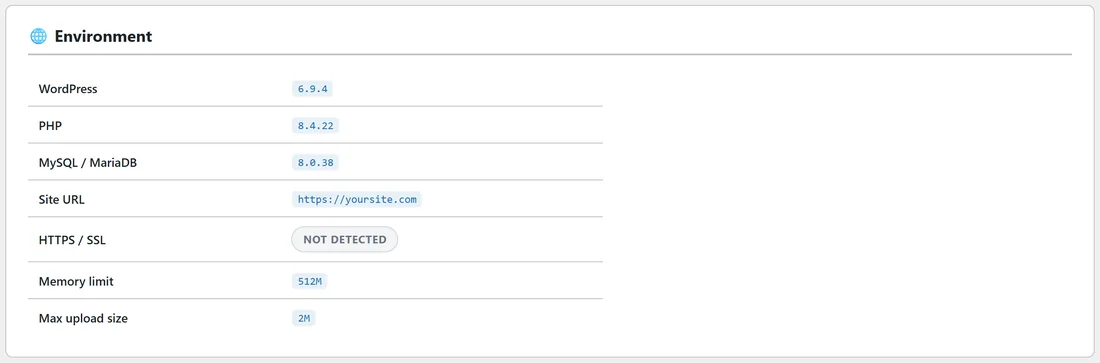
- WordPress version.
- PHP version. The plugin needs PHP 7.4 or later and shows Needs 7.4+ next to an older version.
- MySQL / MariaDB: your database version.
- Site URL.
- HTTPS / SSL: Active or Not detected.
- Memory limit.
- Max upload size: the biggest file your server accepts. It also caps the size of a ZIP you upload. By default a ZIP can hold up to 2,000 files and 100 MB once unpacked.
What the copied report contains:
Plugin version, licence status, WordPress, PHP and database versions, site address, whether HTTPS is on, permalink type, URL prefix, page counts, how ZIPs are opened, whether the folder guard is present, whether your account can upload, storage folder status, and whether site-wide head and body code are set, with their length only. Your actual code is not included.
Reading the report: a worked example:
This is what the copied report says for Fernwood Fitness, line by line:
- Plugin version: 1.9.18
- License status: active
- Permalinks: pretty
- URL prefix: /h/
- HTML pages: 5 published, 2 draft, 2 pending / scheduled / private
- ZIP uploads: ZipArchive, which means the PHP zip extension is in place
- Folder guard: .htaccess present
- Can upload HTML: yes
- Storage dir: ok, writable
- Head injection: set, with the number of characters
- Body injection: set, with the number of characters
The report starts with FREE HTML PAGES - DIAGNOSTIC REPORT and the date and time it was made, so support can see how fresh it is.
When to run it:
- Before you open a support ticket
- After moving the site to a new host or domain
- After changing permalink settings or the URL prefix
- When an upload message mentions the server or a folder
Getting help:
- Click Copy Report for Support.
- Click Open Support, or go to https://kevinfahey.org/contact-support/
- Paste the report into your ticket.
- Add the address of the page in question, what you expected to see, and a screenshot if you can.
Including the report up front saves a round of back and forth, so you get an answer faster.
Other places to look first:
- The Training tab inside the plugin has a quick guide and FAQ.
- Troubleshooting in these docs covers every upload message.
- Settings, Help & your account has shortcuts to the portal, support, Diagnostics and Training.