Find what you see below and follow the steps. Upload messages appear at the top of the edit screen and start with Upload failed. Most of them end with Your current page was kept, so you can fix things at your own pace. If none of these sort it out, send your Diagnostics report to https://kevinfahey.org/contact-support/
Please choose an .html or .htm file, or a .zip:
Your browser shows this message before uploading when the file has a different ending. Check the name really ends in .html, .htm or .zip. Some computers hide file endings, so a file that looks like page.html may really be page.html.txt. Save it again from your text editor as .html.
This file is not a valid ZIP archive, or it is damaged:
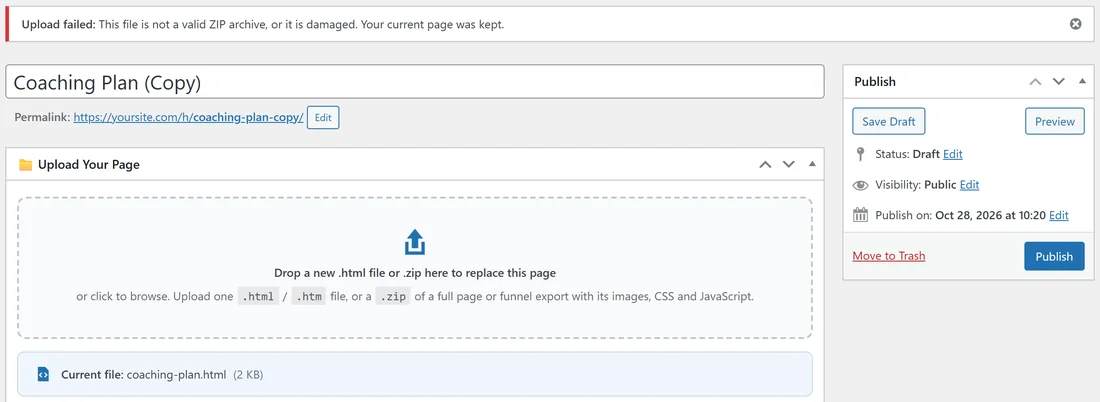
The ZIP did not finish downloading or zipping. Make the ZIP again from the folder on your computer and upload the new one. Your current page was kept.
The ZIP is over the 2,000 file or 100 MB limit:
The message says The ZIP contains more than 2,000 files, or The ZIP unpacks to more than 100 MB, which is over the limit. Remove files the page does not use, such as source files, spare image sizes or videos you host elsewhere, then zip and upload again. Big videos are best hosted on a video service and embedded.
The ZIP has no .html or .htm page in it:
Add your page, for example index.html, to the folder and zip it again.
The ZIP contains a link or an unsafe file path:
Export the page again from your page tool as normal files, or copy the folder to a new place on your computer and zip that copy.
Some files from my ZIP were skipped:
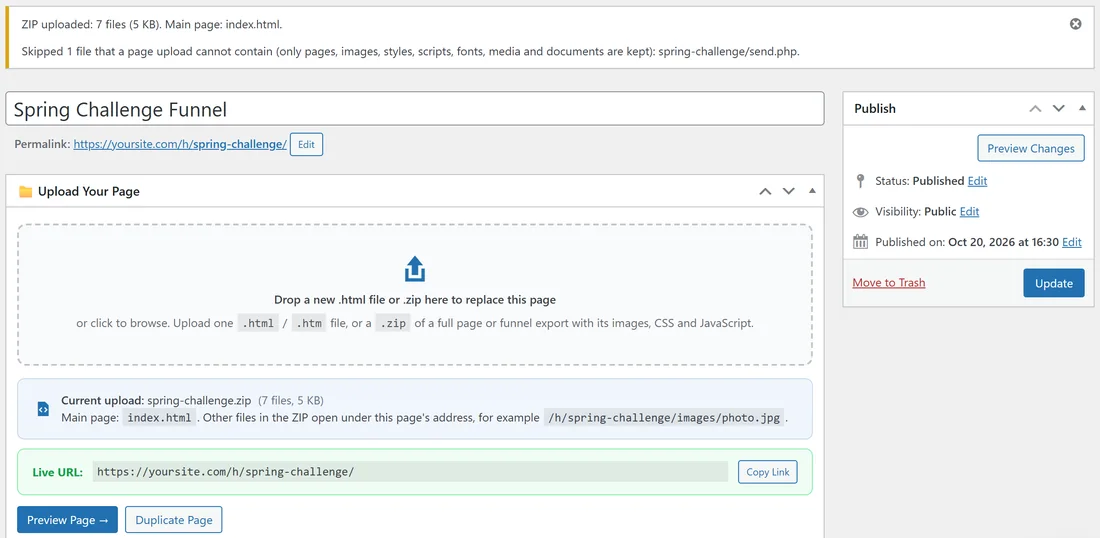
Only pages, images, styles, scripts, fonts, audio, video, PDF and text files are kept. Anything else, such as PHP files, is skipped and listed in the message after the upload. Your page works with the files that were kept. If a skipped file was a form script, use your email service's form code in the page instead.
The file is larger than this server allows:
The message shows your server's limit, which you can also see as Max upload size in Diagnostics. Files are often large because images are embedded inside the HTML. Host the images in your Media Library and link to them, or ask your host to raise upload_max_filesize.
The file was only partly uploaded:
The connection dropped during the upload. Try again, ideally on a steadier connection.
The file is empty:
The file has nothing in it. Open it on your computer, save it again from your editor and upload it.
Your account is not allowed to upload HTML pages:
Uploading needs the WordPress unfiltered HTML permission, which Administrators and Editors have. Ask an administrator to upload the page, or to change your role. On the upload screen such an account sees Uploads need extra permission.
The upload folder or file could not be saved:
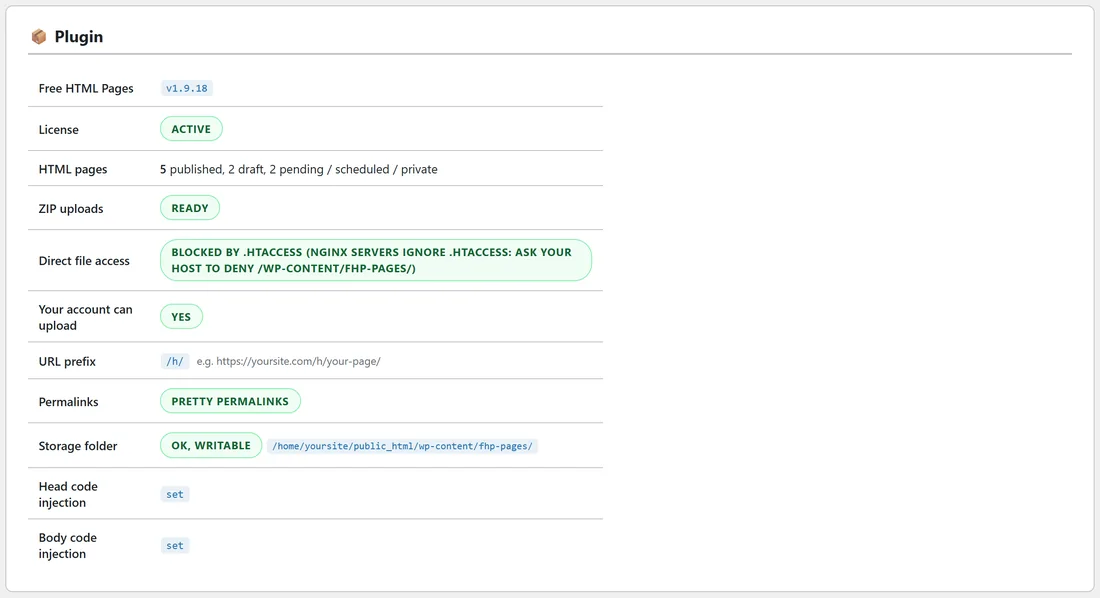
Open Diagnostics and check the Storage folder row. If it says Missing, deactivate and reactivate the plugin. If it says Not writable, ask your host to make wp-content/fhp-pages/ writable by the web server. Then upload the file again.
This page has no file yet:
This note appears on a published page that was saved without a file. Visitors get a "page not found" until you upload one. Drop your .html or .zip into the upload box and click Update.
This page's file is missing from the server:
The page had a file, but it is no longer in wp-content/fhp-pages/, for example after a site move that left that folder behind. The list shows File missing for that page. Upload the .html file or .zip again on the same page, or copy the fhp-pages folder across from the old server.
The page says Page not found:
Work through these in order:
- Is the page published? Drafts, pending, scheduled and private pages are hidden from visitors.
- Is the address right? Use Copy Link in All HTML Pages rather than typing it.
- Are permalinks set to Plain? Diagnostics will tell you. Choose any other option under Settings, Permalinks.
- Did you just change the URL prefix? Old addresses move to the new prefix. Go to Settings, Permalinks and click Save Changes to refresh WordPress's address rules.
- Is the plugin active and activated? When it is switched off, its pages are offline.
Images or styling are missing:
On a single-file page, the HTML still points at files by relative paths such as images/photo.jpg. A single-file page only serves the HTML file itself. Change them to full https:// addresses, put the CSS inside the file, or upload the whole page as a ZIP. See Preparing Your HTML: Images, CSS And Assets.
Images from my ZIP do not show:
Check the image path in your HTML matches the folder and file name inside the ZIP, including capital letters. Files open under the page address, for example /h/spring-challenge/images/hero.svg. Paths that start with a slash point at the top of your site, so change /images/hero.svg to images/hero.svg.
Images are blocked on my secure site:
Your images or scripts use http:// on an https site. Change them to https:// addresses.
The page looks different from my computer:
- Fonts: a font installed on your computer is not on your visitors' computers. Load the font from a font service, or include the font files in a ZIP page.
- Images and styles: files on your computer are not uploaded with a single file. Use full https:// addresses or upload a ZIP.
- Screen size: check the page has the viewport meta tag, so phones lay it out properly.
Accents or symbols look garbled:
Save the file as UTF-8 and add meta charset="utf-8" to its head.
My tracking code is not on the page:
- Did you click Save Settings, or Update on the page?
- Check with View Page Source on the live page, and search for a word from your snippet.
- On a ZIP page, theme tracking codes go into the main page. Code Injection code goes into every .html page in the ZIP.
My code appears twice:
The same snippet is probably in two places: Settings and the page's own boxes, or one of those and the HTML file itself. Keep it in one place. On the ResultsAiX Theme, your theme tracking codes are already added, so remove the same tag from Code Injection.
Popups or banners from my other plugins do not show:
HTML pages are served without your theme, so other plugins do not add anything to them. Add what you need with Code Injection. On the ResultsAiX Theme, its cookie notice is added for you when it is switched on.
I still see the old version after replacing the file:
Make sure you clicked Update after choosing the new file and saw the upload message. Refresh the page. If you use an outside caching or speed service, clear its cache.
The Duplicate Page button is missing:
It appears once the page has a file and has been saved. You can also use the Duplicate link under the page title in All HTML Pages. Duplicating needs an account allowed to upload HTML, which means Administrators and Editors.
Connection error. Please try again. on the activation screen:
Reload the page and try again. If it keeps happening, ask your host whether a security plugin or firewall is blocking WordPress admin requests.
The plugin asks me to activate again:
This happens after someone clicked Deactivate License on the Settings tab: enter your name and email again. It can also happen when the plugin's own files were changed, because the plugin checks its core files. Delete the plugin and install a fresh copy from your members area. Your pages are kept, as long as When the Plugin Is Deleted is left unticked in Settings.
A trashed page's file is still on the server:
Moving a page to Trash keeps its file so you can restore it. The file is removed when you delete the page permanently.