Here is exactly what each action does, so you can tidy up with confidence. In short: Trash and deactivating are always undoable, and your pages are kept when you delete the plugin unless you choose otherwise.
Move a page to Trash:

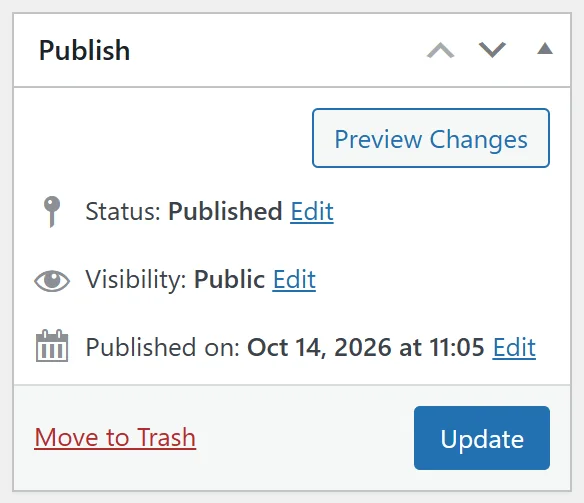
Hover over the page in All HTML Pages and click Trash, or click Move to Trash on the edit screen. The plugin asks Move this HTML page to the Trash? The page goes offline, but its uploaded files are kept so you can restore it from the Trash. Files are only deleted when you delete the page permanently. Click OK. The page goes offline straight away. Its files stay on your server while the page is in Trash, so you can open the Trash view and click Restore to bring it back. A restored page comes back as a draft, so publish it again when it is ready.
Delete a page permanently:
In All HTML Pages, open the Trash view and click Delete Permanently, or click Empty Trash. The plugin asks Delete this HTML page permanently? Its uploaded files will be deleted too. This cannot be undone. Click OK. The page is removed, along with its whole folder at wp-content/fhp-pages/ followed by the page number. For a ZIP page that includes every file from the ZIP. Keep a copy of the HTML on your computer.
Take a page offline without deleting it:
Set it back to Draft in the Publish box. See Drafts, Private And Scheduled Pages.
Deactivate the plugin:
On the Plugins screen, click Deactivate next to Free HTML Pages.
- All your HTML pages go offline until you activate the plugin again.
- Your pages, files, settings and your licence are kept.
- Click Activate again and everything is back at the same addresses, with no need to enter your name and email.
Deactivate the licence:
The Deactivate License button on the Settings tab is different from deactivating the plugin. It removes the licence from this site and your pages go offline until you activate again with your name and email. Your pages and their files are kept.
Delete the plugin:

When you delete the plugin on the Plugins screen (deactivate it first, then click Delete), WordPress removes the plugin's own files and the plugin tidies up after itself. What happens next depends on one setting: Settings, When the Plugin Is Deleted. With Delete all pages and files when the plugin is deleted unticked (the default):
- Your HTML pages stay in the WordPress database.
- Their files stay in wp-content/fhp-pages/.
- The plugin's settings are removed: URL prefix, colour scheme, code injection, licence details and its daily licence check.
- If you install the plugin again later, your pages come back at the same addresses. Set your prefix and code again if you had changed them.
With the box ticked:
- Every HTML page is deleted.
- The whole wp-content/fhp-pages/ folder is deleted.
- The plugin's settings are removed.
Remove everything completely:
- Save a copy of any HTML page you want to keep.
- Go to HTML Pages, Settings, tick Delete all pages and files when the plugin is deleted, and click Save Settings.
- On the Plugins screen, deactivate and then delete Free HTML Pages.
That is all. The pages, their files and the plugin's settings are gone.
Before you delete anything:
- Keep a copy of every HTML file and ZIP on your computer.
- Search your emails, ads and other pages for links to the page you are removing.
- Use Trash first and wait a few days. Restoring is one click; a permanent delete is final.
- For a page you might bring back next season, set it to Draft instead of deleting it.
A real example:
Fernwood Fitness retires the Spring Challenge Funnel after the challenge ends. Jamie moves it to Trash, checks for a week that nothing links to it, then empties the Trash. The page and its seven files are gone, and the other pages carry on as before.