Code injection lets you add snippets of code to your HTML pages without editing the files. There are two levels, site-wide and per page, and you can use both together.
Why you need it:
Your HTML pages are served on their own, without your theme. That keeps your design clean, but it also means things your theme or other plugins normally add to your site, such as analytics tags, pixels or chat widgets, are not added to these pages. Code injection is how you add the ones you want, in one place, without opening every file.
Site-wide code for every page:
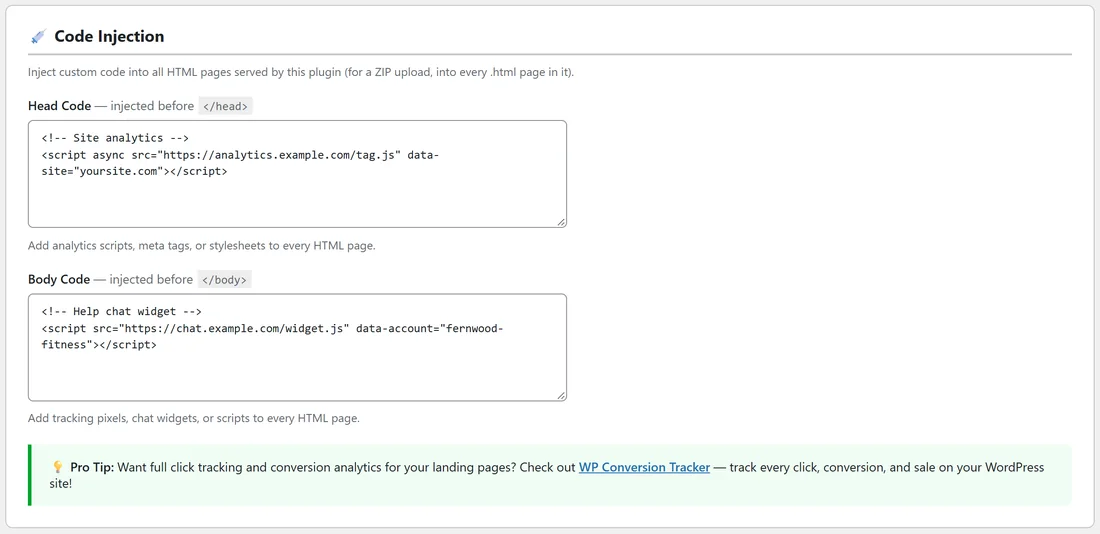
- Go to HTML Pages, Settings and scroll to Code Injection.
- Paste your snippet into Head Code, which is injected before </head>, or Body Code, which is injected before </body>. Most analytics and pixel instructions tell you which one to use. If they say paste it in the head, use Head Code.
- Click Save Settings.
Fernwood Fitness puts its analytics tag in Head Code and its help chat widget in Body Code. Every HTML page, including every page inside the Spring Challenge ZIP, now carries both.
Per-page code for one page only:
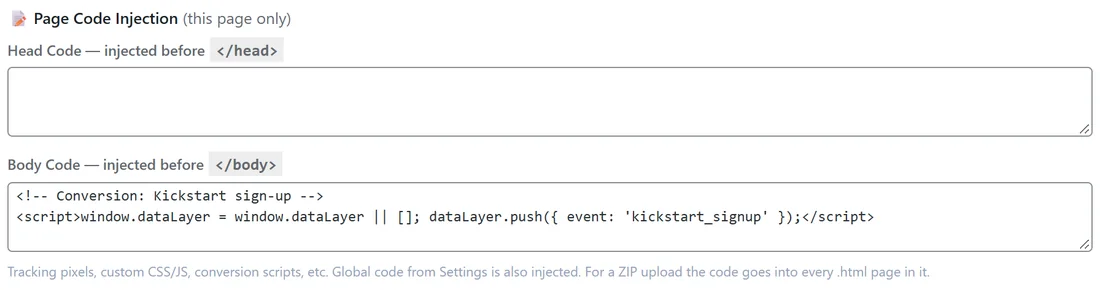
- Open the page from All HTML Pages.
- Under the upload box, find Page Code Injection (this page only).
- Paste your code into Head Code or Body Code.
- Click Update. The code is saved even when you do not upload a new file.
Fernwood Fitness puts its sign-up conversion snippet in the Body Code of the Kickstart Thank You page only, so a conversion is counted on that page and nowhere else.
What order the code goes in:
On each page, the site-wide code goes in first and the page's own code follows it.
Where exactly the code goes:
- Head code goes just before the last </head> in the file. Body code goes just before the last </body>.
- Upper or lower case tags both work.
- If a file has no </head>, the head code goes at the top of the page instead, right after the opening head or html tag. If it has no </body>, the body code goes at the very end.
- On a ZIP page, the code goes into every .html page in the ZIP.
Your ResultsAiX Theme tracking codes:
If your site uses the ResultsAiX Theme, the tracking codes you set in the theme's tracking settings (Google tag, Google Tag Manager, Meta pixel and the theme's own head, body and footer code boxes) are added to the main page of every HTML page automatically, together with the theme's cookie notice when it is switched on. Tags then wait for the visitor's consent exactly as they do on the rest of your site. So you do not need to paste the same tags into Code Injection again.
- The theme's codes go in first, then your Code Injection code.
- They are left out when the file already contains them, for example a page you saved from your own live site.
- On a ZIP page they go into the main page. The other .html pages in the ZIP get your Code Injection code only, so a tag you need on a later step, such as a conversion pixel on a funnel's thank-you.html, belongs in that file or in Code Injection.
- With other themes nothing is added this way, and Code Injection is the place for your tags.
Leaving one page out:
Site-wide code goes on every HTML page. If a tag should run on most pages but not one, move it out of Settings and into the Page Code Injection boxes of the pages that need it. Page code only ever adds to a page.
Good uses:
- Analytics tags on every page (site-wide)
- Advertising or retargeting pixels (site-wide)
- A conversion pixel on one thank-you page (per page)
- A chat widget (site-wide or per page)
- Extra CSS inside style tags to tweak one page
- Meta tags, such as a site verification tag, a social sharing image or a noindex tag
- A social sharing image for one page, such as og:image in that page's Head Code, as Fernwood Fitness does on the Kickstart page
Paste it right:
- Paste the complete snippet, including its script or style tags.
- Your code is saved exactly as you type it, so copy it straight from the service that gave it to you. Only paste code from sources you trust.
- Changing code needs the WordPress unfiltered HTML permission, the same permission as uploading. Administrators and Editors have it.
- Duplicate copies a page's own code along with the page. Change the code in the copy if it should differ.
- To remove code, empty the box and save.
A worked example: one analytics tag on every page:
- In your analytics service, copy the tracking snippet it gives you for a website.
- In WordPress, go to HTML Pages, Settings, Code Injection.
- Paste the snippet into Head Code.
- Click Save Settings and look for Settings saved. at the top.
- Open any HTML page, choose View Page Source, and search for the snippet's ID. It sits just above </head>.
Every page, old and new, now reports to your analytics, and new pages pick it up the moment they are published.
Which box for which snippet:
- Analytics and tag manager snippets: Head Code
- Ad and retargeting pixels: Head Code, unless the instructions say body
- Chat widgets: Body Code
- Conversion events on one page: that page's Body Code
- Site verification and noindex meta tags: Head Code
- Extra CSS for one page: that page's Head Code, inside style tags
Check it worked:
- Open your live page.
- Right-click and choose View Page Source.
- Search for a word from your snippet. It should be just above </head> or </body>.
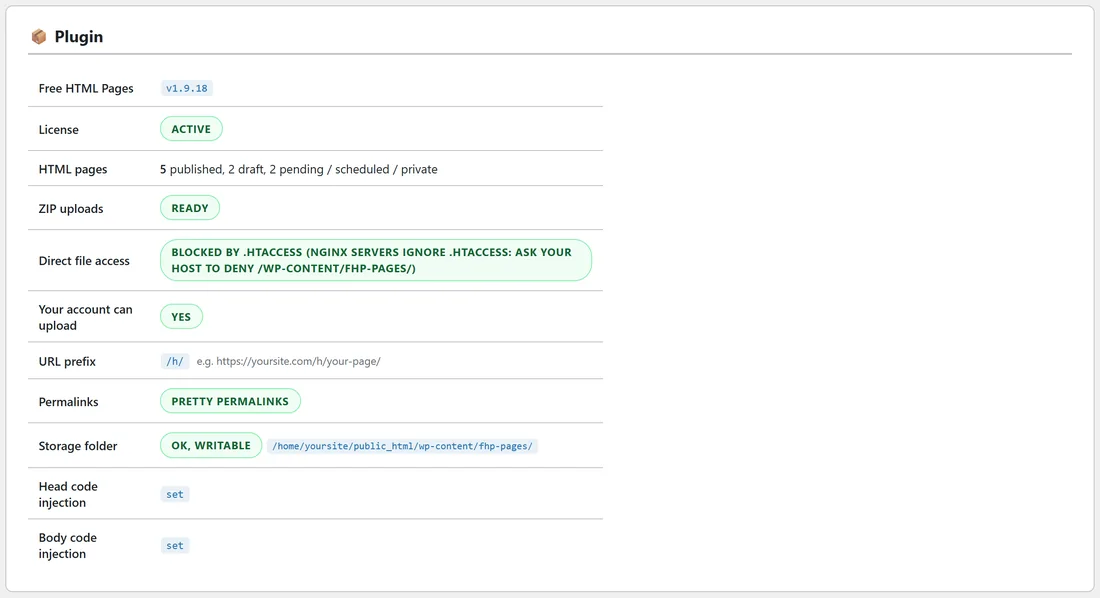
The Diagnostics tab also shows whether site-wide head and body code are set, as set or empty.
Injection only applies to pages served by this plugin. Your normal WordPress posts and pages are not touched.
Related: Settings Explained, and URLs, Permalinks And SEO for meta tags.