ResultsAiX Optimize can use your own AI key for its helpers: it writes challenger copy in the editor, explains any report in plain English, suggests what to test next, reads your Analytics and any heatmap, builds a whole test from one sentence, and writes the first lines of your weekly email. Everything else in the plugin works without a key. This article covers the key, the models and the first three helpers. See Building A Test With AI And The Other AI Readers for the rest.
Where to find it:
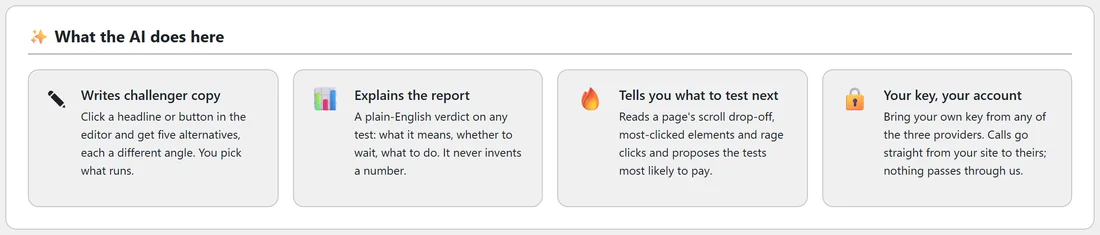
AiX Optimize, AI. The panel What the AI does here sums up the helpers, AI configuration holds the main switches, Your AI providers holds the keys, and AI usage shows every call.
Connecting a key:
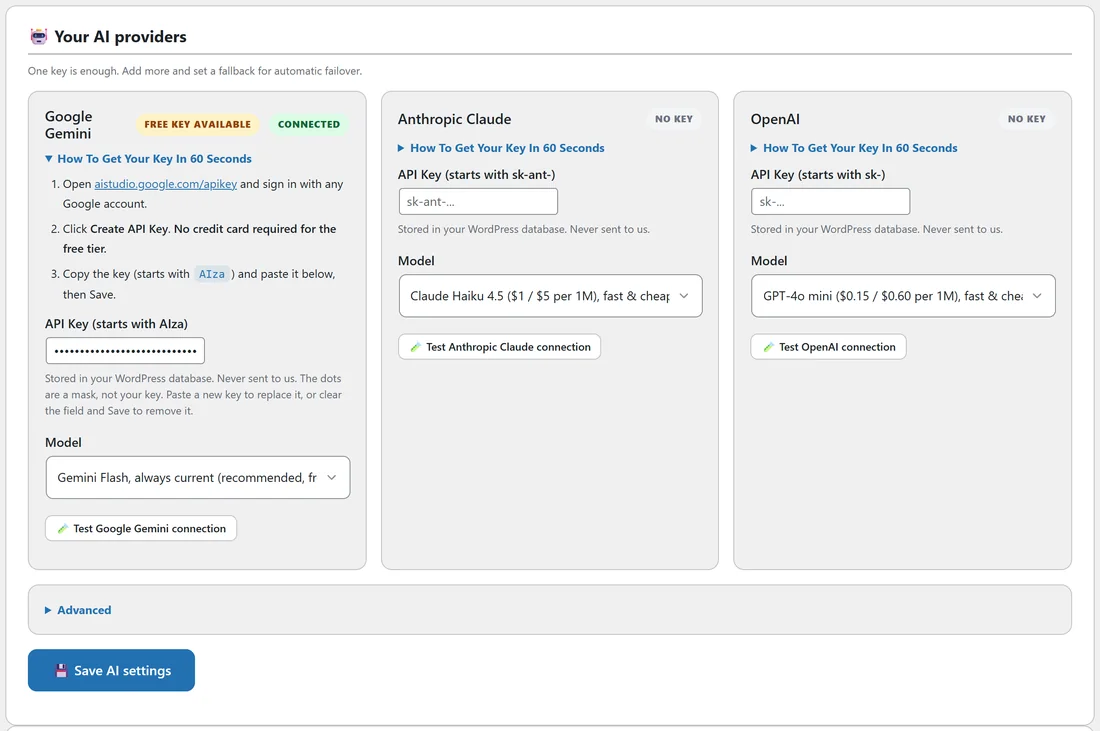
- Pick a provider card: Google Gemini, Anthropic Claude or OpenAI. Google Gemini shows Free Key Available.
- Open How To Get Your Key In 60 Seconds on that card and follow the three steps to create a key with the provider.
- Paste the key into API Key and choose a Model.
- Press Save AI settings. The card now shows Connected.
- Press Test, for example Test Google Gemini connection, to check it. The answer shows under the button.
Already saved a key in the ResultsAiX theme (AI Connect) or the ResultsAiX Mailer? Optimize uses it by itself, and the card says Using the key you saved in, followed by where. Paste a different key only if Optimize should use its own.
The key is stored in your WordPress database in a scrambled form and shows as dots on screen. To replace it, paste a new key. To remove it, clear the field and save. Calls go straight from your site to your provider.
AI configuration:
- Enable AI features: the main switch.
- Primary provider: Auto (first provider with a key), or a fixed provider.
- Fallback provider (optional): used automatically if the primary fails.
- Monthly soft budget (USD): when your AI spend over the last 30 days reaches it, the AI tab shows a note. AI keeps working, and your provider sets any hard limit.
- Advanced, Custom API address: only for sending AI requests through your own gateway. Leave it empty to connect directly.
The models:
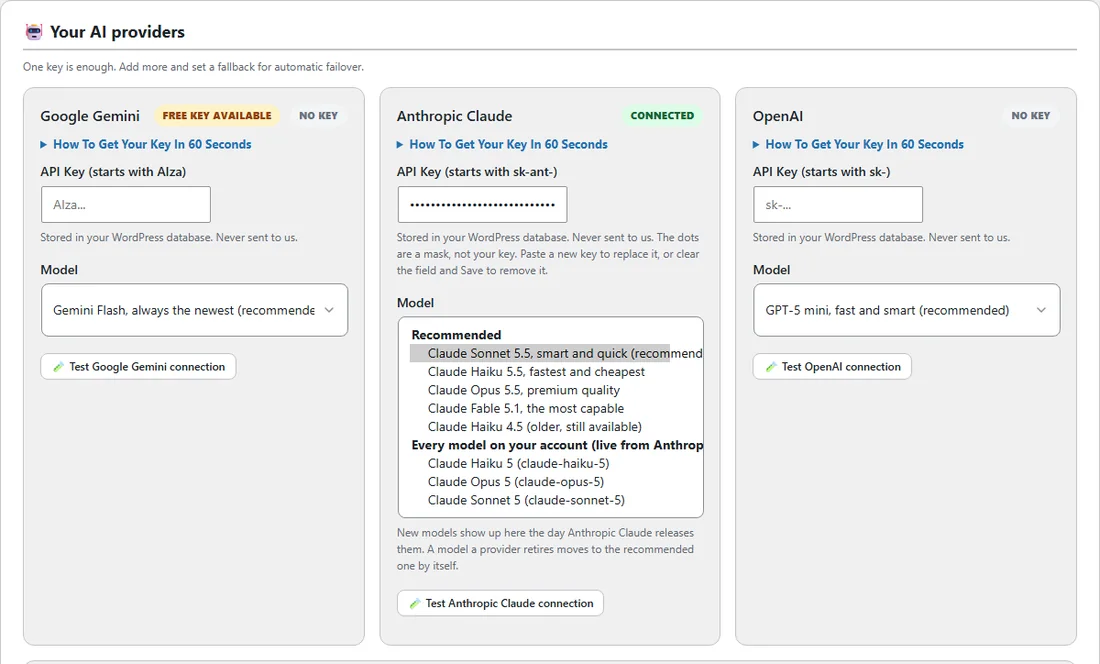
The Model list starts with these recommended models.
- Google Gemini: Gemini Flash, always the newest (recommended, free tier), Gemini Flash Lite, always the newest (fastest and cheapest), Gemini 3.5 Flash, or Gemini 3.1 Pro (preview).
- Claude: Claude Sonnet 5.5 (recommended), Claude Haiku 5.5, Claude Opus 5.5, Claude Fable 5.1, or Claude Haiku 4.5.
- OpenAI: GPT-5 mini (recommended), GPT-5 nano or GPT-5.
Under them, Every model on your account lists every model your key can use, live from the provider, so a new model shows up the day it is released. A model a provider retires moves to the recommended one by itself, so your AI buttons keep working.
Write 5 alternatives with AI:
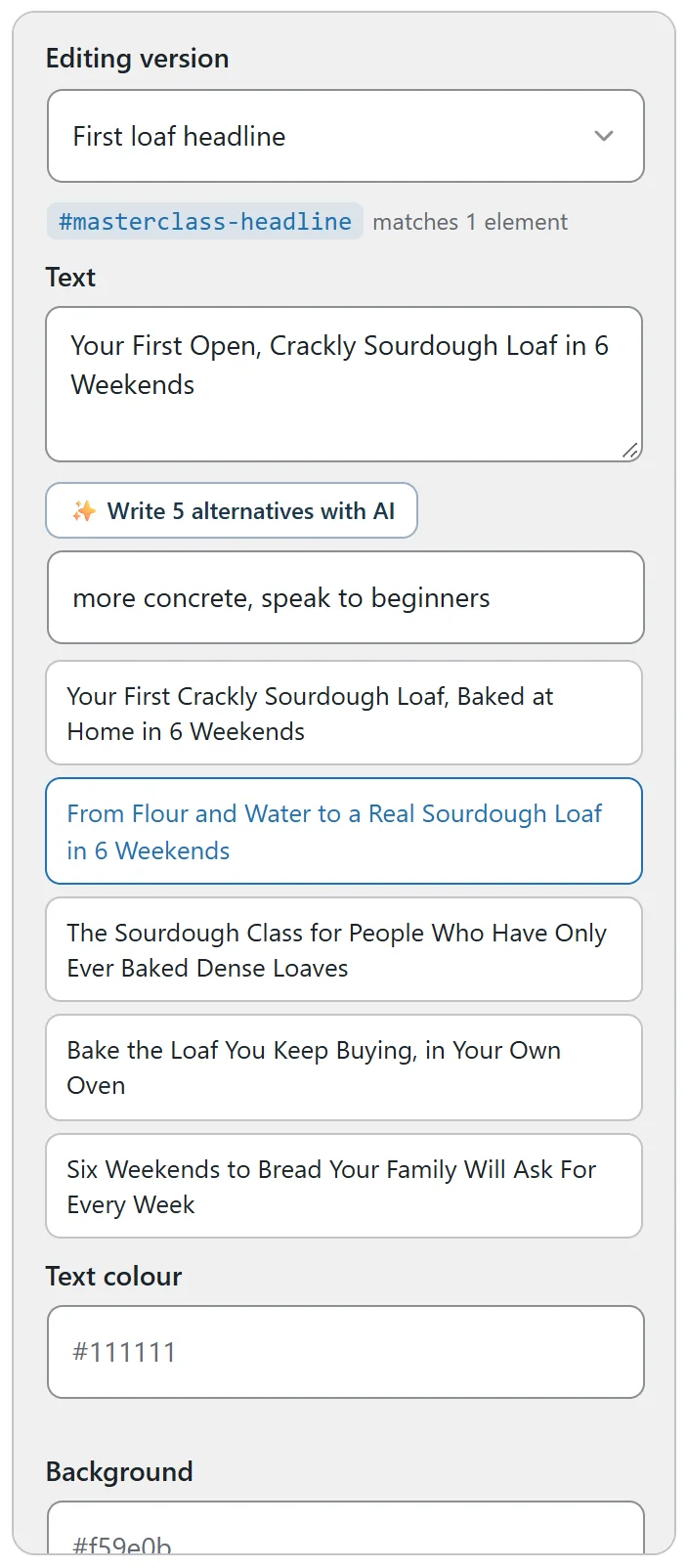
- In the point and click editor, click a headline, button or paragraph.
- Optionally type a direction, such as more urgent, shorter or speak to beginners.
- Press Write 5 alternatives with AI. Five versions appear, each a different angle, close in length to the original and with no made-up numbers.
- Click one to put it in the Text box, edit if you like, and press Apply change.
Nothing is saved until you apply and save it.
Explain this test:
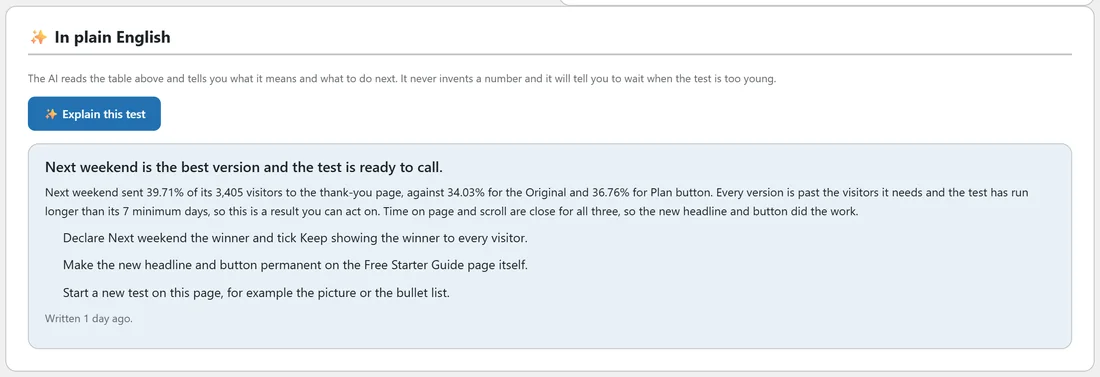
On any report, In plain English has an Explain this test button. The AI reads the versions table and writes a one line verdict, a short summary, next steps and a caution when there is one. It uses only the numbers on the report, and tells you to wait when the test is too young. The last explanation stays on the report with when it was written.
Suggest tests:
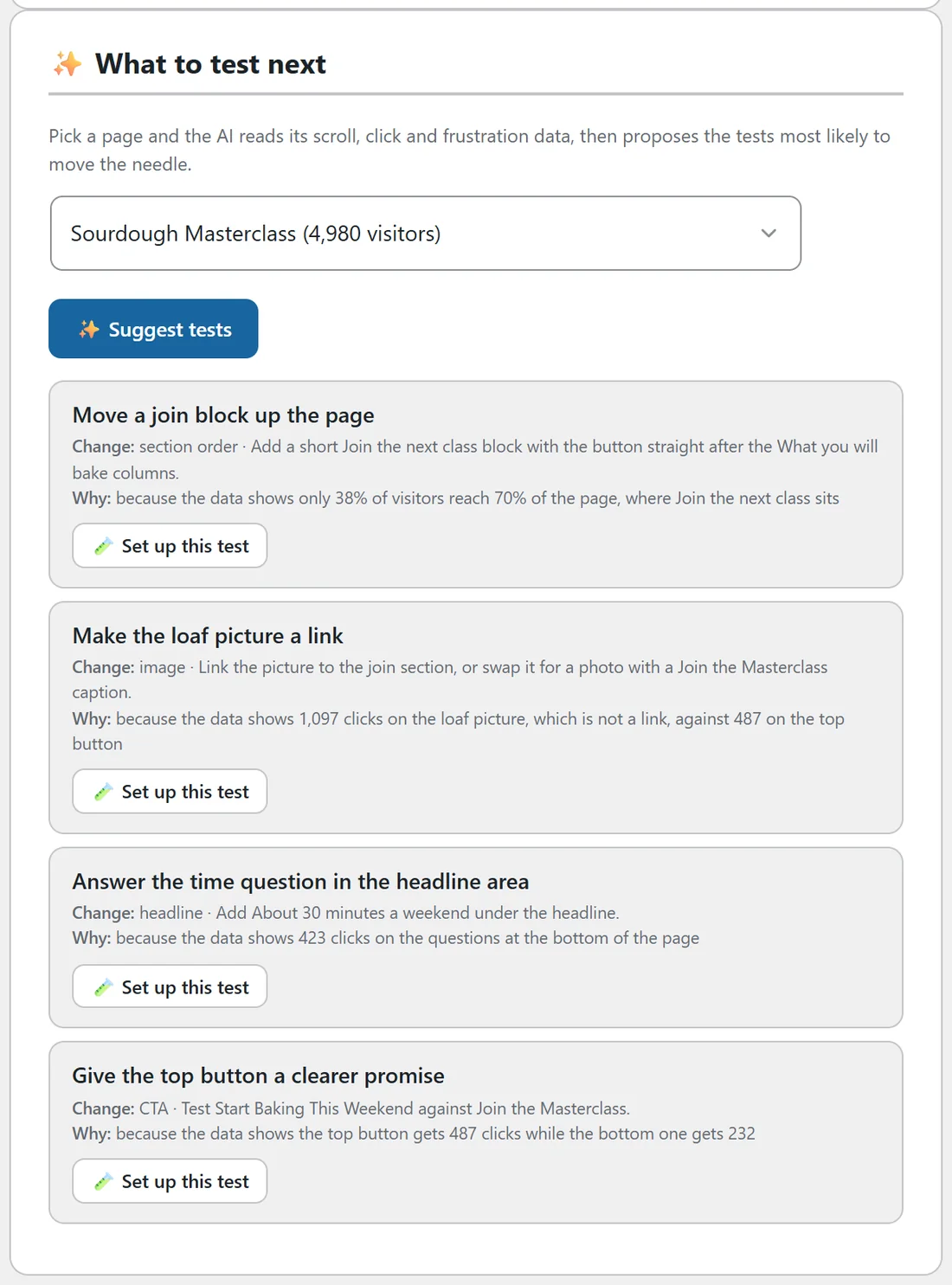
On the Dashboard, What to test next lists your pages with heat data. Choose one and press Suggest tests. The AI reads the page's scroll drop-off, most clicked elements, rage clicks, time on page and devices, plus its text, and proposes three to six tests, each with what to change, why, and the idea to try. The page needs at least 20 tracked visits first. Each idea has a Set up this test button that opens a new test already set to that page.
AI usage:
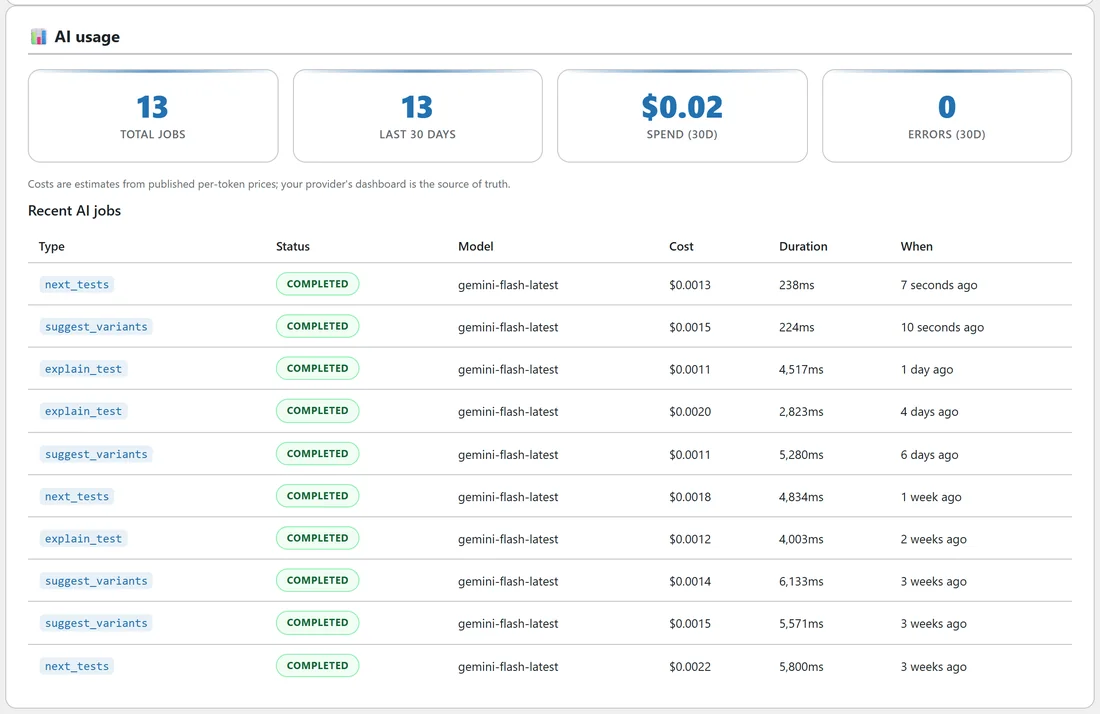
Four numbers: Total jobs, Last 30 days, Spend (30d) and Errors (30d). Under them, Recent AI jobs lists the last ten calls with type, status, model, cost, duration and when. Costs are estimates from published prices. Your provider's own dashboard has the exact figures.
A real example:
Yoursite Bakery School connected a free Google Gemini key. In the editor, the owner clicked the Masterclass headline, typed the direction more concrete, speak to beginners, and picked From Flour and Water to a Real Sourdough Loaf in 6 Weekends for her next test. On the starter guide report, Explain this test said Next weekend is the best version and the test is ready to call. A month of this use cost a few cents.
Tips:
- Use the AI for a first draft, then put the copy in your own words.
- Ask Explain this test again after a week of new data. It changes its advice as the numbers grow.
- Set a soft budget so you always know what the helpers cost.
- Leave the model on the recommended one unless you have a reason. It is chosen for speed, quality and cost.