A split test shows two or more versions to your visitors and counts what each one earns. ResultsAiX Optimize has three kinds, and the right one depends on how big your change is and where the challenger lives.
Where to find it:
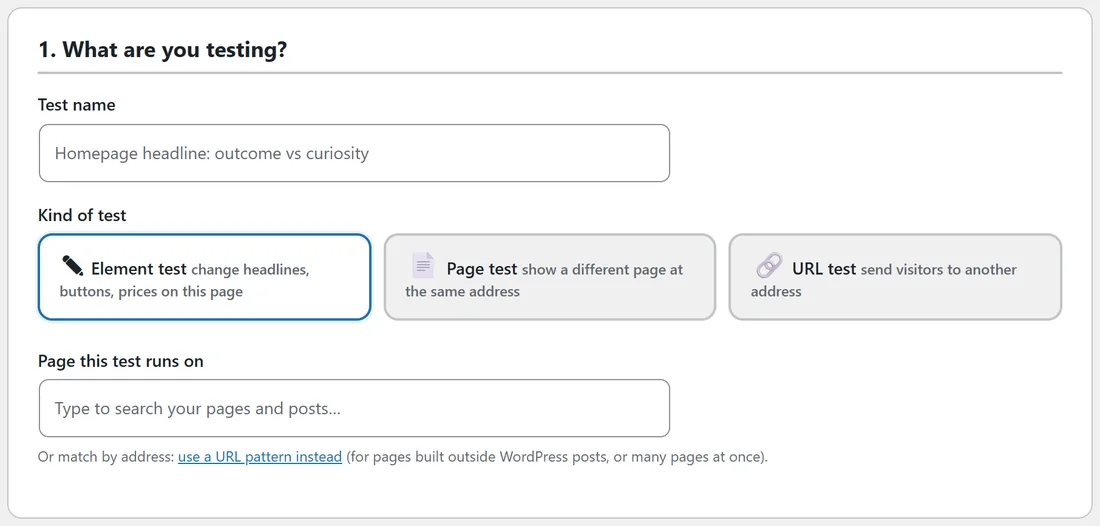
AiX Optimize, New Test. Section 1 of the builder, What are you testing?, holds the name, the kind of test and the page.
Which kind to choose:
- Element test: change things on one page, such as a headline, a button, a price line, a picture, a colour, or a block you hide. Most tests are this kind.
- Page test: show a completely different WordPress page at the same address. Good for a redesign, or a long page against a short one.
- URL test: send visitors to another address, such as a page outside WordPress or on another site.
Element test: change parts of one page:
- Type a Test name.
- Pick Element test.
- In Page this test runs on, paste any page address, on this site or any of your sites, or type a few letters to search. Pick the page from the list.
- Press Save. The point and click editor loads under the versions.
- Select a version in the editor, click what you want to change on the page and press Apply change. See The Point And Click Editor: Changing Headlines, Buttons And Colours.
Text changes are made on your server before the page is sent, and style and hide changes are CSS in the page head, so visitors never see the original flash first.
The page picker:
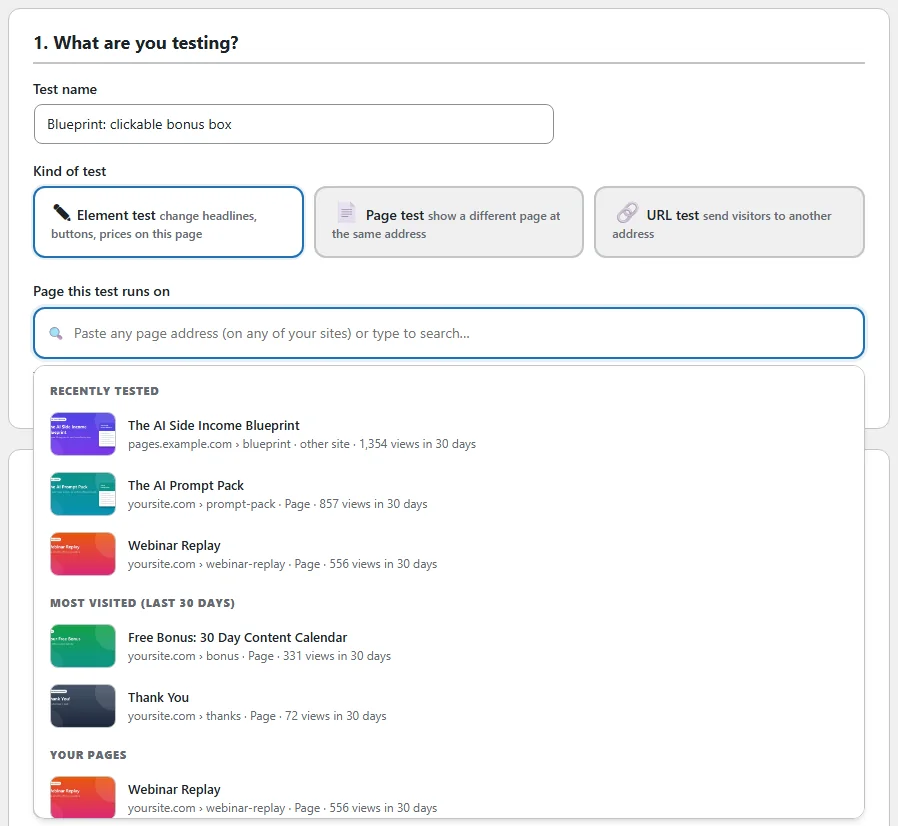
Click the box and the list opens with a picture of each page, in groups: Recently tested, Most visited (last 30 days), Your pages and Pages on your other sites, with the views of the last 30 days beside each. Sales pages come first. Help articles, opt-out pages and legal pages are left out. Type to search, or paste a full address and it shows under This address. Change page swaps the page before the test starts.
A page on another site:
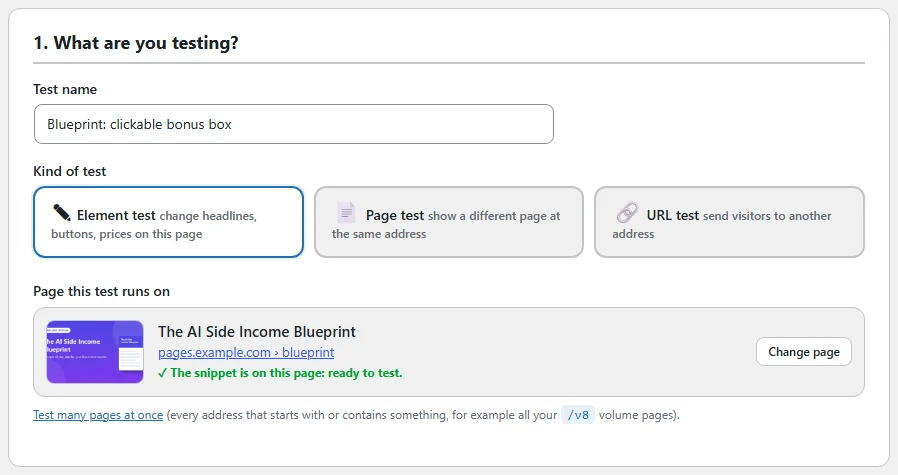
Paste the address of a page on another of your sites, for example https://pages.example.com/blueprint/. The builder checks the page for your one line of code straight away and shows the result under the page, such as The snippet is on this page: ready to test. When the line is not on the page yet, it says One line of code needed and shows the line to copy with a Check again link. Element tests and URL tests both work on pages of other sites. See Using Optimize On Any Page Of Any Site (The One Line Of Code).
Page test: show a different page at the same address:
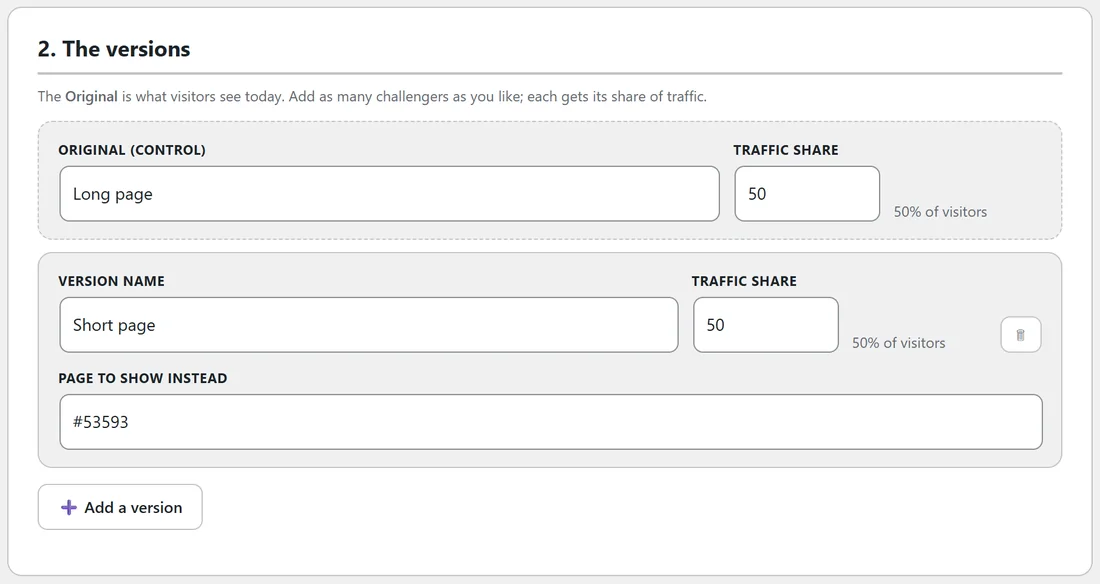
- Build the challenger as a normal page with any builder and publish it. It can stay out of your menus.
- Type a Test name, pick Page test and pick the page this test runs on. That page is the original.
- In section 2, The versions, type the challenger's title into Page to show instead and pick it.
- Visitors to the original address are split. Those given the challenger see its content, its page template and its styles, while the address in their browser stays the same.
URL test: send visitors to another address:
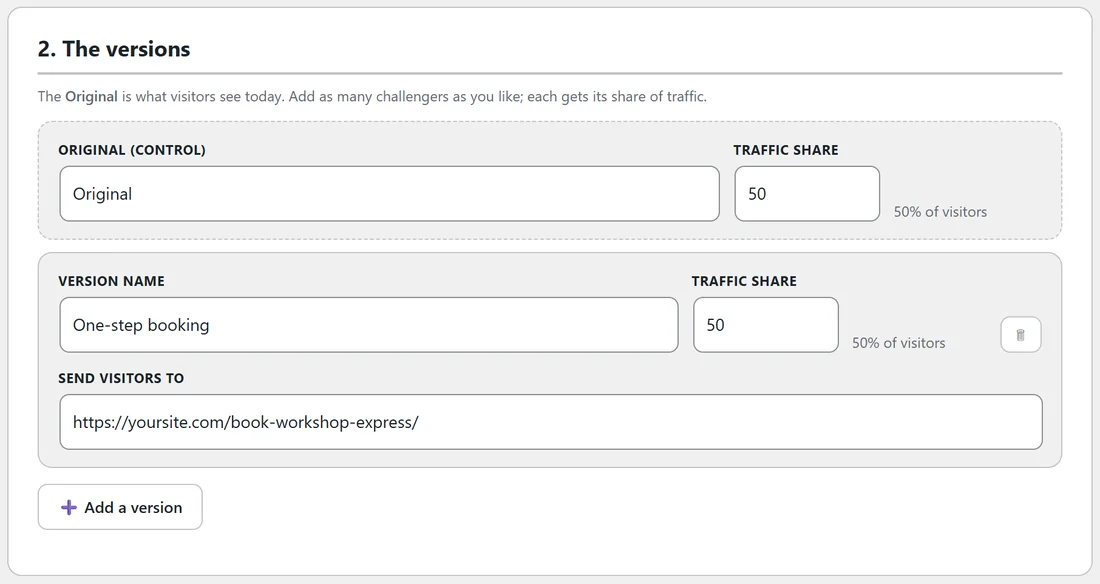
- Type a Test name and pick URL test.
- Pick the page this test runs on, or match it by address (see below).
- In section 2, fill in Send visitors to for each challenger, for example https://yoursite.com/book-workshop-express/.
- Visitors given that version are sent there with a temporary redirect. Anything after the ? in the address, such as utm tags and affiliate ids, travels with them.
Leads and sales still count for a URL test when one of the connected plugins reports them, or when the visitor reaches a thank-you page on this site.
Matching pages by address:
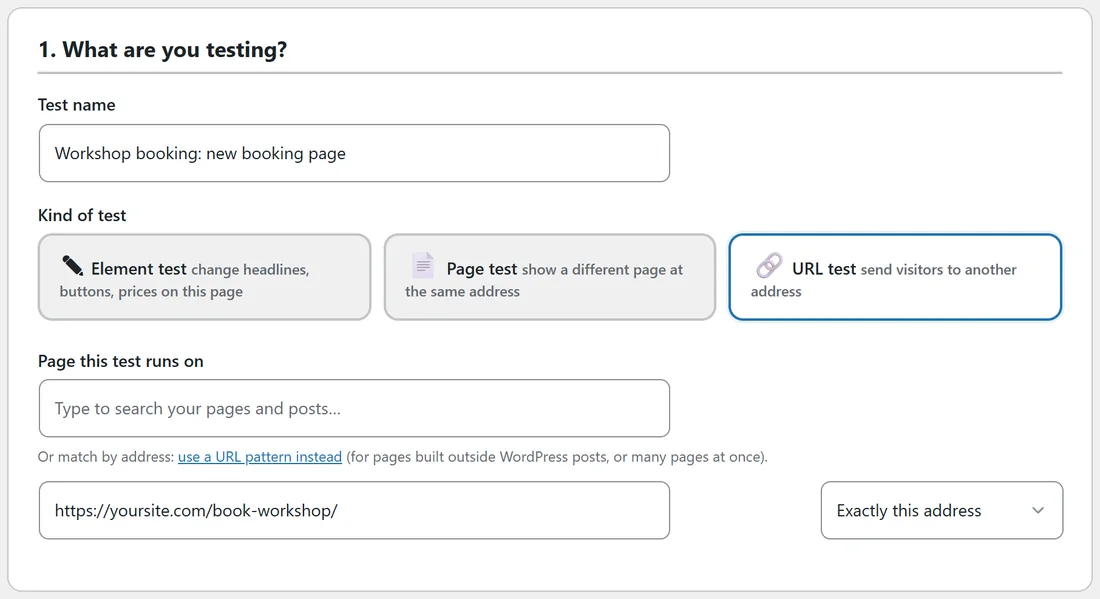
Under the page picker, the link Test many pages at once opens an address box with four choices, for example every page whose address contains /offers/.
- Exactly this address: one page.
- Starts with: every address that begins with this, for example a whole /courses/ section.
- Contains: every address with this text anywhere in it.
- Regular expression: a pattern, for advanced use.
Addresses are compared without http or https, without www, without anything after a ? and without the last slash, and capital letters do not matter. Use the page picker whenever the page is a WordPress page or post: it matches the page itself, whatever its address.
The rest of the builder:
- Section 2, The versions: the Original plus your challengers, each with a traffic share. See Variants And Traffic: Versions, Traffic Share, Classic Split And Autopilot.
- Section 3, What counts as a win?: the goal and how the winner is picked. See Goals And Scoring: What Counts As A Conversion.
- Section 4, Traffic and the winner: the mode, the share of visitors in the test, the winner rules, devices and notes.
- The sidebar: Save, Save and start, Preview a version and the Checklist.
Saving and starting:
Save keeps the test as a Draft. Save and start saves it and starts it straight away when the Checklist is complete. A test needs a name, a page, two or more versions, a change in every challenger, and a goal value when the goal is a thank-you page or a click.
A real example:
Yoursite Bakery School ran a Page test on its Weekend Workshop page: the long page against a short one built as a separate page. Then it set up a URL test as a draft, to try a one-step booking page at https://yoursite.com/book-workshop-express/ against the current booking page.
Tips:
- Start with an Element test on your busiest money page. It is the quickest to build.
- A Page test is the best way to compare two whole layouts.
- Once a test is running or paused, its kind, page and versions stay fixed so the results stay clean. To try something new, use Duplicate on the Tests tab and edit the copy.