Installing takes a minute, and activating your key unlocks every tab. After that, the licence panel on the Settings tab shows which sites use your key and lets you move it.
Where to find it:
WordPress menu, AiX Optimize. Before a key is active, that menu opens the activation screen. Afterwards the licence lives at the top of the Settings tab.
Installing:
- In WordPress go to Plugins, Add New Plugin, Upload Plugin.
- Choose the ResultsAiX Optimize zip file and press Install Now.
- Press Activate Plugin.
- A new menu called AiX Optimize appears in the WordPress sidebar, with a chart icon.
On activation the plugin creates its own database tables and a private key for its tracker. Nothing else on your site changes.
Activating your licence:
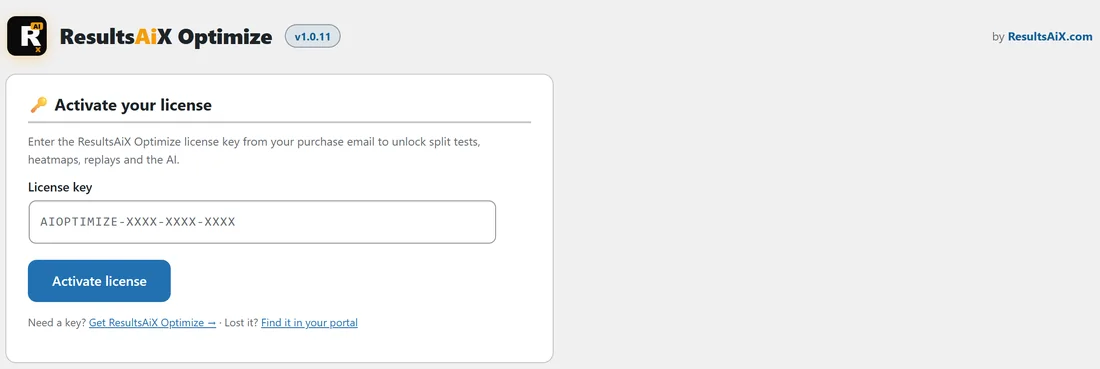
- Open AiX Optimize. The screen is titled Activate your license.
- Paste the key from your purchase email into License key. It looks like AIOPTIMIZE-XXXX-XXXX-XXXX. Spaces are removed and letters are made capitals for you.
- Press Activate license, or press Enter.
- When you see License activated successfully! the screen reloads and every tab opens.
Lost your key? The Find it in your portal link on the same screen opens your account, where every key and download is kept.
If the screen shows a message instead:
- License key not recognized. Please check your purchase email. Copy the key again from the email, all of it.
- This key is valid but does not include ResultsAiX Optimize. The key belongs to another product. Use the key for Optimize.
- This license has no available sites left. Deactivate it on another site first. Free a site in the licence panel on that other site, then try again.
- Too many attempts. Please wait a minute and try again. Wait a minute, then press Activate license once.
- Could not reach the license server. Please try again in a moment. Your server could not reach the licence server. Try again in a moment.
The licence panel:
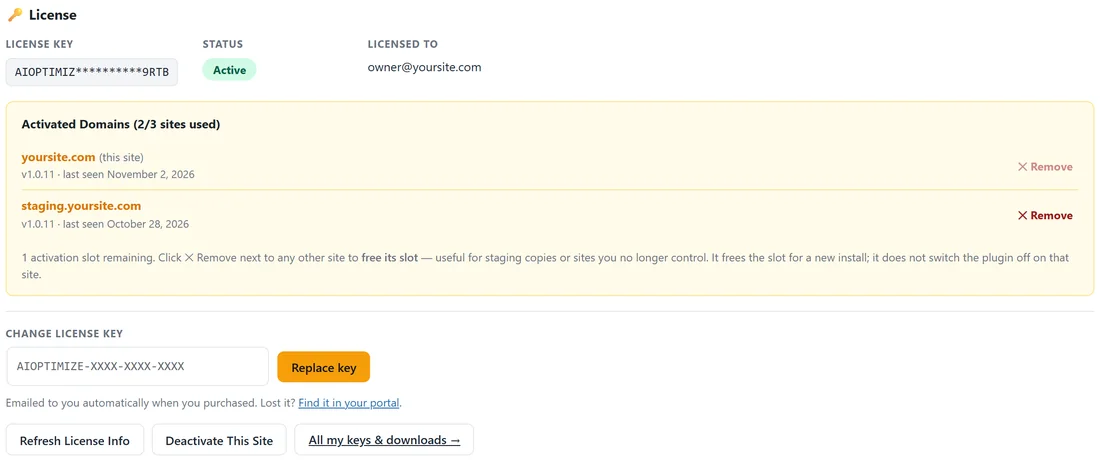
Open AiX Optimize, Settings. The licence panel is at the top and shows:
- License Key: your key, partly hidden.
- Status: Active when all is well.
- Licensed To: the email address on the key.
- Activated Domains: every site using the key, with how many sites are used, the plugin version and the date each site was last seen. This site is marked (this site).
Under the list you see how many activation slots are left. Below that:
- Change license key with a Replace key button, to swap in a different key.
- Refresh License Info, to check the key again and update the list of sites.
- Deactivate This Site, to release this site from the key.
- All my keys & downloads, which opens your account portal.
Moving your key or freeing a slot:
- To free a slot used by another site, press Remove next to that site. The slot is free for a new install straight away. It does not switch the plugin off on that site.
- To move this site's slot, press Deactivate This Site. The management screens here then wait for a key again.
- Activate the key on the new site as above.
A real example:
Yoursite Bakery School has its live site and a staging copy at staging.yoursite.com on one key, so the panel shows 2 of 3 sites used. When the staging copy is retired, Remove next to it frees that slot for the next site.
Good to know:
- Deactivating the plugin on the WordPress Plugins screen also releases this site from the key. Enter the key again after you reactivate.
- Running tests keep running on your site while the management screens wait for a key, so your visitors always see the right version.
- Deactivating or updating the plugin never touches your tests, results, heatmaps or replays.
Next, see Five Minute Quick Start: Your First Split Test.