The Settings tab holds your licence and every setting that applies to the whole plugin. Most sites never need to change the defaults, but each one is explained here so you know what you can tune.
Where to find it:
AiX Optimize, Settings. Change what you need and press Save settings at the bottom. The AI settings live on their own AI tab, and the settings for your other sites and Buy clicks on the Your sites tab.
The licence panel and help:
At the top: your key, status and activated sites. See Installing The Plugin And Activating Your Licence Key. Under it, Help & your account has four cards: Your account portal, Need a hand?, Troubleshooting (opens Diagnostics) and Training & docs (opens Training).
Appearance:
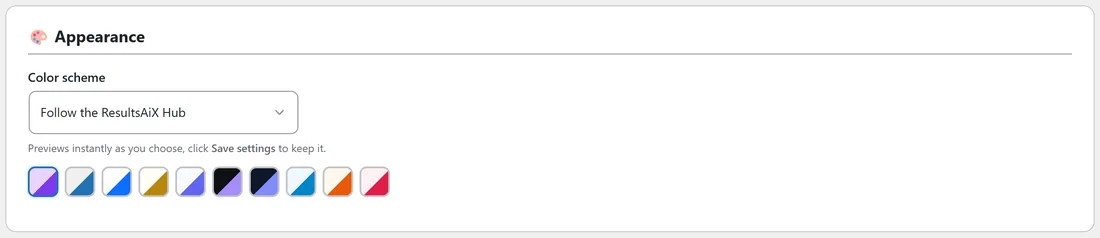
Color scheme sets the look of the plugin's screens. Follow the ResultsAiX Hub (the default) uses the scheme set in the ResultsAiX Hub. The others are WordPress Native, Clean White, Ivory Cream, Snow Light, Developer Dark, Midnight Blue, Ocean Blue, Sunset Warm and Rose Pink. The screen previews your choice straight away. Press Save settings to keep it.
Tracking:
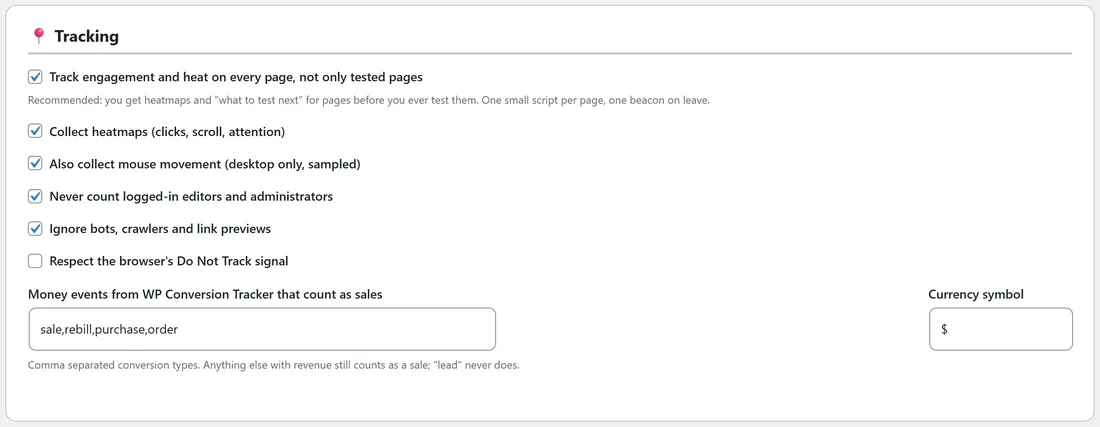
- Track engagement and heat on every page, not only tested pages: on by default. Pages build up heatmaps before you ever test them.
- Collect heatmaps (clicks, scroll, attention): on by default.
- Also collect mouse movement (desktop only, sampled): on by default.
- Never count logged-in editors and administrators: on by default.
- Ignore bots, crawlers and link previews: on by default.
- Respect the browser's Do Not Track signal: off by default.
- Money events from WP Conversion Tracker that count as sales: sale,rebill,purchase,order by default. Any other conversion with money also counts as a sale. A lead never does.
- Currency symbol: $ by default, up to 5 characters. It is used on every report.
Session replays:
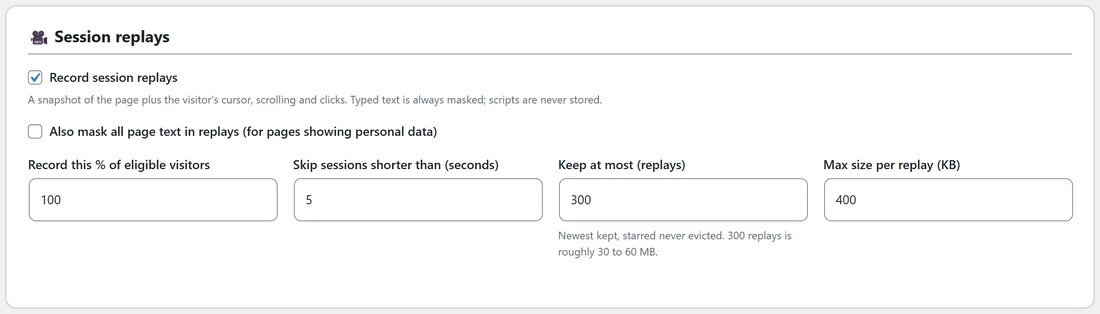
- Record session replays: on by default.
- Also mask all page text in replays (for pages showing personal data): off by default.
- Record this % of eligible visitors: 1 to 100, 100 by default.
- Skip sessions shorter than (seconds): 1 to 120, 5 by default.
- Keep at most (replays): 20 to 5,000, 300 by default. The newest are kept and starred ones are never removed. 300 replays take roughly 30 to 60 MB.
- Max size per replay (KB): 100 to 2,000, 400 by default.
Privacy & retention:
- Never store visitor IP addresses: IP addresses are never stored. See Privacy, Cookies And What Is Recorded About Visitors.
- Delete raw events and replays older than (days): 7 to 730, 90 by default. Test totals are kept.
Weekly report:
This section has its own Save button.
- Send me the weekly report: on by default. The email arrives every Monday morning.
- Send it to: leave it empty for the site's admin email, or type several addresses separated by commas.
- Send me this week's report now: sends you the last 7 days straight away.
See The Weekly Email Report.
Danger Zone:
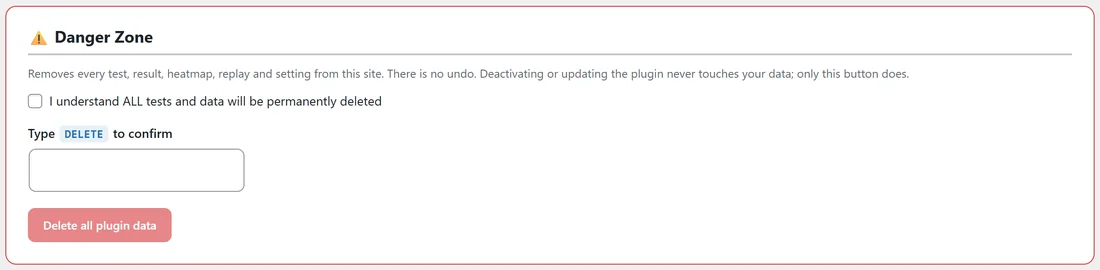
Removes every test, result, heatmap, replay and setting from this site. To use it:
- Tick I understand ALL tests and data will be permanently deleted.
- Type DELETE in capitals in Type DELETE to confirm.
- Press Delete all plugin data, then confirm in the box.
Deactivating, updating or deleting the plugin never empties these tables. This button is the only way.
A real example:
Yoursite Bakery School sells in euros, so the owner sets Currency symbol to €, and every report shows € amounts. She lowers Keep at most (replays) to 200 to keep the database small, and stars the replays she wants to keep longer.
Tips:
- Leave tracking on every page. When you are ready to test a page, its heatmaps are already there.
- On a busy site, lower Keep at most (replays) and Delete raw events and replays older than (days) to keep the database small.