A Moment opens the chat by itself, with one line from you, for one kind of person on the pages you choose, after they have been there a while. It is the friendly shop assistant who says hello at the right moment, and leaves everybody else alone. Moments run on their own switch: a Moment that is on works whether or not visitor chat is on, and the visitor can answer it.
Where to find it:
WordPress menu, ResultsAiX Pulse, ✨ Moments. Chat Setup has an Open Moments button too.
The Moments tab:
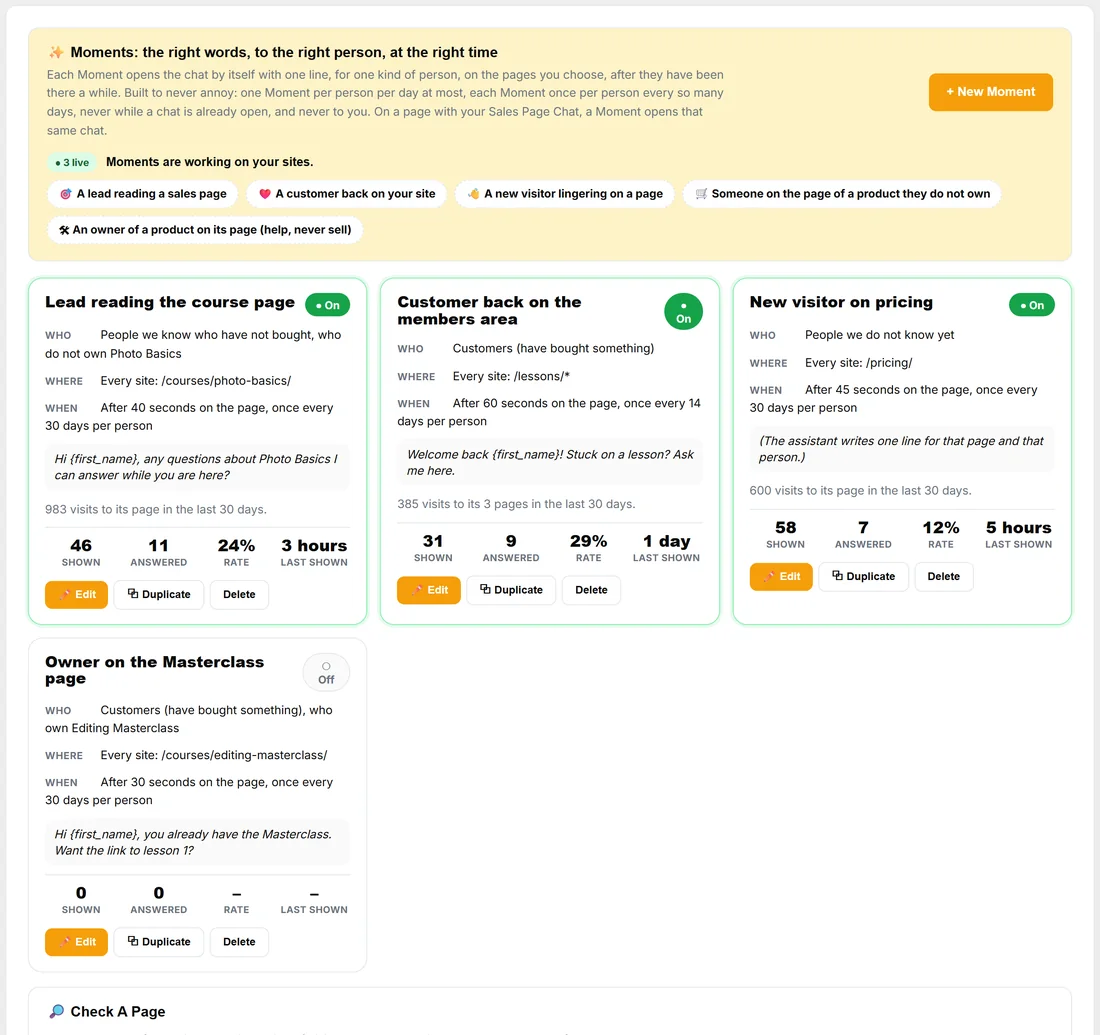
- At the top: + New Moment, how many are live, and starting points: 🎯 A lead reading a sales page, ❤️ A customer back on your site, 👋 A new visitor lingering on a page, 🛒 Someone on the page of a product they do not own, and 🛠 An owner of a product on its page (help, never sell).
- Each Moment is a card: its name, its On or Off switch, Who, Where, When and the line it says.
- Under it: how many visits its pages had in the last 30 days, then Shown, Answered, Rate and Last shown.
- ✏️ Edit, ⧉ Duplicate (the copy starts switched off) and Delete.
If a Moment's pages had no visits in the last 30 days, the card says so, so you can point it at pages people really visit.
Making a Moment:
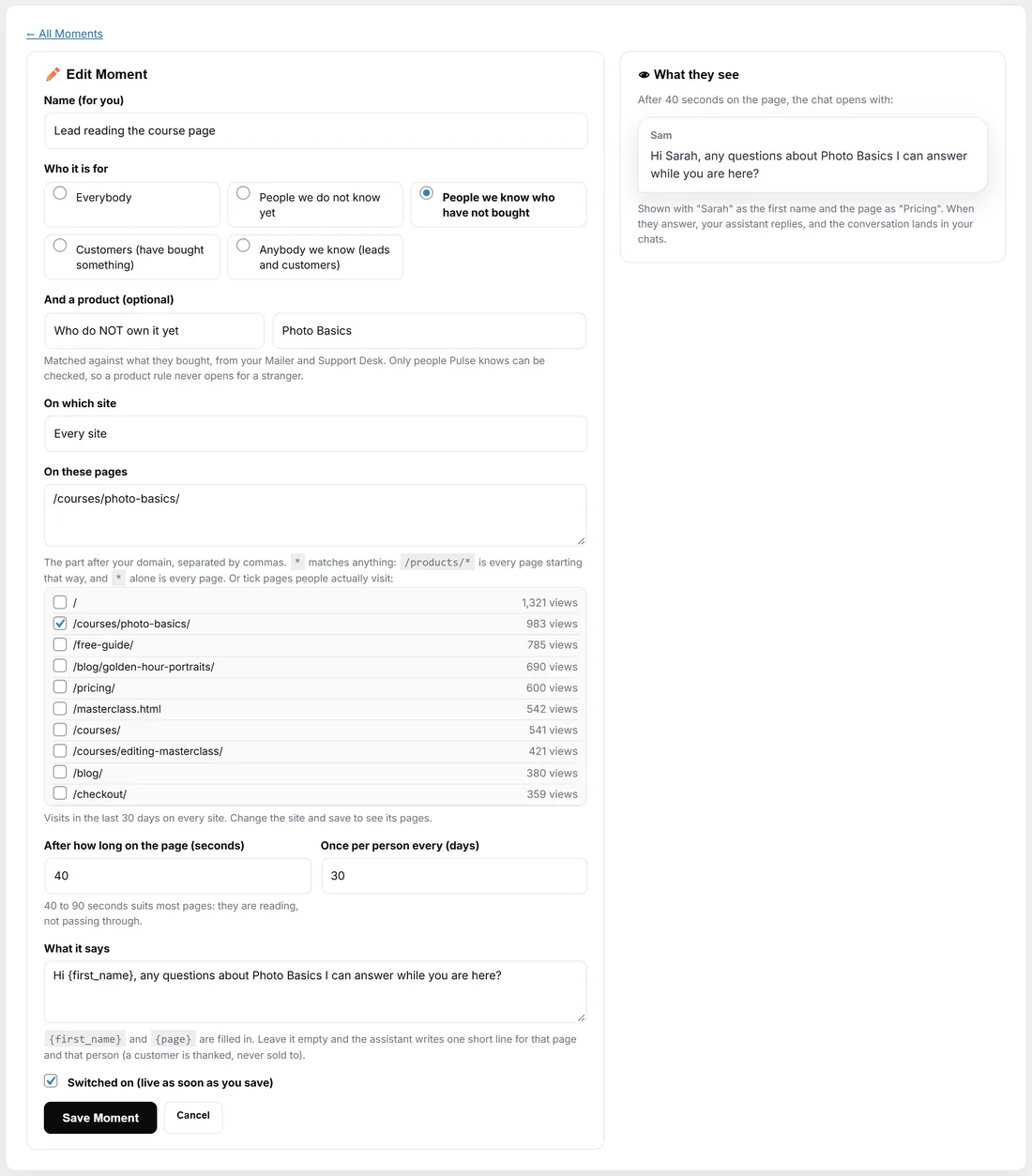
- Press + New Moment, or a starting point to begin with its rule filled in.
- Name (for you): for example Lead on the pricing page.
- Who it is for: Everybody, People we do not know yet, People we know who have not bought, Customers (have bought something), or Anybody we know (leads and customers).
- And a product (optional): Who OWN this product or Who do NOT own it yet, and the product's name. It is matched against what they bought, from your Mailer and Support Desk. Only people Pulse knows can be checked, so a product rule never opens for a stranger.
- On which site: Every site, or one.
- On these pages: the part after your domain, separated by commas. * matches anything: /courses/* is every page starting that way, and * alone is every page. Or tick pages from the list, which shows the pages people actually visited in the last 30 days with their views.
- After how long on the page (seconds): 5 to 600. 40 to 90 seconds suits most pages: they are reading, not passing through.
- Once per person every (days): 1 to 365.
- What it says: up to 300 characters. {first_name} and {page} are filled in. Leave it empty and the assistant writes one short line for that page and that person (a customer is thanked, never sold to).
- Tick Switched on (live as soon as you save) and press Save Moment.
What they see on the right shows the line as the visitor will see it, with Sarah as the first name.
Built never to annoy:
- One Moment per person per day at most, across all of them.
- Each Moment once per person every so many days.
- Never while a chat is already open, never to you, and never to somebody you blocked.
- The first matching Moment wins, so put the most specific ones first.
Check A Page:
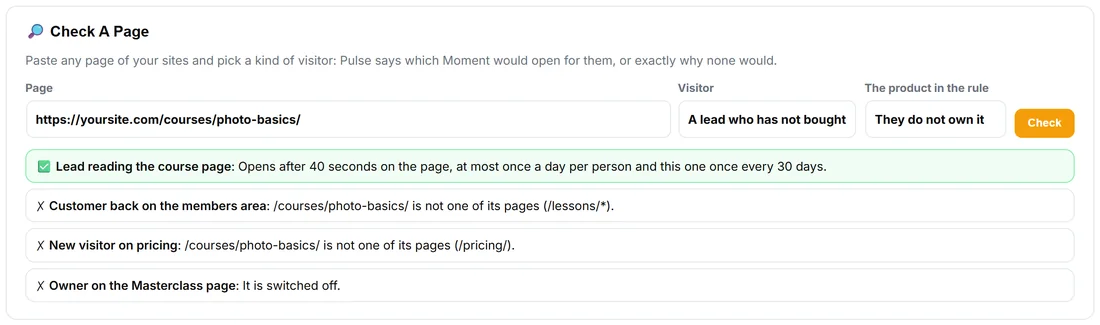
At the bottom of the Moments tab:
- Paste any page of your sites into Page.
- Pick the Visitor: A new visitor, A lead who has not bought, or A customer.
- Pick The product in the rule: Not known, They own it, or They do not own it.
- Press Check. Pulse lists each Moment with a tick for the one that would open, and the reason for every other one, in plain words.
When they answer:
Your assistant replies, or with ResultsAiX Support Desk the Desk's assistant does, from your help articles and product list. When it cannot help, or they ask for a person, they are asked for their email and the whole conversation goes to you on the Chats tab.
A real example:
Yoursite has four Moments. Lead reading the course page is for People we know who have not bought, who do NOT own Photo Basics, on /courses/photo-basics/, after 40 seconds, once every 30 days, saying "Hi {first_name}, any questions about Photo Basics I can answer while you are here?". Its card shows 46 shown, 11 answered, a 24% rate. New visitor on pricing has no line of its own, so the assistant writes one for each visitor. Customer back on the members area welcomes buyers on /lessons/* after 60 seconds.
Tips:
- Start with one Moment, switch it on, watch Shown and Answered for a week, then add the next.
- Test from a private window, as the kind of visitor the Moment is for: your own visits never see a Moment.
- With no AI key, a Moment with no words of its own opens with your chat's opening line.