Visitor chat lets you talk to the people on your sites while they are still there. There is no chat button waiting on your pages for visitors to press. Instead a chat opens when you start one from the Live View, or when one of your Moments speaks first to the right person. That keeps your pages clean and every chat welcome.
Where to find it:
- 🗨️ Chat Setup: your chat window (name, title, colour, opening line, email capture and photos).
- 💬 Chats: every conversation happening now, with a reply box.
- 🌍 Live View, 👥 People and 📈 Stats: Talk or Chat now next to anybody who is online.
The card at the top of Chat Setup, Your conversations and results, has buttons to 💬 Chat history and 📊 Reports: what works (with the ResultsAiX Support Desk), 🗨️ Live chats and ✨ Moments.
Setting up your chat window:
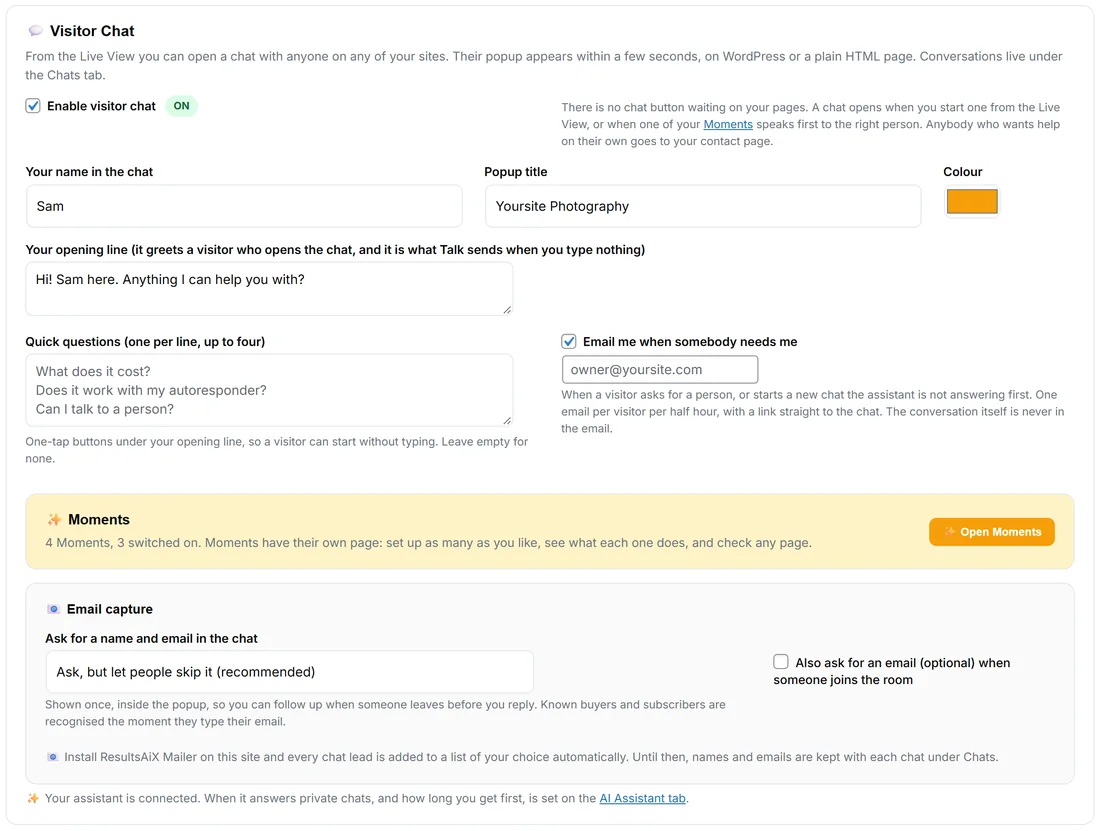
- Open 🗨️ Chat Setup and find the Visitor Chat card.
- Tick Enable visitor chat. The pill beside it says ON.
- Your name in the chat: the name visitors see beside your messages. Left empty, it is the site administrator's first name.
- Popup title: the line at the top of the chat window, for example Yoursite Photography. Left empty, it says Chat with us.
- Colour: the colour of the chat's header and buttons.
- Your opening line: it greets a visitor who opens the chat, and it is what Talk sends when you type nothing.
- Quick questions: up to four, one per line. They show as one-tap buttons under your opening line, so a visitor can start without typing. Leave it empty for none.
- Email me when somebody needs me: Pulse emails you when a visitor asks for a person, or starts a new chat the assistant is not answering first. It sends one email per visitor per half hour, with a link straight to the chat, and never the conversation itself. Type another address in the box, or leave it to use the site's admin email.
- Press Save Chat Setup. Only the chat settings on this screen are saved.
See it the way your visitors do:
The yellow card 👁 See It The Way Your Visitors Do has Preview The Chat. It opens your own site in a new tab with the chat already open, showing your name, your colour and the first screen a visitor gets. Type in it and the message lands on your Chats tab like any other. It shows your saved settings, so save first.
What the visitor sees:
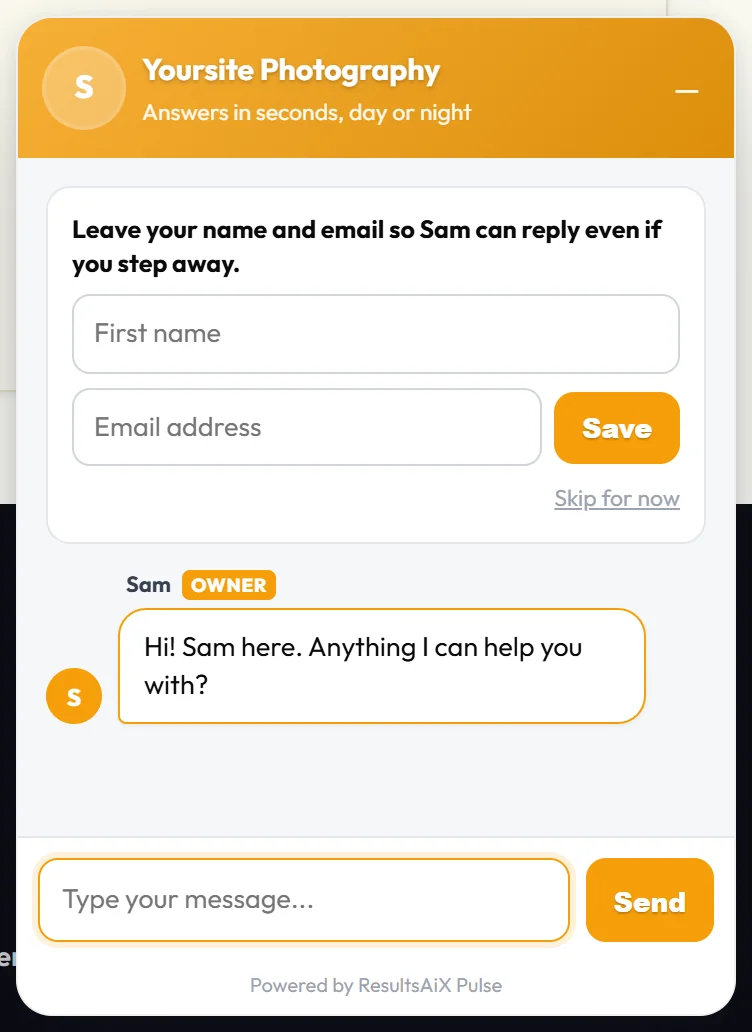
A small window in the corner with your title in your colour. With Ask for a name and email in the chat set to ask, a short form at the top asks for their first name and email, with Skip for now. Under it, your opening line with your name. They type in Type your message and press Send. See Email Capture: Every Chat Can Become a Subscriber.
How a chat starts:
- You start it. Press Talk next to anybody in the Live View, or Chat now on the People or Stats tab, while they are online. Type a line, or leave it empty to send your opening line. The chat opens on their screen within a few seconds, on WordPress or a plain HTML page.
- A Moment starts it. You write rules for the right person on the right page, and the chat opens with your line after they have been there a while. Moments have their own switch. See Moments: The Right Words to the Right Person.
Answering on the Chats tab:
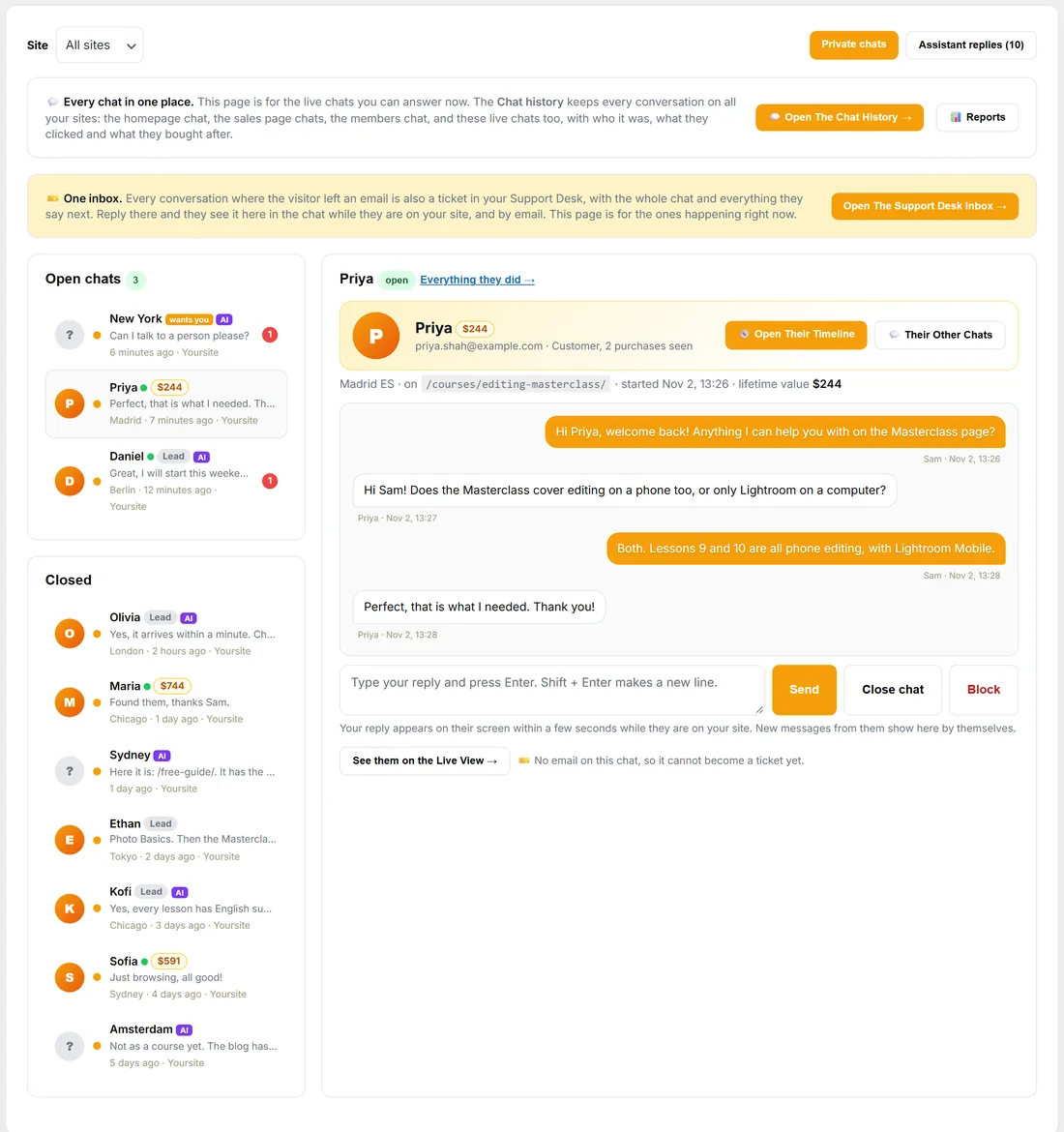
Open 💬 Chats. A red count on the menu and on the tab shows chats waiting for you.
- Open chats come first, then Closed. Each row shows the person's photo or initial, their name (or city), their lifetime value or a Lead badge, AI when the assistant replied, and wants you when they asked for a person.
- Click a chat and the conversation opens on the right. The card on top shows who they are, their email, what they own, and buttons such as Open Their Timeline and, with the Support Desk, Their Other Chats.
- Type in the reply box and press Enter (Shift + Enter makes a new line) or Send. Your reply appears on their screen within a few seconds while they are on your site. New messages from them show by themselves.
- Close chat ends it. Replying to a closed chat opens it again, and they see your message the next time they are on your site.
- Block, in red, is total: for that person your site has no chat at all, no Moment ever opens for them, and any open chat is closed. Press Unblock to undo it.
- Site picks one site's chats; Assistant replies lists everything the assistant said, each with Open the conversation.
Photos in the chat:
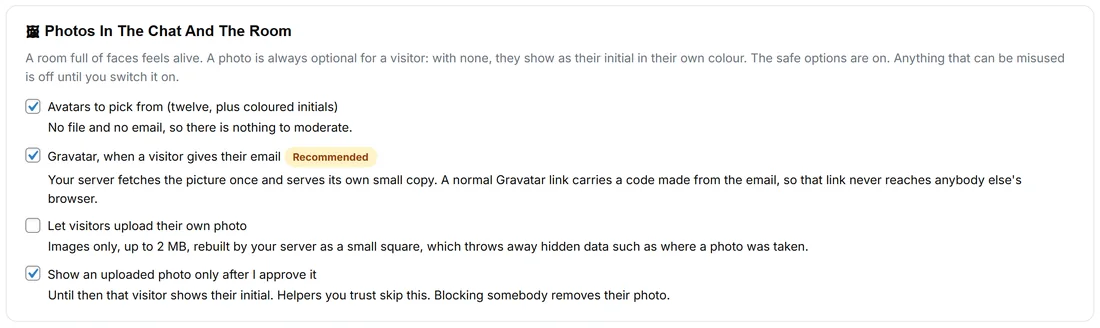
Photos In The Chat And The Room sets which kinds of photo a visitor may have. With none, a visitor shows as their initial in their own colour.
- Avatars to pick from (twelve, plus coloured initials): on by default. No file and no email, so there is nothing to moderate.
- Gravatar, when a visitor gives their email: on by default, recommended. Your server fetches the picture once and serves its own small copy.
- Let visitors upload their own photo: off by default. Images only, up to 2 MB, rebuilt by your server as a small square.
- Show an uploaded photo only after I approve it: on by default.
Your picture and your assistant's:
Under Your Picture And Your Assistant's, press Choose From The Media Library or Upload A Picture for You and for Your assistant. JPG, PNG, WebP or GIF, at least 40 by 40 pixels; square looks best. Pulse keeps its own small square copy (192 pixels). With no picture chosen, you show with your WordPress profile picture and the assistant with a sparkle.
A real example:
Sam runs yoursite.com. In Chat Setup Sam types the name Sam, the title Yoursite Photography, a gold colour, the opening line "Hi! Sam here. Anything I can help you with?" and three quick questions. In the Live View, Priya from Madrid has been on the Editing Masterclass page for a while, so Sam presses Talk. Priya asks whether the course covers phone editing; Sam answers from the Chats tab. Priya thanks Sam, and her timeline now shows the chat.
Housekeeping:
Chats idle for a week close by themselves, and closed chats older than your retention setting are cleared with the rest of the old data.
Tips:
- Connect an AI key and the assistant answers when you have not replied in time. See Your AI Assistant.
- With the ResultsAiX Support Desk on the same site, chats with an email can go into the Support Desk inbox too. See With the ResultsAiX Support Desk.