Pulse and the ResultsAiX Support Desk join up by themselves when both are on the same site. Your chat gets the Desk's help articles and product list, chats become tickets with the whole conversation in them, and support customers show in the Live View before you say hello. There is nothing to configure, and the switches are under Connections.
What changes with the Support Desk:
- You see support customers coming. A Desk contact shows in the Live View by name, with how many tickets they have open.
- The assistant answers from your help articles. For each question it looks up the best matching articles in the Desk's knowledge base and may link to them, on top of what you taught it on the AI Assistant tab.
- It knows what you sell. Your products, one line about each, the published price and the address of its page come from the Support Desk's Settings, Products.
- Any chat becomes a ticket. On the Chats tab, a chat with an email has 🎫 Make this a Support Desk ticket. The whole chat goes in with its real times, and the button becomes a link to the ticket.
- Nobody falls through the cracks. When a visitor asks for a person and has left an email, the ticket opens by itself and you get the Desk's usual new ticket email.
- One Chat history. The Desk's Chat history lists Pulse's live chats beside its own chats. See Chat History: Every Chat, on Every Site, from Any Screen.
The switches:
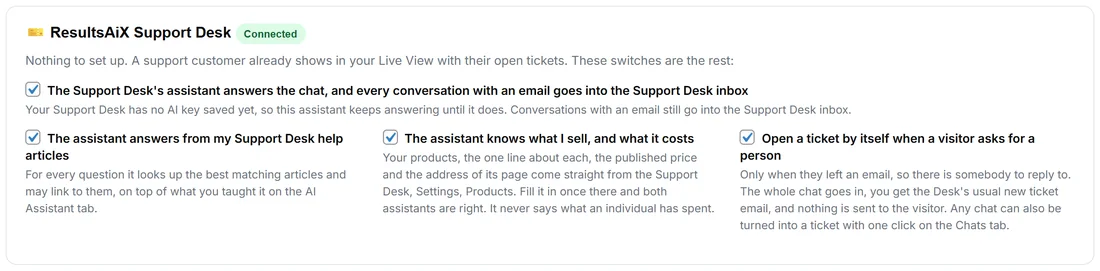
Open 🔌 Connections, the card 🎫 ResultsAiX Support Desk, marked Connected.
- The Support Desk's assistant answers the chat, and every conversation with an email goes into the Support Desk inbox: one assistant and one inbox for everything. It answers from your help articles and your product list. Reply on the Desk and the visitor sees it in the chat while they are on your site, and by email. When the Desk has no AI key yet, Pulse's own assistant keeps answering.
- The assistant answers from my Support Desk help articles.
- The assistant knows what I sell, and what it costs.
- Open a ticket by itself when a visitor asks for a person: only when they left an email, so there is somebody to reply to.
All four are on by default. Press Save Connections after changing one.
On the Chats tab:
With the Desk's assistant answering, a yellow card says One inbox and has Open The Support Desk Inbox. Each chat's card shows Their Tickets when the person is a Desk contact, and Their Other Chats for their chat history. A chat with no email says No email on this chat, so it cannot become a ticket yet.
Your three chats:
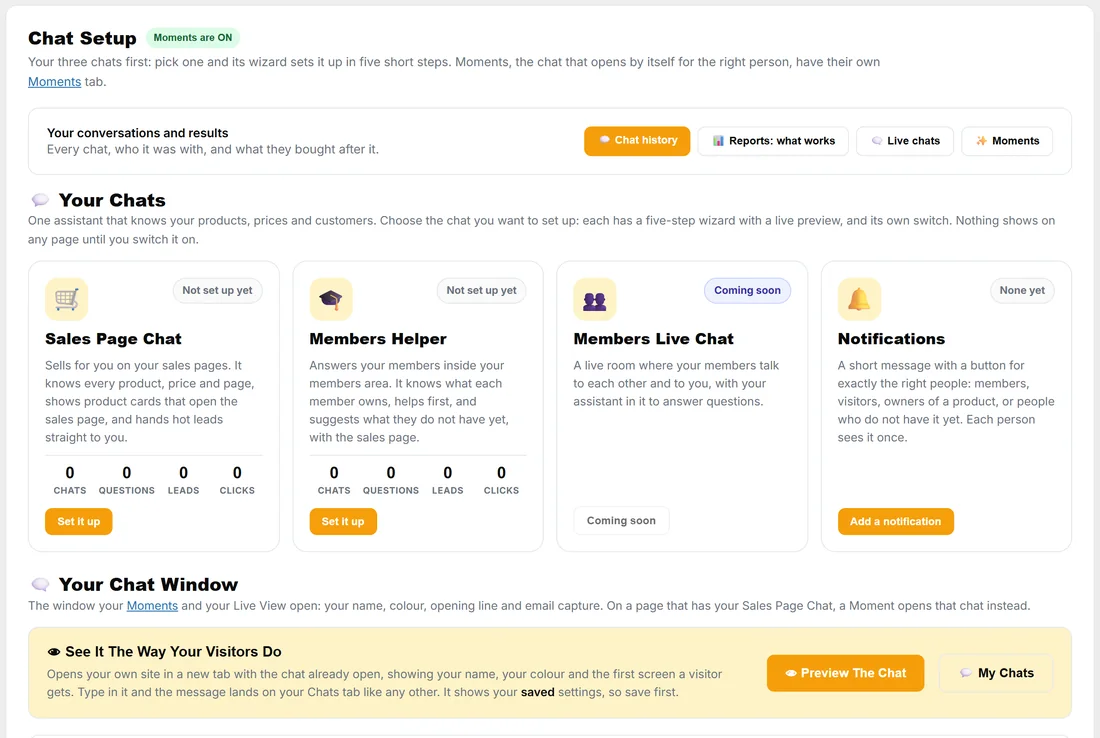
With the Desk on the site, 🗨️ Chat Setup starts with 💬 Your Chats: the Desk's Sales Page Chat, Members Helper and Members Live Chat (coming soon), plus Notifications. Each card shows its numbers for the last 7 days and Set it up, Edit or Try it, which open the Desk's five-step wizard. Your conversations and results gets 💬 Chat history and 📊 Reports: what works. On a page that has your Sales Page Chat, a Moment opens that chat instead of Pulse's window.
A ticket made from a chat:
A ticket made from a chat arrives quietly. The Desk does not triage it, does not auto-reply and emails the visitor nothing: the conversation already happened. You reply from the Desk like any other ticket.
A real example:
A visitor on yoursite.com's pricing page asks the chat "Is there a payment plan for Pro Coaching?". The assistant has nothing on that in the product list, so it says Sam will reply and asks for an email. The visitor asks for a person and leaves olivia.brown@example.com. The ticket opens by itself with the whole chat in it, and Sam answers from the Desk. Olivia sees the answer in the chat while she is still on the site, and by email.
Tips:
- Fill in the Support Desk's Settings, Products once, and both assistants give the same answers about what you sell.
- Ask for the email in the chat (Chat Setup, Email capture) so more chats can become tickets.