The best testimonials come from customers who are happy right now. ResultsAiX Testimonials gives them a simple form on your own site, keeps every new review private until you approve it, and can thank them with a gift.
This article covers the whole collection flow. Designing the form itself has its own article, Designing Your Testimonial Forms.
Where to find it:
Click AiX Testimonials, then the Collect tab. Your forms, their shortcodes and the share tools are all here.
The Collect tab at a glance:
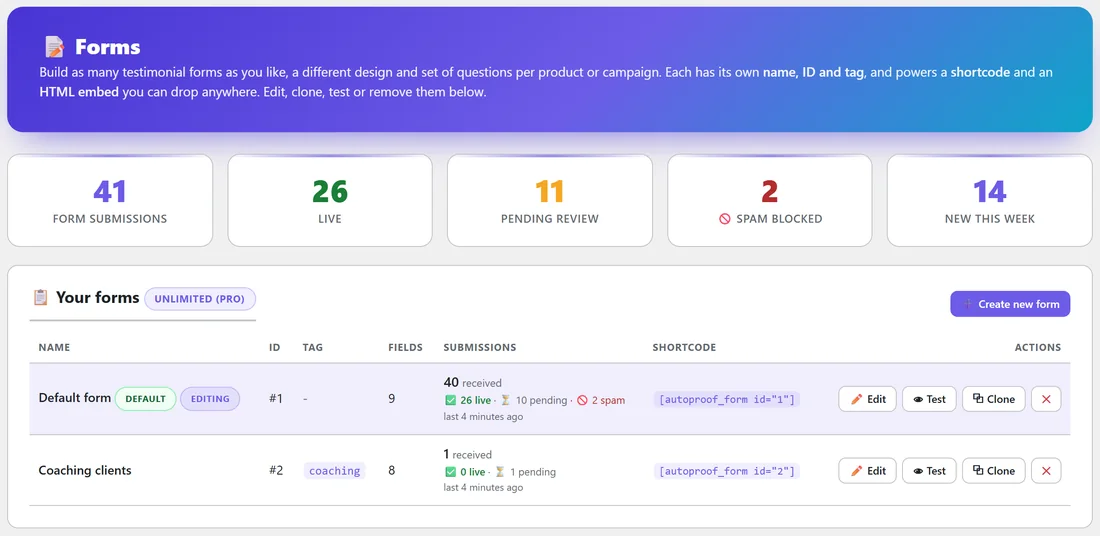
The cards at the top count Form submissions, Live, Pending Review, Spam Blocked and New this week. The Your forms table lists every form with its name, ID, tag, number of fields, submissions and shortcode, plus Edit, Test, Clone and ✕ buttons.
Putting the form on a page:
- On the Collect tab, find your form in the Your forms table.
- Copy its shortcode, for example [autoproof_form id="1"].
- In WordPress, create a page called Leave a Review and paste the shortcode into it.
- Publish the page and open it to see the form as your visitors do.
The shortcode [autoproof_form] with no id shows your default form.
What visitors see:
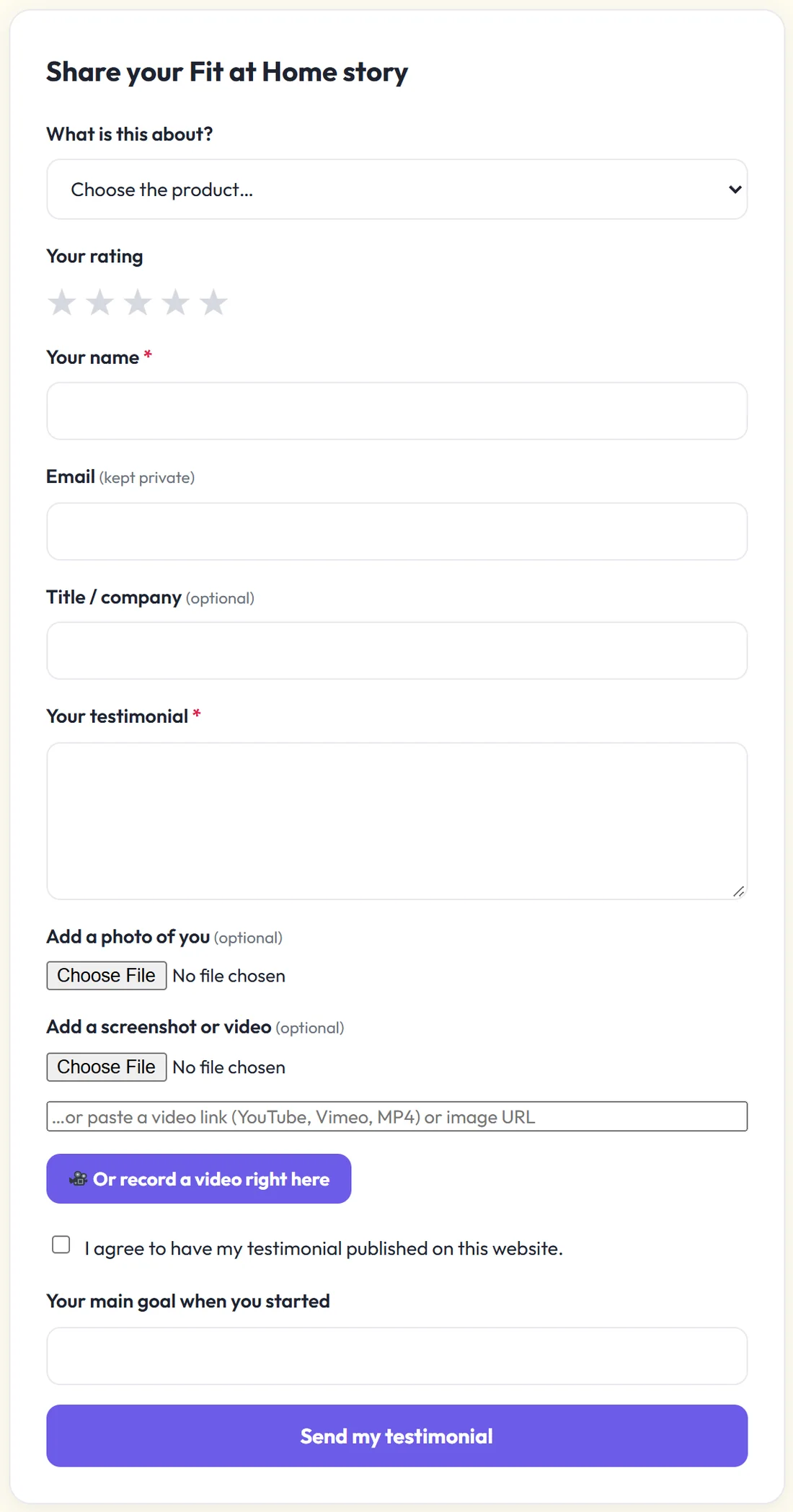
The default form asks What is this about? (the product), Your rating (1 to 5 stars), Your name, Email (kept private), Title / company (optional), Your testimonial, Add a photo of you, Add a screenshot or video (a file or a pasted YouTube, Vimeo or MP4 link), and the consent box I agree to have my testimonial published on this website. With PRO, an Or record a video right here button lets them record a video in the browser.
What happens when someone submits:
- The testimonial is saved as Pending on the Testimonials tab.
- You get an email with the review and a link to approve it. It goes to the Notify email set on the Settings tab, or your WordPress admin email.
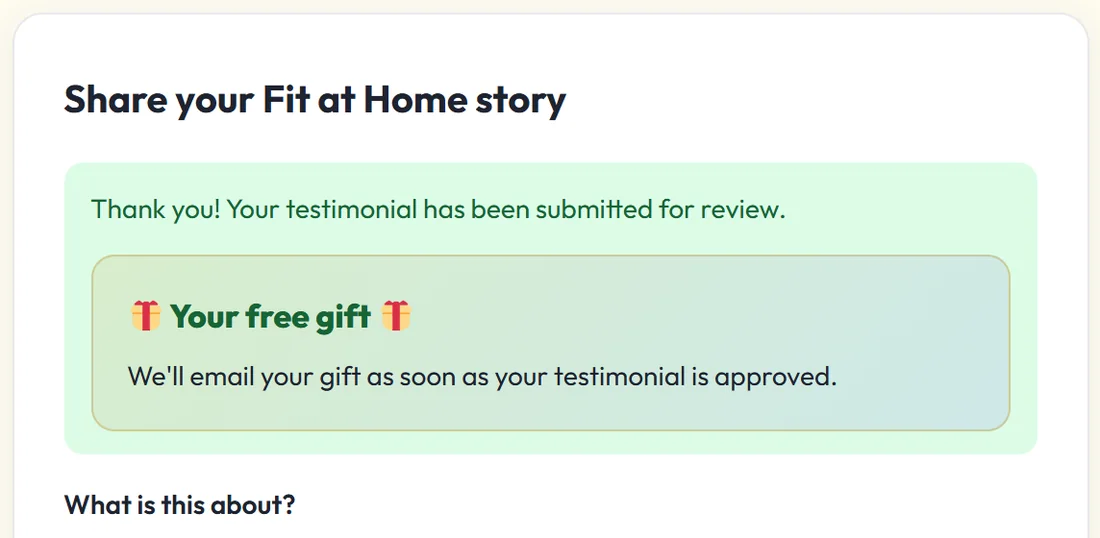
- The visitor sees Thank you! Your testimonial has been submitted for review.
- If gifting is on, they also see a Your free gift box saying the gift arrives by email once you approve.
Turn on Auto-approve on the Settings tab if you want new reviews to go live straight away. The visitor then sees Thank you! Your testimonial is now live.
Spam protection:
Two checks run on every submission, with no API key needed. A hidden honeypot field catches bots, and a local spam check flags likely junk and sends it to the Spam list instead of Pending. Both are on by default under Collection & moderation on the Settings tab.
Sharing a direct link:
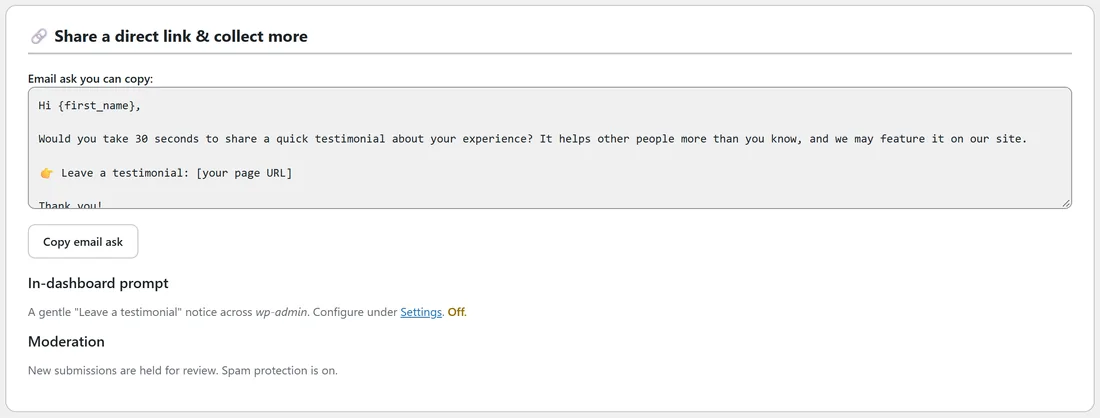
The Share a direct link & collect more panel gives you an email you can copy and send to customers. It starts Hi {first_name}, asks for 30 seconds of their time and has a spot for your page link. Replace [your page URL] with your Leave a Review page.
To open the form with a product already picked, add ?ap_product= and the product name to the page address, for example yoursite.com/leave-a-review/?ap_product=Online Yoga Membership.
Low ratings, handled privately:
Turn on the Review Funnel on the Settings tab and choose a rating, for example 3★ and below. A review at or below that rating is never published and never gets the gift. The customer sees your private thank-you message instead, and you get an email so you can follow up. See The Review Funnel & Auto Thank-You Reply.
Adding a review yourself:
If a customer emails you a testimonial, click Add Testimonial and paste it in. See Adding & Editing a Testimonial by Hand.
A real example:
Fit at Home Academy adds the form to yoursite.com/leave-a-review/ and sends the email ask to everyone who finished the 12-Week Strength Program. Tara Quinn fills it in with 5 stars. She sees the thank-you message and the gift promise, Jordan gets an email, and the review waits under Pending until Jordan clicks Live.
Tips:
- Put the link in your welcome and end-of-program emails, and on your thank-you page after a purchase.
- Use one form per product or campaign if you want different questions. See Designing Your Testimonial Forms.
- A gift lifts the number of reviews a lot. See The Built-In Gifting System.