You probably already have kind words from customers in a spreadsheet, an old reviews plugin, your inbox or the comments under your blog posts. The Import tab brings them in so they can sit next to your new reviews and show on your site.
Every method lands in the same place, the Testimonials tab, ready to display. Imports never send a gift or a thank-you email.
Where to find it:
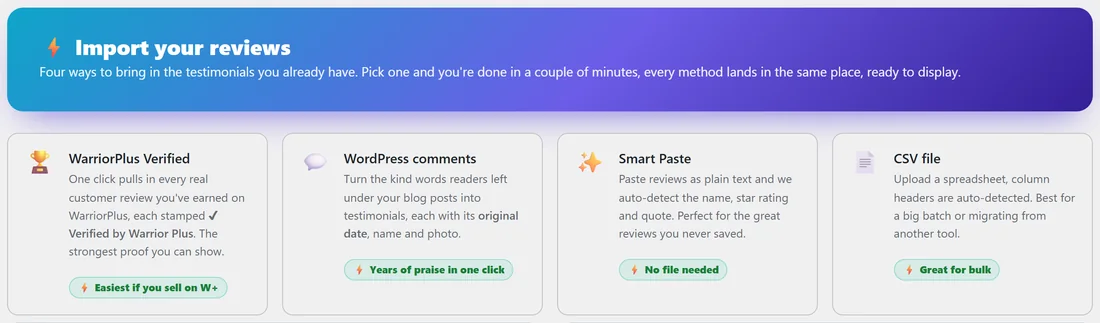
Click AiX Testimonials, then the Import tab. The top of the page shows the four ways to import: WarriorPlus Verified, WordPress comments, Smart Paste and CSV file.
CSV import:
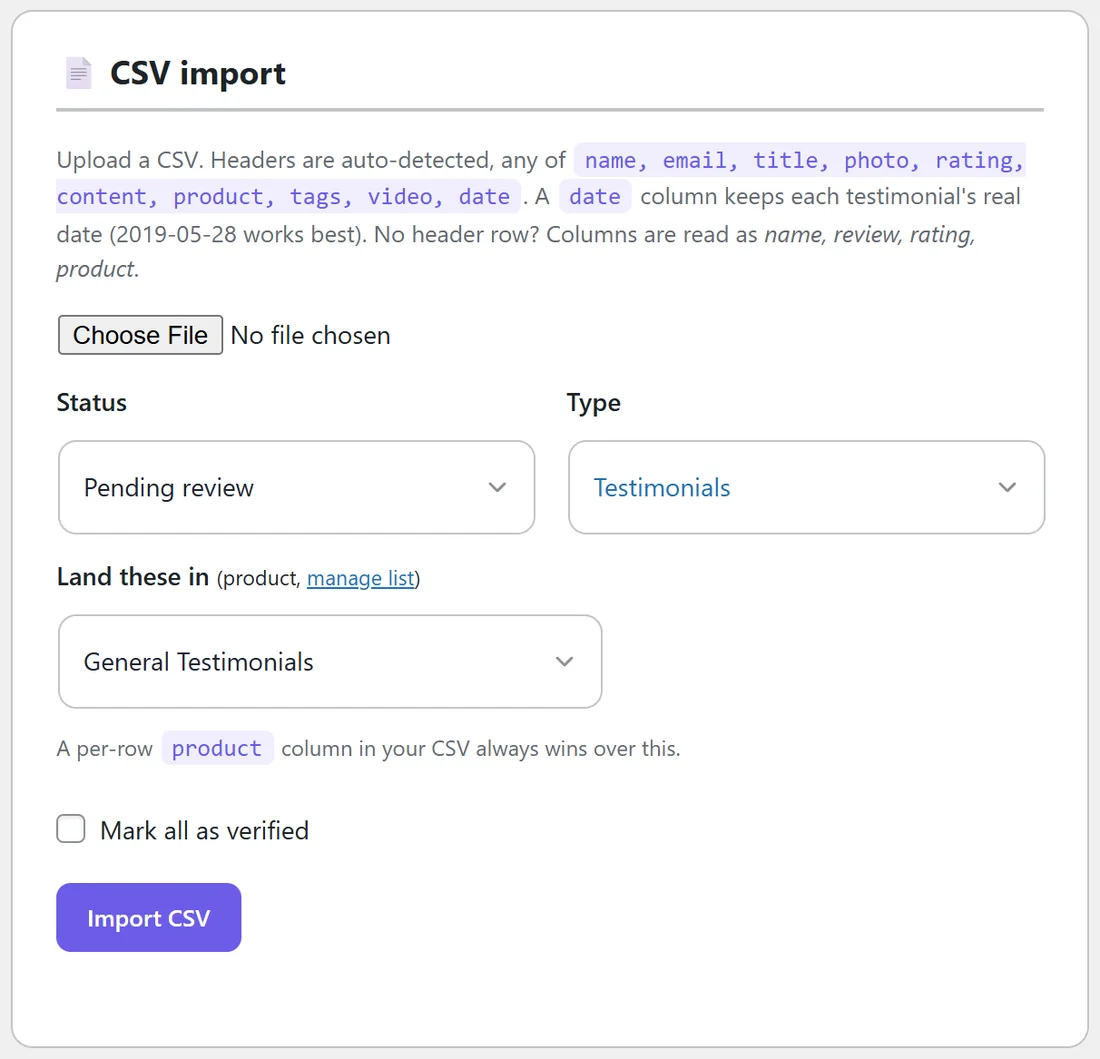
Best for a big batch or for moving from another tool.
- Save your reviews as a CSV file. The importer reads the header row and recognises any of these columns: name, email, title, photo, rating, content, product, tags, video, date.
- Click Choose File under CSV import and pick the file.
- Choose the Status: Pending review, or Approved (publish now).
- Choose the Type: Testimonials, or Results / proof for screenshot-style entries.
- Under Land these in, pick the product. A product column in your CSV always wins over this.
- Tick Mark all as verified if every row is a confirmed customer.
- Click Import CSV.
A green message tells you how many were imported, with a View them link. Rows with no name, no text and no media are skipped.
A date column keeps each testimonial's real date. The format 2019-05-28 works best. If your file has no header row, the columns are read in this order: name, review, rating, product.
Smart Paste:
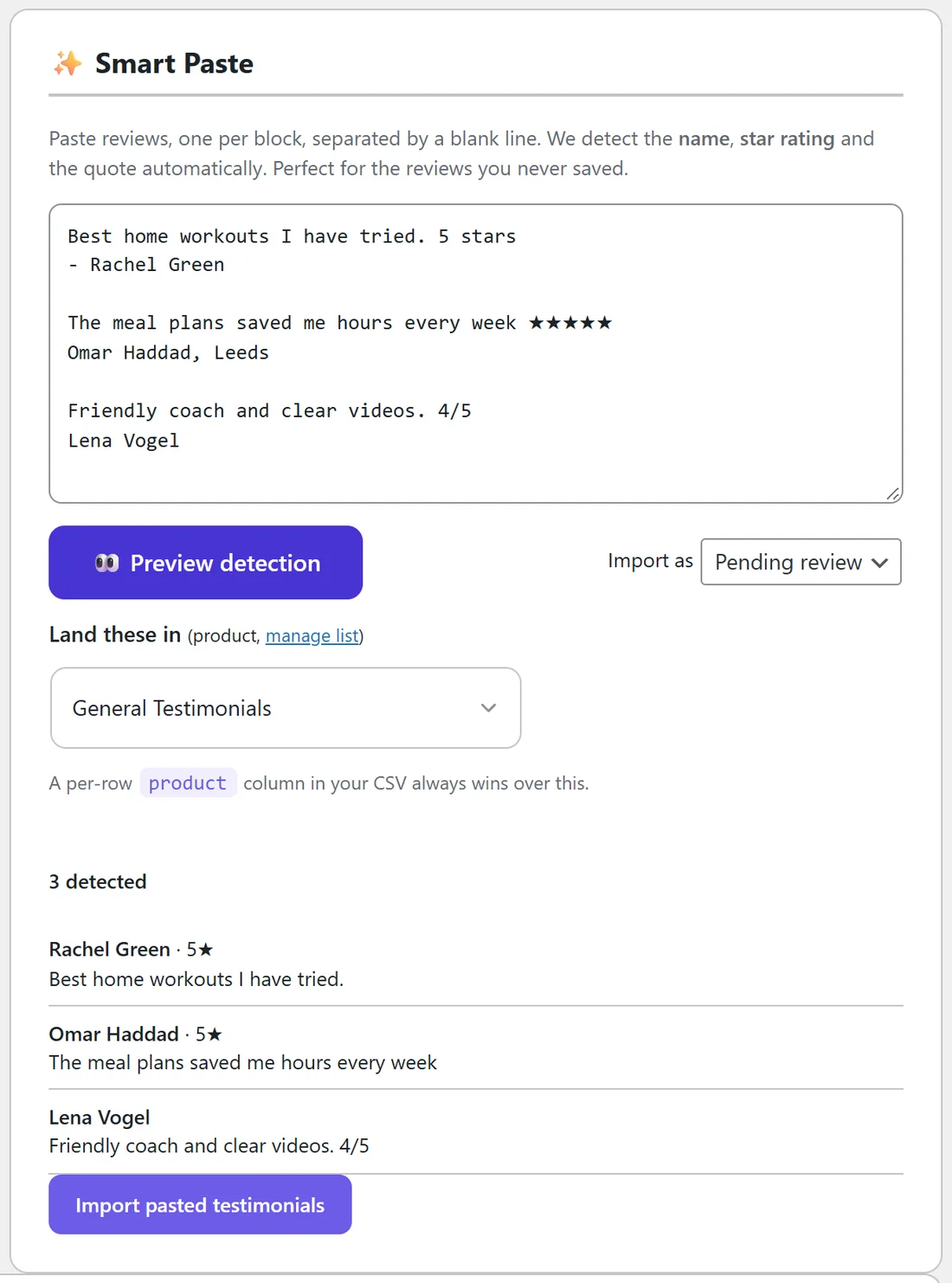
Best for reviews you never saved anywhere, like a few lines from an email.
- Paste the reviews into the box, one per block, with a blank line between them.
- Click Preview detection. The plugin finds the name, the star rating and the quote in each block and lists what it detected.
- Check the list. If something looks wrong, edit the text and click Preview detection again.
- Choose Import as: Pending review or Approved.
- Choose the product under Land these in.
- Click Import pasted testimonials.
Ratings written as 5 stars or ★★★★★ are picked up. A name can be on its own line, after a dash, or followed by a place, like Omar Haddad, Leeds.
WordPress comments:
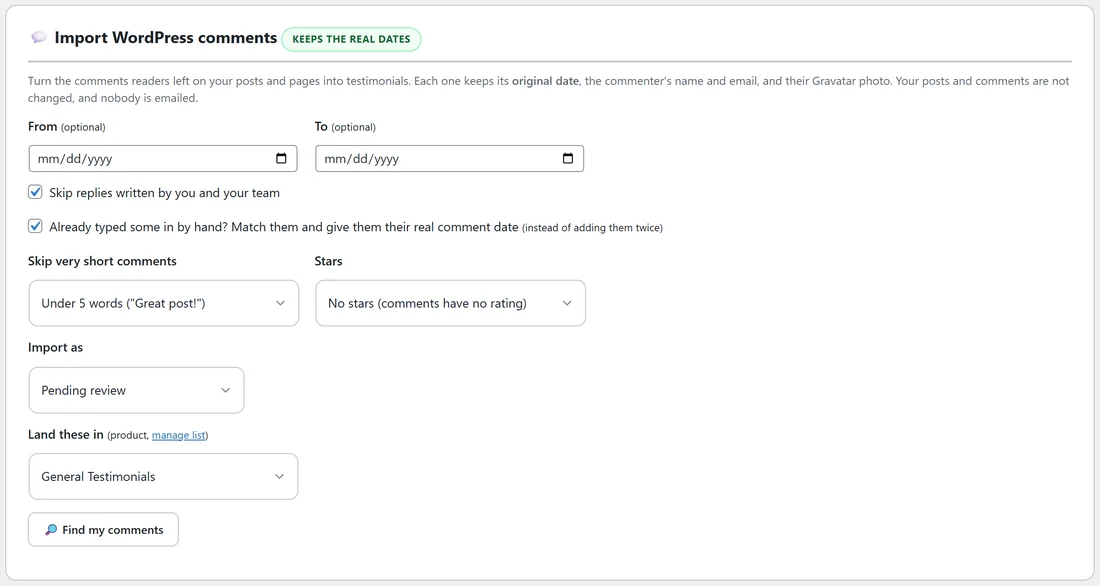
Turn the kind words readers left under your posts and pages into testimonials. Each one keeps its original date, the commenter's name and email, and their Gravatar photo. Your posts and comments are not changed, and nobody is emailed.
- Optionally set From and To dates.
- Leave Skip replies written by you and your team ticked, so your own answers are left out.
- Tick Already typed some in by hand? if you added some of these comments yourself earlier. The importer matches them and gives them their real comment date instead of adding them twice.
- Under Skip very short comments, choose Keep them all, Under 5 words or Under 10 words.
- Under Stars, choose No stars (comments have no rating) or 5 stars on each.
- Choose Import as and the product under Land these in.
- Click Find my comments, check the list, and import.
WarriorPlus:
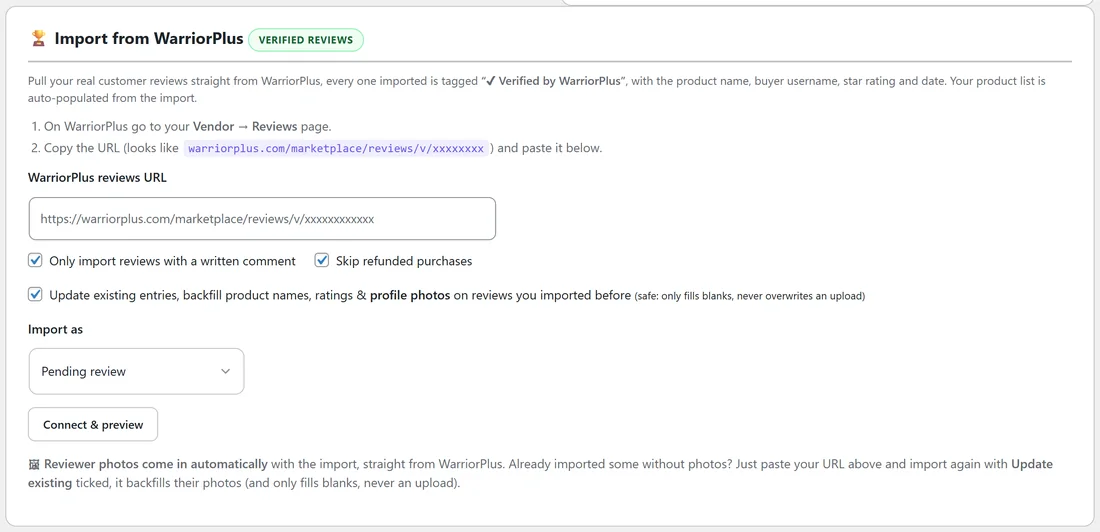
If you sell on WarriorPlus, you can pull in every real customer review you have earned there. Each one shows a ✔ Verified by Warrior Plus badge on your site.
- On WarriorPlus, open your Vendor, then Reviews page.
- Copy its address. It looks like warriorplus.com/marketplace/reviews/v/xxxxxxxx.
- Paste it into WarriorPlus reviews URL.
- Choose the options you want, such as Only import reviews with a written comment and Update existing entries (fills in missing product names, ratings and profile photos on reviews you imported before, and never overwrites an upload).
- Choose Import as.
- Click Connect & preview, then import.
Each review arrives with its rating, headline, buyer username, date and photo, and the product name is added to your Products list for you. Running it again is safe: reviews you already have are updated instead of added twice.
A real example:
Fit at Home Academy had 3 old reviews in a spreadsheet from an earlier reviews tool. Jordan saves it as CSV with the columns name, rating, content, product and date, picks Approved (publish now) and imports. The Activity log records Imported 3 testimonials from CSV, and the three reviews keep their original dates from August.
Then Jordan pastes three reviews from old emails into Smart Paste. Preview detection finds Rachel Green with 5 stars, Omar Haddad with 5 stars and Lena Vogel with no stars, and Jordan imports them as Pending to check each one first.
With an AI key:
With a Claude or OpenAI key connected on the Integrations & AI tab, this page also offers AI clean-up of messy pasted text, reading a screenshot of reviews into entries, and filling in missing star ratings. Everything above works without a key. See Connecting Your AI Key (Optional).
Tips:
- Import as Pending review when you want to read every review first, then approve them in one go with the bulk actions.
- Bulk Make Live never sends gifts or thank-you emails, which is right for old reviews.
- Moving everything from another ResultsAiX Testimonials site? Use Export and Import on the PRO tab instead. See ResultsAiX Testimonials PRO: Upgrade Features.