This article gets the plugin installed, switched on with your licence key and ready to use. It takes about five minutes.
Installing the plugin:
- In WordPress, go to Plugins, then Add New Plugin.
- Click Upload Plugin and choose the zip file from your download.
- Click Install Now, then Activate.
A new menu called AiX Testimonials appears in your WordPress sidebar with a quote icon.
Activating your licence:
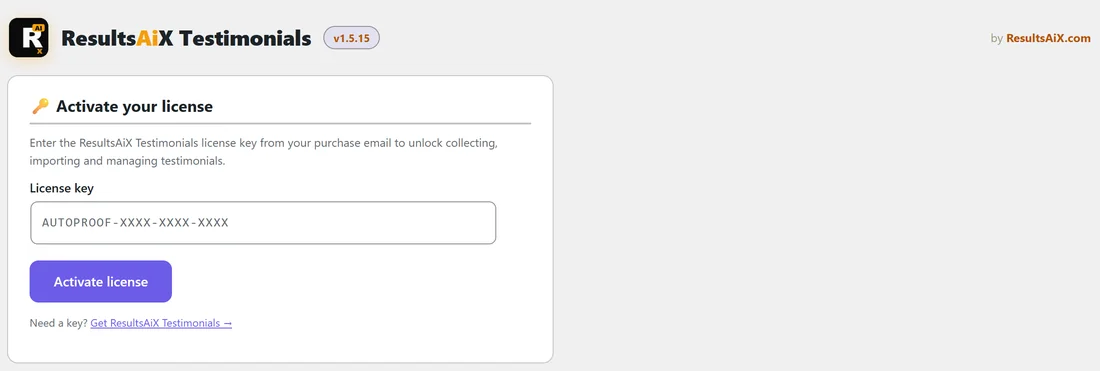
Until a key is active, AiX Testimonials shows one screen called Activate your license.
- Click AiX Testimonials in your sidebar.
- Paste the key from your purchase email into the License key box. It looks like AUTOPROOF-XXXX-XXXX-XXXX.
- Click Activate license.
A green message confirms it and the page reloads with the full plugin. Your key arrives by email after purchase. If you need it again, open your customer portal from the All my keys & downloads link on the Settings tab, or open a support ticket.
PRO is built in:
There is no separate PRO plugin and no second key. Once your key is active, the PRO and PRO AI tabs appear at the end of the tab row and in the AiX Testimonials menu. If an older copy of the separate ResultsAiX Testimonials PRO add-on is on your site, the plugin switches it off and removes it for you, and shows a short message saying so. All your testimonials and settings stay exactly as they were. If you still see the old add-on in your Plugins list, it is safe to delete it.
Finding your way around:

The tabs along the top of every screen are:
- Dashboard: your numbers, quick actions and newest reviews
- Testimonials: the full list, where you approve, feature, verify and tidy up
- Products: the list of products or offers your reviews belong to
- Import: CSV, Smart Paste, WordPress comments and WarriorPlus
- Display & Embed: saved batches, shortcodes, embeds and ready-made walls
- Collect: your testimonial forms and the form designer
- Gifting: rewards for people who leave a review
- Integrations & AI: webhook, WP Sync, ResultsAiX Mailer and your optional AI key
- Activity: a full log of everything that happens
- Training: the built-in knowledge base
- Resources: other ResultsAiX tools, with Installed marked on the ones you have
- Diagnostics: a health report you can copy for support
- Settings: your licence, appearance, moderation, emails and popups
- PRO and PRO AI: the built-in PRO tools and the optional AI suite
The sidebar menu under AiX Testimonials has three shortcuts: Dashboard, Testimonials (with a count bubble when reviews are waiting) and Add New.
Your first ten minutes:
- Open Products and add the products or services you sell. See Setting Up Your Products.
- Open Collect, set the form title, and click Save form.
- Create a WordPress page called Leave a Review and paste the shortcode [autoproof_form] into it.
- Open Display & Embed and copy the Wall of Love shortcode into a page called Reviews.
The ResultsAiX Hub:
If the ResultsAiX Hub is installed, it lists this plugin with your other ResultsAiX plugins, and a Hub tab appears at the end of the tab row. The Hub can set one colour scheme for all of them. On the Settings tab, the Color scheme setting Follow the ResultsAiX Hub uses that shared choice.
Tips:
- Activate the key on your live site first. Each site you use takes one slot of your licence, and the licence panel on the Settings tab shows them all.
- Leave the default Pending moderation on while you test your form, so test entries never go live.
- Bookmark the Testimonials tab with ?status=pending in the address, so you land straight on reviews waiting for you.