ResultsAiX Testimonials collects, manages and displays testimonials and reviews on your WordPress site. Customers leave a review on your own form, you approve the ones you want public, and the plugin shows them as walls, grids, carousels, floating popups or a live embed on any HTML page.
It works without any AI key. Every PRO tool is built in, so one licence key covers the whole plugin. An AI key from Claude or OpenAI is optional and only adds extra helpers.
This guide is the map. Each part below has its own article with screenshots and step by step instructions.
Where to find it:
Click AiX Testimonials in your WordPress sidebar (the quote icon). The plugin opens on the Dashboard tab. Every screen is a tab along the top: Dashboard, Testimonials, Products, Import, Display & Embed, Collect, Gifting, Integrations & AI, Activity, Training, Resources, Diagnostics and Settings, plus PRO and PRO AI. The purple Add Testimonial button sits at the end of the row.
The Dashboard:
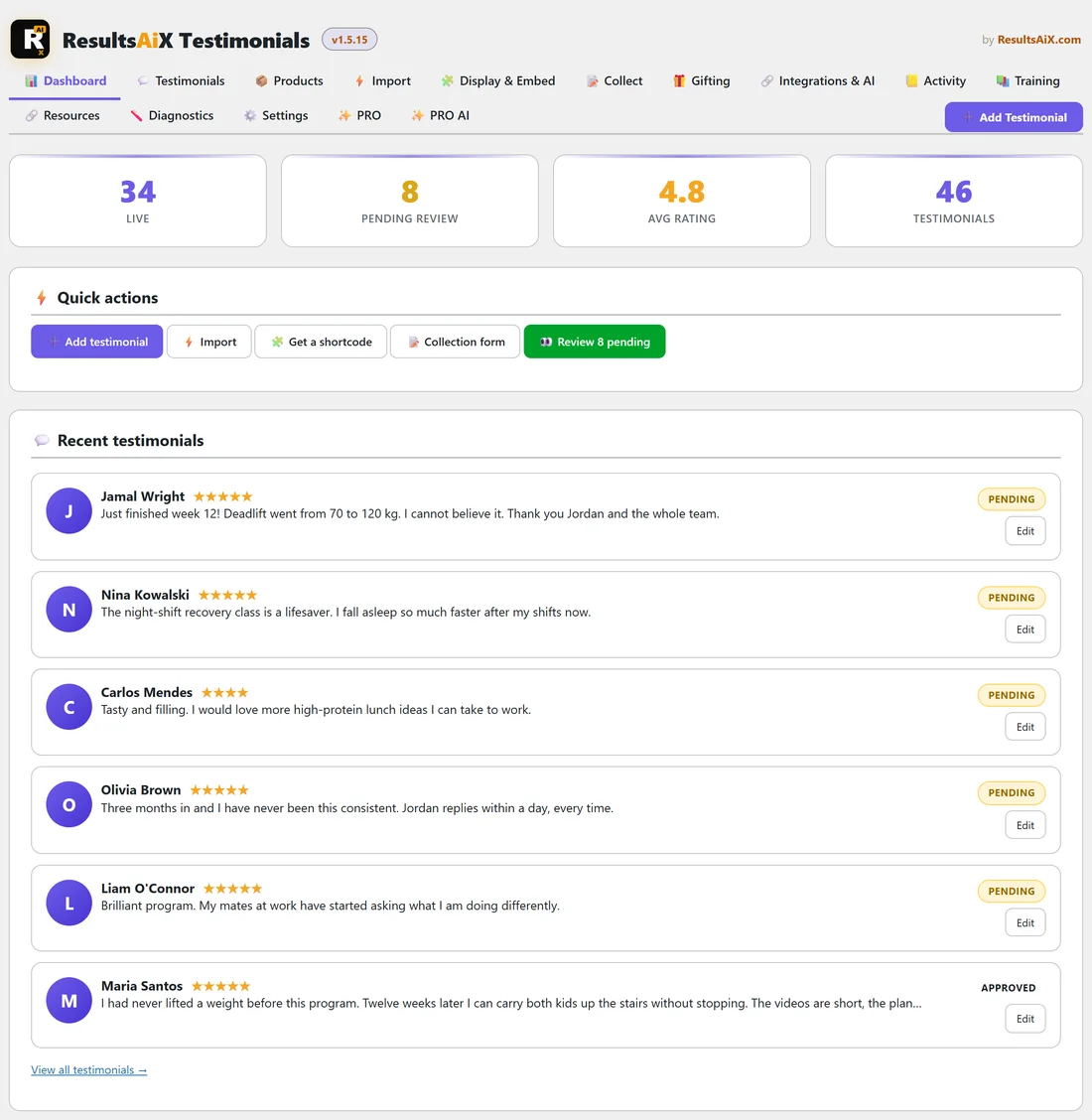
The Dashboard shows four numbers at the top: Live, Pending Review, Avg Rating and Testimonials (everything except spam and trash). Under them, Quick actions gives you one-click buttons for Add testimonial, Import, Get a shortcode, Collection form and Review pending (with the number waiting). Recent testimonials lists the newest entries with their status and an Edit button.
How the pieces fit together:
- Set up your products on the Products tab, so every review knows which offer it is about. See Setting Up Your Products.
- Bring in the reviews you already have on the Import tab: a CSV file, Smart Paste, WordPress comments or WarriorPlus. See Importing Existing Testimonials & Reviews.
- Build a form on the Collect tab and put it on a page with its shortcode. See Designing Your Testimonial Forms.
- Turn on a gift on the Gifting tab, so people get a reward for leaving a review. See The Built-In Gifting System.
- Approve, feature and verify reviews on the Testimonials tab. See Moderation, Tags & Managing Testimonials.
- Show them with a shortcode, the block, a saved batch, the Wall of Love or a floating popup. See Displaying Testimonials: Shortcodes & Blocks and Display Batches: Build Once, Show Anywhere.
A real example:
Fit at Home Academy runs at yoursite.com and sells four things: a 12-Week Strength Program, an Online Yoga Membership, 1-to-1 Coaching and Healthy Meal Plans. The owner, Jordan, adds those four products, imports 3 old reviews from a spreadsheet and puts the form on a page called Leave a Review. Every new review lands as Pending. When Jordan clicks Live on a review, it goes on the site, the customer gets a free 7-day meal plan by email and a thank-you reply. The Reviews page shows a Wall of Love with search and star filters, and the strength program sales page shows only strength program reviews with an average star rating above them.
After a few weeks the Dashboard reads 34 live testimonials with an average of 4.8 stars, and 8 more are waiting for review.
The Training tab:
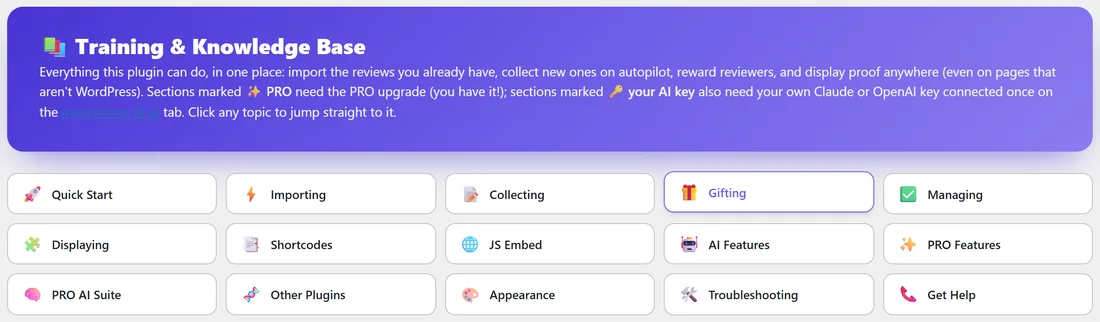
The Training tab inside the plugin holds a short knowledge base with topics for Quick Start, Importing, Collecting, Gifting, Managing, Displaying, Shortcodes, JS Embed, AI Features, PRO Features, PRO AI Suite, Other Plugins, Appearance, Troubleshooting and Get Help. Click any topic to jump to it.
Tips:
- Start with products. Every picker in the plugin uses the same product list, so a few minutes there saves sorting later.
- Keep new submissions on Pending (the default) until you are happy with the flow, then decide if you want Auto-approve on the Settings tab.
- Feature your best five or six reviews. Featured reviews power the Single layout and are the fallback for the best-of wall.
- Read Every Setting Explained once, so you know what each switch on the Settings tab does.