Every testimonial, whether a customer sent it, you imported it or you added it yourself, lands on the Testimonials tab. This is where you decide what goes on your site.
Where to find it:
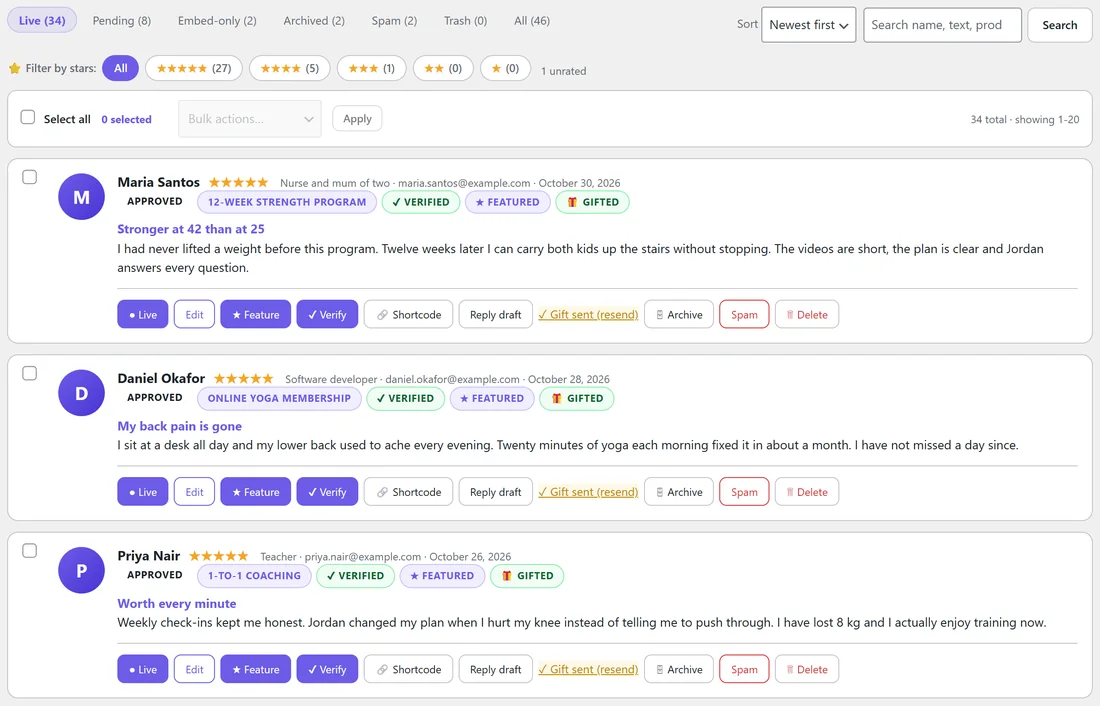
Click AiX Testimonials, then the Testimonials tab, or click Testimonials in the sidebar menu. A number beside the sidebar link shows how many are waiting.
The status lists:
Along the top are the lists, each with a count:
- Live: approved testimonials, shown on your site
- Pending: waiting for you. New form submissions land here.
- Embed-only: hidden from walls, carousels and popups. They show only where you place them yourself: a hand-picked batch, an ids shortcode, a proof gallery or the entry's own Shortcode button.
- Archived: moved out of the way without deleting, for example reviews of a product you no longer sell
- Spam: caught by the spam check, or marked by you
- Trash
- All
Finding a testimonial:

- Sort: Newest first, Oldest first, Highest rating, Lowest rating, Name A-Z or Name Z-A
- Search: type a name, words from the testimonial or a product, then click Search. Click Clear to go back.
- Filter by stars: click a star pill to show only 5, 4, 3, 2 or 1 star reviews. Each pill shows its count, and unrated reviews are counted beside them.
The list shows 20 testimonials per page, with page links at the bottom.
Each testimonial row:

A row shows the avatar (the uploaded photo, the reviewer's Gravatar, or their first initial), name, stars, title, email and date. Badges show the status, product, ✔ Verified, ★ Featured, the media type, 📈 Result, 🔒 Private feedback and 🎁 Gifted. Under the text are the buttons:
- ● Live / ○ Off: puts the testimonial on your site or takes it off. Going Live this way runs the full approval: the gift and the thank-you email go out if they are switched on.
- Edit: opens the full editor. See Adding & Editing a Testimonial by Hand.
- ★ Feature: marks it as one of your best
- ✔ Verify: adds the Verified badge
- 🔗 Shortcode: copies a shortcode that shows only this testimonial, for example [autoproof ids="44"]
- Reply draft: opens a ready thank-you message you can copy into your email
- Send gift, or Gift sent (resend) once gifted: emails the gift by hand. It appears when gifting is on and the testimonial has an email.
- 🗄 Archive, Spam and 🗑 Delete
Approving pending testimonials:
- Click Pending.
- Read each testimonial. Click Edit to fix a typo or add a headline.
- Click Live on each one you want public.
Bulk actions:

- Tick the box on each row you want, or tick Select all.
- Choose an action from Bulk actions: Make Live (approve), Set Pending, Feature, Un-feature, Verify, Un-verify, Archive, Spam, Trash or Delete permanently.
- Click Apply.
Bulk status changes are quick and quiet. Make Live in bulk does not send gifts or thank-you emails, which suits imports. Use the single Live button when you want them to go out.
Tags and products:
Tags are short labels you add on the edit screen, separated by commas, for example beginner, back pain. Products come from the Products tab. Both let your displays pick the right proof: [autoproof tag="beginner"] or [autoproof product="Online Yoga Membership"]. See Displaying Testimonials: Shortcodes & Blocks.
A real example:
Fit at Home Academy has 8 pending reviews on Monday morning. Jordan opens Pending, sees two with a red 🔒 Private feedback badge from the Review Funnel and replies to those by email. The other six are lovely, so Jordan clicks Live on each one. Every one of those customers gets the 7-day meal plan gift and a thank-you email, and the Activity log shows each step.
Tips:
- Feature your strongest five or six. The Single layout and the best-of wall use featured testimonials.
- Verify reviews from people you know bought. The badge builds trust.
- Archive instead of delete when a product is retired, so you can bring reviews back later.
- Spam or unwanted entries can sit in Trash until you decide.