Every PRO tool is built into ResultsAiX Testimonials. There is nothing extra to install and no second key: your licence switches them all on. You reach them from the PRO tab at the end of the tab row, and the PRO item in the AiX Testimonials menu.
PRO also means unlimited forms on the Collect tab and unlimited gifts on the Gifting tab.
The PRO Home:
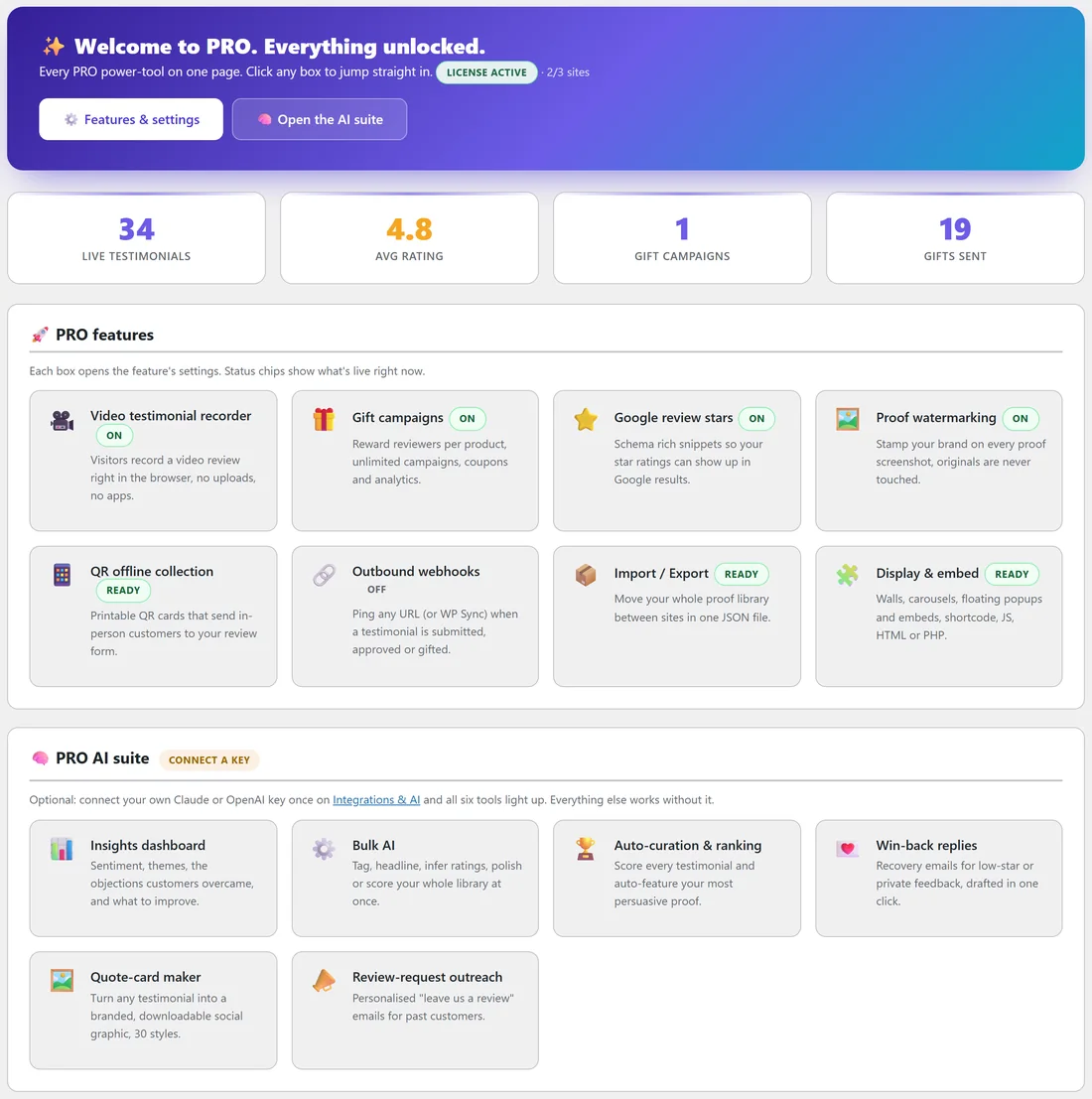
The PRO tab opens on the PRO Home. It shows your LICENSE ACTIVE status, live testimonials, average rating, gift campaigns and gifts sent, then a box for each PRO feature with a status chip (ON, OFF or READY). Click any box to open its settings, or click Features & settings. Open the AI suite goes to PRO AI.
Video Testimonial Recorder:
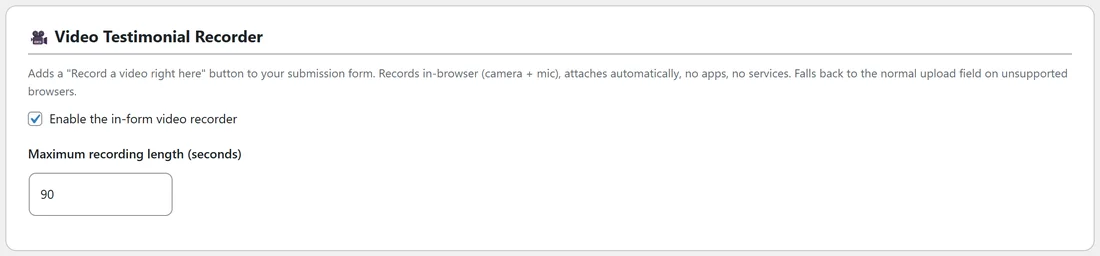
Adds an Or record a video right here button to your testimonial form. Visitors record with their camera and microphone in the browser, and the video attaches by itself. On browsers that cannot record, the normal upload field is still there.
- Enable the in-form video recorder
- Maximum recording length (seconds): 90 by default, from 10 to 600
Gift Campaigns:
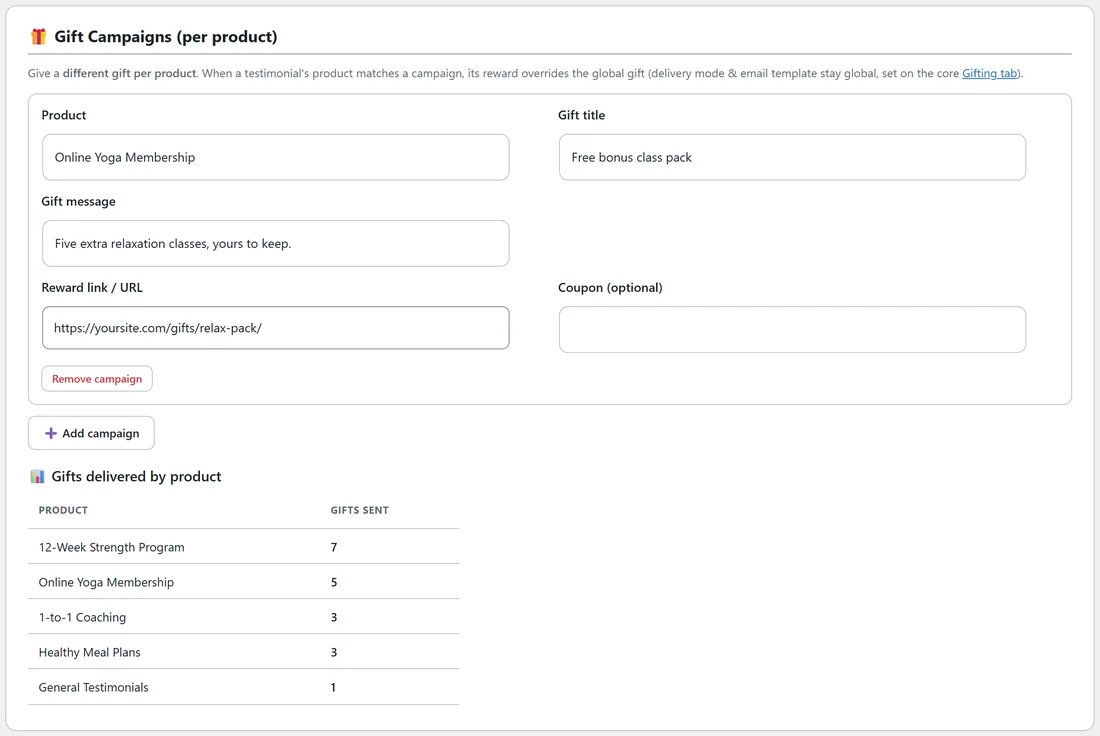
Give a different gift per product. When a testimonial's product matches a campaign, its reward replaces the global gift. Delivery mode and the email template stay as set on the Gifting tab.
- Click Add campaign.
- Choose the Product and fill in Gift title, Gift message, Reward link / URL and an optional Coupon.
- Click Save PRO settings.
Gifts delivered by product shows how many gifts each product has sent.
Google Stars:
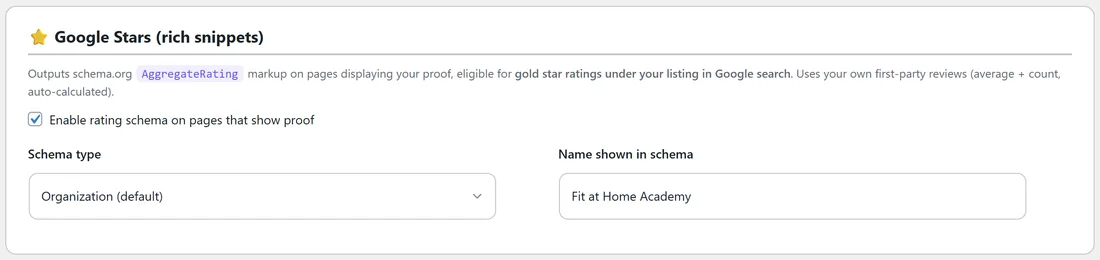
Adds AggregateRating markup, the standard rating format search engines read, to pages that show your testimonials, so search engines can read your average rating and count. Google decides whether to show stars for your listing.
- Enable rating schema on pages that show proof
- Schema type: Organization (default), Product or Local Business
- Name shown in schema: your business or product name
The rating and count are worked out from all your approved testimonials with a rating.
Proof Watermarking:
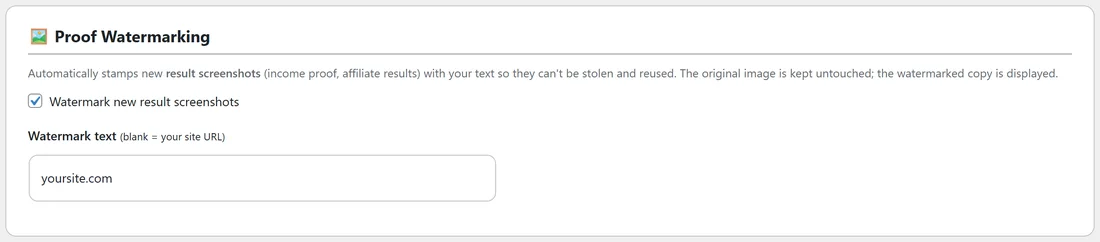
Stamps new result screenshots with your text, so they cannot easily be reused by someone else. The original image is kept and the watermarked copy is displayed.
- Watermark new result screenshots
- Watermark text: blank uses your site address
Outbound Webhook:
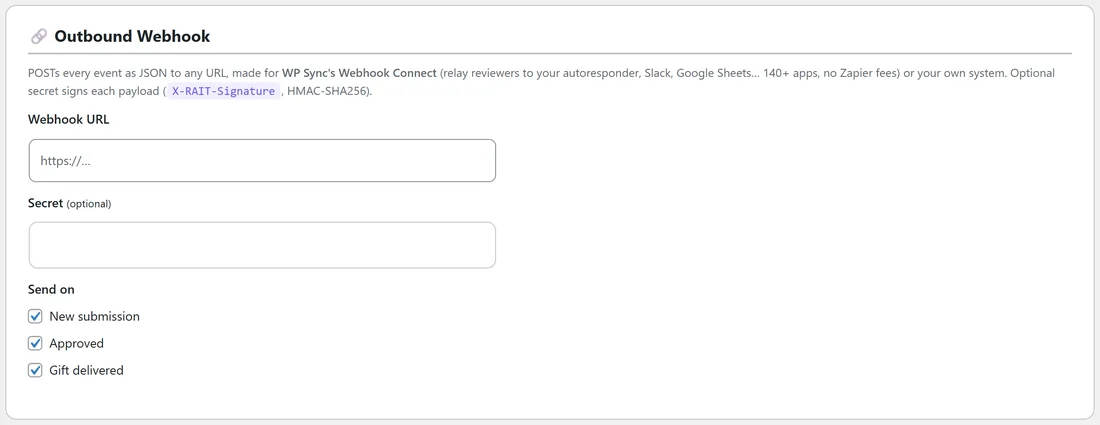
Sends every event as JSON to any address, for WP Sync's Webhook Connect or your own system.
- Webhook URL
- Secret (optional): signs each payload in the X-RAIT-Signature header (HMAC-SHA256), so your system can check it came from you
- Send on: New submission, Approved and Gift delivered
Private feedback from the Review Funnel is sent too, whenever a webhook address is set.
QR Review Collection:
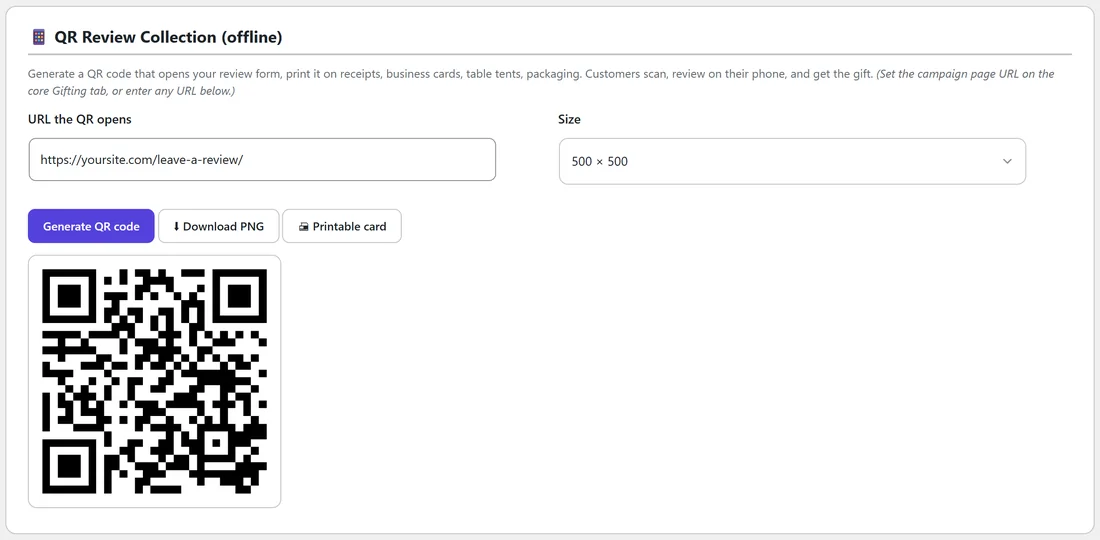
Make a QR code that opens your review form, for receipts, business cards, table tents or packaging.
- Check URL the QR opens. It starts as your campaign page from the Gifting tab.
- Choose the Size: 300 × 300, 500 × 500 or 1000 × 1000 (print).
- Click Generate QR code.
- Click Download PNG or Printable card.
The QR image is made by an online QR service, so your computer needs to be online when you click Generate.
Import / Export:
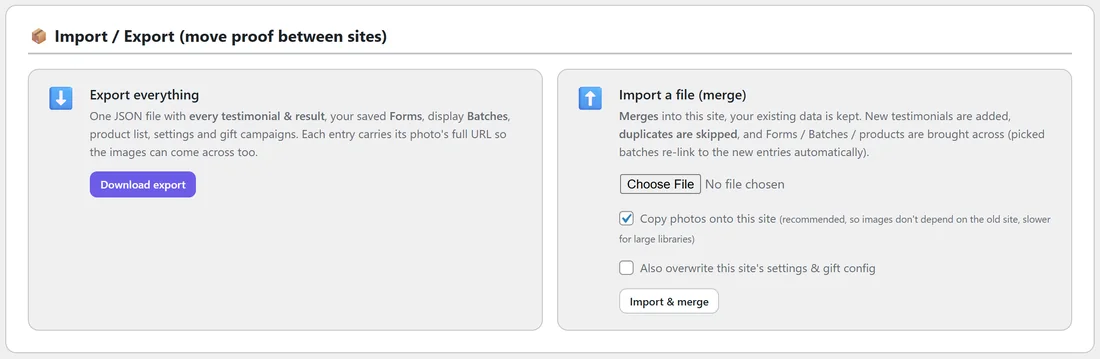
Move your proof library between sites.
- Export everything: Download export saves one JSON file with every testimonial and result, your saved forms, display batches, product list, settings and gift campaigns. Each entry carries its photo's full address so the images can come across too.
- Import a file (merge): choose the file and click Import & merge. Your existing data is kept, new testimonials are added and duplicates are skipped. Forms, batches and products come across, and hand-picked batches re-link to the new entries. Tick Copy photos onto this site (recommended) so images no longer depend on the old site. Tick Also overwrite this site's settings & gift config only if you want the other site's settings.
The best-of wall:
[autoproof_best] shows your most persuasive testimonials, ranked by the AI curation score from the PRO AI tab. Until anything is scored, it shows your featured testimonials. See Connecting Your AI Key (Optional).
A real example:
Fit at Home Academy turns on the recorder, Google Stars as an Organization named Fit at Home Academy, and watermarking with the text yoursite.com. A gift campaign gives yoga reviewers a Free bonus class pack. Jordan prints a 1000 × 1000 QR card for the studio's front desk that opens yoursite.com/leave-a-review/.
Tips:
- Export once a month as a backup of your proof library.
- Use a webhook secret whenever the receiving system can check it.
- Put QR cards wherever customers are happiest: the end of a class, the delivery box, the receipt.