Stars, badges and media are what make a testimonial believable. A five star rating, a Verified badge and a real result screenshot do more than a paragraph of praise.
Star ratings:
Every testimonial can carry a rating from 1 to 5 stars. Visitors choose it on your form, you set it on the edit screen, and imports bring it in from your file.
Where ratings show up:
- On each card, as gold stars above the text
- On the Testimonials tab, beside each name, with star filter pills to show one rating at a time
- On the Dashboard, as Avg Rating
- In [autoproof_summary], as an average and a count
The rating summary:

[autoproof_summary] shows the average stars and the number of reviews, for example 4.9/5 · 9 reviews, under a heading. Options:
- product: limit it to one product, for example [autoproof_summary product="12-Week Strength Program"]
- limit: how many reviews to count (80 by default)
- title: the heading. The default is What customers are saying.
With an AI key connected, the summary also writes a short headline and a few points about what customers love, refreshed every 12 hours. See Connecting Your AI Key (Optional).
Showing only high ratings:
- Add rating to a shortcode: [autoproof rating="4"] shows 4 and 5 star reviews only.
- Or set Minimum rating shown on the Settings tab (Show all, 3★ and up, 4★ and up or 5★ only). It applies to every [autoproof] display that has no rating of its own.
Verified badges:
Tick Verified customer on the edit screen, click ✔ Verify on a row, or use the Verify bulk action. A green ✔ Verified shows beside the name on your site. WarriorPlus imports show ✔ Verified by Warrior Plus.
Featured:
Click ★ Feature on a row, or tick Featured on the edit screen. Featured testimonials power featured="1" in shortcodes, a Single layout of your top quote, and the best-of wall when nothing has been scored yet.
Photos:
Each testimonial can have a photo of the reviewer. Customers add it on the form with Add a photo of you, and you can add it on the edit screen. With no photo, the plugin tries the reviewer's Gravatar, then shows their first initial in a coloured circle.
Result screenshots:
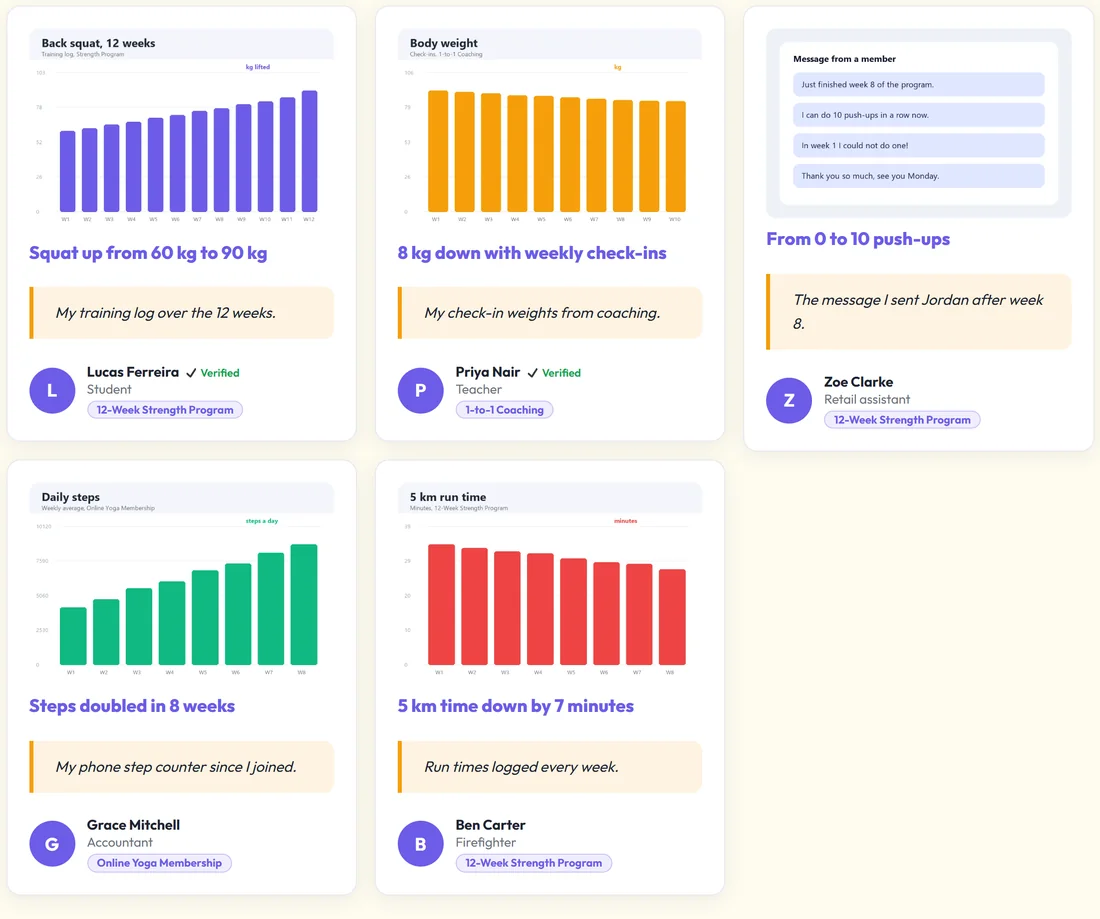
Choose Result / Proof (screenshot) as the Type and add the image. Results show the image first, then the headline and words. Visitors can click the image to zoom. [autoproof_proof] shows every result in a gallery automatically, including Embed-only ones.
Video testimonials:
A testimonial can carry a video: an uploaded file, or a YouTube, Vimeo or MP4 link. On your form, visitors add it under Add a screenshot or video, or paste a link. With PRO, the Or record a video right here button records straight from their camera in the browser. Videos play right on the card. One testimonial can carry both an image and a video.
A real example:
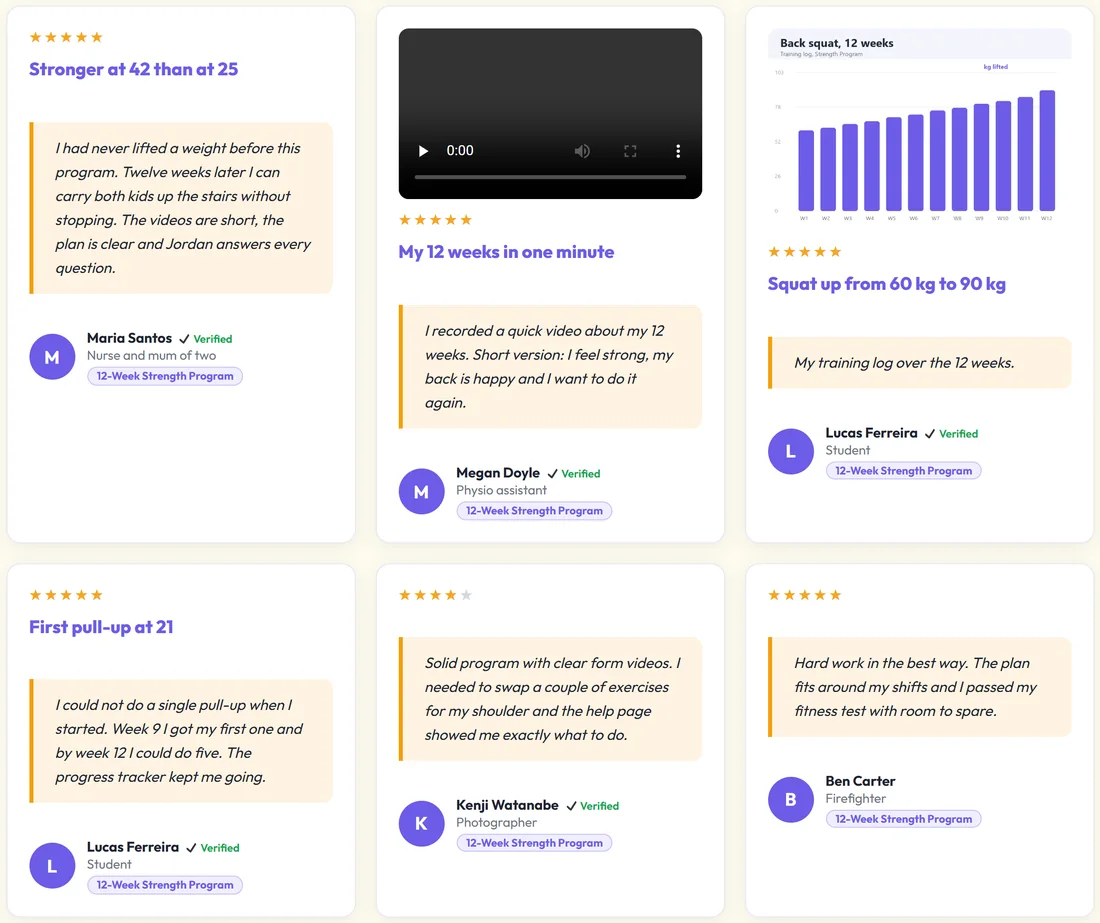
On the Fit at Home Academy strength program page, the summary reads 4.9/5 · 9 reviews. Below it, the grid shows Maria's featured quote, Megan Doyle's video, and Lucas Ferreira's training log chart with the headline Squat up from 60 kg to 90 kg.
Tips:
- Ask happy customers for a screenshot of their result. It is the most convincing proof.
- Keep videos short. Under a minute is plenty. The PRO recorder's default limit is 90 seconds.
- Put [autoproof_summary] near your buy button.