The Settings tab holds the switches that shape the whole plugin. This article goes through every section in order, with what each option does and a good value to start with.
Where to find it:
Click AiX Testimonials, then the Settings tab. Remember to click Save settings at the bottom after changes. The bar at the bottom reminds you that changes are not saved until you click it.
License:
The licence panel shows your key (masked), its status and who it is licensed to, plus every site using it. See License, Updates & Troubleshooting.
Help & resources:
Three cards: Training & docs opens the Training tab, Your account portal opens your keys, downloads and invoices, and Need a hand? opens support.
Appearance:
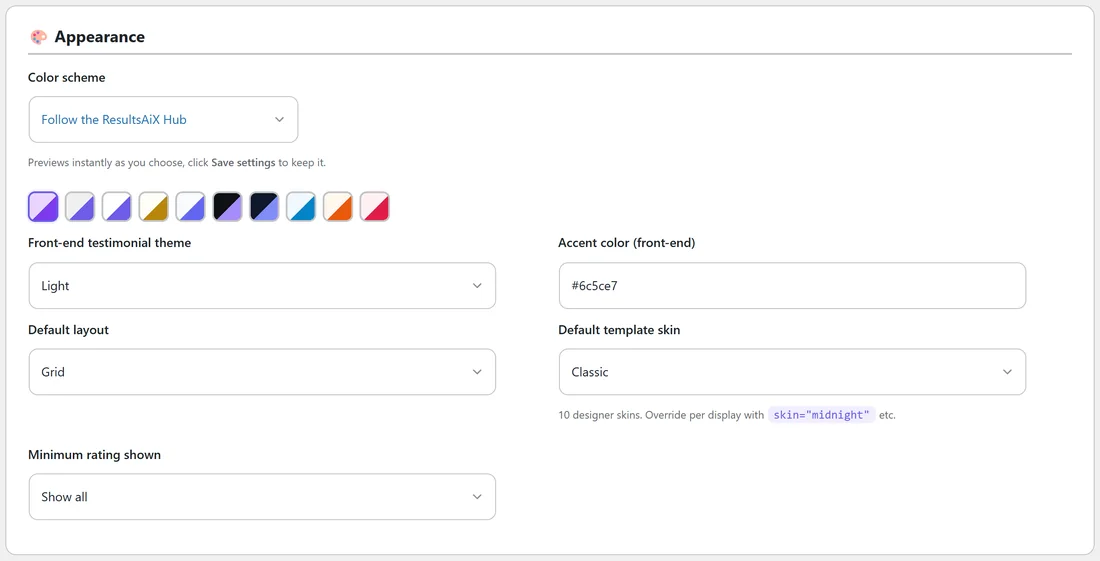
- Color scheme: the look of the plugin's own admin screens. Follow the ResultsAiX Hub (the default) uses the Hub's shared choice. The others are WordPress Native, Clean White, Ivory Cream, Snow Light, Developer Dark, Midnight Blue, Ocean Blue, Sunset Warm and Rose Pink. The swatches preview instantly.
- Front-end testimonial theme: Light or Dark cards on your site
- Accent color (front-end): stars, headlines and buttons. #6c5ce7 is the default.
- Default layout: Grid, Masonry, List, Carousel, Single or Gallery, used when a shortcode does not say
- Default template skin: one of the eleven skins, used when a display does not choose one
- Minimum rating shown: Show all, 3★ and up, 4★ and up or 5★ only, for [autoproof] displays without their own rating
Collection & moderation:
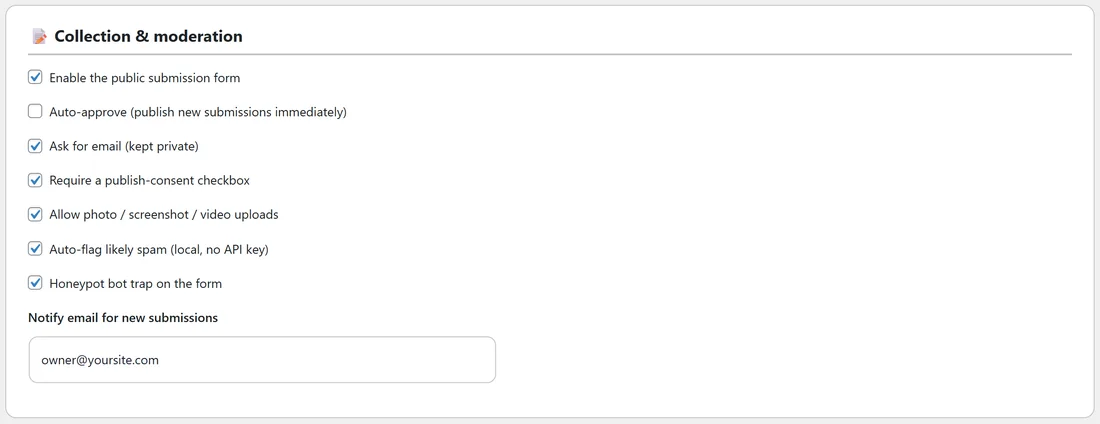
- Enable the public submission form: on by default. Untick to close the form for a while.
- Auto-approve (publish new submissions immediately): off by default, so you check each one
- Ask for email (kept private): shows the email field on new forms
- Require a publish-consent checkbox: shows the consent box on new forms and requires it
- Allow photo / screenshot / video uploads
- Auto-flag likely spam (local, no API key)
- Honeypot bot trap on the form
- Notify email for new submissions: where the new review emails go. Blank uses your WordPress admin email.
Auto Thank-You Reply:
Emails each customer a thank-you when you approve their testimonial, with your Subject and Message. Tokens: {name}, {site} and {rating}. See The Review Funnel & Auto Thank-You Reply.
Review Funnel:
Routes ratings at or below your choice (3★ and below is recommended) to you as private feedback, with your own thank-you message for the customer. See The Review Funnel & Auto Thank-You Reply.
In-dashboard prompt:
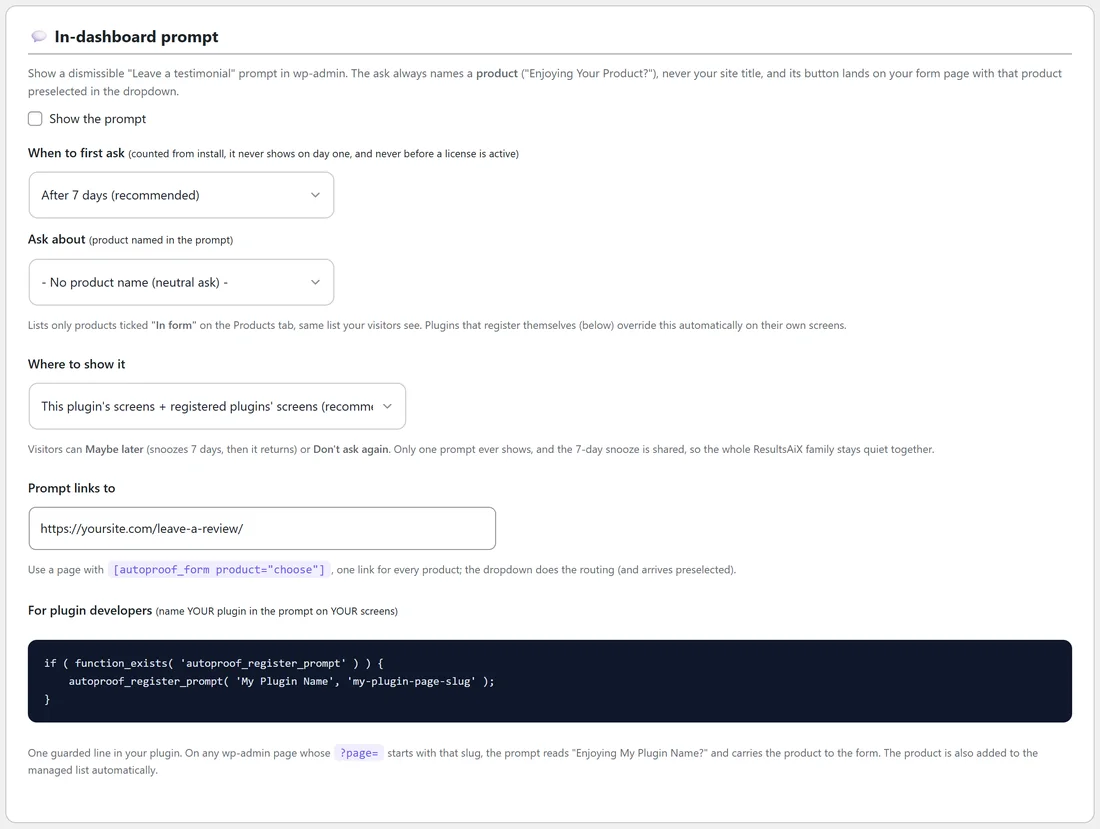
Shows a small Leave a testimonial notice in wp-admin. It always names a product, for example Enjoying Your Product?, and its button opens your form page with that product already picked.
- Show the prompt
- When to first ask: After 3, 7 (recommended), 14, 30 or 90 days, counted from install. It never shows on day one.
- Ask about: the product named in the prompt. The list shows products ticked In form on the Products tab, or choose No product name for a neutral ask.
- Where to show it: This plugin's screens + registered plugins' screens (recommended), or Anywhere in wp-admin
- Prompt links to: your form page. A page with [autoproof_form product="choose"] works for every product, because the dropdown arrives with the product picked.
Visitors can click Maybe later (it returns after 7 days) or Don't ask again. Only one prompt ever shows, and the 7-day snooze is shared, so all your ResultsAiX plugins stay quiet together.
Developers can name their own plugin in the prompt on their own screens with autoproof_register_prompt( 'My Plugin Name', 'my-plugin-page-slug' ). The product is added to your list automatically.
Floating popup:
The site-wide rotating popup: the on switch, Position, Rotate every (ms), Minimum rating, Product filter and Which pages?, plus a snippet for outside HTML pages. See Wall of Love, Carousels & Floating Widgets.
Embed:

Allow the JS embed to read from other domains (your sales pages): needed for the JS embed on pages outside WordPress. On by default. See Showing Testimonials on Any HTML Page.
Starting fresh:
At the very bottom, a separate panel can remove all plugin data from this site: every testimonial, the product list, gifts, the activity log, settings, the licence activation and the AI key. The plugin stays active and goes back to a fresh install. It asks three times: tick I understand, type DELETE in capitals, then confirm. Run a PRO Export first if you might want the data again.
A real example:
Fit at Home Academy uses Light cards with the accent #6c5ce7, Grid and the Classic skin as defaults, Show all ratings, moderation on with Auto-approve off, notify email owner@yoursite.com, the thank-you reply on and the Review Funnel at 3★ and below.
Tips:
- Change one thing at a time and look at your Reviews page after each save.
- Set Notify email to the inbox you check most.
- Leave spam protection and the honeypot on. They cost nothing and keep the Pending list clean.