Knowing where your files are makes backups, tidying up and sharing easy. Everything the plugin makes stays on your own WordPress site.
Page images in the media library:
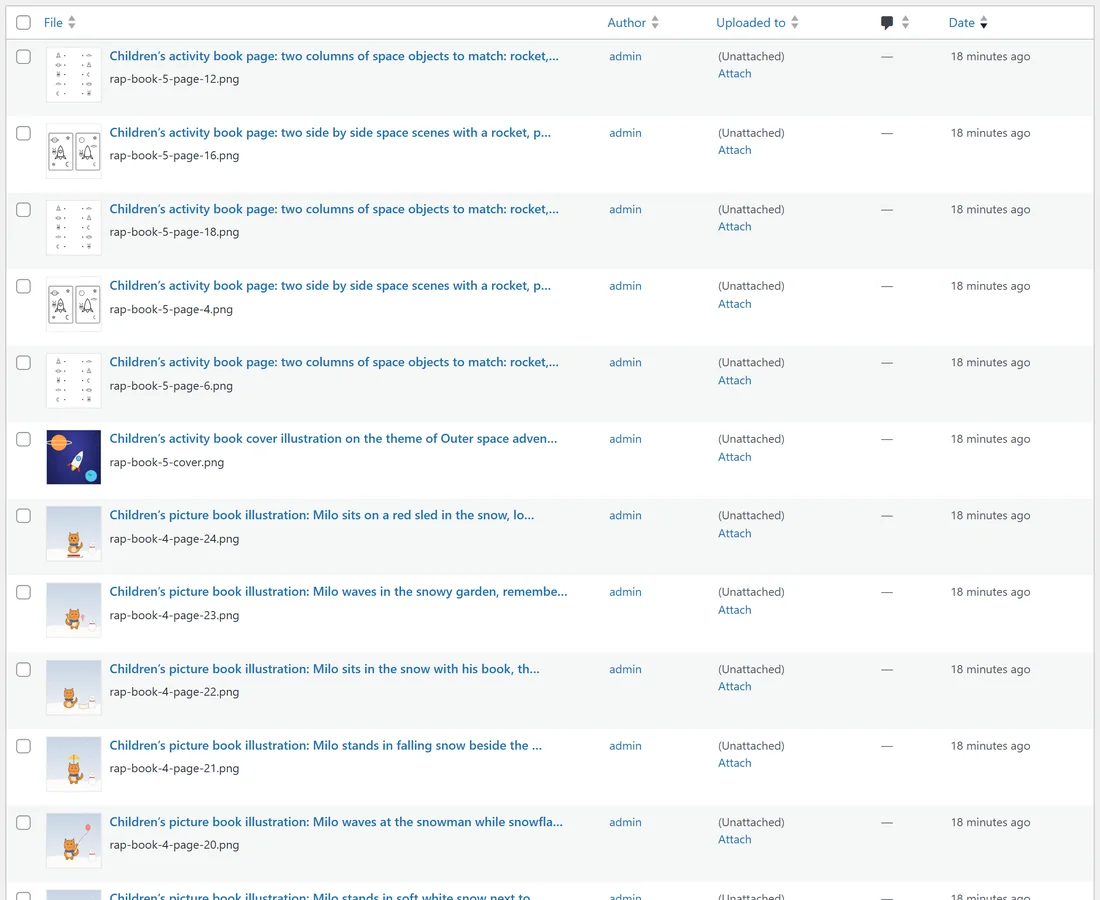
Every cover, page picture and character sheet is saved in your normal WordPress media library, in the usual year and month folders. You can find them under Media, Library.
- Pages are named after the book number and page, for example rap-book-2-page-12.png.
- Covers are named rap-book-2-cover.png.
- Character sheets are named rap-character-sheet-4.png.
Each image's title and alt text come from the prompt that made it, and the full prompt and provider details are saved with it, so you can always see how a picture was made.
Exported files:
Each book gets its own folder inside your uploads folder: wp-content/uploads/rap-books/ followed by the book's number. The folder is made on the first export. Inside you find:
- interior.pdf, the print interior.
- cover.pdf, the wraparound cover.
- digital.pdf, the cover and interior in one file.
- pages.zip, every finished picture.
- front-cover.jpg, the front cover with title and author, 1600 pixels wide.
- index.php, a small blank file that stops anyone browsing the folder. Leave it in place.
Each new export replaces the files in that folder.
Finding a book's number:
The number is in the address bar when you open a book: on the Publish tab it shows as project= followed by the number. Ella's coloring book is number 2, so its files are in wp-content/uploads/rap-books/2/.
Deleting a book:
The Delete button on My Books removes the book and its page list from the plugin. The pictures stay in your media library and the exported files stay in the rap-books folder, so you can still use them or remove them yourself.
Do my books need the plugin to stay readable?
No. The PDFs, ZIP and images are ordinary files. Open them, copy them or back them up like any other file.
Backups:
Because everything sits in your uploads folder, your usual WordPress backup already covers it. If you make many books, that folder grows, so tidy up the files of books you have already published and saved elsewhere.
Sharing a book file with a helper:
To send a proof to a friend or an editor, download digital.pdf from the Publish tab and send that file. It has the cover and every page in one document, so it reads like the finished book on a screen.
Moving to another site:
The book list and page plans live in two tables in your WordPress database, and the pictures and exports live in your uploads folder. A full site migration that copies the database and the uploads folder moves your books with it.
A real example:
Ella keeps a copy of every published book's rap-books folder on her computer, then removes old page images from the media library once a book is live.
Tips:
- Search the media library for rap-book to see every page picture at once.
- Rerolls add a new image each time. Older versions stay in the media library until you delete them.