The page grid is where you polish a book before you export it. Each card shows the page picture, the page number and its status. You can make any picture again, and you can change the words printed on the page.
Where to find it:
Open My Books and click Continue on a book. The New Book tab opens the book's progress panel, with a card for the cover and every page. The same grid fills in while a new book is generating.
What each card shows:
- The picture, or a grey box that says Queued, Generating..., Template page (drawn in the PDF), Puzzle page (drawn in the PDF), or Failed with the provider's message.
- The label Cover or Page and its number.
- A status badge: pending, generating, done or failed.
- For pages with words, a text box with Save Text and AI Rewrite buttons.
Rerolling one page:
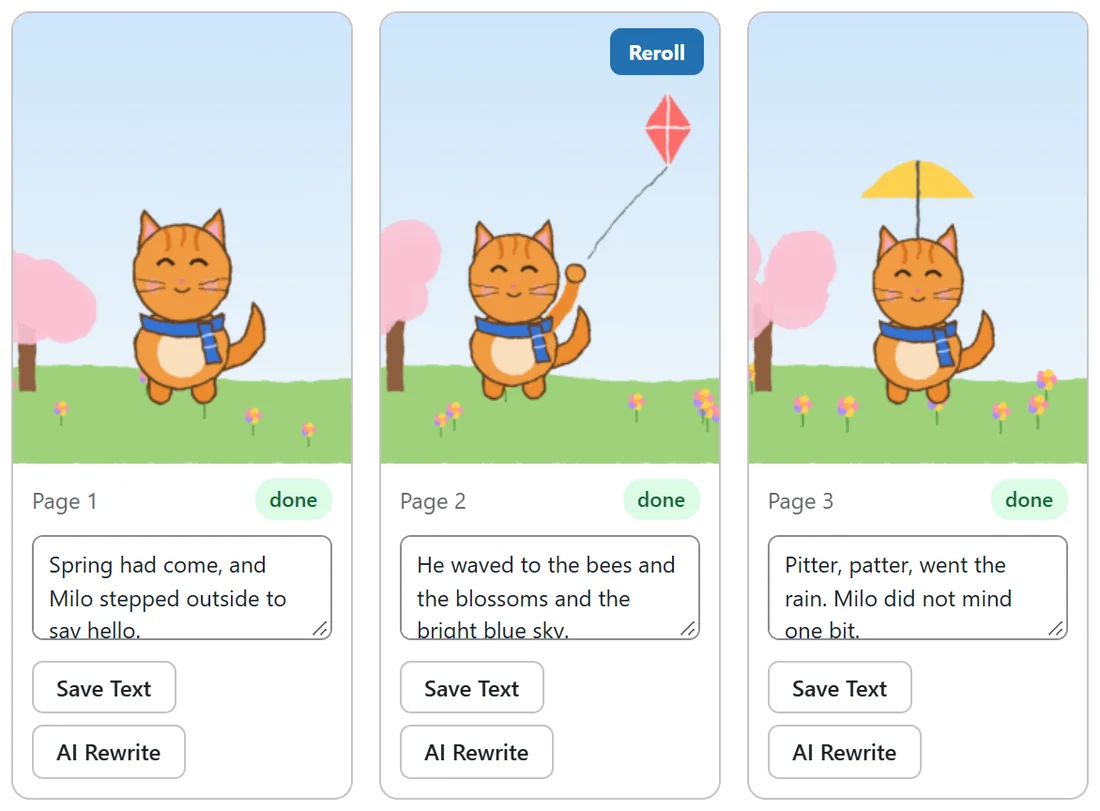
- Move your mouse over the page picture. A Reroll button appears in its top right corner.
- Click Reroll. The card shows Rerolling... while the new picture is made.
- The grid refreshes with the new picture.
The reroll runs right away instead of waiting for the queue, uses the same style words, and uses the locked character sheet if the book has one, so the new page still matches the rest of the book. On the cover card, Reroll makes a fresh cover.
Template and puzzle pages have no Reroll button, because they are drawn in the PDF and have no picture to make again.
The text box on each page:
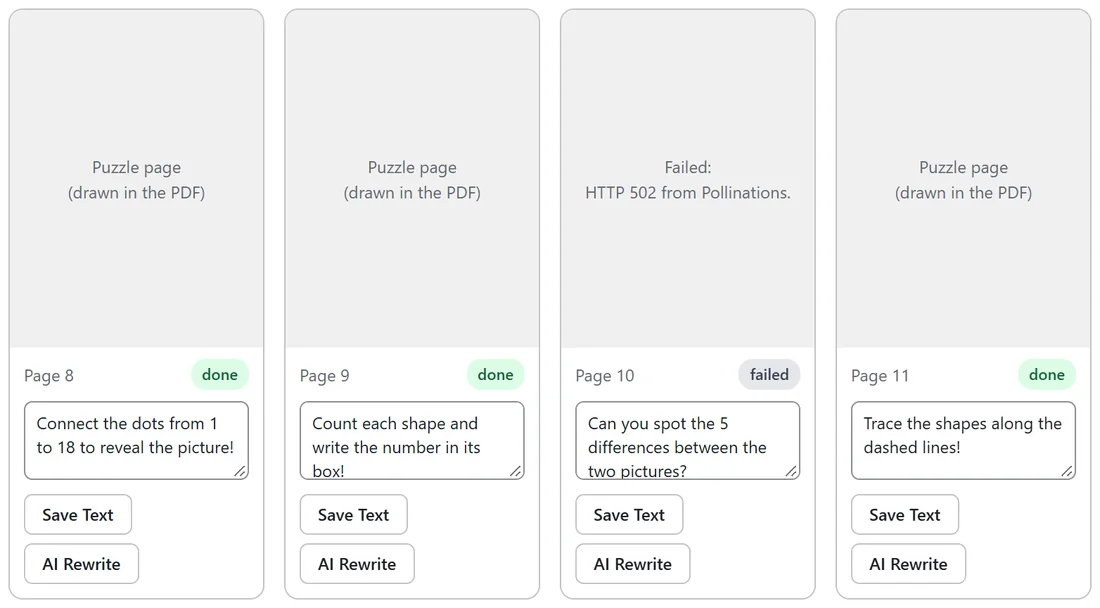
These pages have a text box under the picture:
- Story pages: the read aloud line printed under the picture.
- Activity puzzle pages: the instruction printed above the maze, dots, counting or tracing, such as Connect the dots from 1 to 18 to reveal the picture!
- Activity picture pages: the instruction printed under the picture, such as Can you spot the 5 differences between the two pictures?
- Coloring pages: the box starts empty. If you type a line and save it, that page is printed with the picture at the top and your line underneath, like a story page.
Changing the words:
- Click in the text box and type your new wording.
- Click Save Text. The button says Saved when it is stored.
What you save is exactly what gets printed. The words are real text in the PDF, never part of the picture, so you can change them as often as you like without making the picture again.
AI Rewrite:
Click AI Rewrite and the AI writer rewrites that one line as one to three short read aloud sentences for the same moment, keeping the picture and the story's place. The new line appears in the box and is saved at once. AI Rewrite needs a text AI key, and it is written for picture book lines, so it suits story pages best.
A real example:
In Milo's Year Of Seasons, Ella changes page 3 to Pitter, patter, went the rain. Milo did not mind one bit. and clicks Save Text. On Space Explorers Activity Book she hovers over the failed page 10 and clicks Reroll to make it again.
After you make changes:
Rerolls and text changes show up in your files the next time you build them. Open the Publish tab and click Build Export Files again before you upload. See The Export Bundle: Four Files And What Each Is For.
Tips:
- Be picky. Rerolling takes seconds and only redoes one page.
- Read every story line out loud. If it does not sound right to you, it will not sound right at bedtime.