My Books is your library. It lists every book on the site in one table, so you can see at a glance which books are still generating, which need a review and which are ready to upload.
Where to find it:
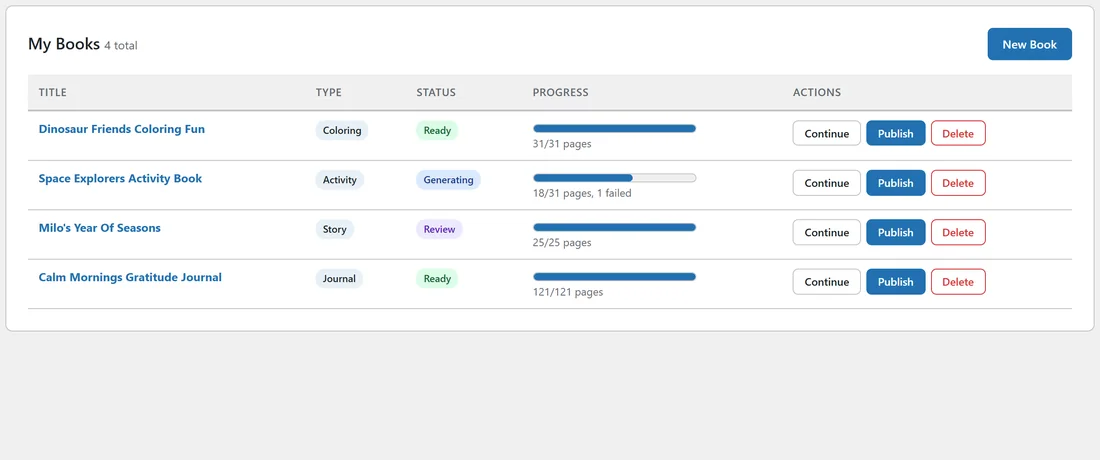
Click AiX Publisher in your WordPress menu, then the My Books tab. You can also click View All Books on the Dashboard, or View My Books at the end of the generation panel.
What each column shows:
- Title: the book's title. Click it to open the book on the Publish tab.
- Type: Coloring, Activity, Journal or Story.
- Status: Draft, Character, Generating, Review or Ready. See The Admin Tabs At A Glance for what each one means.
- Progress: a bar and a line such as 18/31 pages, 1 failed. The count includes the cover, which is why a 30 page book shows 31.
- Actions: Continue, Publish and Delete.
The total next to the My Books heading tells you how many books you have.
Continue:
Continue opens the book in the New Book tab at the right place:
- A book waiting on its character opens the character approval panel.
- A book that is generating opens the progress panel, which keeps refreshing as pages finish.
- A book in Review or Ready opens the finished page grid, where you can reroll pages and edit page text.
Publish:
Publish opens the Publish tab with this book already picked, ready for the listing kit, cover art and export.
Delete:
- Click Delete on the book's row.
- Confirm the box that asks Delete this book and all of its pages? This cannot be undone.
- The row disappears.
Delete removes the book and its page list from the plugin. The page images stay in your media library, and files you already exported stay in your uploads folder, so nothing you made is lost from the server. See File Management: Where Your Books Live.
A real example:
Ella's My Books table at yoursite.com shows four books. Space Explorers Activity Book reads 18/31 pages, 1 failed, so she clicks Continue to open its grid and reroll the failed page. Milo's Year Of Seasons is in Review with 25/25 pages, so she clicks Publish to build its files.
A good weekly routine:
- Open My Books first thing.
- Books in Generating: click Continue and check how far the queue has got.
- Books in Review: open each with Continue, read every page, reroll anything weak, then click Publish and build the files.
- Books in Ready: download the files and upload them to KDP, following the checklist.
Working this way, nothing sits half finished for long, and you always know which book needs you next.
Why does my book show 0 pages?
A book that was created but never planned, for example if you closed the wizard before the pages were queued, shows Draft and 0 pages. Click Continue to start the wizard again, or Delete it and make a fresh book.
Tips:
- A book stays in Review until you click Build Export Files on the Publish tab. Then it shows Ready.
- Use Continue after you change your mind about a page, even on a Ready book. After rerolling, export again so your files include the new page.