The whole plugin is one admin page with a row of tabs across the top. You will spend most of your time in New Book and Publish, and visit the others when you set things up or need help.
Where to find it:

Click AiX Publisher in your WordPress menu. The same nine tabs are also listed under that menu item, so you can jump straight to any of them.
The nine tabs:
- Dashboard: three counters (Books Created, Pages Generated, Ready To Publish), your five most recent books, and a short How It Works list. Before your first book it shows a welcome panel with a Create Your First Book button.
- New Book: the wizard. Book Type, Idea & Style, Pages & Create, then Generate, where the progress bar and the page grid live. Opening a book with Continue brings you back here.
- My Books: every book in one table with its type, status and a progress bar, plus Continue, Publish and Delete buttons.
- Publish: the KDP Listing Kit, the Book Cover art, the Book Mockup, Export Print-Ready Files and the KDP Upload Checklist. A selector at the top right switches between books.
- Providers: your image provider keys, your text AI keys and an Advanced box for custom API addresses. Each key row has Save Key and Test Key.
- Settings: your licence panel, then Default image provider, Paper type, Color scheme and Cost & safety, and a Help & your account panel.
- Training: the in plugin guide, with sections you open one at a time, from Quick Start to Troubleshooting.
- Diagnostics: a health report of your site and the plugin, with a Copy For Support button.
- Resources: links to other ResultsAiX tools, with anything already on your site marked Installed.
The book statuses you will see:
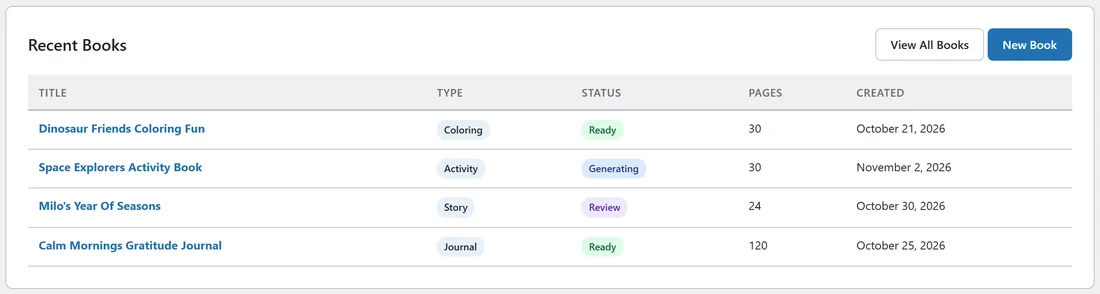
Every book shows a status on the Dashboard and in My Books. A book moves through these:
- Draft: the book was created but no pages have been planned yet.
- Character: the book is waiting for you to approve a character sheet.
- Generating: the background queue is making the pages.
- Review: every page has finished or failed, so it is time to look through them.
- Ready: you built the export files on the Publish tab.
A real example:
On Ella's Dashboard at yoursite.com, Space Explorers Activity Book shows Generating, Milo's Year Of Seasons shows Review because she has not exported it yet, and the journal and the coloring book both show Ready.
The How It Works list:
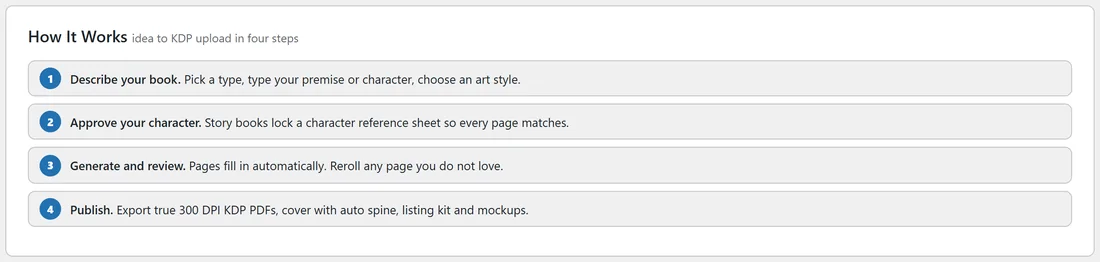
At the bottom of the Dashboard, How It Works sums up the journey in four steps: Describe your book, Approve your character, Generate and review, and Publish. It is a handy reminder when you come back to the plugin after a break.
The Training tab:
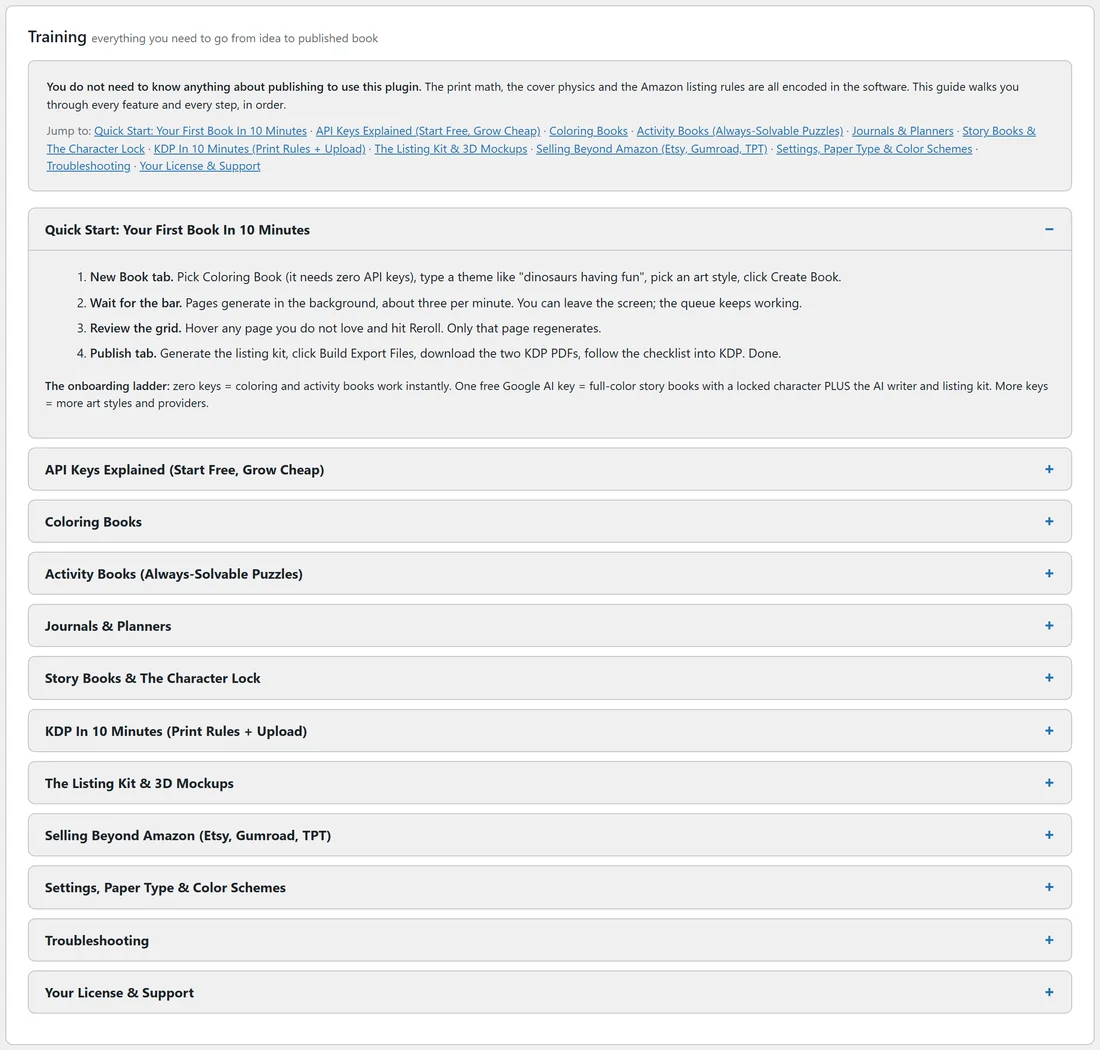
Training holds a full guide inside the plugin. Each section opens when you click its title, and a Jump to line at the top links to every section. It is handy when you are working and do not want to leave WordPress.
Tips:
- Click a book's title anywhere on the Dashboard or in My Books to open it straight on the Publish tab.
- The tab you are on is underlined, so you always know where you are.
- If something looks wrong, open Diagnostics first. See Diagnostics And Copy For Support.