The theme is built and checked to WCAG 2.1 AA on every release: every template has a skip link, one heading structure, landmarks, visible keyboard focus and motion that stops when a visitor asks, and all ten colour schemes are contrast-checked. On top of that it gives your visitors real reading tools, and it checks what you write.
Where to find it:
- ResultsAiX Theme, Your Site, Accessibility for every visitor: the button, the panel and the reading tools.
- On every post, page and training: the In short and Accessibility check tabs of the ResultsAiX panel.
- ResultsAiX Theme, Legal Pages, Your content, checked: a check of every published page.
What visitors get:
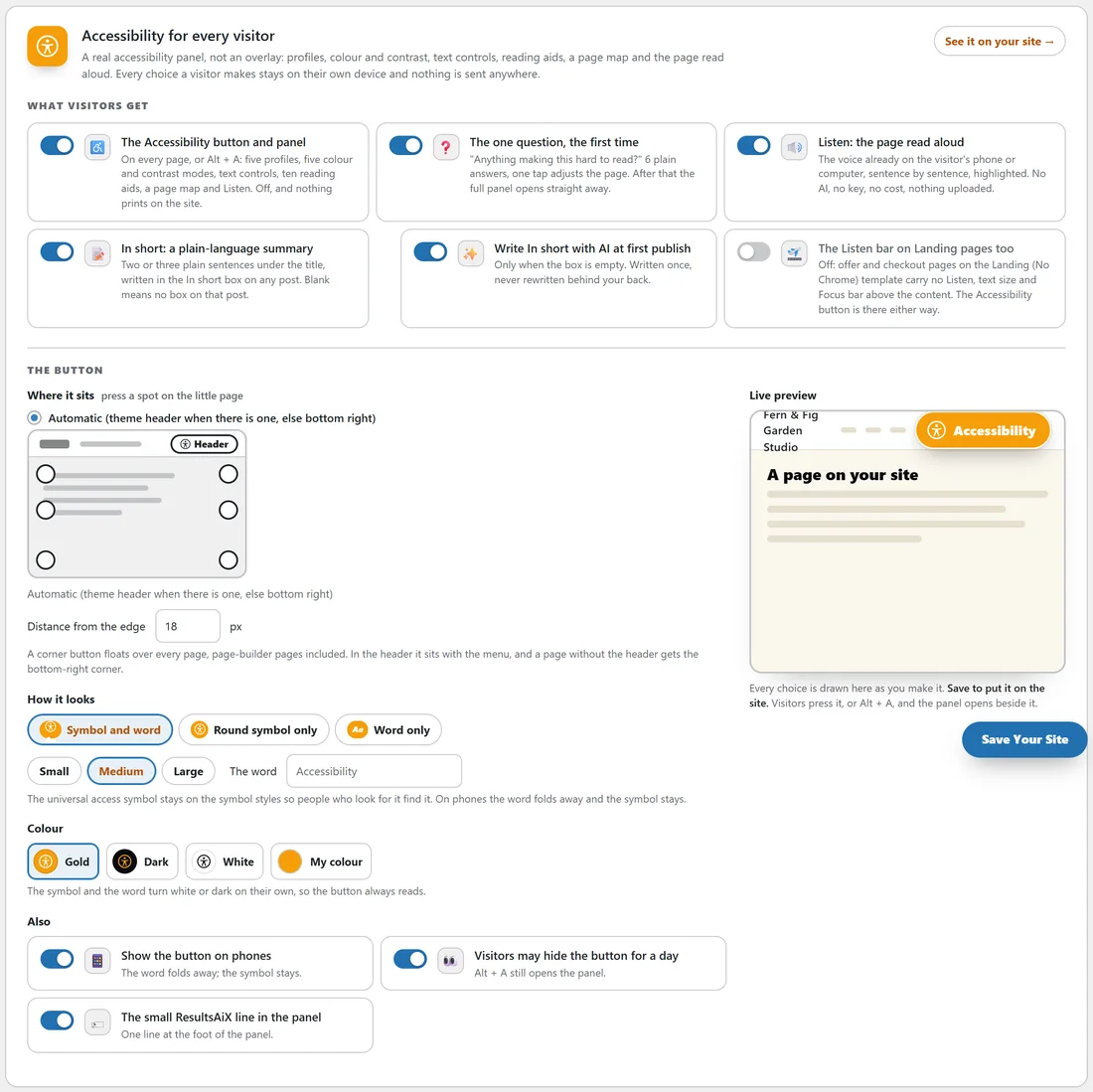
- The Accessibility button and panel: on every page, or Alt + A. Five profiles, five colour and contrast modes, text controls, ten reading aids, a page map and Listen. Off, and nothing prints on the site.
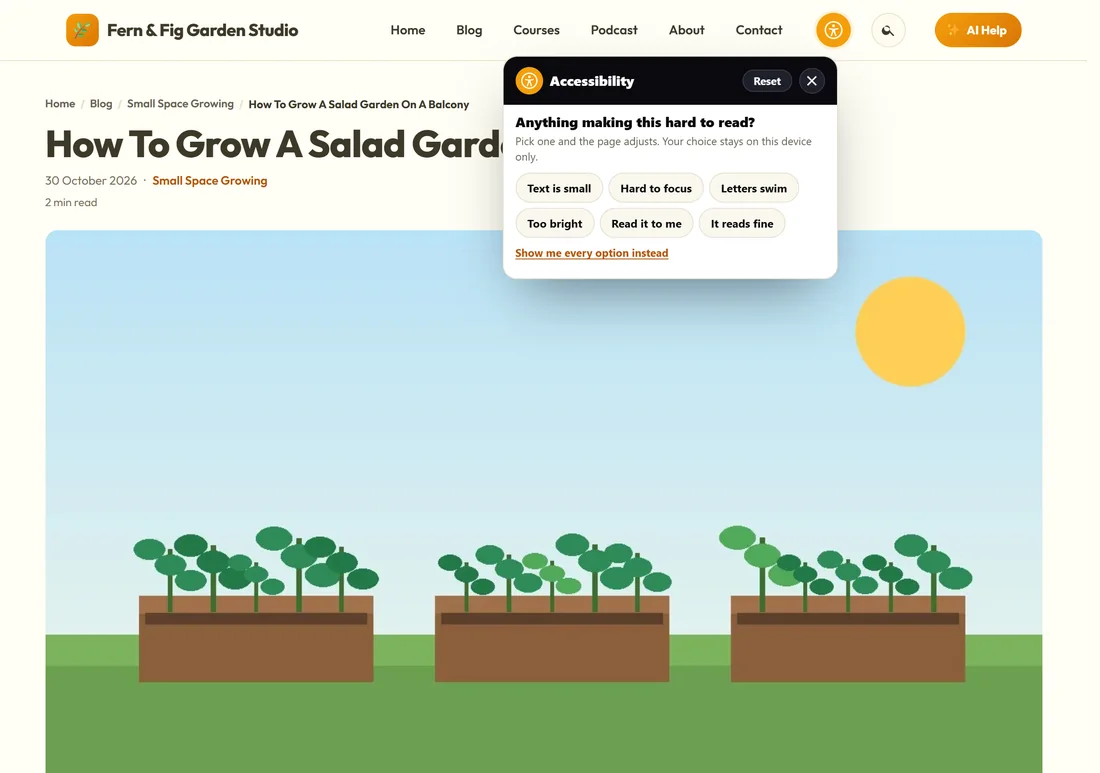
- The one question, the first time: Anything making this hard to read? Six plain answers (Text is small, Hard to focus, Letters swim, Too bright, Read it to me, It reads fine), and one tap adjusts the page. After that the full panel opens straight away. Show me every option instead skips the question.
- Listen: the page read aloud by the voice already on the visitor's phone or computer, sentence by sentence, highlighted. No AI, no key and nothing uploaded.
- In short: two or three plain sentences under the title.
Every choice a visitor makes stays on their own device.
The reading bar:
Under the title of every post, page and training sits the reading bar: Listen, the text size (Aa), Accessibility, Focus (one paragraph bright at a time) and In short. On a phone the bar sits along the bottom. Pages on the Landing template leave the bar out unless you switch on The Listen bar on Landing pages too; the Accessibility button is there either way.
In short:
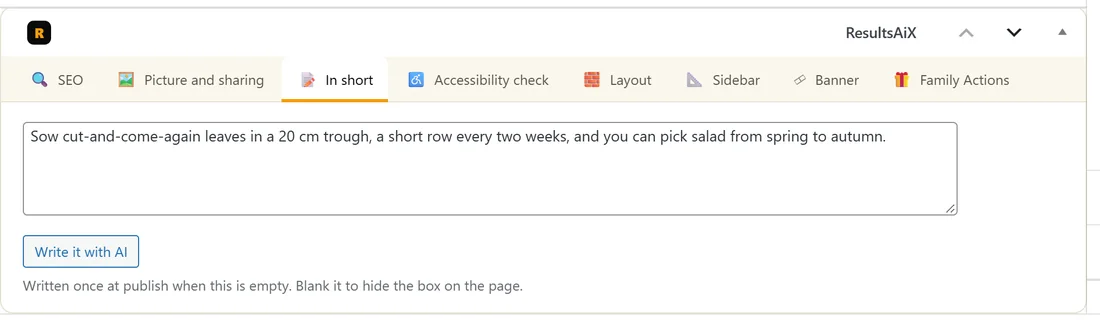
The In short tab on each post holds the summary. Write it yourself, or press Write it with AI. Write In short with AI at first publish writes one only when the box is empty, once, and never rewrites it behind your back. Blank it to hide the box on that page.
The button:
- Where it sits: Automatic (the theme header when there is one, else bottom right), Header, or any corner or edge. Press a spot on the little page to choose.
- Distance from the edge, in pixels.
- How it looks: Symbol and word, Round symbol only, or Word only, in Small, Medium or Large, with your own word.
- Colour: Gold, Dark, White or My colour. The symbol and word turn white or dark by themselves so the button always reads.
- Also: Show the button on phones, Visitors may hide the button for a day (Alt + A still opens the panel), and The small ResultsAiX line in the panel.
The live preview follows every choice. Press Save Your Site.
On any page:
One line puts the whole panel on any HTML page on any domain, such as a sales page on another builder. Copy the line under On any page and paste it into the page head. Its attributes set the corner, a target element in your menu, a link of yours that opens the panel, the style, size, colour, label and your Accessibility Statement address. The table on the card lists every option.
The checker on each page:
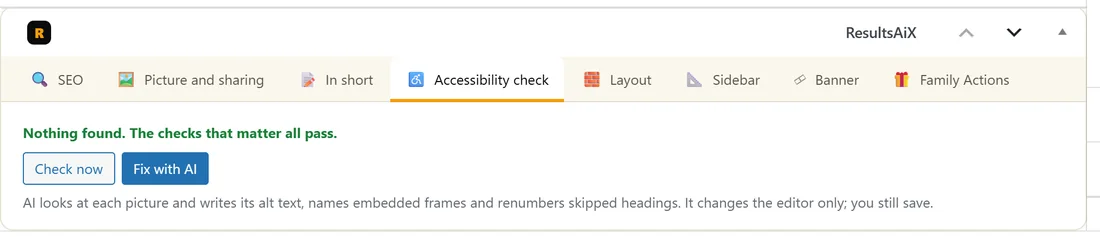
The Accessibility check tab checks what you write on every save: pictures with no description, headings out of order, a second H1, links that say click here, frames with no name, tables with no header row, fields with no label and media that plays by itself. When all is well it says Nothing found. Check now runs it again. Fix with AI writes alt text by looking at each picture, names embedded frames and renumbers skipped headings, in the editor only, so you still save.
Check every published page:
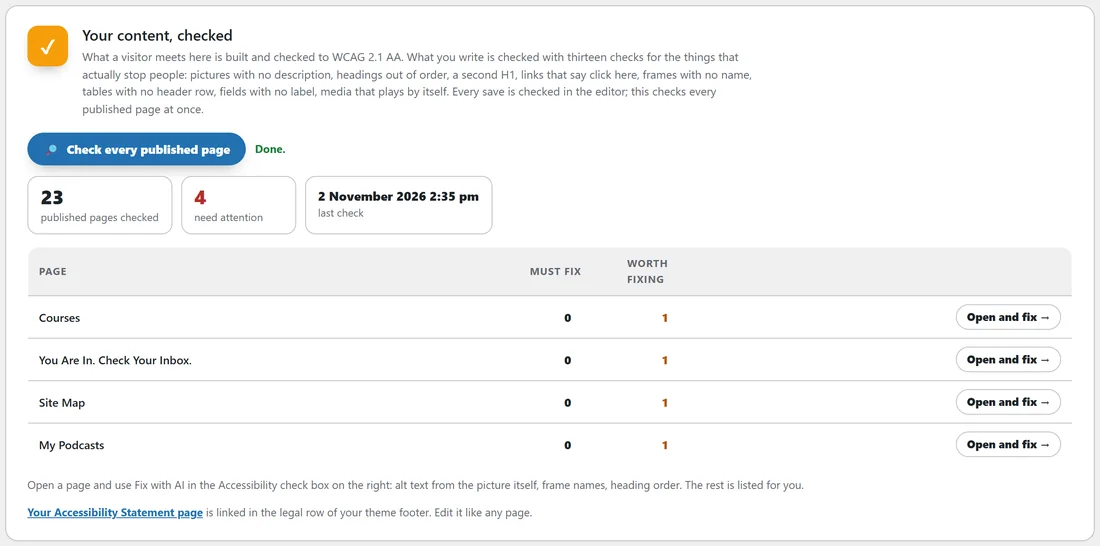
On Legal Pages, Your content, checked, press Check every published page. It shows how many pages were checked, how many need attention and when, then a list with Must fix and Worth fixing for each page and an Open and fix button.
The Accessibility Statement:
The one-click legal pages include an Accessibility Statement, which tells visitors how to get in touch, linked in the legal row of your footer. Edit it like any page. See Legal Pages, Business Details And The Cookie Notice.
The same system as a plugin:
The same reading system ships on its own as ResultsAiX Accessibility and Accessibility PRO for sites on other themes. With the theme active, they step back so nothing prints twice.
A real example:
On yoursite.com, a visitor with tired eyes presses the Accessibility button, answers Text is small, and the page grows. Another presses Listen on the salad post and hears it read while each sentence lights up. Jo runs Check every published page once a month; it lists four pages with something worth fixing, and Fix with AI writes the missing alt text.
Tips:
- Write a short In short on your most visited posts. It helps everyone who skims.
- Keep the statement page linked from every domain where you use the one-line embed.