Switching themes on a site with hundreds of pages deserves a check first. Theme Switch Audit is a separate free companion plugin that scans every published page and post and reports what a theme switch affects: page builder pages, theme page templates, every shortcode and which plugin provides it, menus, widgets and Customizer CSS. It is read-only: it never changes an option, a page or a file.
Where to find it:
Install and activate ResultsAiX Theme Switch Audit, then go to Tools, Theme Switch Audit.
Running the audit:
- Press Run The Audit. It scans every published page and post. On a large site this can take up to a minute.
- Read the Summary.
- Press Explain it to me for a plain English digest.
- Work through the list, then switch the theme.
The summary:
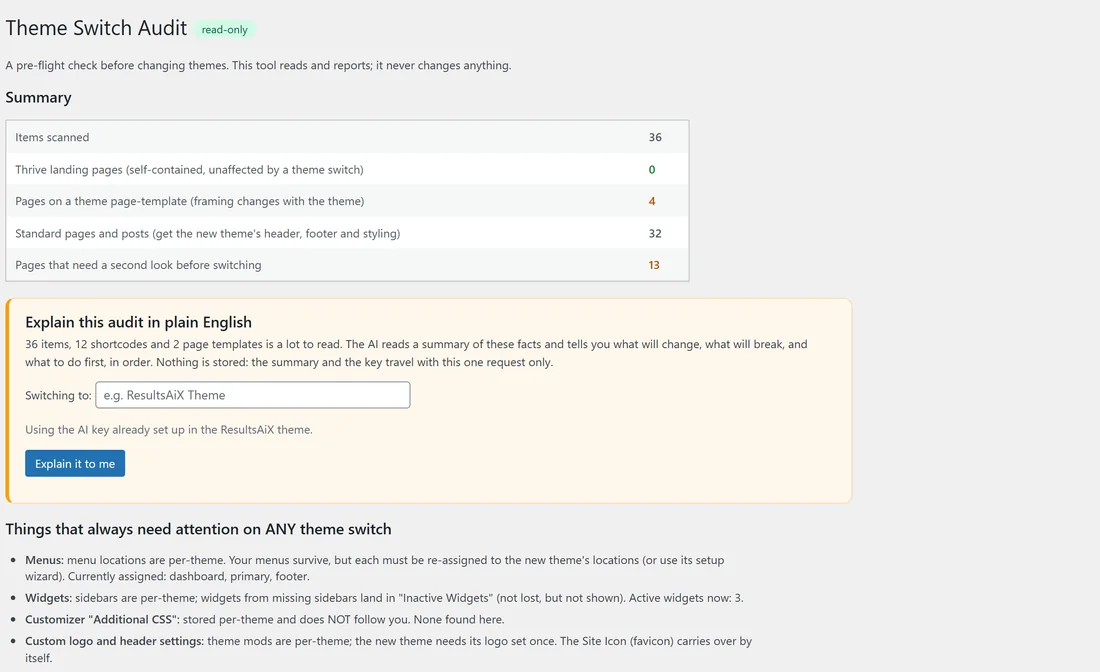
- Items scanned.
- Thrive landing pages, which are self-contained and unaffected by a theme switch.
- Pages on a theme page template, whose framing changes with the theme.
- Standard pages and posts, which get the new theme's header, footer and styling.
- Pages that need a second look before switching.
Explain this audit in plain English:
A thousand-page list is too much to read. Type the theme you are switching to under Switching to, such as ResultsAiX Theme, and press Explain it to me. The AI reads a summary of the facts and tells you what will change, what to look at and what to do first, in order. With the ResultsAiX Theme active, its AI key is used. Otherwise paste an Anthropic, OpenAI or Gemini key in the box; it travels with that one request only and is not stored.
Things that always need attention:
- Menus: your menus survive, but each is assigned again to the new theme's locations, or by its setup wizard.
- Widgets: widgets from sidebars the new theme does not have move to Inactive Widgets, where they are kept.
- Customizer Additional CSS: stored per theme.
- Custom logo and header settings: the new theme needs its logo set once. The Site Icon carries over.
Shortcodes and every page:
Shortcodes found in content, by provider lists each shortcode, the plugin or theme that provides it, a verdict and how many pages use it. Plugin and core shortcodes keep working under any theme. Every page and post lists each item with its type, render mode, page template, shortcodes and why it needs a look. Tick Show only the ones that need a second look to shorten it.
A real example:
Before moving an older gardening site onto the ResultsAiX Theme, Jo runs the audit: 36 items, 4 pages on a theme page template and 13 that need a second look. Explain it to me lists the menus to assign again and the four template pages to check first. Jo runs the Setup Wizard's menu step after switching, and the site is ready.
Tips:
- Run the audit on a staging copy if you have one, then again on the live site.
- After switching, use the Setup Wizard to assign menus. See Setup Wizard And First Steps.
- Thrive pages can then come across with Move In. See Move In: Moving Thrive Pages Onto The Theme.