How your site looks is set in a few places, and every one of them can be changed later without touching your content. The layout decides where the menu sits, the colour scheme sets the colours, and the Landing template gives you a clean page for offers and thank-you pages.
Where to find it:
- Appearance, Customize, ResultsAiX Theme: layout, colour scheme, blog layout, dashboard words, footer and sidebar.
- Appearance, Customize, ResultsAiX Colours: your own colours, page width and corners.
- ResultsAiX Theme, Your Site: the header, the mark beside your site name, landing pages and the login page.
- On any page or post: the Layout tab of the ResultsAiX panel under the editor.
The four layouts:
In the Customizer, Layout mode has four choices, listed below.
- Classic site (top navigation): a normal website with the menu across the top. The default.
- Member portal (left sidebar, app style): the menu runs down the left like an app. Members areas love this.
- Boxed classic (framed, card-style page): top navigation with the page framed as a card.
- Minimal (narrow, distraction-free reading): a narrow, quiet page for reading.
One page, its own layout:
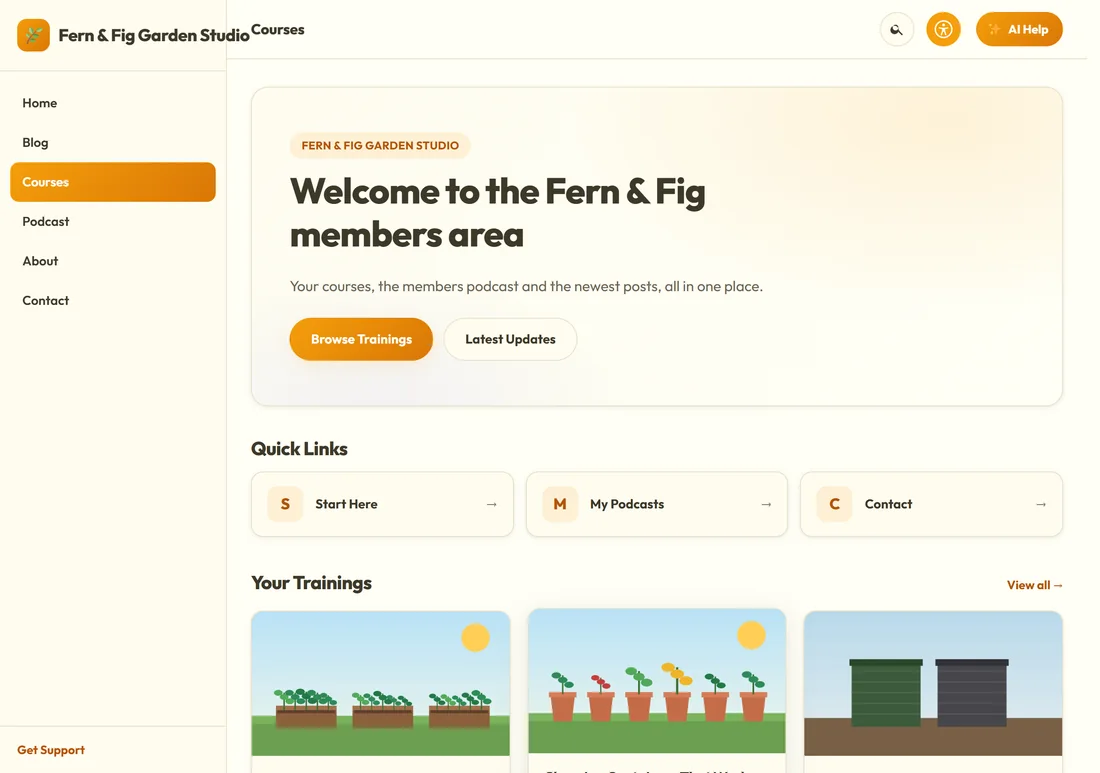
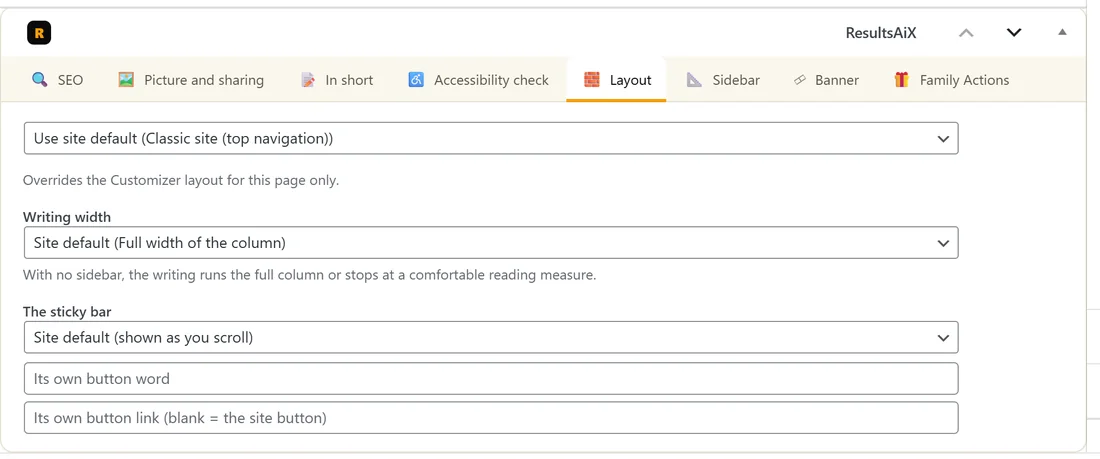
Any page, post or training can use a different layout from the rest of the site.
- Open the page in the editor.
- In the ResultsAiX panel under the editor, click the Layout tab.
- Pick a layout in the first list. Use site default (Classic site) goes back to the Customizer choice.
- Press Update.
The same tab has Writing width (Full width of the column, or A comfortable reading measure of about 860px) and, for pages, Hide the page title, which hides the headline on the Landing template while the title stays in your Pages list.
Ten colour schemes:
Color scheme in the Customizer offers WordPress Native, Results Amber, Clean White, Ivory Cream, Snow Light, Developer Dark, Midnight Blue, Ocean Blue, Sunset Warm and Rose Pink. Results Amber is the default. All ten are contrast-checked.
Your own colours:
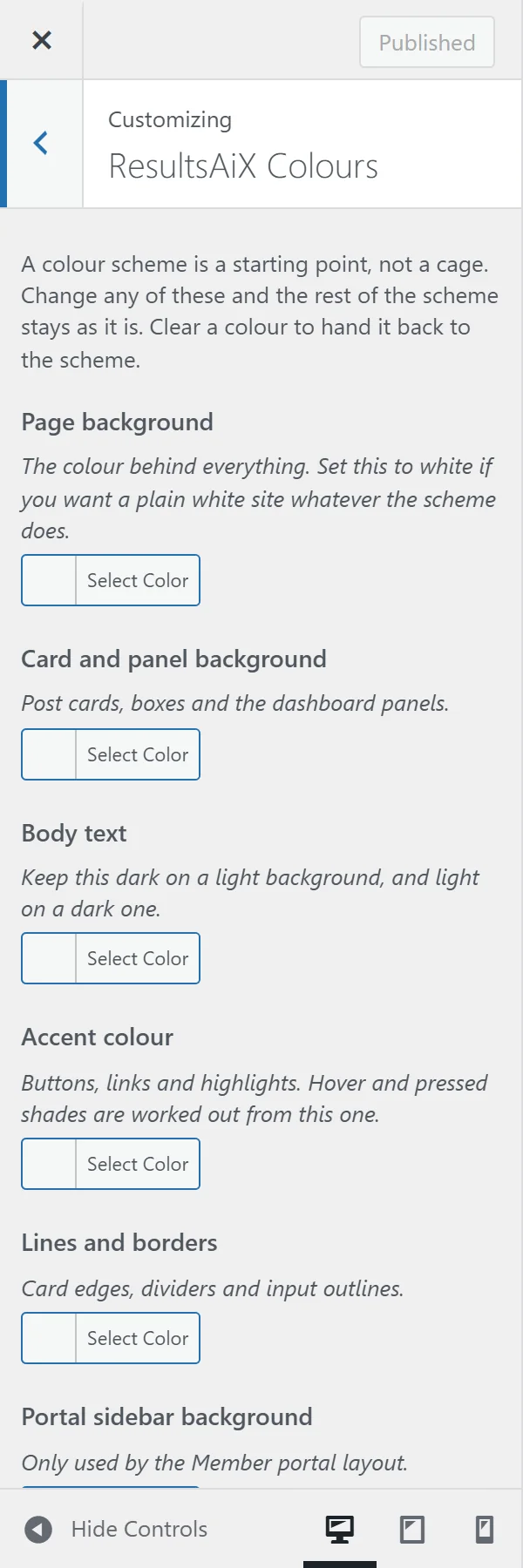
A colour scheme is a starting point. In Appearance, Customize, ResultsAiX Colours you can set Page background, Card and panel background, Body text, Accent colour (hover and pressed shades are worked out from it), Lines and borders, Portal sidebar background (Member portal layout only) and Footer background. Change one and the rest of the scheme stays. Clear a colour to hand it back to the scheme.
Page width and corners:
These two sit under ResultsAiX Colours too.
- Page width: Narrow (easier reading), Normal or Wide.
- Corners: Square, Slightly rounded, Rounded or Very rounded, used for cards, buttons and fields across the site.
Your header:
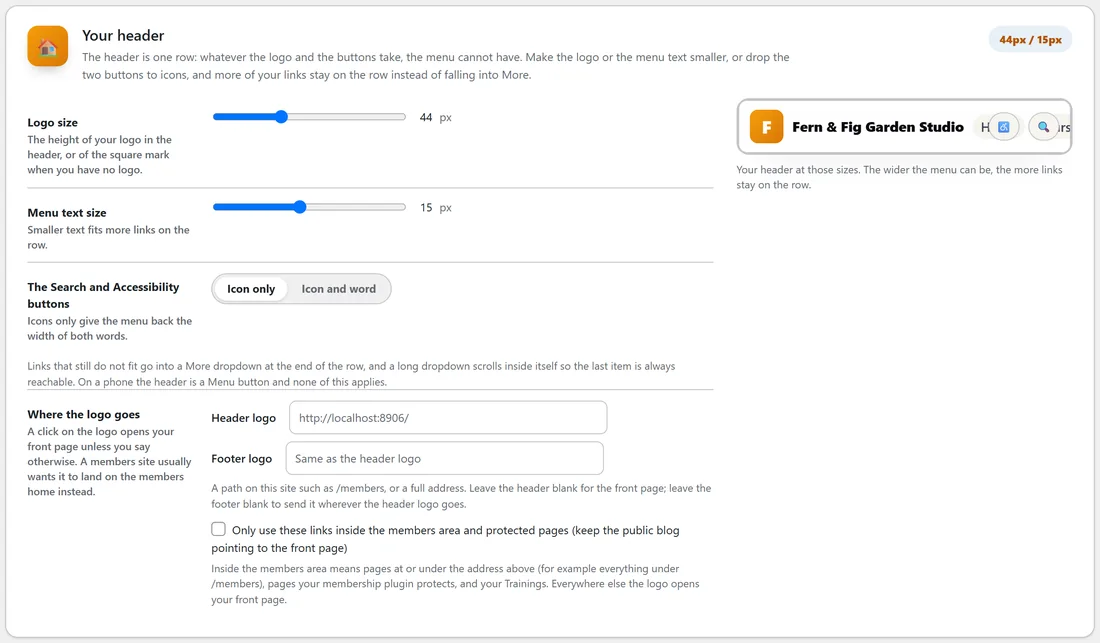
On Your Site, Your header controls how much fits on the one header row.
- Logo size: the height of your logo, or of the square mark, in pixels (44 by default).
- Menu text size: smaller text fits more links on the row (15 by default).
- The Search and Accessibility buttons: Icon only, or Icon and word.
Links that still do not fit go into a More dropdown at the end of the row. On a phone the header is a Menu button instead. The preview under the settings shows your header at those sizes.
Where the logo goes:
By default a click on the logo opens your front page. In Where the logo goes you can give the Header logo and the Footer logo their own address, a path such as /members or a full address. Tick Only use these links inside the members area and protected pages to keep your public blog pointing at the front page.
The mark beside your site name:
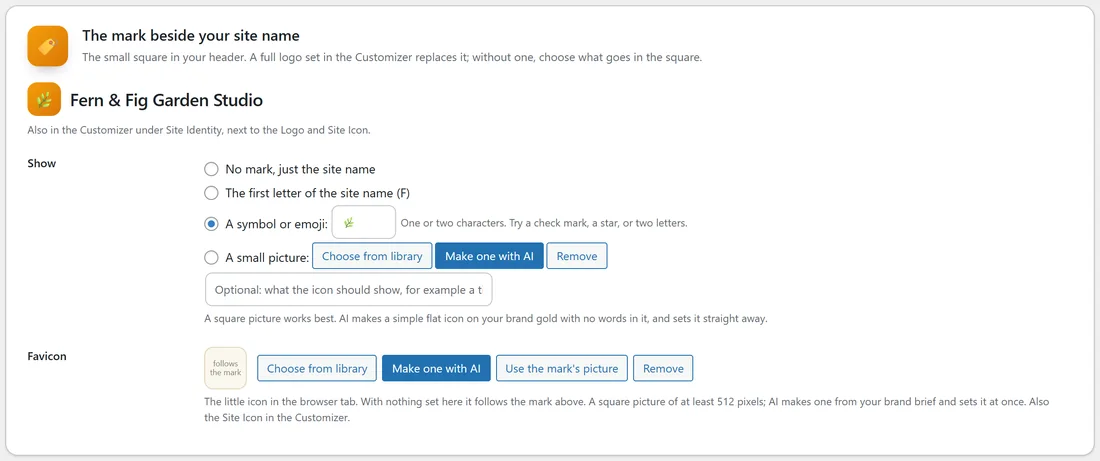
Without a logo, the small square in your header can show nothing, the first letter of your site name, a symbol or emoji, or a small picture (AI can make one from your brand brief). The Favicon, the little icon in the browser tab, follows the mark unless you choose another picture. A full logo set in Appearance, Customize, Site Identity replaces the mark. Site Identity also has Footer logo (for the dark footer), a light version of your logo.
Landing pages:
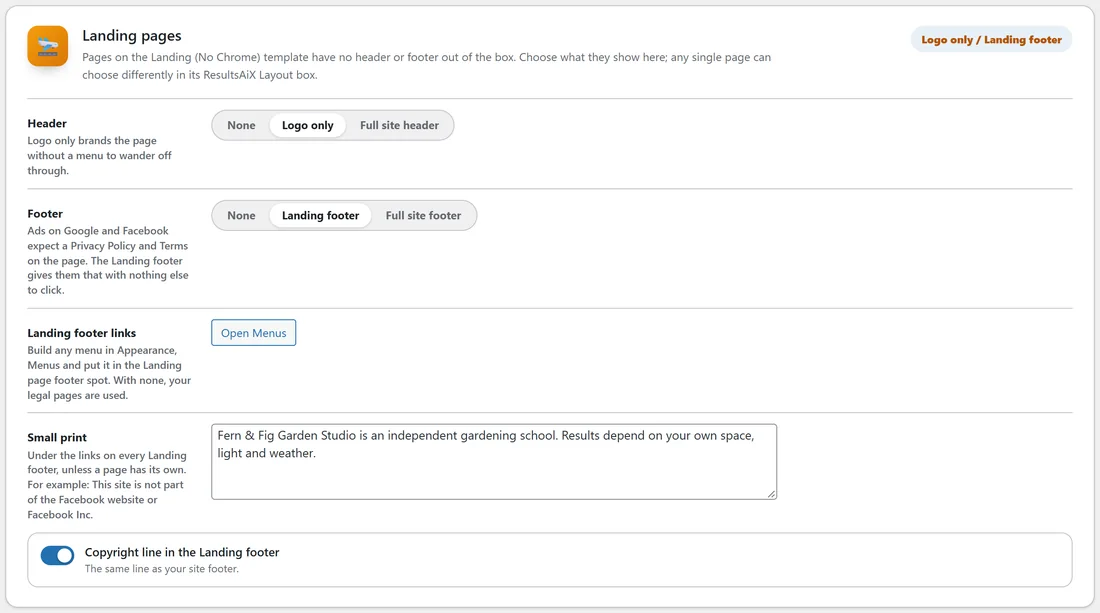
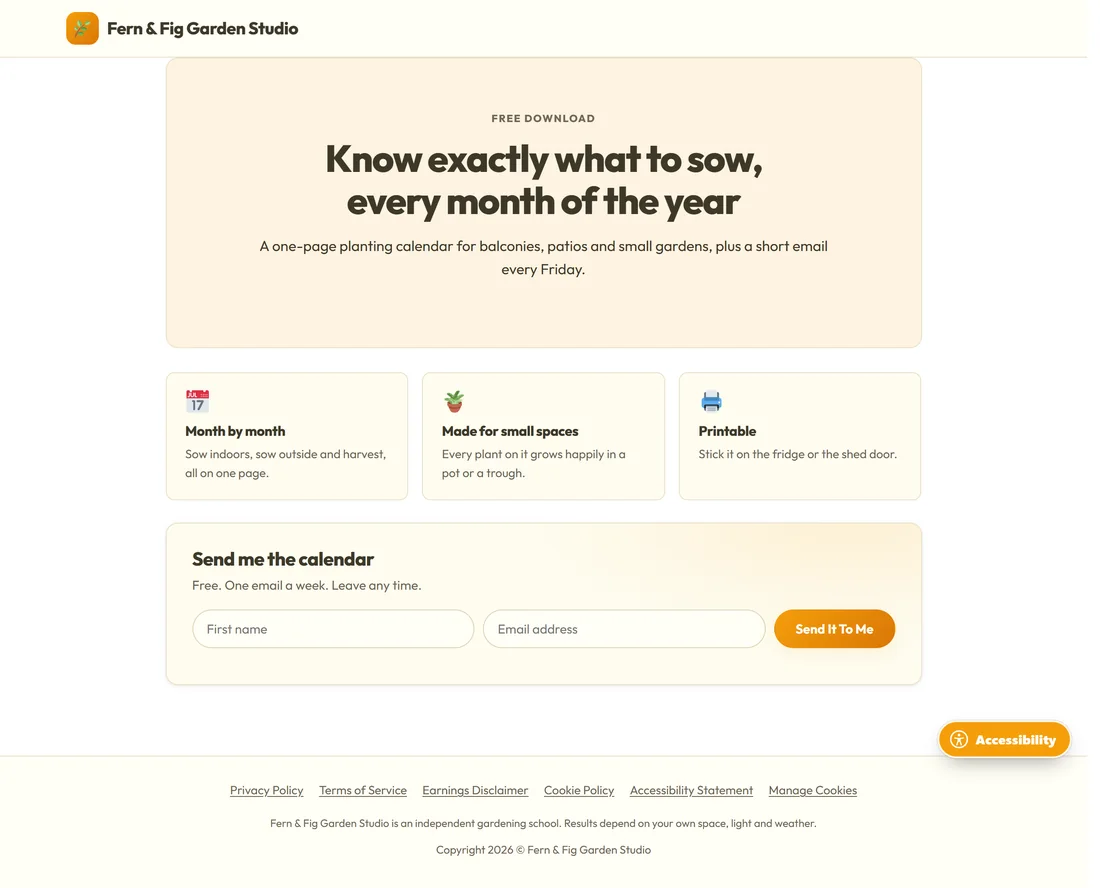
The Landing (No Chrome) template is a clean canvas for offer pages, opt-in pages and thank-you pages. Pick it under Template in the page's settings. Out of the box it has no header and no footer. On Your Site, Landing pages, choose what they show:
- Header: None, Logo only (brands the page without a menu to wander off through) or Full site header.
- Footer: None, Landing footer or Full site footer. The Landing footer is one quiet line of links, which Ads on Google and Facebook expect.
- Landing footer links: build any menu in Appearance, Menus and put it in the Landing page footer spot. With none, your legal pages are used.
- Small print and a Copyright line in the Landing footer.
Any single page can choose differently in its Layout tab.
The sidebar:
The sidebar is off by default to keep the reading width. Tick Show a sidebar next to pages and posts in Customizer, ResultsAiX Theme, then add widgets in Appearance, Widgets, Sidebar (Optional). It only appears once that area holds a widget. Any page can show or hide it on the Sidebar tab of its ResultsAiX panel.
The rest of the ResultsAiX Theme section:
- Blog layout, Dashboard heading and Dashboard intro line (see the blog and members articles).
- Footer copyright line: blank uses the default line with your site name.
- Hide the "Powered by ResultsAiX.com Theme" line in the footer, and Insert your affiliate link, which the Powered by line links through.
- Admin menu label: what the theme's own menu is called in your WordPress sidebar.
- Show a support link in the footer and portal sidebar, Show the Help column in the footer, Support link address, and the two footer headings above your Footer Menu and Legal Menu.
- Writing width on posts and pages, The picture at the top of a post, A Search button in the header and Results as you type.
A real example:
Jo keeps yoursite.com on Classic site with Ivory Cream, but the Courses page uses Member portal from its Layout tab, so members get the app-style sidebar while the blog stays classic. The Free Planting Calendar page uses the Landing template with Logo only in the header and the Landing footer.
Tips:
- Press the phone icon at the bottom of the Customizer to check the header on a small screen.
- Keep body text dark on a light background and light on a dark one.
- Next, set up your blog. See The Blog: Layouts And Reading Experience.