Create With AI is a workstation that opens on every post, page and training. It writes a whole draft from a line of instructions, improves what you already have, adds pictures in the right places and fills in the search listing, all in your brand voice from Train Your AI. Anything that would replace your words or cost money asks you first.
Where to find it:
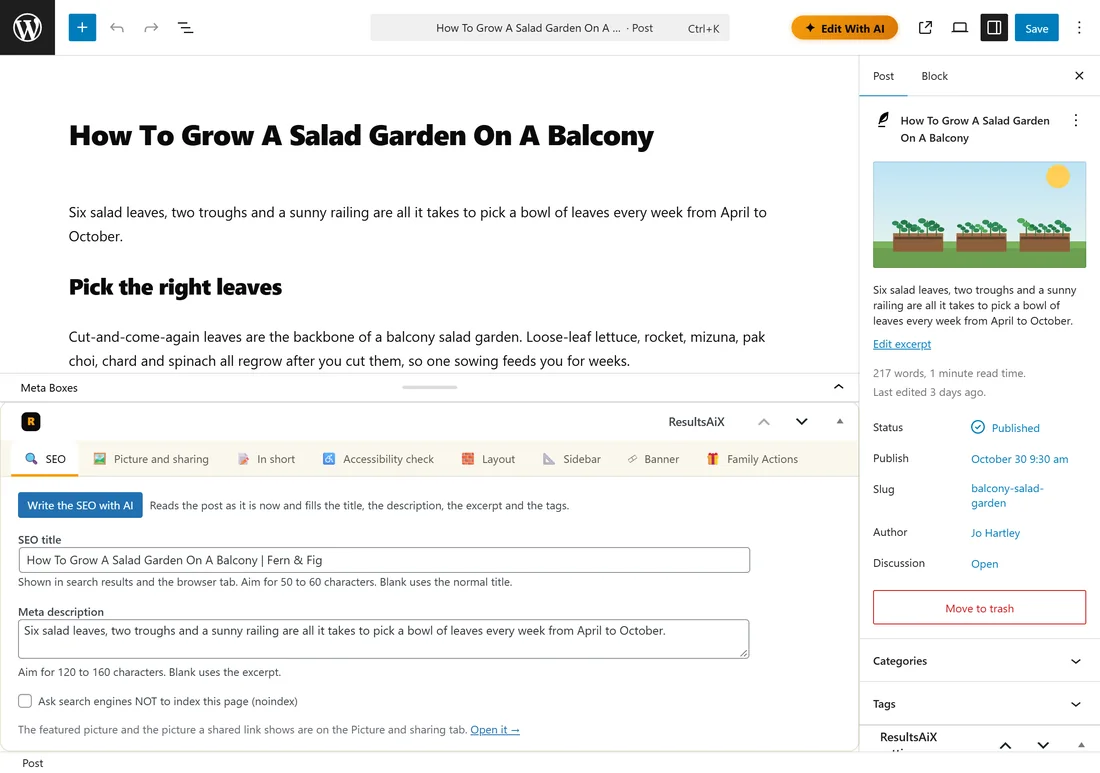
Open any post, page or training in the editor. The orange button in the top bar says Create With AI on a new page and Edit With AI once the page has content. Click it and the panel opens. Close it with the cross.
The brief:
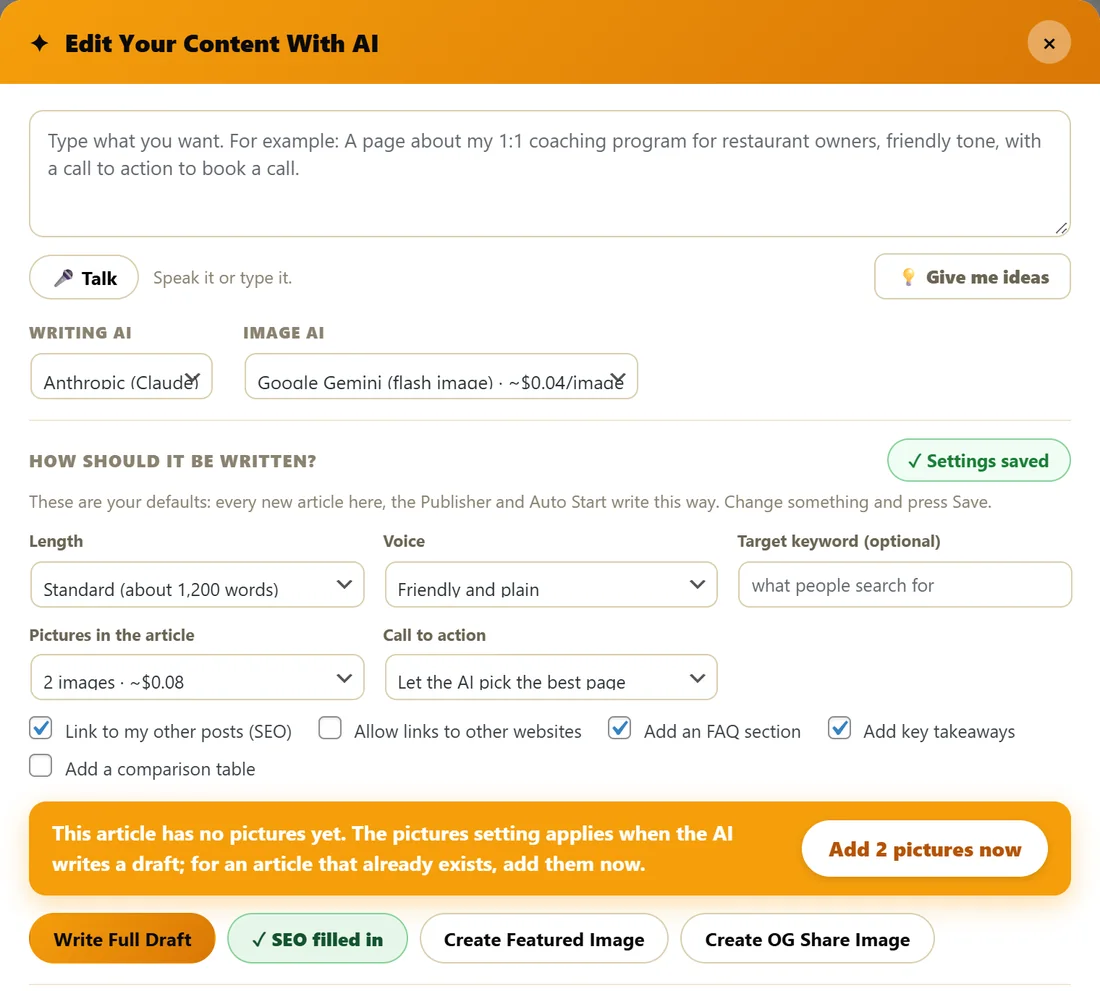
The big box at the top is your brief. Type what you want, or leave it blank and the title becomes the brief. Talk lets you speak it instead of typing. Give me ideas suggests things to write about. Writing AI and Image AI pick the provider for this page, with the picture cost shown beside the image provider.
How should it be written?
These are your defaults: every new article, the Publisher and Auto Start write this way. Change something and it says Settings saved.
- Length: Short (about 700 words), Standard (about 1,200 words), Long (about 2,000 words) or In depth (about 3,000 words). The AI is held to it.
- Voice: Friendly and plain, Expert and precise, Direct and punchy, or Story led. Your house style on Train Your AI comes first.
- Target keyword (optional): what people search for.
- Pictures in the article: None to 4 images, with the cost beside each choice.
- Call to action: Let the AI pick the best page (from your offers), Use this link, or No call to action.
- Ticks: Link to my other posts (SEO), Allow links to other websites, Add an FAQ section, Add key takeaways, Add a comparison table.
Write a whole draft:
- Type the brief, or leave it blank to use the title.
- Check the settings above.
- Press Write Full Draft. If the page already has words, it asks before replacing them.
- Read the draft in the editor and press Save or Update.
Next to it, the SEO button fills the search listing, and Create Featured Image and Create OG Share Image make the two pictures. A button already done shows a tick, such as SEO filled in.
Pictures for an article that already exists:
When the pictures setting is above None but the article has none yet, a gold bar says so with Add pictures now. The AI marks the spots, then draws each picture as its own request, so a slow host never stops the batch, and each picture lands in your media library in the right place.
Improve what is already here:
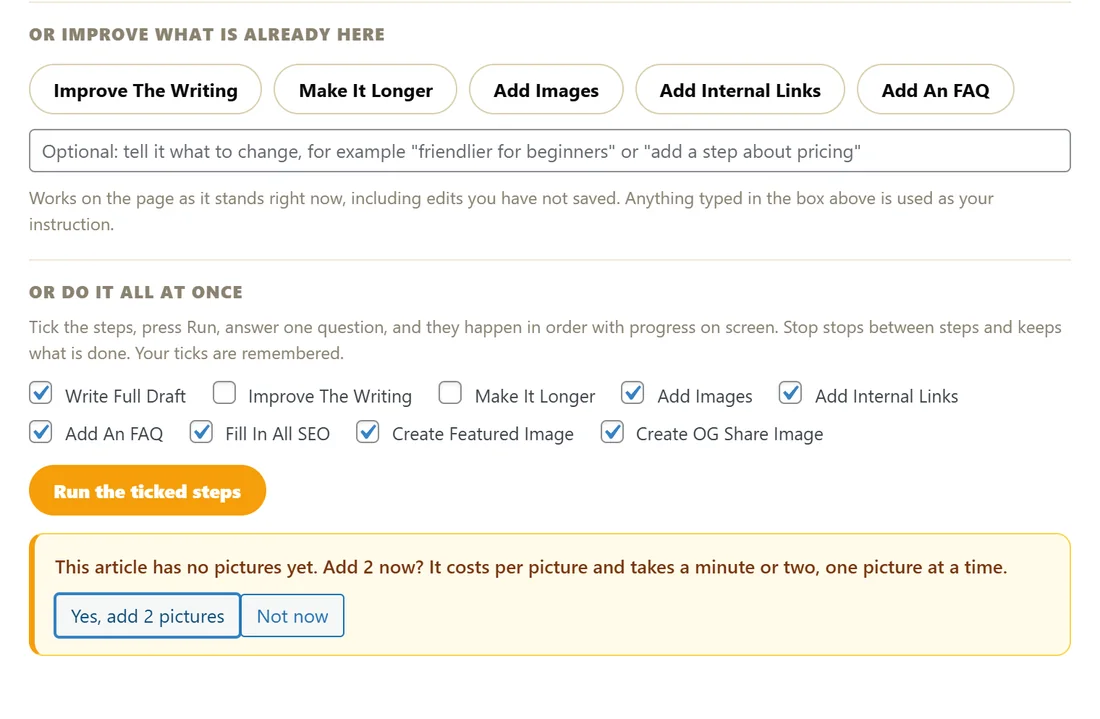
- Improve The Writing: a cleaner version of the same article.
- Make It Longer: extends towards your Length setting and reports the real final word count.
- Add Images, Add Internal Links (to your own published posts) and Add An FAQ.
The box under these buttons takes an instruction, such as friendlier for beginners. They work on the page as it stands right now, including edits you have not saved.
Do it all at once:
Tick the steps you want: Write Full Draft, Improve The Writing, Make It Longer, Add Images, Add Internal Links, Add An FAQ, Fill In All SEO, Create Featured Image and Create OG Share Image. Press Run the ticked steps and answer one question, which names every step and the picture cost. They run in order with progress on screen. Stop stops between steps and keeps what is done, and your ticks are remembered.
Change the layout:
Say what should change in words, press Work out the changes, read the list of moves, then press Apply. Your writing is never touched, and one Undo puts it all back. See AI Pictures, Changing The Layout With AI, And Posts On Autopilot.
Search engine listing:
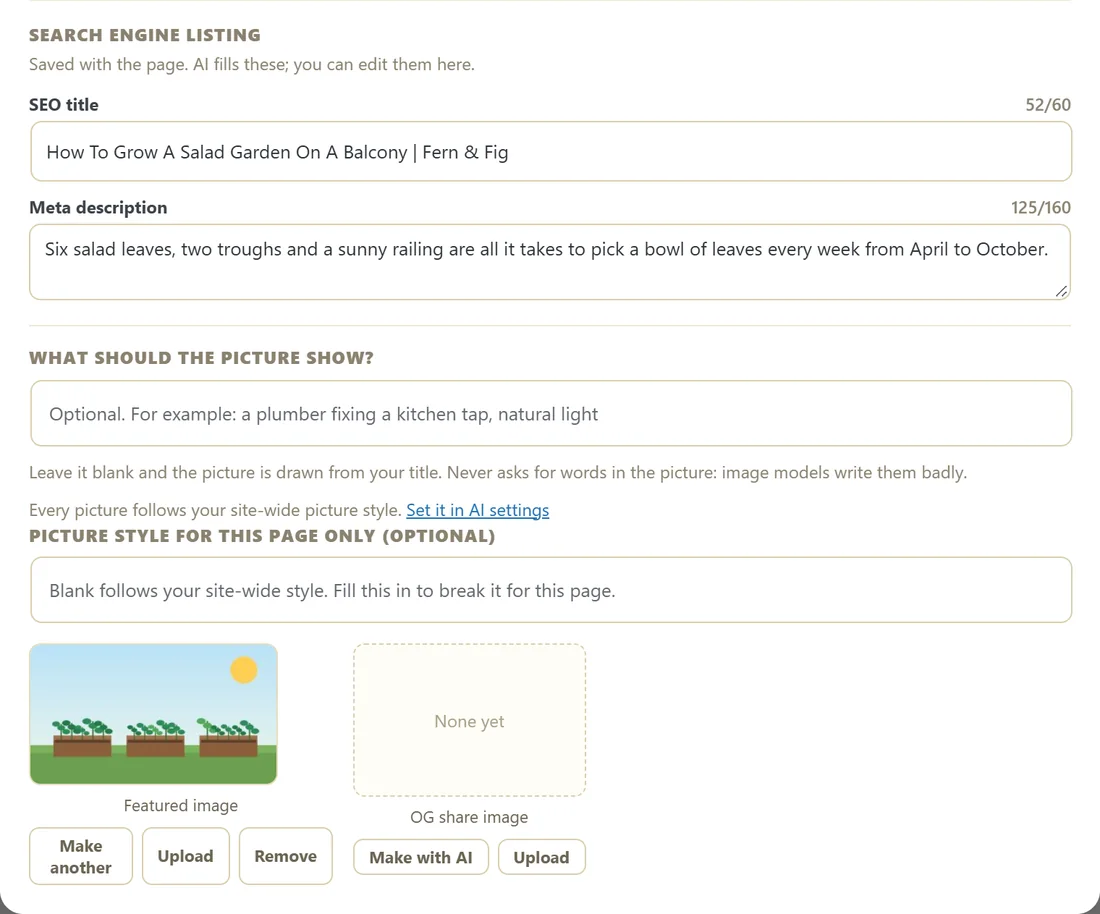
The SEO title and Meta description are saved with the page, with a counter for each (aim for 60 and 160 characters). The AI fills them and you can edit them here.
The pictures:
What should the picture show? takes a line about the picture. Blank draws it from your title. Every picture follows your site-wide picture style, and Picture style for this page only lets one page look different. Featured image has Make another, Upload and Remove. OG share image has Make with AI and Upload.
Preview and Stop:
Preview post in a new tab saves the current state and opens the post. While a job runs, the other buttons are greyed out with a line saying why, and Stop frees them again.
Safe for the block editor:
Everything the AI writes lands as proper WordPress blocks, so the block editor opens AI-written pages cleanly.
The ResultsAiX panel under the editor:
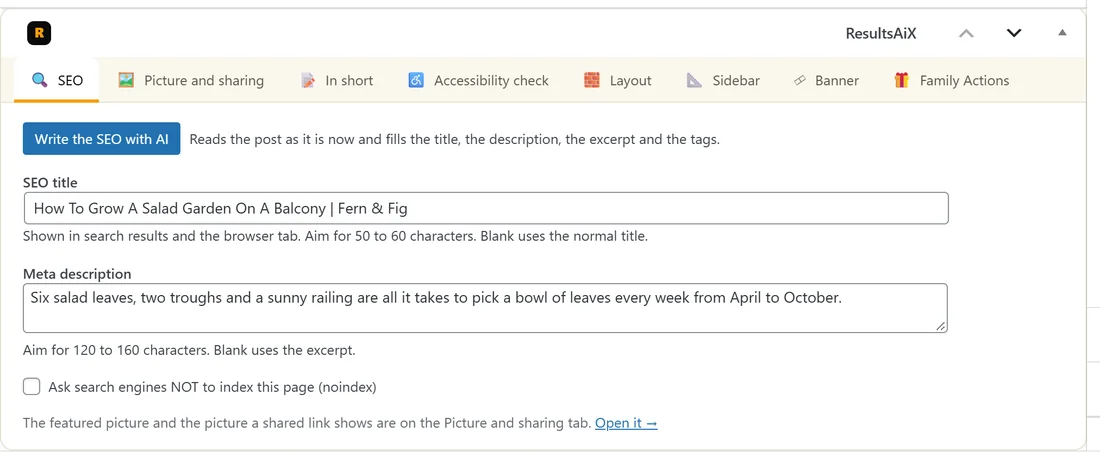
Under the editor sits one tabbed ResultsAiX panel: SEO, Picture and sharing, In short, Accessibility check, Layout, Sidebar, Banner and Family Actions. The tab you used last stays open. Prefer separate boxes in the side column? Settings, The edit screen, Separate boxes in the side column.
A real example:
Jo opens a new post titled Five herbs that grow on any windowsill and types for complete beginners, mention the free planting calendar. With Standard length, Friendly and plain and 2 images, Jo ticks Write Full Draft, Add Images, Fill In All SEO and Create Featured Image, and presses Run the ticked steps. A few minutes later the draft has two pictures in place, a featured picture, an FAQ, links to two older posts and a filled search listing.
Tips:
- Fill in Train Your AI first. Everything here writes from it.
- Every call is listed on the AI Connect tab with its estimated cost.
- Next, set your picture style. See AI Pictures, Changing The Layout With AI, And Posts On Autopilot.