Every episode's edit screen has a Transcript and AI box with three buttons. One makes the transcript from the audio, one writes the show notes, chapters and search details from that transcript, and one turns the episode into a blog post. They use the AI keys you already saved on the AI Connect tab, and nothing runs until you press a button.
Where to find it:
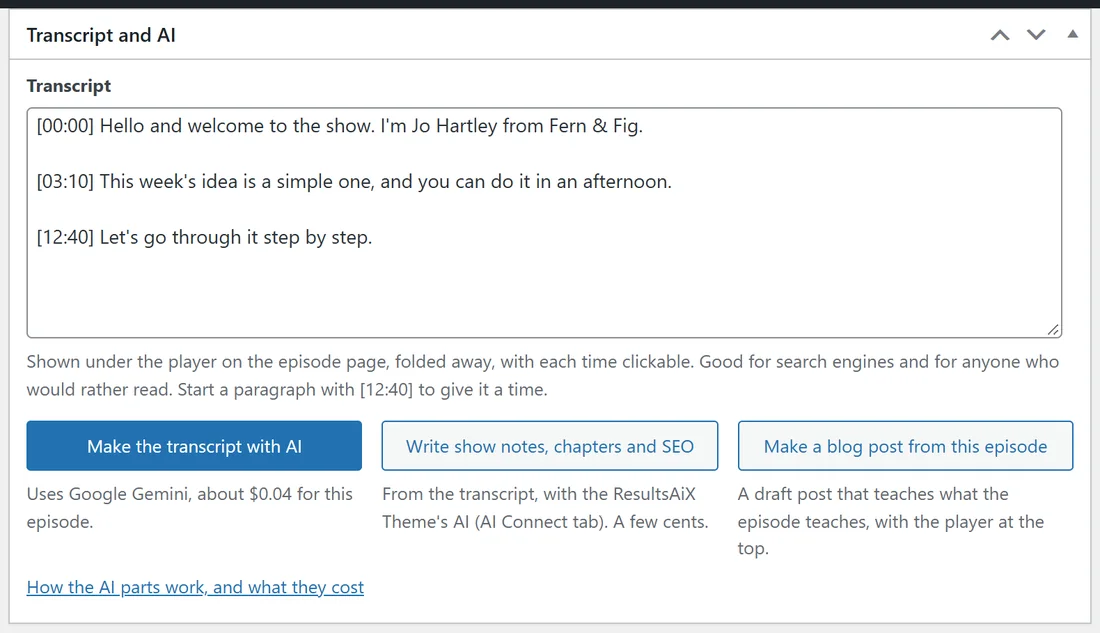
- Podcasts, Episodes, open an episode: the Transcript and AI box sits under Episode audio and details.
- ResultsAiX Theme, Podcasts: the Transcripts, show notes and blog posts with AI card explains it, shows which keys you have, and Which AI makes transcripts is under For podcast apps.
Button 1, make the transcript:
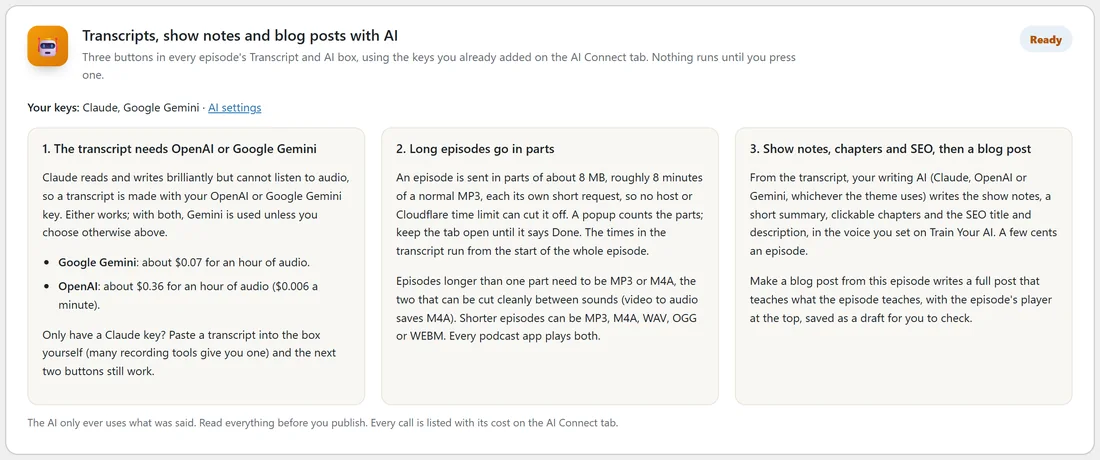
A transcript needs an OpenAI or a Google Gemini key, because Claude reads and writes but cannot listen to audio.
- Open the episode and make sure its audio is set.
- In the Transcript and AI box, press Make the transcript with AI. The line under the button names the AI it will use and the estimated cost for this episode.
- A popup counts the parts. Keep the tab open until it says Done.
- The transcript lands in the Transcript box. Read it, then press Update.
With both keys saved, Gemini is used unless you choose otherwise on the Podcasts tab. Of the two, Gemini costs less per hour of audio.
Long episodes:
A long episode is sent in parts of about 8 MB, roughly 8 minutes of a normal MP3, each its own short request, so no host or Cloudflare time limit can cut it off. The times in the transcript run from the start of the whole episode. Episodes longer than one part need to be MP3 or M4A, the two that can be cut cleanly between sounds; video to audio saves M4A. Shorter episodes can be MP3, M4A, WAV, OGG or WEBM.
Only have a Claude key?
Paste a transcript into the box yourself. Many recording tools give you one. The next two buttons then work as normal.
The transcript box:
The transcript is shown under the player on the episode page, folded away, with each time clickable. Start a paragraph with a time in square brackets, such as [12:40], to give it a time. It is good for search engines and for anyone who would rather read.
Button 2, write show notes, chapters and SEO:
Write show notes, chapters and SEO reads the transcript and writes the show notes, a short summary, clickable chapters and the SEO title and description, with the theme's writing AI (Claude, OpenAI or Gemini) and in the voice you set on Train Your AI. It costs a few cents an episode.
Button 3, make a blog post from this episode:
Make a blog post from this episode writes a full post that teaches what the episode teaches, with the episode's player at the top. It is saved as a draft for you to check, so nothing is published until you publish it.
What the AI uses:
The AI only uses what was said in the episode. Read everything before you publish. Every call is listed with its cost on the AI Connect tab, under Usage and estimated cost.
A real example:
Jo records Episode 5: Compost Without The Smell as an MP3 of about 29 minutes. Make the transcript with AI sends it to Gemini in four parts and the transcript arrives with times. Write show notes, chapters and SEO fills the show notes and four chapters, starting with 00:00 Welcome. Make a blog post from this episode creates a draft post, which Jo edits and publishes on Friday with the player at the top.
Tips:
- Add a Gemini key on the AI Connect tab even if you write with Claude. The transcript then has a key to use.
- Run the buttons in order: transcript first, then the notes, then the blog post.
- With the ResultsAiX Podcasts plugin active, these buttons work the same and use the theme's AI Connect keys.