The Settings tab holds the things you set once: your licence key, updates, breadcrumbs, how the edit screen is arranged, the admin search shortcut and the colours of the theme's own screens. Tracking codes and demo content live here too.
Requirements:
WordPress 6.0 or newer and PHP 7.4 or newer. The theme is tested up to WordPress 7.1.
Activating the theme:
Until a key is active, the ResultsAiX Theme menu has one screen, Activate the ResultsAiX Theme. Your website keeps working while you do this, and nothing a visitor sees is affected.
- Find your key in the email you received, or in your portal under All my keys and downloads. It looks like RAIXTHEME-XXXX-XXXX-XXXX.
- Paste it in the licence box and activate.
- The screen reloads and every tab opens: setup, Create With AI, the Publisher, SEO, legal pages, the plugin family and training.
The licence panel:
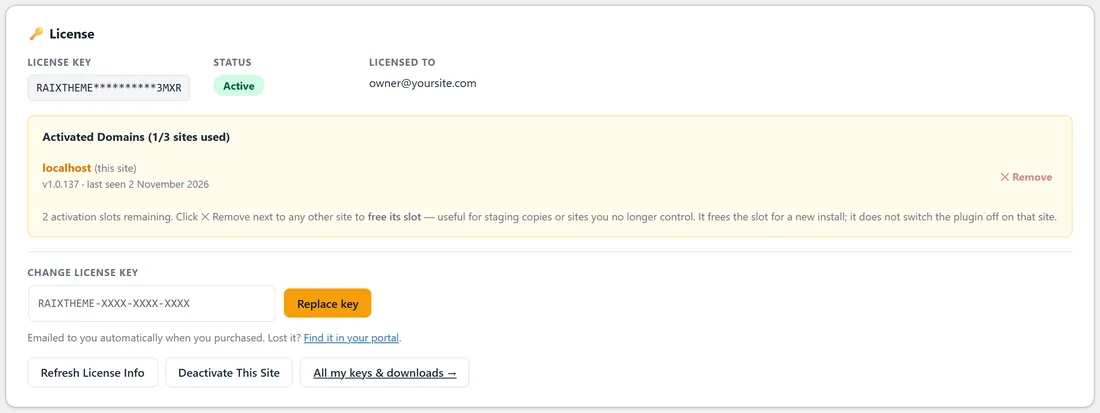
On Settings, the License panel shows these parts.
- License key, with the middle hidden. Status, such as Active. Licensed to, the email on the key.
- Activated Domains, with how many of your sites are used, and each site's theme version and when it was last seen. This site is marked (this site).
- Remove beside another site frees its slot for a new install, which suits staging copies or a site you have handed over.
- Change license key: paste a new key and press Replace key.
- Refresh License Info reads the latest from the licence server. Deactivate This Site frees this site's slot. All my keys and downloads opens your portal.
Updates:
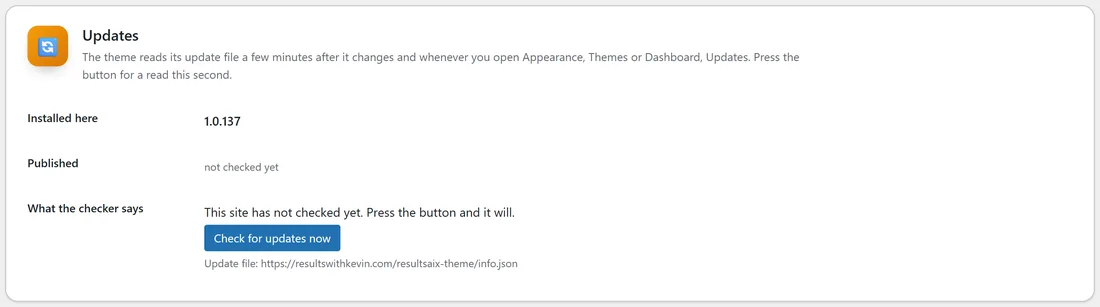
The Updates card shows the version Installed here, the version Published, and what the checker says in one plain sentence. The theme reads its update file a few minutes after it changes and whenever you open Appearance, Themes or Dashboard, Updates. Press Check for updates now for a read this second. New versions then install through the normal WordPress updater. Uploading the theme zip by hand works too.
Breadcrumbs:
Show the trail puts a small trail above the title on every page except the front page, where there is somewhere to go back to. It is built from your page order, so there is nothing to keep up to date. No trail turns it off.
The banner on a moved page:
Pages built with a page builder often open with a course logo, because the builder drew no title. The theme draws the title and the trail, so Leave the banner behind drops the picture at the very top when nothing comes before it. Keep it leaves the page exactly as it was.
The edit screen:
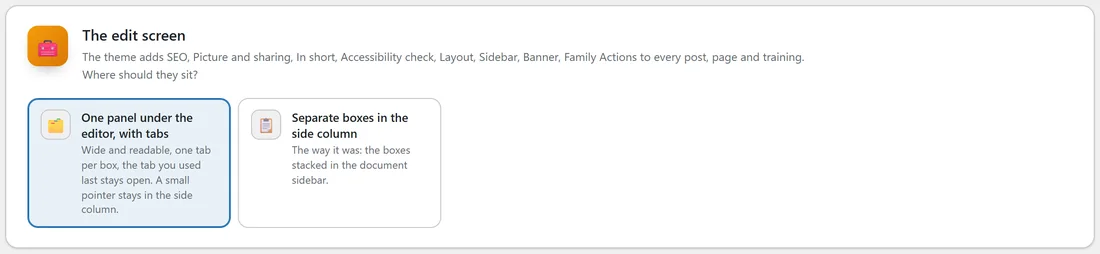
The theme adds SEO, Picture and sharing, In short, Accessibility check, Layout, Sidebar, Banner and Family Actions to every post, page and training. Choose where they sit:
- One panel under the editor, with tabs: wide and readable, and the tab you used last stays open.
- Separate boxes in the side column.
The search shortcut:
WordPress opens a search box anywhere in your admin with Ctrl+K (Cmd+K on a Mac).
- Find the theme's screens from the Ctrl+K search: typing write a post or keys jumps straight to the right tab.
- Also find add-ons you have not installed yet: shown only when somebody searches, and only to people who can install plugins.
How these screens look:

The colour scheme for the ResultsAiX admin screens. Follow the ResultsAiX Hub and every family plugin changes together, or pick one of the schemes just for the theme. Click a colour to see it straight away, and Save Settings keeps it. Your website's colours are separate and live in the Customizer.
Keys and secrets:
AI keys are masked on screen once saved. Only an administrator can save tracking snippets, and they are printed exactly as pasted.
The Training tab:
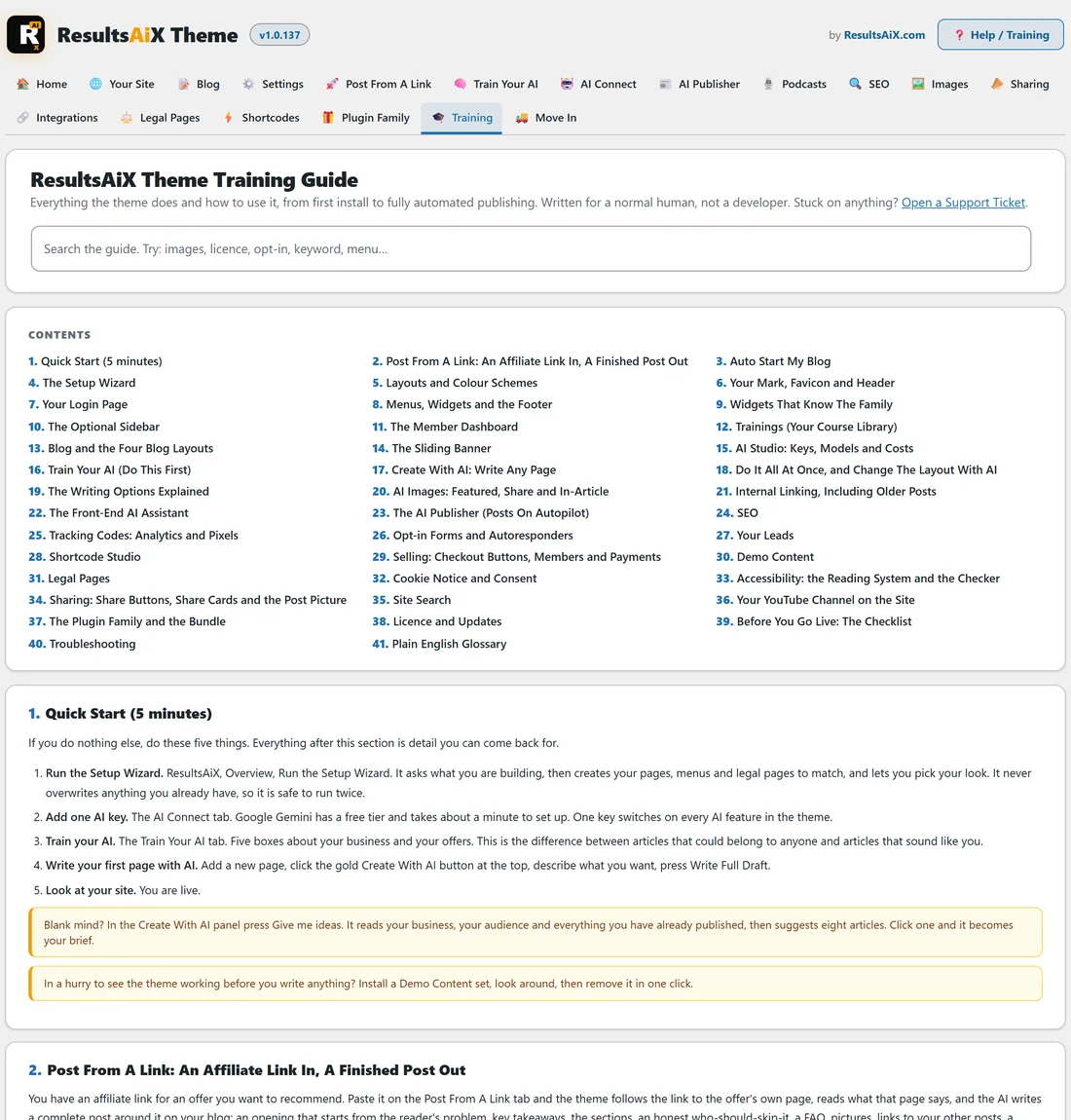
ResultsAiX Theme, Training is the built-in guide: forty-one chapters from Quick Start (5 minutes) through every feature to Before You Go Live: The Checklist, Troubleshooting and a Plain English Glossary, with a search box at the top. Help / Training at the top right of every theme screen opens it.
Translation ready:
Every word in the theme can be translated, and each release includes a fresh translation template.
A real example:
Jo's key covers three sites. Activated Domains shows yoursite.com, with two slots left. When Jo builds a staging copy, it takes one slot; when the staging copy is finished, Remove frees the slot again. A minute after a new version is published, Check for updates now shows it and Jo updates from Dashboard, Updates.
Tips:
- Keep the email your key came in. The portal link in the panel also finds it.
- Leave Find the theme's screens from the Ctrl+K search on. It is the quickest way around the theme.
- Next, set up the reading tools for your visitors. See Accessibility: The Reading System And The Checker (Built In).