These are the newer controls in the full ResultsAiX Theme. Post From A Link writes a complete post around an offer you promote, the Images tab makes your pictures lighter, and the Your Site tab sets who your site's emails come from and how your login page looks.
Where to find it:
- ResultsAiX Theme, Post From A Link.
- ResultsAiX Theme, Images.
- ResultsAiX Theme, Your Site: Emails your site sends and Your login page.
- ResultsAiX Theme, AI Connect: Test Connection.
Post From A Link:
Paste an affiliate link. The theme follows it to the offer's own page, reads what it says, and the AI writes a finished post around it on your blog: an opening that starts from the reader's problem, the sections, an FAQ, pictures, links to your other posts, a category, tags and the SEO title and description. Your exact link goes on the buttons, and a disclosure line goes at the top.
Writing a post from a link:
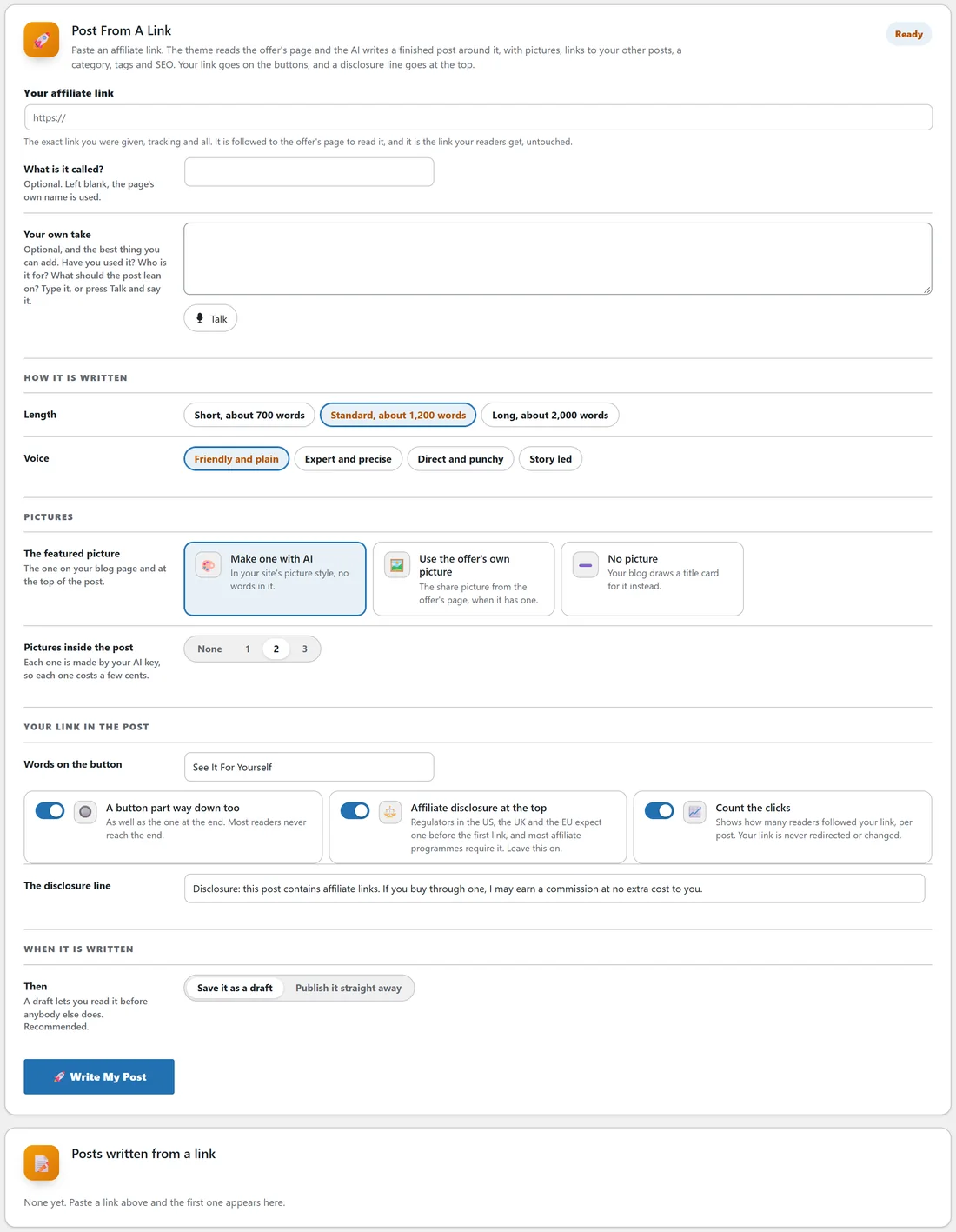
- Your affiliate link: the exact link you were given, tracking and all. Readers get it untouched.
- What is it called? Optional. Blank uses the page's own name.
- Your own take: optional, and the best thing you can add. Have you used it? Who is it for? Type it, or press Talk and say it.
- How it is written: Length (Short about 700 words, Standard about 1,200, Long about 2,000) and Voice (Friendly and plain, Expert and precise, Direct and punchy, Story led).
- Pictures: The featured picture (Make one with AI, Use the offer's own picture, or No picture, when your blog draws a title card) and Pictures inside the post (None, 1, 2 or 3). AI pictures need a Google or OpenAI key.
- Your link in the post: Words on the button, A button part way down too, Affiliate disclosure at the top (leave this on) with The disclosure line, and Count the clicks.
- When it is written: Save it as a draft (recommended) or Publish it straight away.
- Press Write My Post.
Posts written from a link lists each post with the clicks it has sent. Your link is never redirected or changed to count them. The writing runs on your own AI key, and only an administrator can post.
Test Connection:
On AI Connect, paste your key and press Test Connection. A key that works is saved there and then, so everything that needs it is ready at once.
Images:
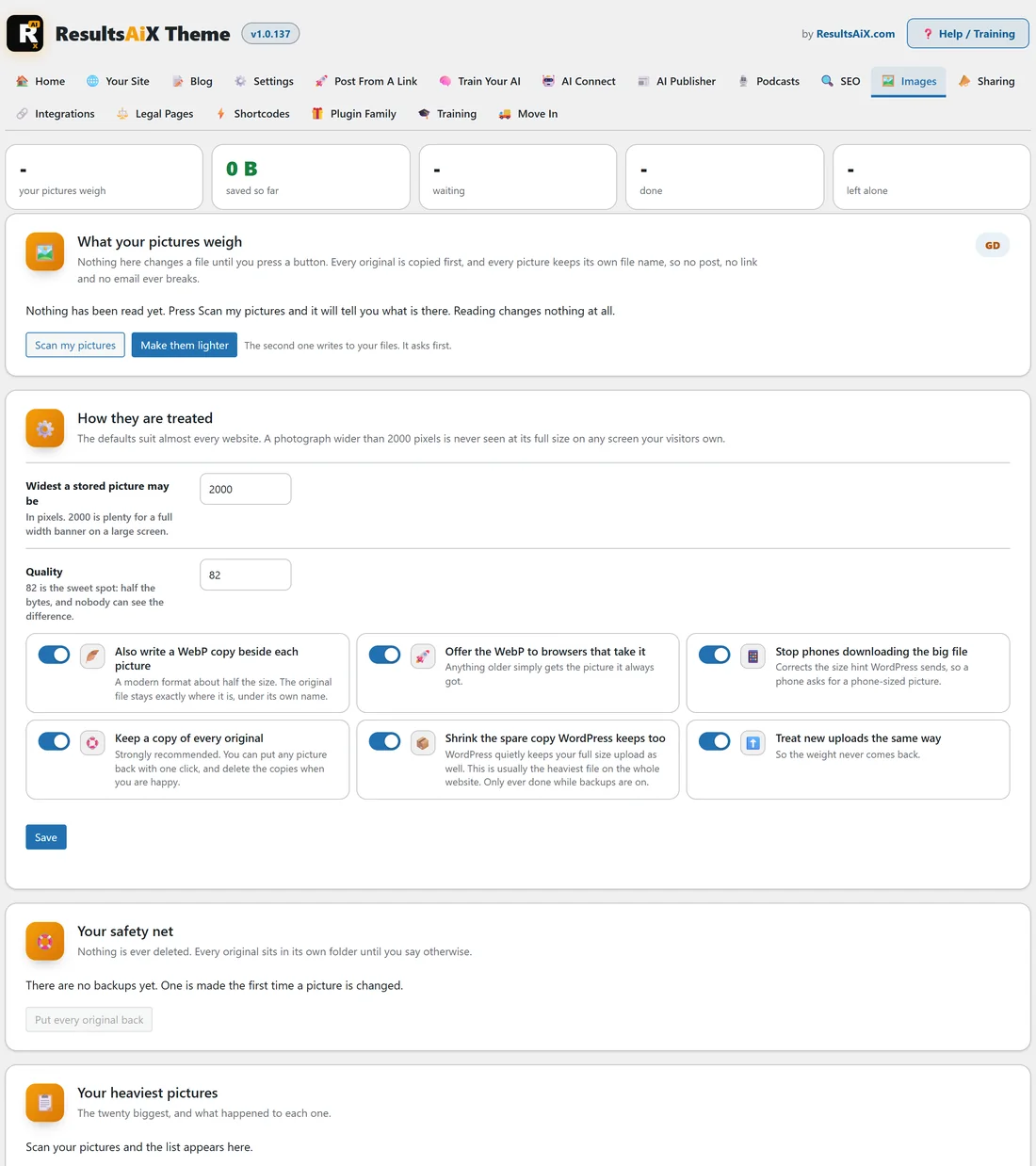
Large pictures are the heaviest thing on most websites. The Images tab tells you what your pictures weigh and makes them lighter.
- Press Scan my pictures. Reading changes nothing at all.
- Read the numbers: what your pictures weigh, how many are waiting, done and left alone, and Your heaviest pictures, the twenty biggest.
- Press Make them lighter. It asks first, then works through them with a progress count.
Every picture keeps its own file name, so no post, email or link breaks.
How they are treated:
- Widest a stored picture may be: 2000 pixels is plenty for a full width banner.
- Quality: 82 is the sweet spot, about half the bytes with no visible difference.
- Also write a WebP copy beside each picture, and Offer the WebP to browsers that take it.
- Stop phones downloading the big file: phones ask for a phone-sized picture.
- Keep a copy of every original: strongly recommended.
- Shrink the spare copy WordPress keeps too: only while backups are on.
- Treat new uploads the same way, so the weight never comes back.
Press Save.
Your safety net:
Every original sits in its own folder until you say otherwise. Put every original back restores them all, and one picture can be put back on its own. When you are happy, you can delete the backups to take the space back. It works only on your own media library, on your own server, and nothing is sent to anyone else. Animated GIFs are left as they are.
Emails your site sends:
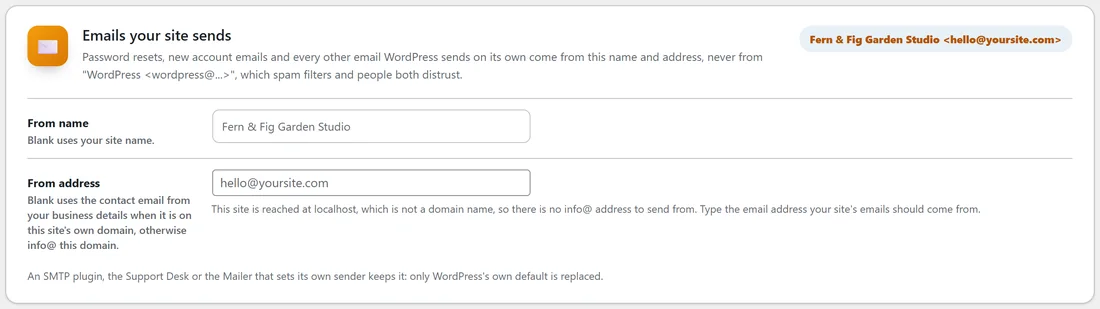
Password resets, new account emails and every other email WordPress sends on its own come from your name and address, never from WordPress.
- From name: blank uses your site name.
- From address: blank uses the contact email from your business details when it is on your own domain, otherwise info@ your domain.
An SMTP plugin, the Support Desk or the Mailer that sets its own sender keeps it. Only WordPress's own default is replaced.
Your login page:
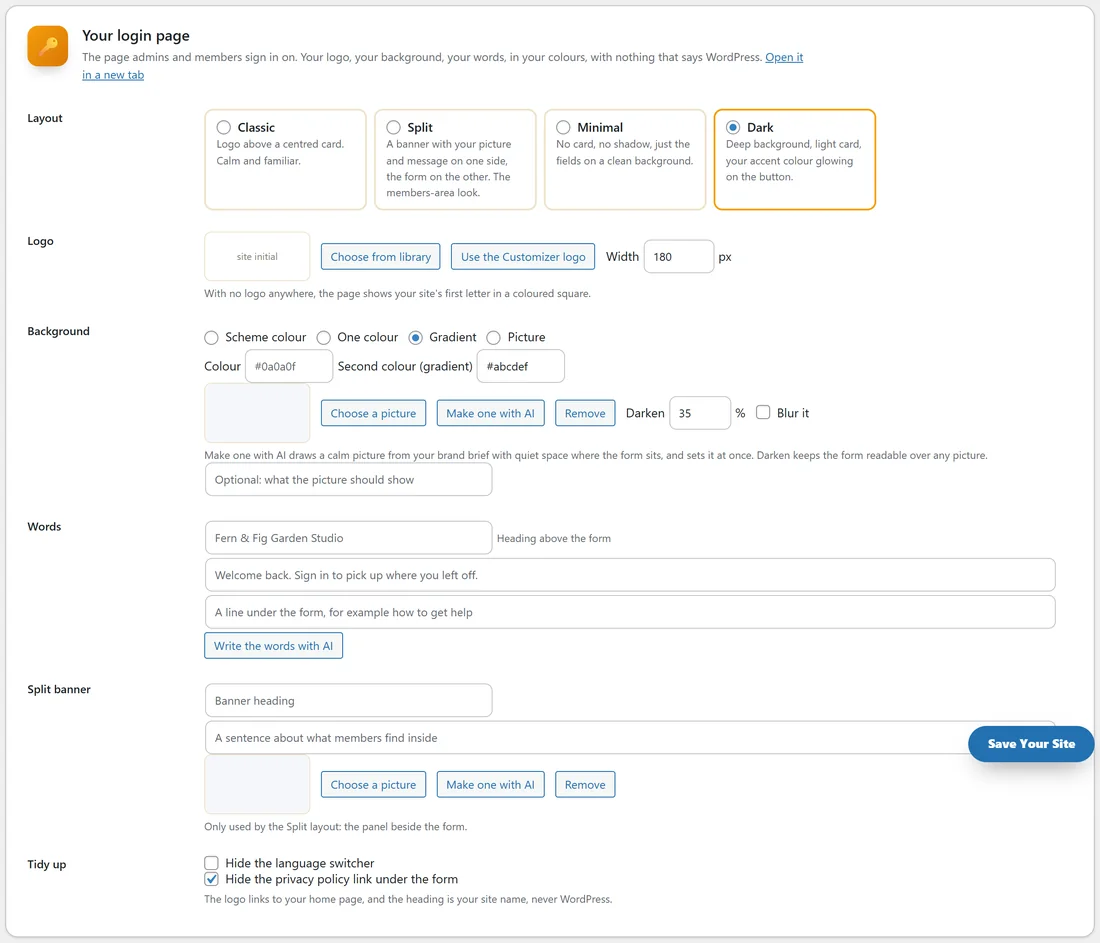
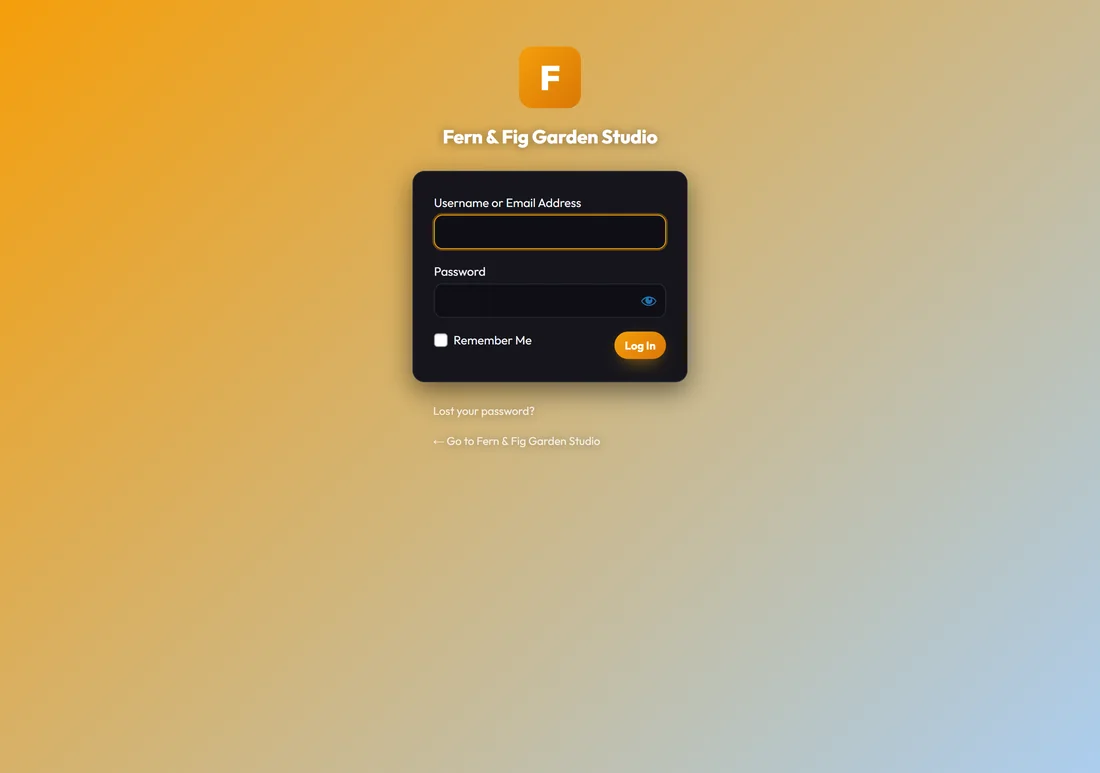
The page admins and members sign in on, in your colours, with nothing that says WordPress. Open it in a new tab shows it.
- Layout: Classic (logo above a centred card), Split (your picture and message beside the form), Minimal or Dark.
- Logo: choose one, use the Customizer logo, and set its width. With no logo anywhere, the page shows your site's first letter in a coloured square.
- Background: Scheme colour, One colour, Gradient or Picture, with Darken and Blur it. Make one with AI draws a calm picture with quiet space where the form sits.
- Words: the heading above the form, the welcome line and a note under the form, by hand or with Write the words with AI.
- Split banner: the picture beside the form in the Split layout.
- Tidy up: hide the language switcher and the privacy policy link under the form.
The logo links to your home page, and the heading is your site name.
A real example:
Jo promotes a seed subscription box as an affiliate. Pasting the link with a short own take (we have used it for two seasons, best for beginners), Standard length, Friendly and plain and one picture inside, Jo presses Write My Post and gets a draft with the disclosure at the top and the link on two buttons. On Images, Scan my pictures finds the old uploads at full camera size; Make them lighter brings them down with the originals kept.
Tips:
- Always add your own take. It is what makes the post yours.
- Run Scan my pictures before and after, to see what you saved.
- Use the Dark login page with your scheme colour for a members site.