The theme has a members area built in. You get a Trainings library for your course lessons, a Member Dashboard page as the members home, and a switch that keeps trainings for people who are signed in. For levels, payments and drip release, add ResultsAiX Membership; for a simple course site, the theme is enough.
Where to find it:
- Trainings in your WordPress sidebar: All Trainings, Add New Training and Topics.
- ResultsAiX Theme, Your Site, Who can open your trainings.
- Appearance, Customize, ResultsAiX Theme: Dashboard heading and Dashboard intro line.
- Any page: Template, Member Dashboard.
Trainings:
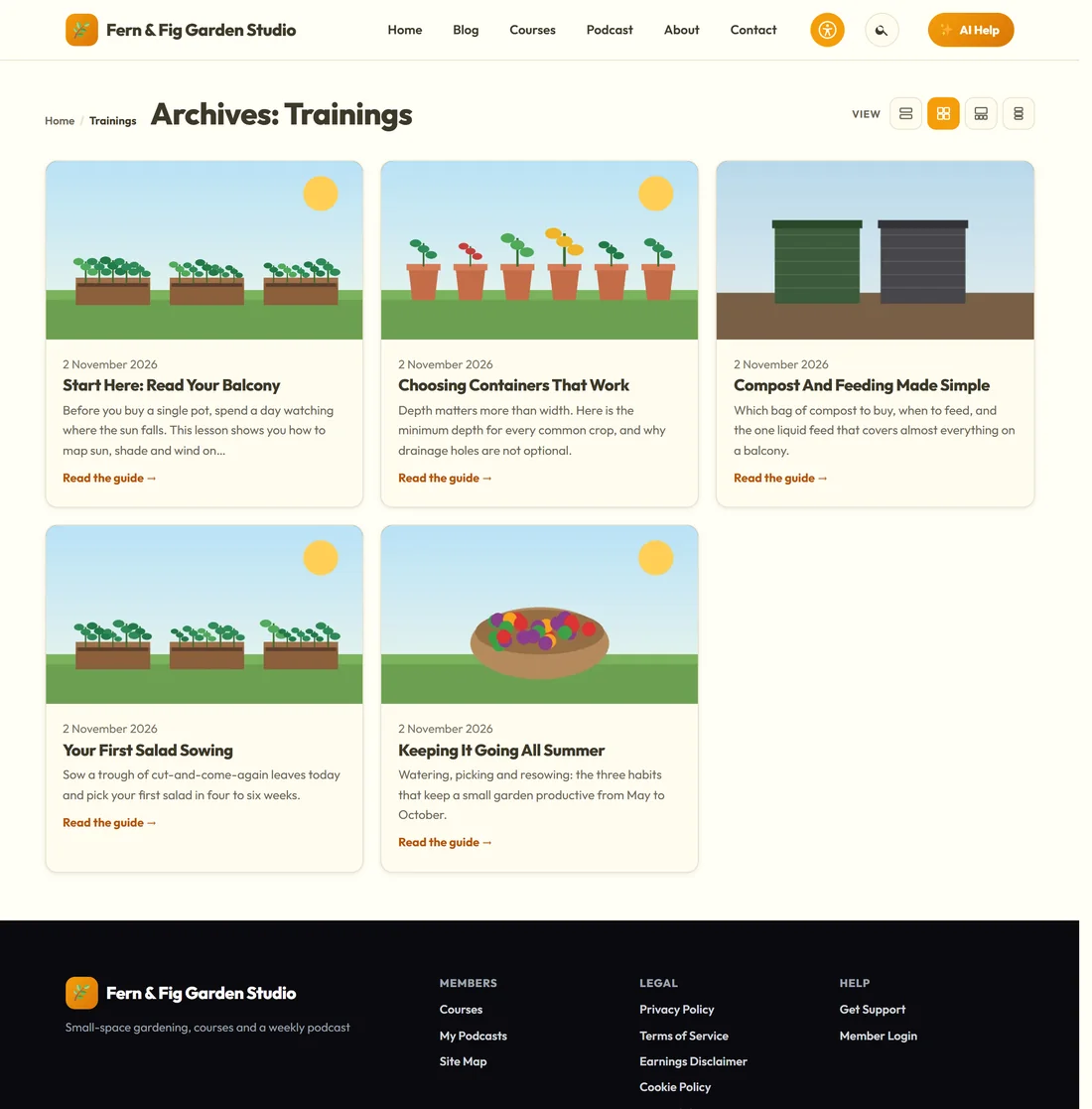
A training is one lesson. Topics group lessons into sections, such as Getting Started and Growing On.
- Go to Trainings, Add New Training.
- Write the lesson. Add a featured picture for the card.
- In the page settings, set Order: lessons are listed in this order, lowest first.
- Tick a Topic in the Topics box.
- Publish.
The training library lives at /training/ on your site, and each topic has its own page. A lesson page has an All Trainings link back to the library, breadcrumbs, its topic and Previous and Next lesson links at the bottom.
A progress bar:
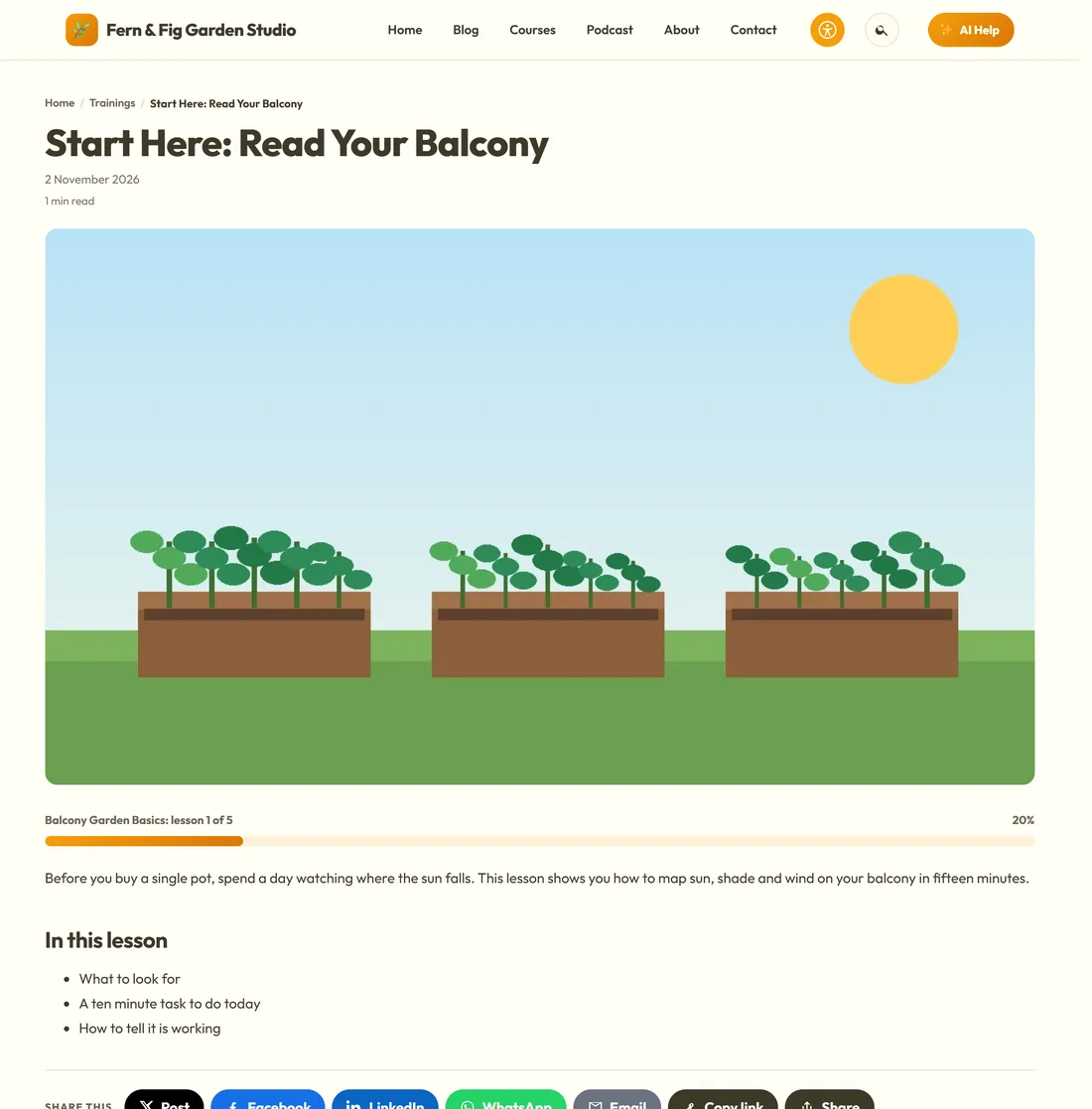
Put [raix_progress percent="40" label="Lesson 2 of 5"] at the top of a lesson to show how far through the course it is. You set the number, so it suits any course shape. The Shortcode Studio builds it for you.
The Member Dashboard page:
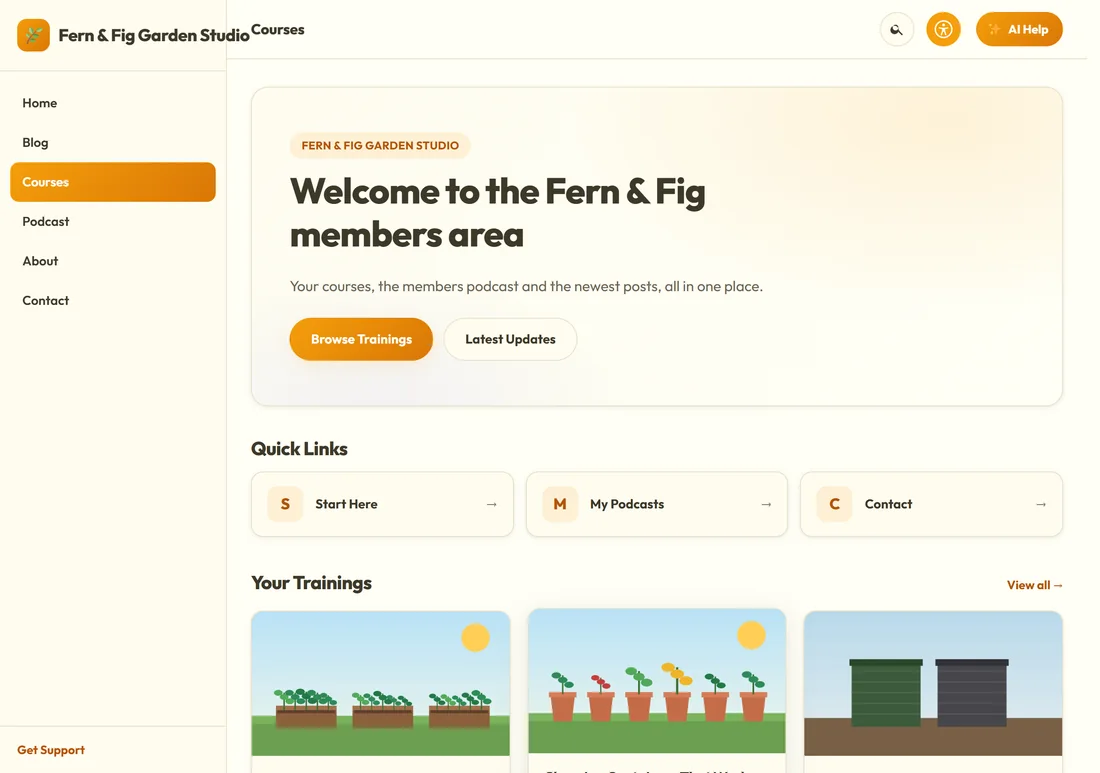
Give any page the Member Dashboard template and it becomes your members home, with these parts.
- A signed-in member sees Welcome back and their first name. Everyone else sees your Dashboard heading.
- Under the heading: your Dashboard intro line, a Browse Trainings button and a Latest Updates button.
- Quick Links: the menu assigned to Dashboard Quick Links, shown as cards.
- Your Trainings: the newest lessons as cards, with View all.
- Latest Updates: your newest posts.
Set the heading and the intro line in Customizer, ResultsAiX Theme. Build the Quick Links in Appearance, Menus and assign the menu to Dashboard Quick Links.
Who can open your trainings:
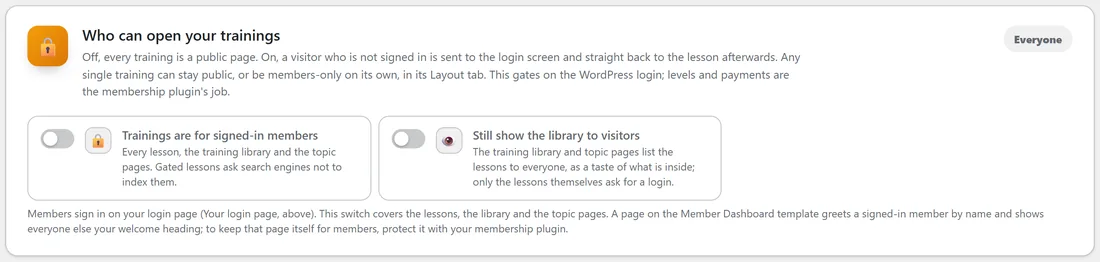
On Your Site, Who can open your trainings decides who sees the lessons. Off, every training is a public page.
- Trainings are for signed-in members: a visitor who is not signed in is sent to the login screen and straight back to the lesson afterwards. Gated lessons ask search engines not to index them.
- Still show the library to visitors: the library and topic pages list the lessons to everyone as a taste of what is inside; only the lessons ask for a login.
Any single training can stay public, or be members-only on its own, in its Layout tab: Who can open this training. This gates on the WordPress login. Levels and payments belong to a membership plugin, and a Member Dashboard page you want for members only is protected by that plugin.
Member-aware shortcodes:
- [raix_member_name] prints the signed-in member's first name. Its fallback option sets what shows when nobody is signed in, for example [raix_member_name fallback="friend"].
- [raix_logged_in]...[/raix_logged_in] shows its content only to signed-in visitors.
- [raix_logged_out]...[/raix_logged_out] shows its content only to visitors who are not signed in.
- [raix_trainings count="6" topic="getting-started"] drops the training grid onto any page, in course order.
- [raix_avatar] shows the signed-in member's profile picture.
These change what a page says, not who may open it.
A real example:
Jo's course, Balcony Garden Basics, is five trainings in two topics. Each lesson opens with [raix_progress] showing lesson 1 of 5, 2 of 5 and so on, and ends with a worksheet line inside [raix_logged_in]. The Courses page uses the Member Dashboard template with the heading Welcome to the Fern & Fig members area and Quick Links to Start Here, My Podcasts and Contact. Trainings are for signed-in members is on, with Still show the library to visitors, so the library works as a preview of the course.
Tips:
- Give the Courses page the Member portal layout in its Layout tab for an app-style members area.
- Members sign in on your own branded login page. See Post From A Link, Images And More Site Controls.
- Next, give members a podcast too. See Podcasts: Shows, Members-Only Feeds And The Player.