Three AI features keep a site looking and growing the way you want with little effort: a house picture style that every generated picture follows, a layout helper that rearranges a page from a sentence, and the AI Publisher, which writes posts on a schedule.
Where to find it:
- ResultsAiX Theme, AI Connect: your keys, Routing and budget, and Your picture style.
- The Edit With AI panel on any page: Or change the layout.
- ResultsAiX Theme, AI Publisher: the schedule and what it writes.
Your keys:
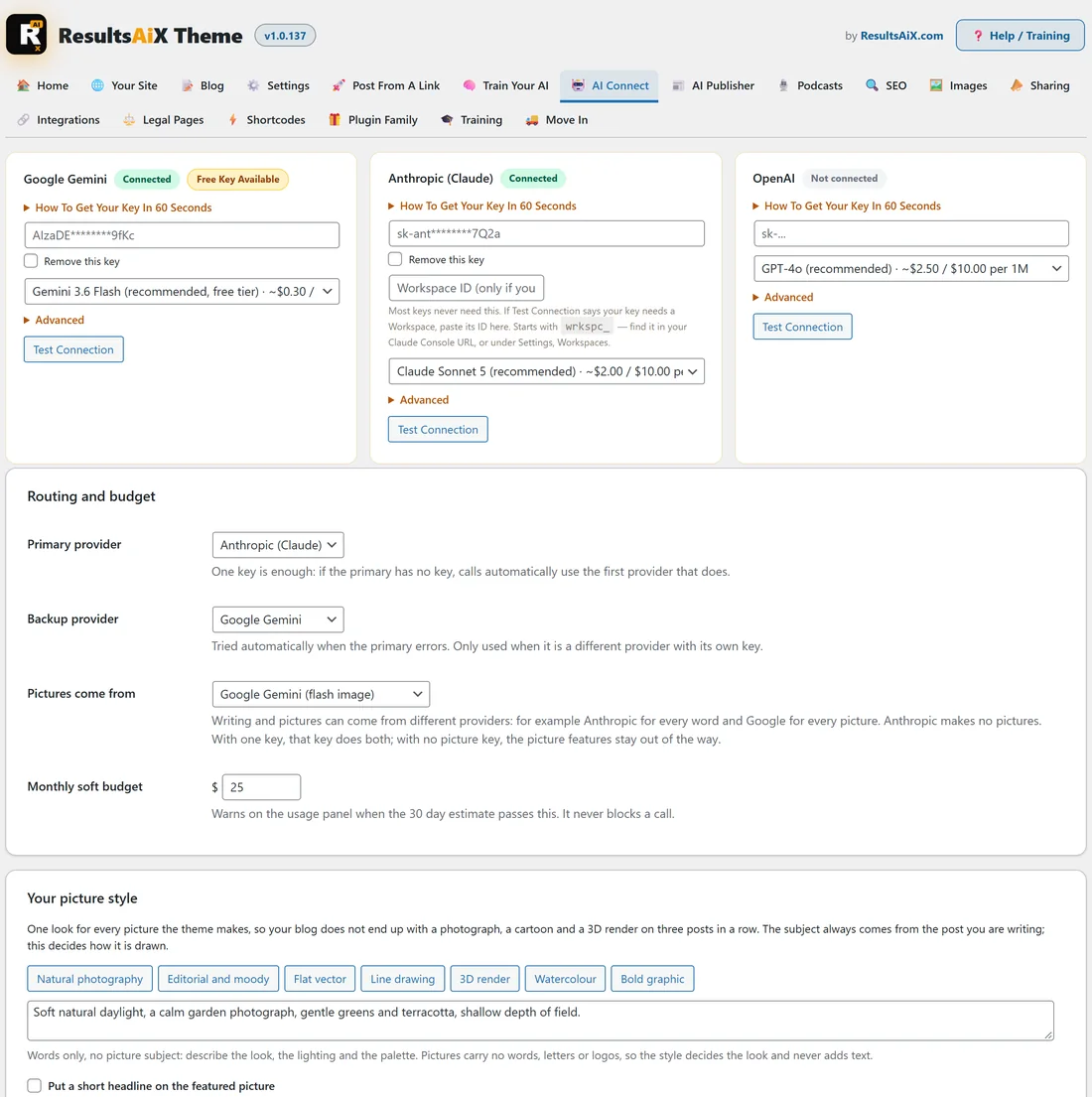
AI Connect has a card for Google Gemini, Anthropic (Claude) and OpenAI. For each one:
- Click How To Get Your Key In 60 Seconds if you need a key. Google Gemini shows Free Key Available.
- Paste the key and pick the model. The recommended one is marked.
- Press Test Connection. A key that works is saved there and then.
Saved keys are masked. Remove this key takes a key off. Advanced holds a different base address for the provider, and the Anthropic card has a Workspace ID field for the rare key that asks for one.
Routing and budget:
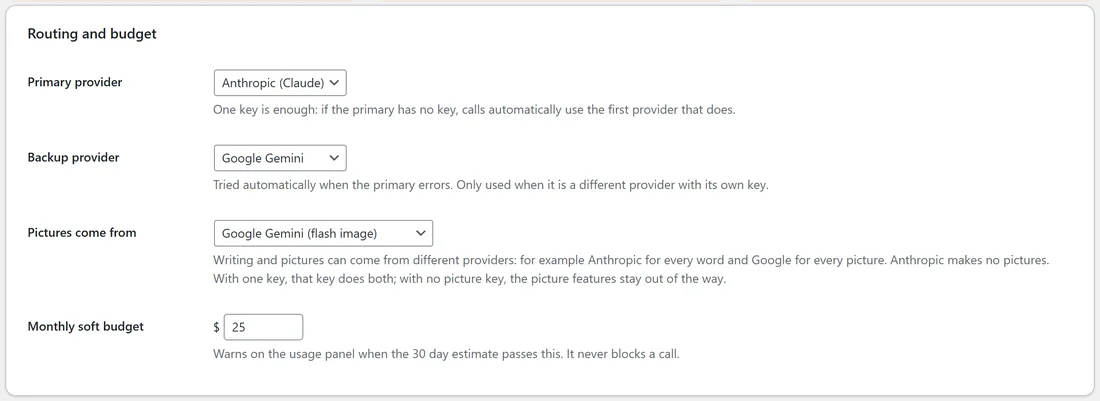
- Primary provider: the AI that writes. One key is enough: if the primary has no key, calls use the first provider that does.
- Backup provider: tried automatically when the primary errors, when it is a different provider with its own key.
- Pictures come from: First picture provider with a key, OpenAI (gpt-image-2) or Google Gemini (flash image). Anthropic makes no pictures, so writing and pictures can come from different providers.
- Monthly soft budget: warns on the usage panel when the 30 day estimate passes it. It never blocks a call.
Your picture style:
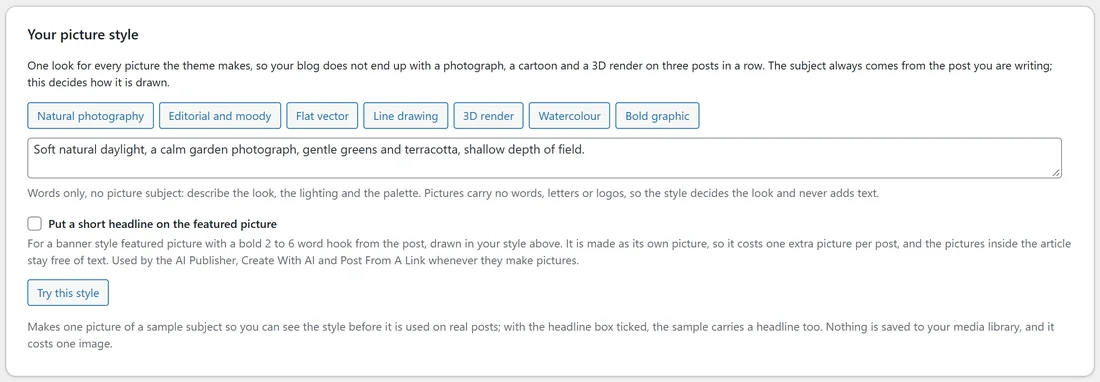
One look for every picture the theme makes, so your blog does not end up with a photograph, a cartoon and a 3D render on three posts in a row. Pick a starting point (Natural photography, Editorial and moody, Flat vector, Line drawing, 3D render, Watercolour or Bold graphic) and adjust the words in the box: the look, the lighting and the palette, never the subject. The subject always comes from the post. Pictures carry no words, letters or logos. Try this style makes one picture of a sample subject so you can see the style first. Nothing is saved to your media library, and it costs one picture. Any page can use its own style from its Edit With AI panel.
A short headline on the featured picture:
Tick Put a short headline on the featured picture for a banner style featured picture with a bold hook of 2 to 6 words from the post, drawn in your style. It is made as its own picture, so it costs one extra picture per post, and the pictures inside the article stay free of text. The AI Publisher, Create With AI and Post From A Link all use it when they make pictures.
Usage and estimated cost:
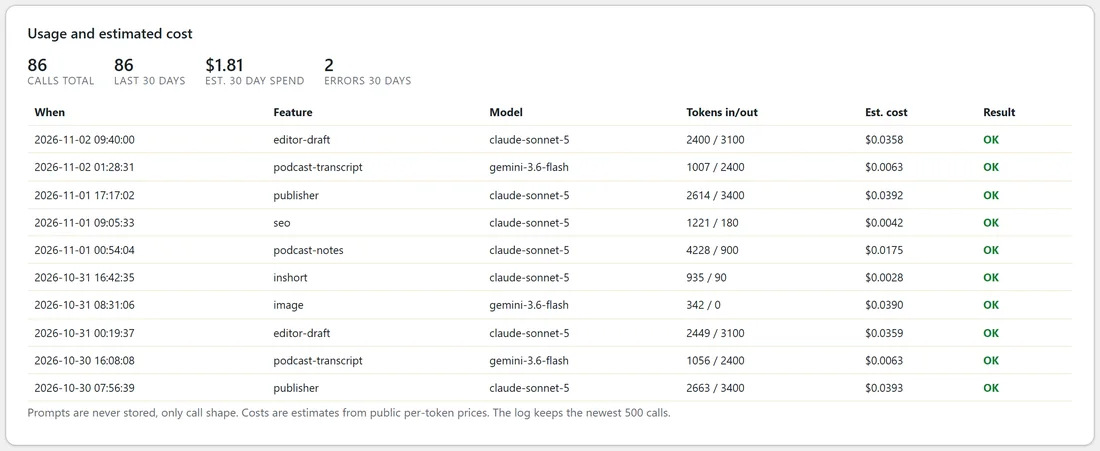
The bottom of AI Connect counts Calls total, Last 30 days, Est. 30 day spend and Errors 30 days, and lists the latest calls with the feature, model, tokens, estimated cost and result. Prompts are never stored, only the shape of each call. The log keeps the newest 500 calls.
Change the layout with AI:
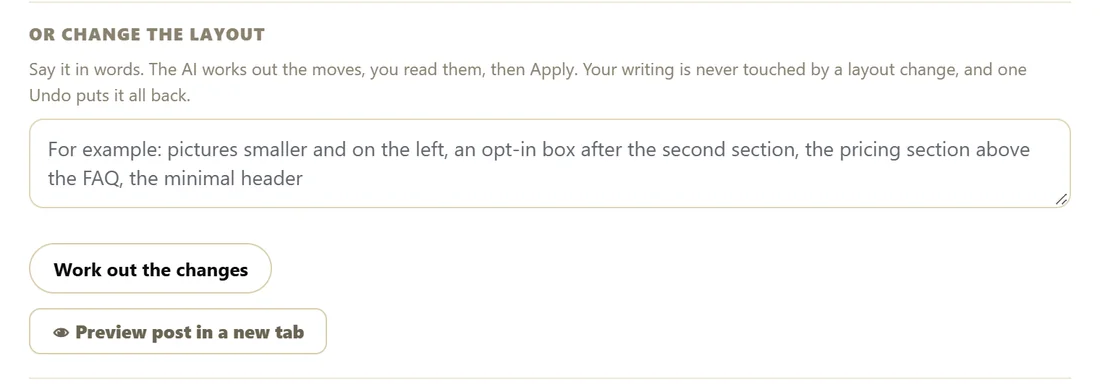
In the Edit With AI panel, Or change the layout takes a sentence such as pictures smaller and on the left, put the opt-in after the second section, or turn this paragraph into a list.
- Type what should change.
- Press Work out the changes. The AI reads a numbered outline of the page's blocks, never the writing inside them.
- Read the short list of moves it proposes.
- Press Apply. One Undo puts the whole batch back.
Anything it inserts comes from the theme's own blocks and from family plugins that are installed on your site.
The AI Publisher:
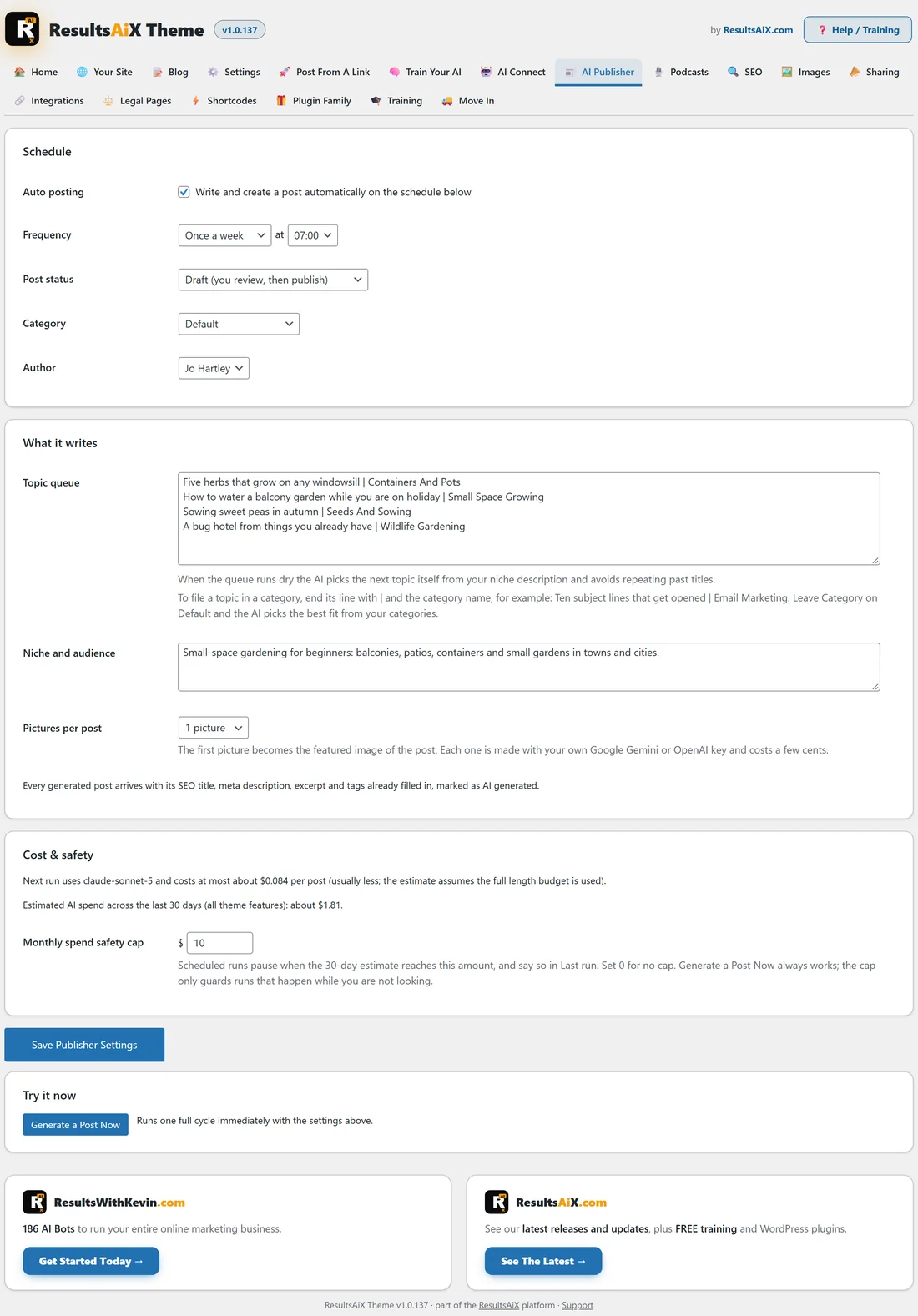
The Publisher writes and creates a post on a schedule while you get on with your day.
- Tick Write and create a post automatically on the schedule below.
- Frequency: Every day, Every two days or Once a week, at the hour you pick.
- Post status: Draft (you review, then publish) or Publish immediately, fully automatic.
- Category: Default lets the AI pick the best fit from your categories. Author: who the posts are by.
- Topic queue: one topic a line. End a line with | and a category name to file it there, for example Ten subject lines that get opened | Email Marketing. When the queue runs dry the AI picks the next topic from your niche and avoids repeating past titles.
- Niche and audience: a sentence about what the blog covers and who reads it.
- Pictures per post: None, 1, 2 or 3 pictures. The first becomes the featured image. Pictures need a Google Gemini or OpenAI key.
- Press Save Publisher Settings.
Every generated post arrives with its SEO title, meta description, excerpt and tags filled in, written to your Train Your AI brief.
Cost and safety:
The Cost and safety box shows which model the next run uses and the most a post costs. Monthly spend safety cap pauses scheduled runs when the 30 day estimate reaches it, and says so in Last run. Set 0 for no cap. Generate a Post Now always works and runs one full cycle straight away.
Links between your posts:
On the SEO tab, Keep your older posts linking to your newer ones turns mentions of your post titles into links. It is matching, not writing, so it makes no AI call. See The SEO Engine, Tracking Codes, And Opt-Ins.
A real example:
Jo writes with Anthropic and makes pictures with Google Gemini, with the style Soft natural daylight, a calm garden photograph, gentle greens and terracotta. The Publisher runs Once a week at 07:00 as Draft, with four topics in the queue, each filed in its category, and 1 picture per post. Every Monday morning there is a new draft waiting with its picture, SEO and tags.
Tips:
- Start the Publisher on Draft for the first few weeks and read each post before it goes out.
- Set a Monthly spend safety cap you are comfortable with.
- Keep the topic queue topped up with the subjects you most want to rank for.