Every website needs a few legal pages and, for many visitors, a cookie notice. The Legal Pages tab writes the pages from your own business details, can tailor them to what you really do, and runs a cookie notice that holds your tracking until visitors agree.
The pages are a starting template, not legal advice. Have a professional read anything you rely on.
Where to find it:
ResultsAiX Theme, Legal Pages. The cards run from top to bottom: Your business details, One-click legal pages, Tailor Them With AI, Cookie notice and consent, the cookie scan, the consent log, What the law asks for, Your content, checked, and Your legal pages.
Your business details:
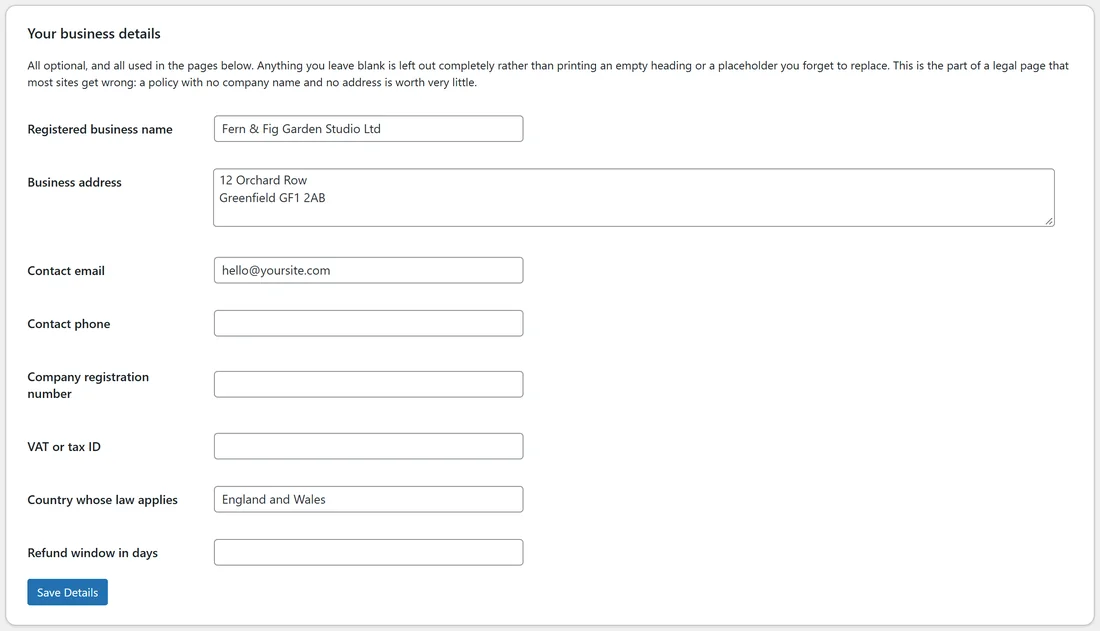
All optional, and all used in the pages. Anything you leave blank is left out completely rather than printing an empty heading.
- Registered business name and Business address.
- Contact email and Contact phone.
- Company registration number and VAT or tax ID.
- Country whose law applies.
- A number of days used by your Terms page.
Press Save Details.
One-click legal pages:

Press Create Legal Pages. It creates Privacy Policy, Terms of Service, Earnings Disclaimer, Cookie Policy and Accessibility Statement, pre-written with your details and linked in the footer legal row. Existing pages are never overwritten. Your legal pages at the bottom of the tab lists each with a View link.
Tailor them with AI:
The templates are written for a general business. Tailor Them With AI rewrites one page around what you actually do, from your business details and your Train Your AI brief.
- Pick the page: Privacy Policy, Terms of Service, Earnings Disclaimer, Cookie Policy or Accessibility Statement.
- Press Rewrite This Page With AI.
- Read the new wording on the page. WordPress keeps the previous version under Revisions, so you can put it back in one click.
It never invents a company number, a jurisdiction or a licence you have not given it.
Cookie notice and consent:
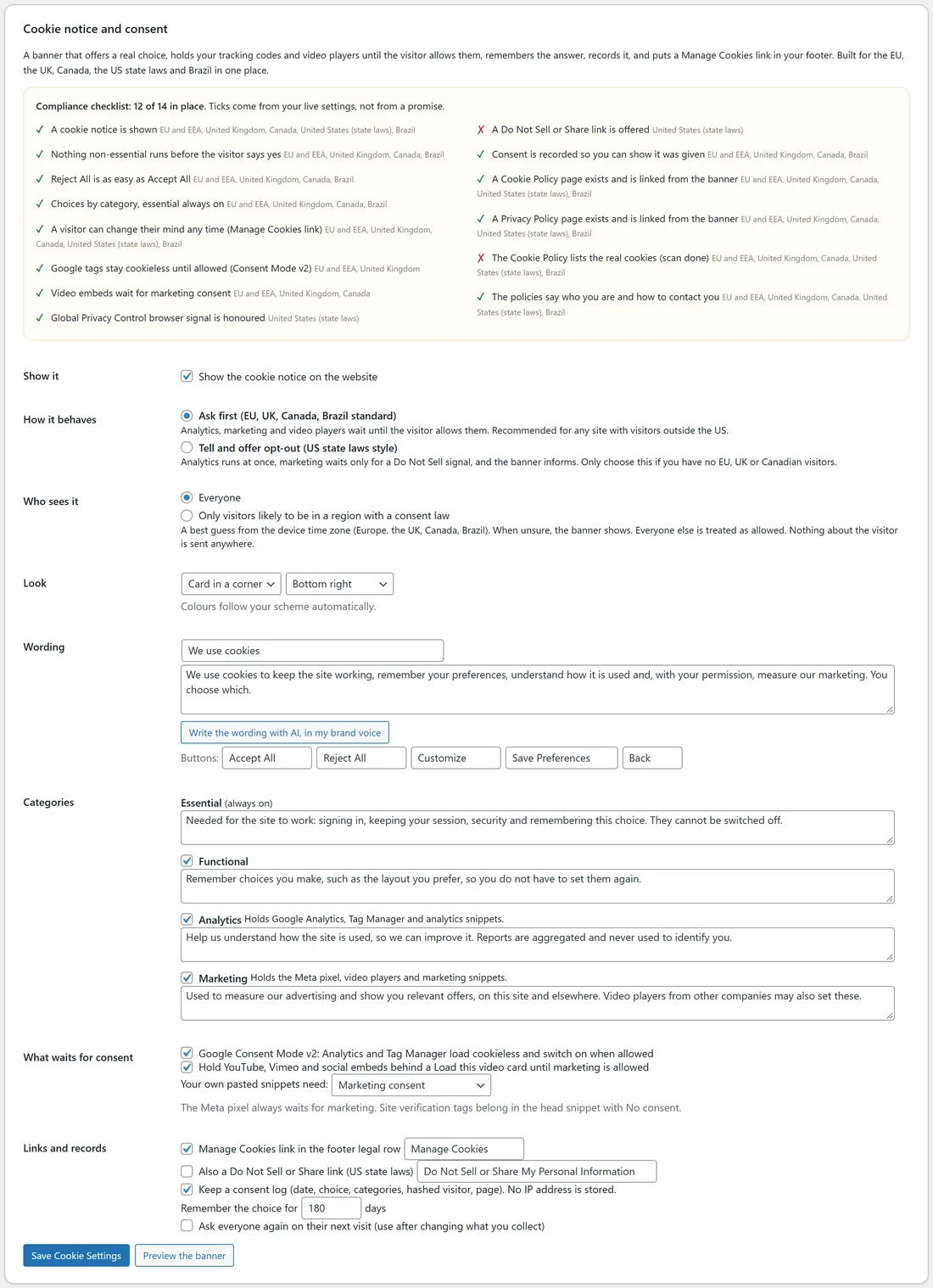
A banner that offers a real choice, holds your tracking codes and video players until the visitor allows them, remembers the answer, records it, and puts Manage Cookies in your footer. The compliance checklist at the top ticks itself from your live settings, region by region: the EU and EEA, the United Kingdom, Canada, the United States (state laws) and Brazil.
The cookie settings:
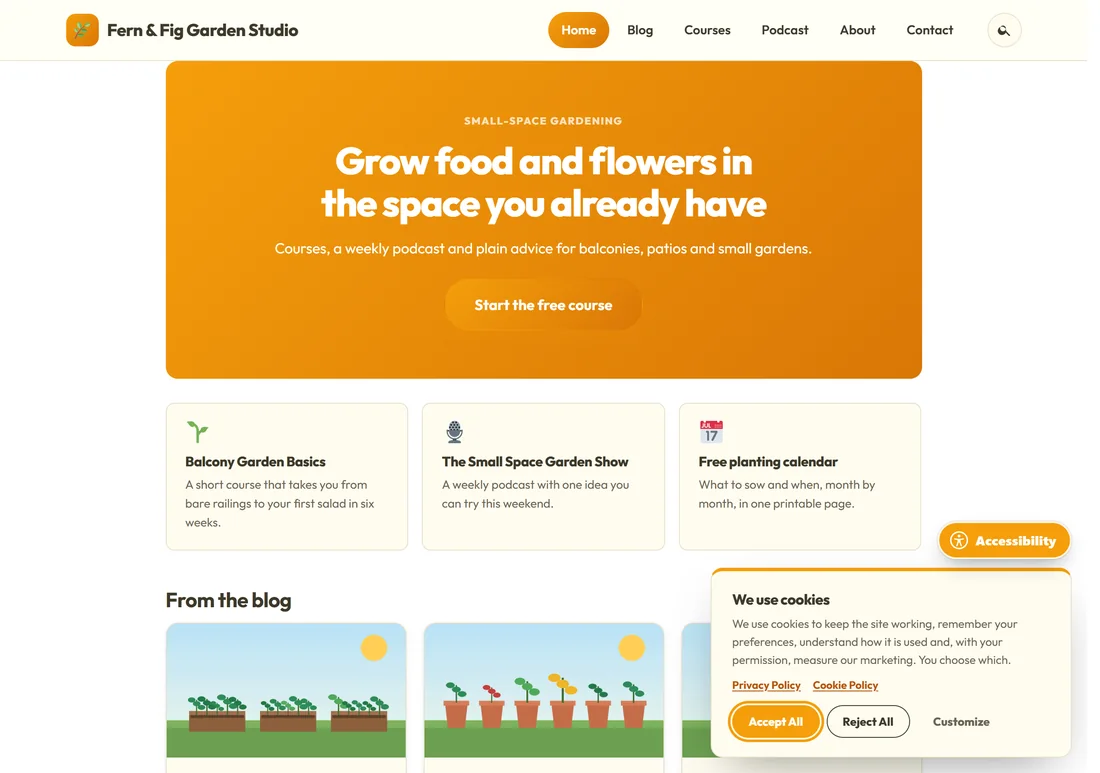
- Show it: Show the cookie notice on the website.
- How it behaves: Ask first (EU, UK, Canada, Brazil standard), recommended for any site with visitors outside the US, or Tell and offer opt-out (US state laws style).
- Who sees it: Everyone, or Only visitors likely to be in a region with a consent law (a best guess from the device time zone; when unsure, the banner shows).
- Look: Card in a corner or Full-width bar, and its position. Colours follow your scheme.
- Wording: your heading, message and button words, or Write the wording with AI, in my brand voice.
- Categories: Essential (always on), Functional, Analytics and Marketing.
- What waits for consent: Google Consent Mode v2 (Analytics and Tag Manager load cookieless until allowed), and Hold YouTube, Vimeo and social embeds behind a Load this video card until marketing is allowed. Choose what your own pasted snippets need. The Meta pixel always waits for marketing.
- Links and records: Manage Cookies link in the footer legal row, a Do Not Sell or Share link (US state laws), Keep a consent log, Remember the choice for so many days, and Ask everyone again on their next visit.
Press Save Cookie Settings.
Scan this site for cookies:
Scan Now and Update the Cookie Policy reads your home page, a post and a page, lists every cookie and tracker by name, provider, purpose and lifetime, and writes that table into your Cookie Policy page. Run it again whenever you add a tool.
The consent log:
The log counts the last 30 days of choices: accepted all, rejected all, customised, and set by a browser privacy signal. Download the log as CSV. Visitors are stored as salted hashes, never as IP addresses, so the log proves a choice was made without identifying anyone.
What the law asks for:
A plain English table of what each region expects: the EU and EEA (GDPR and the ePrivacy Directive), the United Kingdom (UK GDPR and PECR), Canada (PIPEDA and Quebec Law 25), the United States (California CCPA and CPRA and other state laws) and Brazil (LGPD).
A footer Legal menu:
The legal row in your footer lists your legal pages, with Manage Cookies and the accessibility link on the end. To choose the links yourself, create a menu in Appearance, Menus and assign it to Legal Menu.
A real example:
Jo fills in Fern & Fig Garden Studio Ltd, 12 Orchard Row, Greenfield, hello@yoursite.com and England and Wales, then presses Create Legal Pages. Tailor Them With AI rewrites the Privacy Policy around what yoursite.com really collects: newsletter sign-ups, course logins and podcast listening. The cookie notice is on with Ask first, a corner card and Google Consent Mode v2, and the scan writes the real cookie table into the Cookie Policy.
Tips:
- Fill in your business details before creating the pages.
- Run the cookie scan again after adding any new tool or embed.
- Your accessibility check of every page is on this tab too. See Accessibility: The Reading System And The Checker (Built In).