These tools sit alongside the main pages. Each one is small, and together they connect Launch Manager to the rest of your business.
ResultsAiX Commerce sales feed:
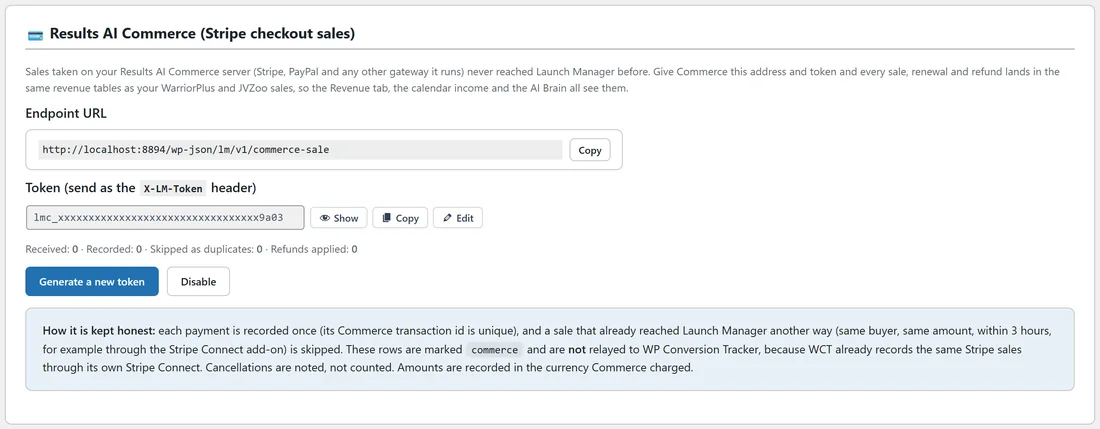
If you sell through a ResultsAiX Commerce server (Stripe, PayPal and any other gateway it runs), you can send those sales to Launch Manager. They then land in the same revenue records as your WarriorPlus and JVZoo sales, so the Revenue tab, the calendar income and the AI Brain all include them.
- Open System, then Settings, and find the Commerce card.
- Copy the Endpoint URL.
- Copy the Token. It is hidden after saving. Use Show and Copy.
- In Commerce, open Settings, Launch Manager integration, and paste the address and token. Commerce sends the token as the X-LM-Token header.
The card counts what has arrived: Received, Recorded, Skipped as duplicates and Refunds applied. Generate a new token replaces the token, and Disable switches the feed off.
Each payment is recorded once. A sale that already reached Launch Manager another way (same buyer, same amount, within 3 hours) is skipped. Cancellations are noted but not counted. Amounts are recorded in the currency Commerce charged.
Daily Digest email:
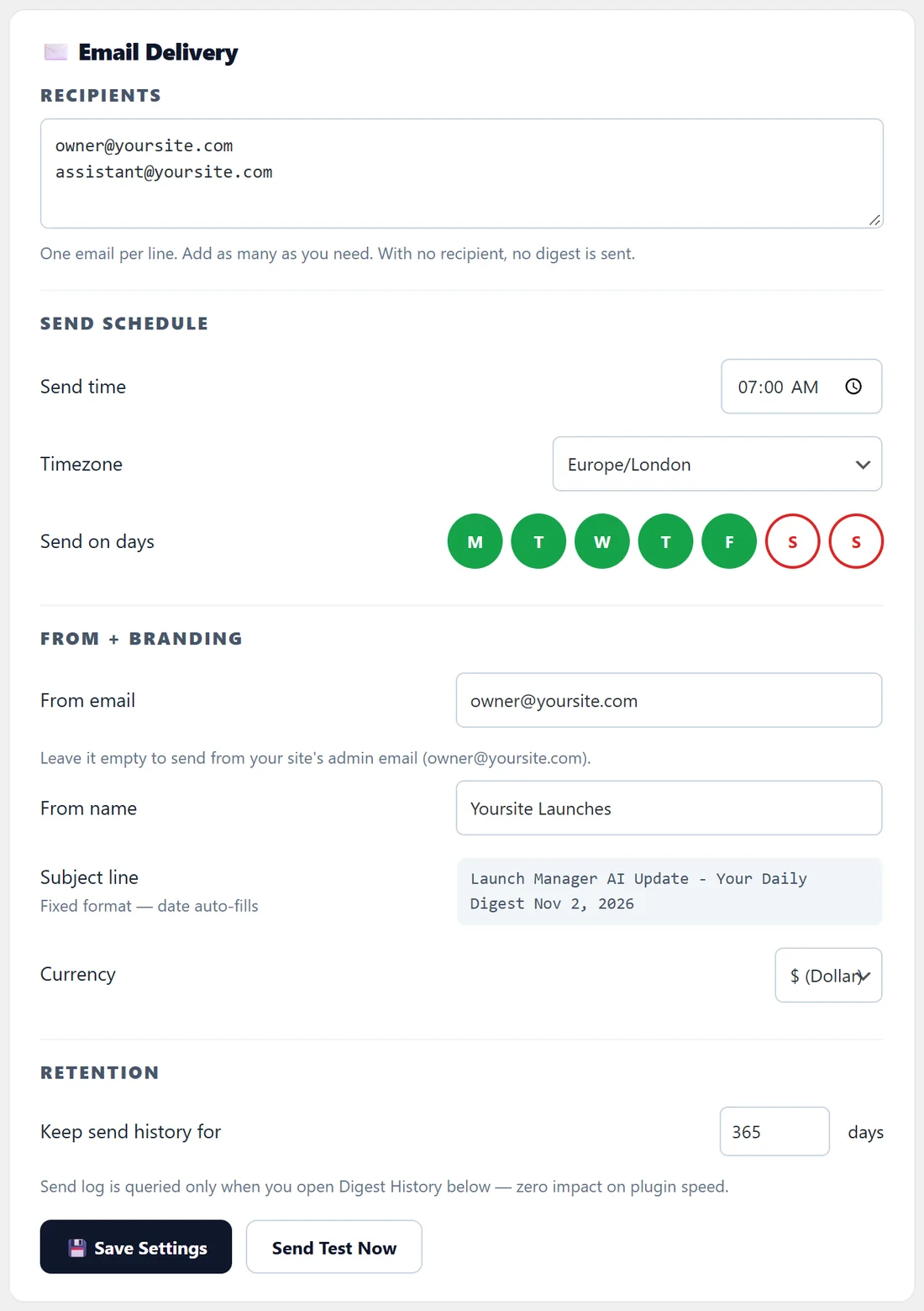
The Daily Digest sends your Today page to your inbox. Open Today, then Daily Digest.
- Switch on Enable daily digest email.
- Under Recipients, add one email address per line.
- Under Send Schedule, choose the Send time, the Timezone (your site's timezone by default) and the days to send on.
- Under From + Branding, set the From email (leave it empty to use your site's admin email) and the From name.
- Choose the Currency: dollar, euro or pound.
- Under Retention, choose how many days of send history to keep.
- Click Save Settings, then Send Test Now to see it.
The subject line has a fixed format with the date filled in, for example Launch Manager AI Update - Your Daily Digest Nov 2, 2026. The digest is checked every hour, so it goes out in the hour you choose. Click Load last 30 sends under Digest History to see what was sent, when and to whom. The digest stays off until you switch it on.
Auto-Task triggers:
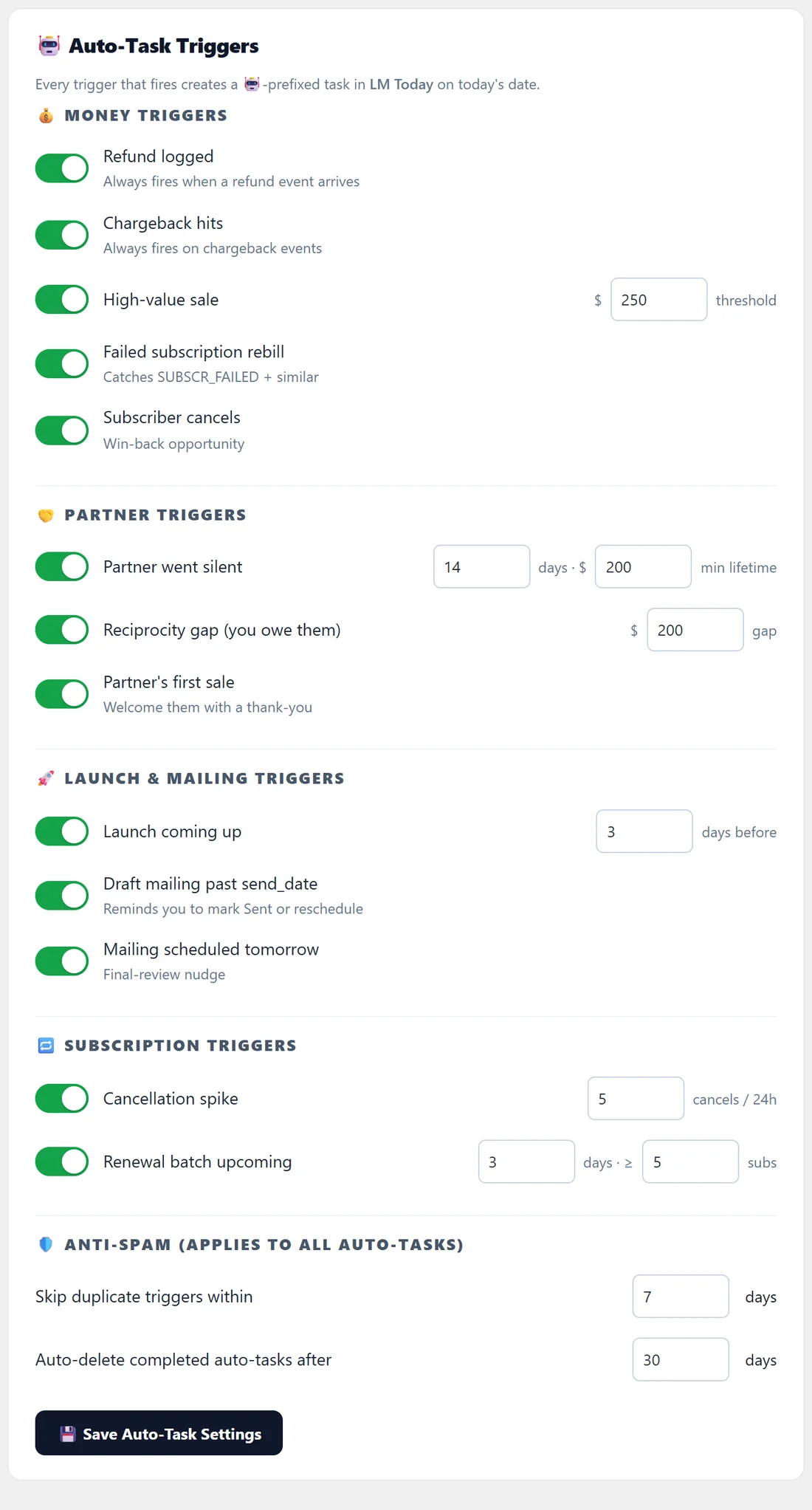
The same page holds the Auto-Task triggers. Switch on Enable auto-tasks, and events in your data create tasks on Today, marked with 🤖. There are 13 triggers, each with its own switch:
- Money: Refund logged, Chargeback hits, High-value sale (with a dollar threshold, 500 by default), Failed subscription rebill, Subscriber cancels.
- Partners: Partner went silent (days without a sale and a minimum lifetime value), Reciprocity gap (you owe them more than a set amount), Partner's first sale.
- Launches and mailings: Launch coming up (days before), Draft mailing past send_date, Mailing scheduled tomorrow.
- Subscriptions: Cancellation spike (cancels in 24 hours), Renewal batch upcoming (days ahead and a minimum number of subscribers).
Under Anti-spam, Skip duplicate triggers within sets how many days must pass before the same trigger fires again for the same thing (7 by default), and Auto-delete completed auto-tasks after cleans up finished ones (30 days by default). Click Save Auto-Task Settings.
AR Enrich:
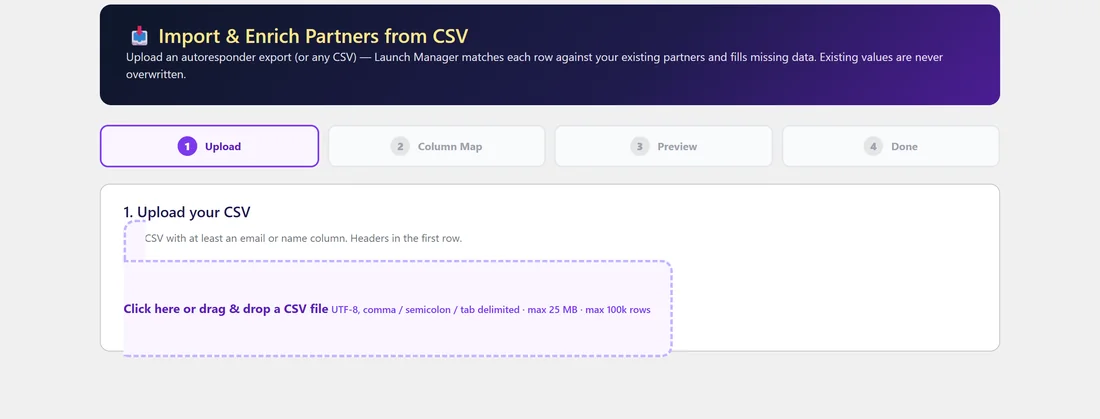
AR Enrich is in the WordPress sidebar menu. Upload an export from your autoresponder, or any CSV with an email or name column, and Launch Manager matches each row to a partner you already have and fills in missing details. Existing values are never overwritten.
- Upload: drop your CSV. Headers go in the first row. Files can be up to 25 MB and 100,000 rows, separated by commas, semicolons or tabs.
- Column Map: tell Launch Manager which column is which.
- Preview: see the matches. Nothing is written yet.
- Done: confirm, and the details are filled in.
Link Map:
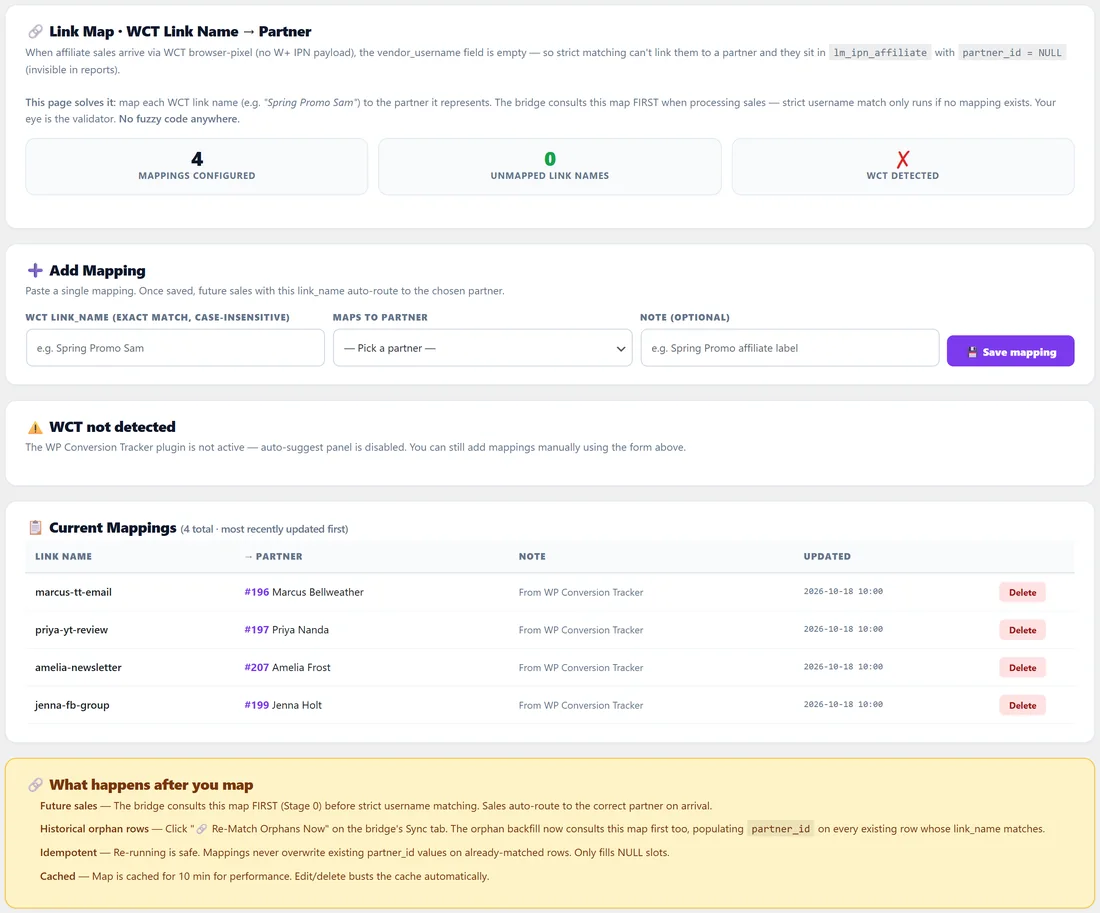
Some affiliate sales tracked by WP Conversion Tracker arrive with only a link name, not the partner's username. Open Partners, then Link Map, to pair each link name with a partner so those sales are credited to the right person.
- Under Add Mapping, type the WCT link name exactly as it appears (capital letters do not matter).
- Pick the partner under Maps to partner.
- Add a note if you like, and click Save mapping.
Counters show how many mappings you have and how many link names are not mapped yet. When WP Conversion Tracker is active on the same site, the page also suggests unmapped link names you can add in bulk. Current Mappings lists every mapping with a Delete button.
Shortcodes for your website:
- [lm_top_partners] shows a live ranked Top Affiliates table on any page or post. Options: limit (1 to 500, default 50), period (all, today, yesterday, 7d, 30d, 90d, this_month, last_month, this_year, last_year), rank, badges, theme (light or dark) and title. For example [lm_top_partners limit="20" period="30d"].
- [lm_calendar] shows a public calendar of your launches for a month. Add year and month to pick one, or leave them off for the current month. It shows only launches marked Show on Calendar, and only their public details.
Public Top Affiliates Leaderboard:
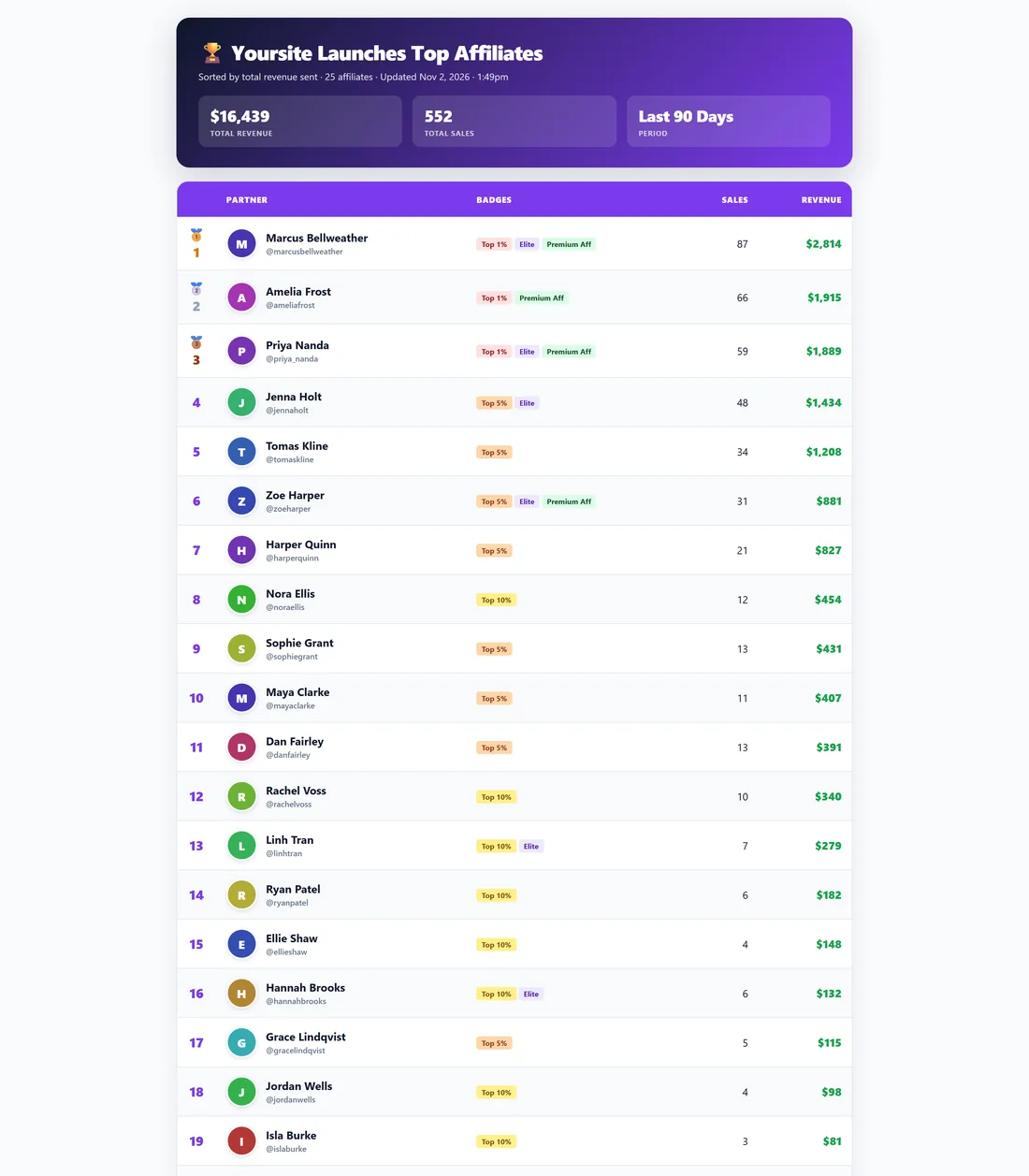
You can also switch on a standalone public leaderboard page in Settings, under Public Top Affiliates Leaderboard. Tick Enable public leaderboard, choose the default time window, Top N, theme and an optional custom title, and click Save Settings. The page then lives at the Public URL shown, and you can override the defaults per link with period, limit and theme in the address. It is off by default and shows a not found page until you enable it. Archived partners are left off the list, while their sales still count in the totals.
A real example:
Dana sets the Daily Digest to 7:00 on weekdays for herself and her assistant at yoursite.com, and switches on auto-tasks with a high-value sale threshold of $250. When Priya's buyer takes the ListPilot AI Agency upgrade, a 🤖 task to thank Priya appears on Today. She also turns on the public leaderboard for the last 90 days and links to it from her JV page.
Tips:
- Send Test Now is the quickest way to check your From name and address.
- Map WCT link names as soon as you create a new tracking link for a partner.
- Use the theme option on [lm_top_partners] to match a dark or light page.