System Diagnostics is a full health check of your site and of Launch Manager. It shows your setup at a glance, keeps a seven-day error log, and builds a report you can paste into a support ticket.
Where to find it:
Open the System tab and click Diagnostics.
What it shows:
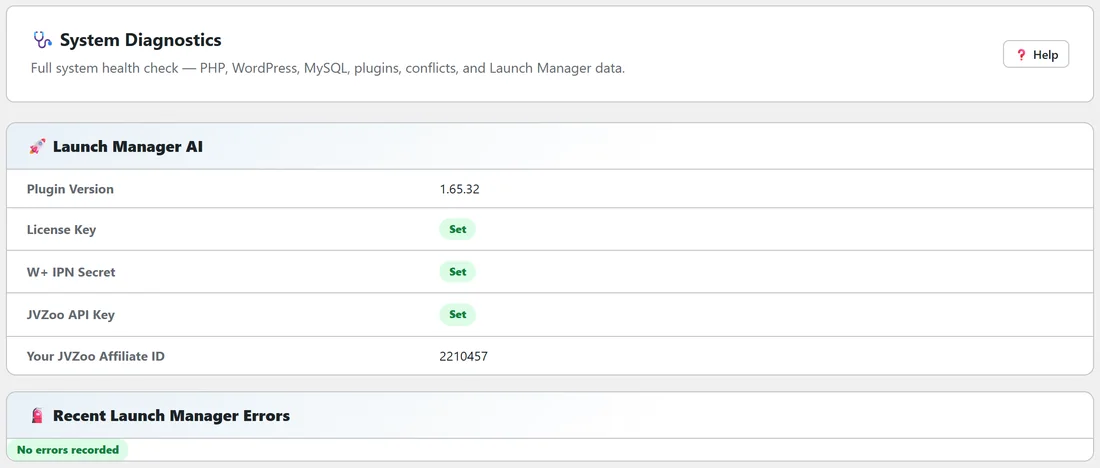
- 🚀 Launch Manager AI: plugin version, whether your licence key, W+ IPN secret and JVZoo API key are set, and your JVZoo affiliate ID.
- 🧯 Recent Launch Manager Errors: the latest errors, or No errors recorded.
- 📜 Error Log: everything Launch Manager had trouble with, any PHP crash on the site, any request that took too long, and any IPN, digest, AI call or daily sweep that started but never finished, with the last step it reached. It keeps 7 days, in your site's time zone. Filter by Problems, Never finished or Everything. Download the log or Clear the log.
- 📡 Auto-Updater (live probe): your installed version and what the update server reports, with a Force Fresh Check button.
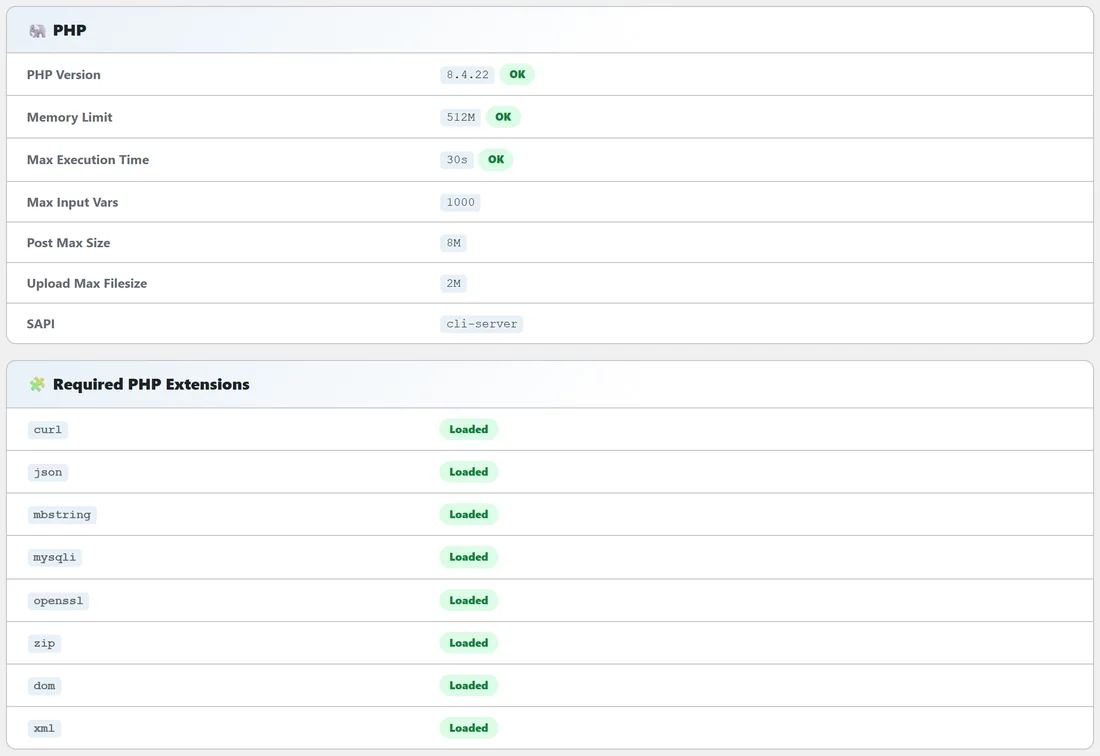
- 🐘 PHP: PHP version, memory limit, max execution time, max input vars, post max size and upload max filesize, each marked OK when it is fine.
- 🧩 Required PHP Extensions: curl, json, mbstring, mysqli, openssl, zip, dom and xml.
- ⚙️ WordPress: WordPress version, memory limits, debug settings, WP Cron and more.
- 🗄️ Database: your database details.
- 📊 Launch Manager Tables: every Launch Manager table with its row count.
- 🔌 Active Plugins: the plugins running on your site.
Copy the report:
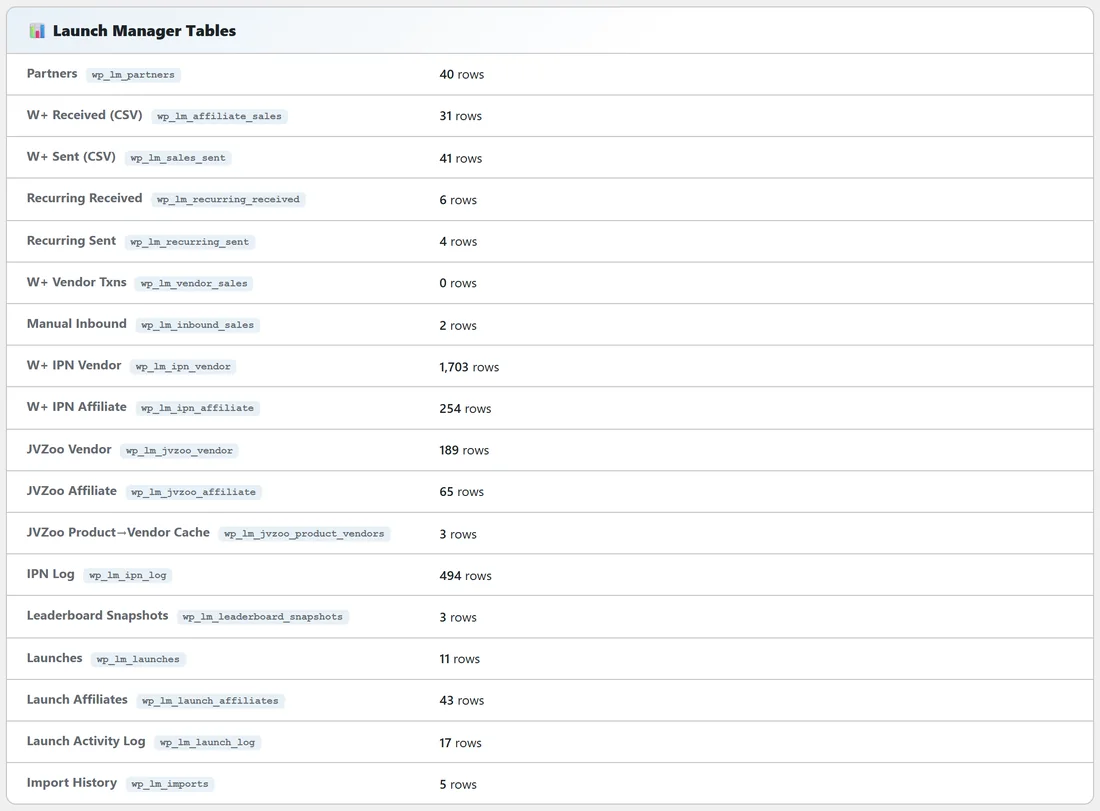
Click 📋 Copy Full Report To Clipboard at the bottom. The whole report, including recent errors, is copied so you can paste it into a support ticket.
Step by step, before you ask for help:
- Open Diagnostics.
- Check the PHP section. Imports run best with a max execution time of 60 seconds or more.
- Look at the Error Log on Problems.
- Click Copy Full Report To Clipboard and paste it into your ticket.
A real example:
Dana's JVZoo import is slower than she expected. She opens Diagnostics and sees her max execution time is 30 seconds. She asks her host to raise it to 120, and her next Import All finishes in one go.
Tips:
- The Launch Manager Tables section is a quick way to confirm an import arrived.
- The Help / Training button on this page opens the Diagnostics topic.
- See Support for how to send the report.