Importing brings your past WarriorPlus and JVZoo sales into Launch Manager, so your partner list and balances are complete from day one. After that, IPN keeps everything current. See IPN, Real-Time Sales Tracking.
Where to find it:
Open the Partners tab and click Import. The page has three tabs: WarriorPlus CSV, JVZoo CSV and JVZoo API.
Getting a CSV from WarriorPlus:
WarriorPlus shows your stats as tables on its pages rather than as a download, so you copy the table into a spreadsheet.
- Open the WarriorPlus report you need, for example your vendor affiliate stats.
- Set the date range to All Time, or as far back as you want.
- Select the whole table and copy it.
- Paste it into Google Sheets or Excel. The columns line up by themselves.
- Save or download it as a CSV file.
- Drop the file on the matching box in Launch Manager.
The column titles from WarriorPlus can stay exactly as they are. Launch Manager reads them.
The WarriorPlus CSV boxes:
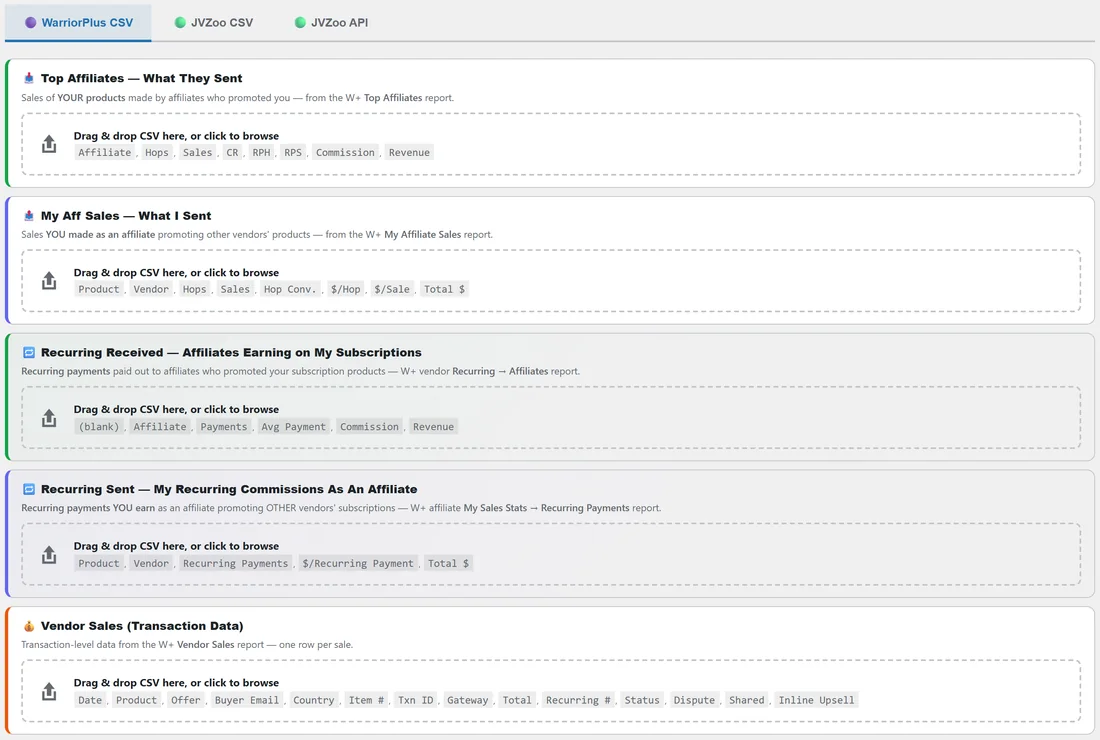
- 📥 Top Affiliates, What They Sent: sales of your products by affiliates who promoted you, from the W+ Top Affiliates report. Columns: Affiliate, Hops, Sales, CR, RPH, RPS, Commission, Revenue.
- 📤 My Aff Sales, What I Sent: sales you made promoting other vendors, from the W+ My Affiliate Sales report. Columns: Product, Vendor, Hops, Sales, Hop Conv., $/Hop, $/Sale, Total $.
- 🔁 Recurring Received: recurring payments to affiliates on your subscription products. See Recurring Payments.
- 🔁 Recurring Sent: recurring commissions you earn on other vendors' subscriptions. See Recurring Payments.
- 💰 Vendor Sales (Transaction Data): one row per sale from the W+ Vendor Sales report. Columns: Date, Product, Offer, Buyer Email, Country, Item #, Txn ID, Gateway, Total, Recurring #, Status, Dispute, Shared, Inline Upsell.
Uploading a file:
- Drag your CSV onto the matching box, or click the box to browse.
- A preview of the first rows appears. Check that the columns look right.
- Tick Clear existing data before importing if you want to replace what that box imported before.
- Click Import, which shows the number of rows, for example Import 31 Rows.
- A progress bar runs while the rows go in, in batches.
Partners are created for you and matched by username. The vendor import skips any transaction it already has, by Txn ID.
The JVZoo CSV tab:
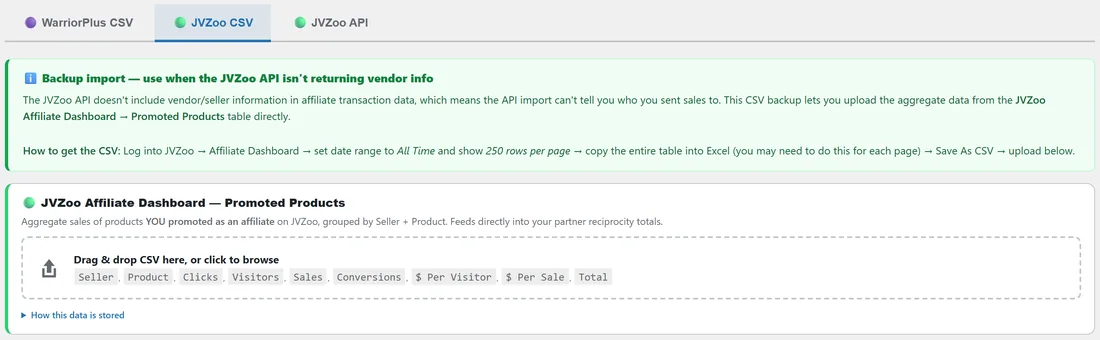
Use JVZoo Affiliate Dashboard, Promoted Products when you want your JVZoo affiliate history from a CSV. In JVZoo, open the Affiliate Dashboard, set the date range to All Time, show 250 rows per page, copy the whole table into a spreadsheet and save it as CSV. Columns: Seller, Product, Clicks, Visitors, Sales, Conversions, $ Per Visitor, $ Per Sale, Total. Each row is matched to the seller as a partner. Uploading the same file again in one import does not double anything.
The JVZoo API tab:
Pull your full JVZoo history with your API key. See JVZoo API Setup.
Import History:
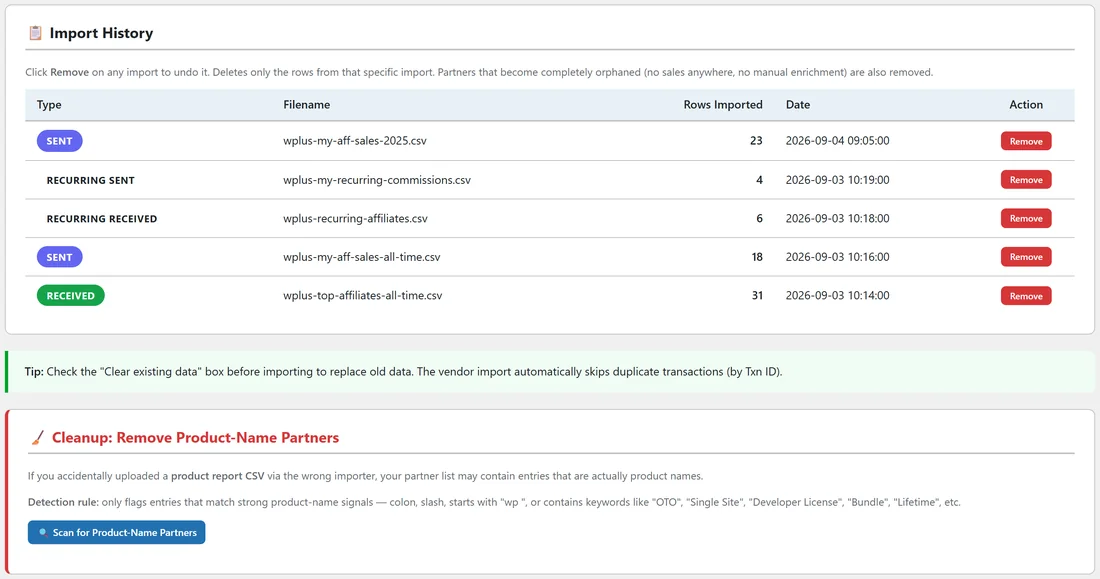
Every import is listed with its type, file name, rows imported and date. Click Remove to undo just that import. It deletes only the rows from that import. Partners left with no sales anywhere and no details you added are removed too.
Cleanup, remove product-name partners:
If a product report is ever uploaded through the wrong box, your partner list can end up with entries that are really product names. Click Scan for Product-Name Partners. Launch Manager looks for strong signs of a product name, such as a colon, a slash, a name starting with wp, or words like OTO, Bundle or Lifetime. Review the list, use Select All, Select None or Select Only Zero-Sales Rows, and click Delete Selected.
A real example:
Dana copies her W+ Top Affiliates table for All Time into Google Sheets, downloads it as wplus-top-affiliates-all-time.csv and drops it on the Top Affiliates box. The preview shows Affiliate, Hops, Sales and Revenue, so she clicks Import 31 Rows. She does the same with her My Aff Sales table. Import History now lists both files.
Tips:
- Import everything once, then let IPN do the rest.
- Keep the CSV files. If you ever need to redo an import, Remove it and upload the file again.
- After importing, merge any partners who have both W+ and JVZoo accounts. See Merging Partners.