Time Off lets you mark the days you are travelling, on holiday or busy with family. Launch Manager then plans around them: it shows them on the calendar, warns you about launches and mailings that clash, and can pause your recurring tasks so you do not come back to a wall of overdue items.
Where to find it:
Open the Calendar tab and click Time Off, or hover Calendar and click Time Off.
Adding time off:
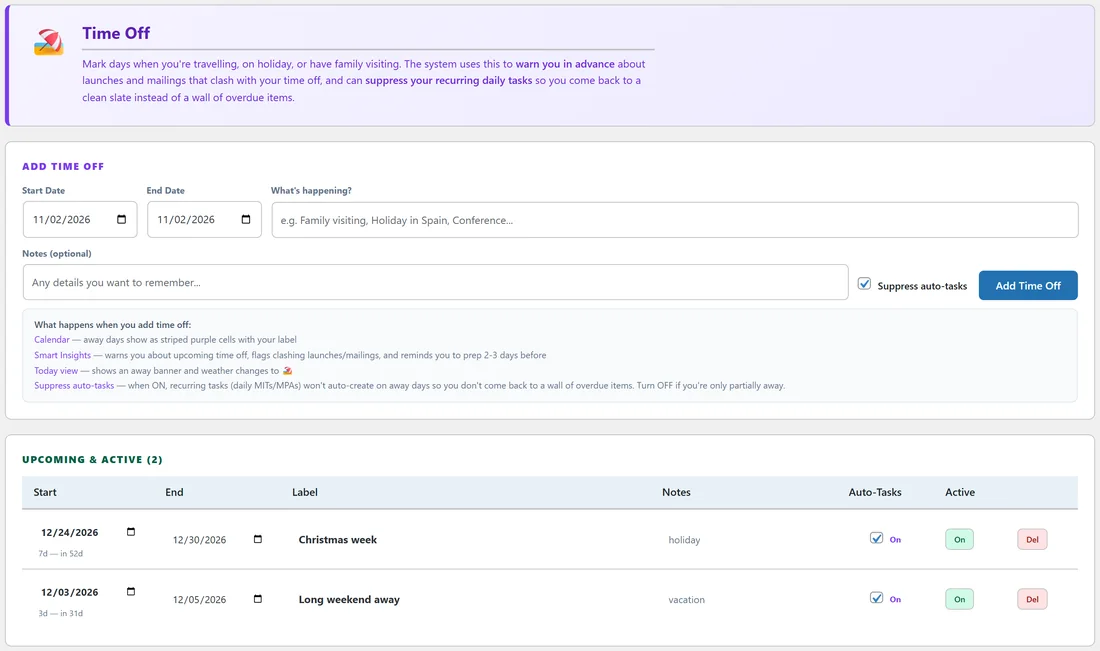
- Under Add Time Off, set the Start Date and End Date.
- Type a label in What's happening, for example Family trip.
- Add Notes if you like.
- Leave Suppress auto-tasks on if you are fully away. Switch it off if you are only partly away.
- Click Add Time Off.
What happens when you add time off:
- Calendar: your days away show as striped purple cells with your label.
- Smart Insights: you are warned about upcoming time off, launches and mailings that clash are flagged, and you are reminded to prepare two or three days before.
- Today: an away banner shows and the launch weather changes to 🏖️ with your label.
- Suppress auto-tasks: when on, recurring tasks are not added on your days away.
Managing your time off:
Upcoming & Active lists every period still to come or happening now, with its start, end, label, notes, an Auto-Tasks switch and an Active switch. Change any field right in the list. Switch Active off to keep the entry without it taking effect.
A real example:
Dana adds a long weekend away from December 3 to 5 with Suppress auto-tasks on, and Christmas week from December 24. A few days before the trip, Smart Insights reminds her to get ready, so she schedules the week's mailings in advance. While she is away, Support Desk and Emails are not added to Today.
Tips:
- Add time off as soon as you book it. The warnings are most useful a few weeks ahead.
- Use Notes for things to prepare before you go.
- See Recurring Tasks for how templates work on normal days.