The Mailing Schedule is where you plan every email you will send: your own launch emails, affiliate promos, JV mailings to partners and one-off broadcasts. It is a planner. It does not send email itself. It tracks what you plan to send, when, to which part of your list, and whether it went out.
Mailings also show on the calendar and on Today, so your plan is always in front of you.
Where to find it:
Open the Calendar tab and click Schedule in the row at the top, or hover Calendar and click Mailing Schedule.
The views:
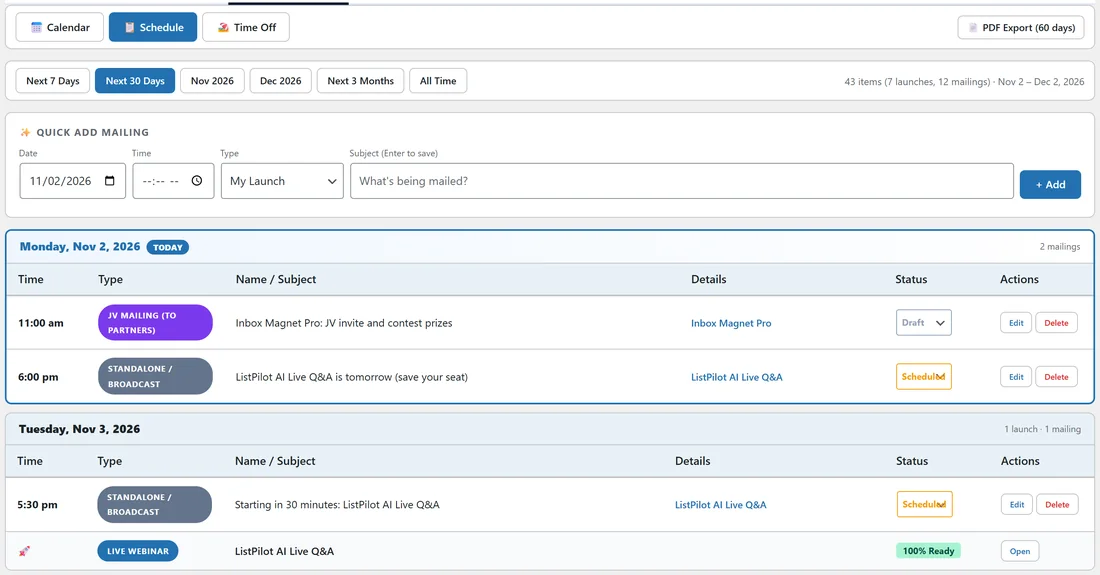
Across the top are buttons for the period you want to see: Next 7 Days, Next 30 Days, this month, next month, Next 3 Months and All Time. Next 30 Days is the default. Each day with mailings gets its own block listing the time, type, subject, linked launch or link, status and Edit and Delete buttons. Today's block is marked TODAY.
The PDF Export (60 days) button in the top right opens a print-ready schedule of your launches and mailings for the next 60 days.
Quick Add Mailing:
The Quick Add Mailing row at the top is the fastest way to plan a mailing. Pick the Date and Time, choose the Type, type the subject, and click + Add or press Enter. It is saved as a Draft.
Mailing fields:
- Date and Time: when you plan to send it.
- Type: My Launch, Affiliate Promo, JV Mailing (to Partners) or Standalone / Broadcast.
- Subject: the email subject line.
- Linked Launch: the launch it belongs to, or none.
- Segment: free text for the part of your list, such as Full list, Buyers or JV partners. It holds up to 255 characters.
- Link / URL: a link for mailings that are not tied to a launch.
- Status: Draft, Scheduled, Sent or Skipped.
- Notes: anything you want to remember.
- Linked Mailer broadcast: when the ResultsAiX Mailer plugin is on the same site, link the mailing to its broadcast and it is marked Sent by itself the moment it goes out.
Editing a mailing:
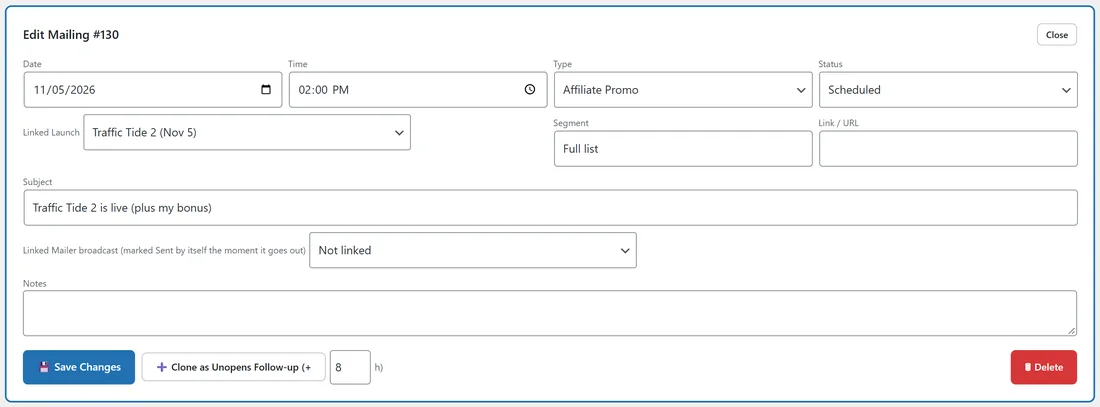
Click Edit on any mailing. The Edit Mailing panel opens at the top with every field. Click Save Changes when you are done, or Delete to remove it.
Send to unopens:
In the Edit Mailing panel, Clone as Unopens Follow-up makes a second mailing a set number of hours later. The box next to the button holds the hours, 8 by default. The copy gets the subject Re: and the original subject, and its segment is set to unopens, so you can resend to everyone who did not open the first one.
On the calendar:
Every mailing shows as a small coloured pip under its day on the main calendar, with an icon for its status. Click a pip to edit that mailing.
Step by step, from plan to sent:
- Add the mailing with Quick Add as soon as you know about it. It starts as a Draft.
- When the email is written and queued in your autoresponder, set it to Scheduled.
- After it goes out, set it to Sent.
- If you decide not to send it, set it to Skipped and add a note.
A real example:
Marcus Bellweather's Traffic Tide 2 launches on Thursday. Dana adds Traffic Tide 2 is live (plus my bonus) for Thursday at 2pm as an Affiliate Promo, linked to the launch, for her full list. She writes the email on Wednesday and sets it to Scheduled. After it goes out she clicks Clone as Unopens Follow-up with 8 hours, so the resend to unopens is planned for that evening.
Tips:
- A launch with no mailing shows as a Smart Insight on Today, so planning early keeps Today calm.
- Drafts left past their date show as Stale drafts on Today. Mark them Sent or Skipped to clear them.
- The Mailing Schedule report under Reports gives you a month view to share with your team. See Reports & PDF Exports.