The Partners page is your partner database. It lists every JV partner with what they have sent you, what you have sent them, their badges, and two scores that tell you who matters most and where the relationship stands.
Where to find it:
Open the Partners tab and click Partners in the second row of tabs.
Filters:
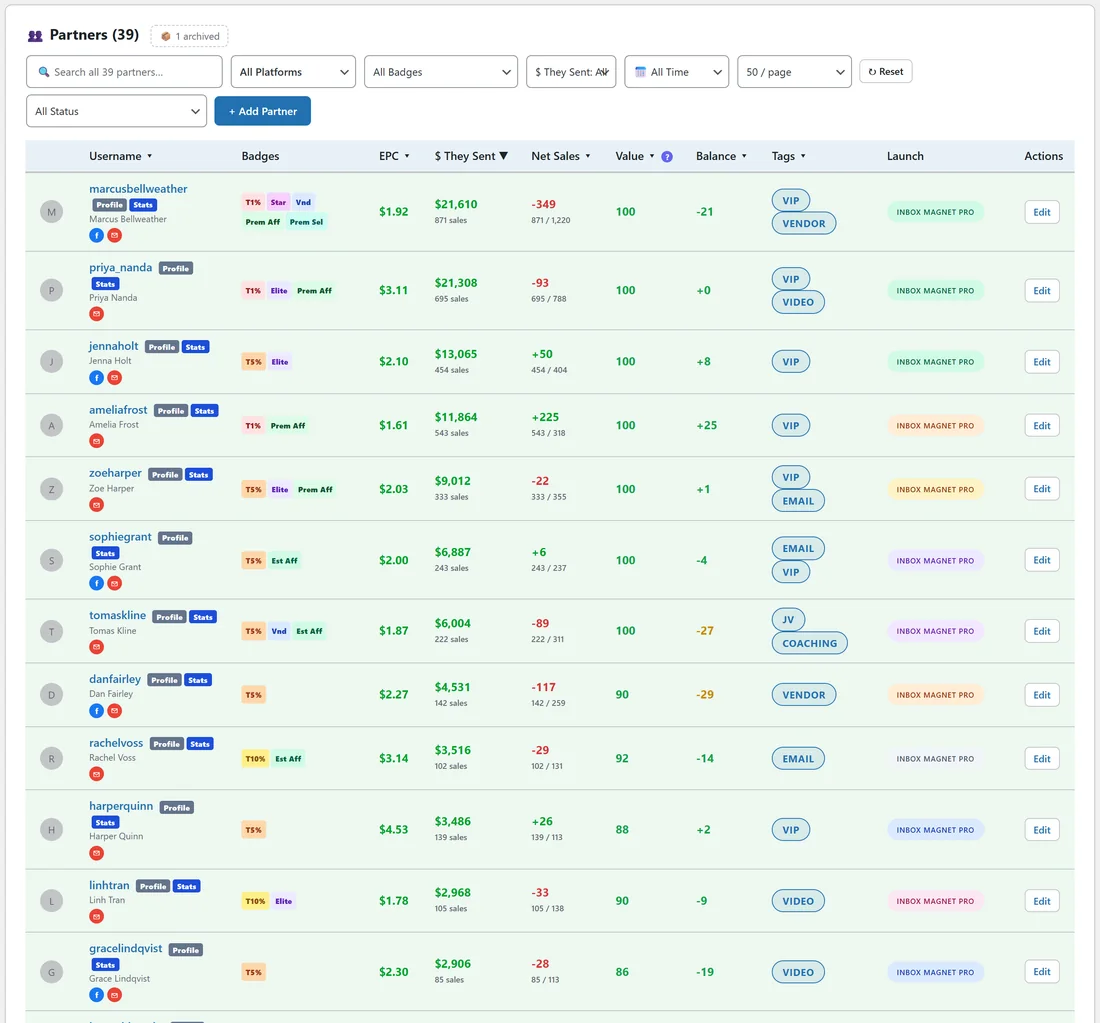
The bar at the top narrows the list. All filters work together.
- Search: by username, display name, email or tag.
- Platform: All Platforms, Has W+ Activity, Has JVZoo Activity or On Both Platforms.
- Badges: W+ badges (Top 1%, Top 5% and Top 10% Affiliate, Elite Affiliate, Top 1% and Top 5% Vendor, Elite Vendor, Deal of the Day, Has Any W+ Badge) or JVZoo badges (Premium Affiliate, Premium Seller, Product of the Day, Has Any JVZoo Badge).
- $ They Sent: only partners who sent you at least $100, $500, $1,000 and so on up to $100,000.
- Period: All Time, Today, Yesterday, Last 7, 30 or 90 Days, This Month, Last Month, This Year, Last Year or a custom date. The money columns follow the period.
- Per page: 50, 100, 250, 500 or All.
- Status: All Status, Has Received (sent me sales), Has Sent (I sent them sales), Reciprocal (Both Ways), Traffic Only (50 or more hops, 2 sales or fewer) or Archived.
Click Reset to clear every filter. + Add Partner adds a partner by hand.
The columns:
- Username: the partner's username and display name, with Profile and Stats links to their WarriorPlus pages, and contact icons for Facebook, email and WhatsApp when you have them.
- Badges: small coloured pills such as T1% (Top 1% Affiliate), Elite, Star, Vendor, Prem Aff and POTD.
- EPC: earnings per click on the traffic they sent you. See EPC (Earnings Per Click).
- $ They Sent: the revenue they generated for you, with the number of sales underneath.
- Net Sales: sales received minus sales sent, with both numbers underneath. Green when they have sent more, red when you have.
- Value: a 0 to 100 score of how valuable the partner is. See Smart Value Score.
- Balance: from minus 100 to plus 100. Plus means they send you more, minus means you send them more, and near 0 is balanced.
- Tags: your own labels, such as vip or vendor.
- Launch: the active launches they are in.
- Actions: Edit opens their profile.
Click a column title to sort by it. The list opens sorted by $ They Sent.
Bulk actions:
Tick partners on the left to act on several at once, for example to add them to a launch with Add to launch.
The Brag Sheet builder:
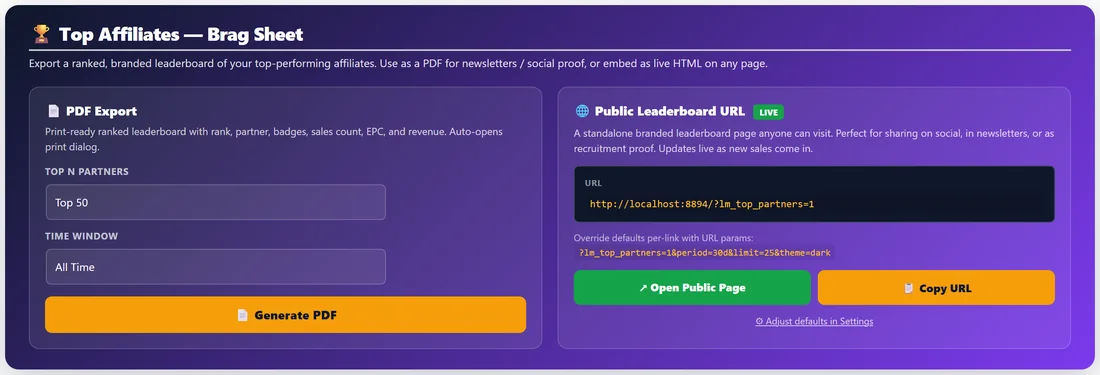
At the bottom of the page, the Top Affiliates Brag Sheet box makes a ranked leaderboard of your top partners. Pick Top N and the time window and click Generate PDF, or open and copy the public leaderboard address. See Reports & PDF Exports.
A real example:
Dana wants strong affiliates for Inbox Magnet Pro who have not been contacted yet. She sets Badges to Top 1% Affiliate and Status to Has Received, then sorts by Value. Marcus, Priya and Amelia are at the top. She ticks them and adds them to the Inbox Magnet Pro launch.
Tips:
- Filter by Traffic Only to find partners who send clicks but few sales. They may need a different offer.
- Archived partners are hidden from the list and from launch suggestions, but their sales still count in your totals.
- Open any partner for the full relationship picture. See Partner Profiles (Edit Page).