Click any partner to open their full profile. Everything you know about a partner lives on this one page: who they are on WarriorPlus and JVZoo, how to reach them, and every sale between you in both directions.
Where to find it:
Open Partners and click a partner's name or Edit. You can also open a partner from the Dashboard, Analytics, the AI Brain and any launch.
Network profile cards:
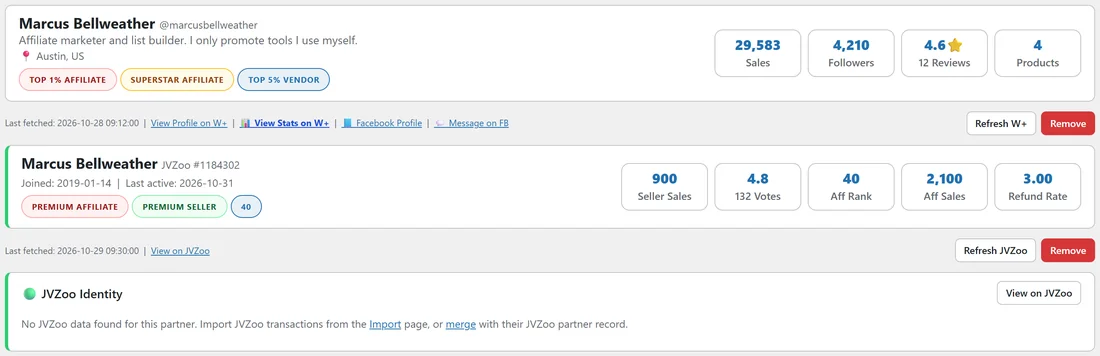
At the top are the WarriorPlus and JVZoo cards. Each shows the partner's photo or initials, display name, location, bio, badges and stats such as sales, followers, rating, reviews and products. Under each card you see when it was last fetched, with links to view their profile and stats, a Refresh button and a Remove button. The JVZoo Identity box shows what Launch Manager knows from their JVZoo sales.
Contact details:
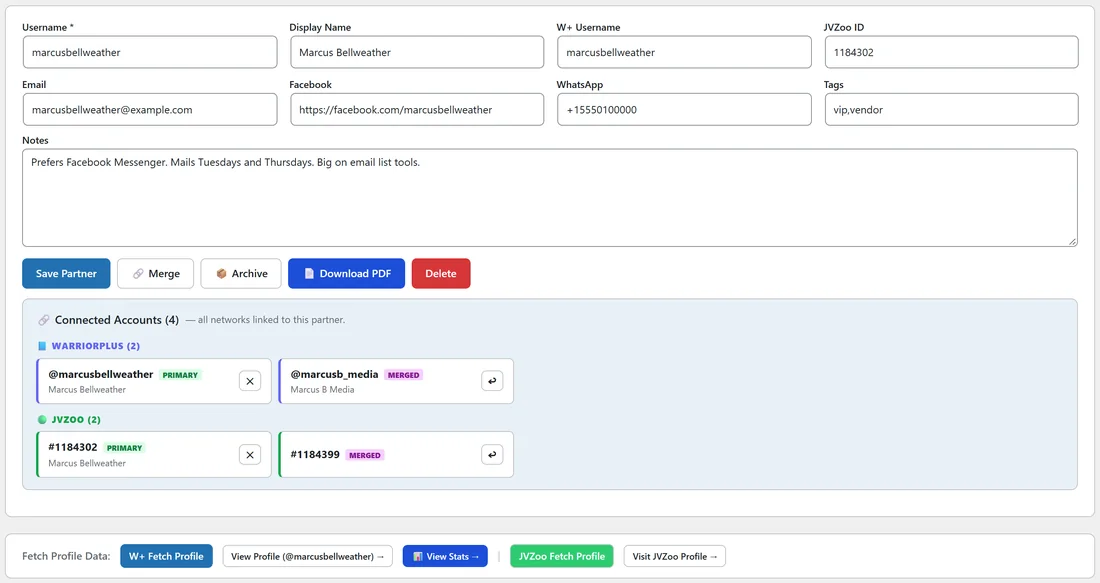
The main form holds Username (required), Display Name, W+ Username, JVZoo ID, Email, Facebook, WhatsApp, Tags (separated by commas) and Notes. Click Save Partner after making changes.
The buttons under the form:
- Save Partner: saves the form.
- Merge: opens the merge box. See Merging Partners (Multi-Account Powerhouse).
- Archive: hides the partner from lists while keeping their sales in your totals.
- Download PDF: opens the partner PDF report. See One-Click PDF Partner Reports.
- Delete: removes the partner.
Connected Accounts:
This box lists every WarriorPlus and JVZoo account joined to this partner, with the main one marked PRIMARY and any merged ones marked MERGED. Each merged account has an Unmerge button. See Merging Partners.
Fetching profile data:
The Fetch Profile Data row has the W+ Fetch Profile and JVZoo Fetch Profile bookmarklets, plus links to open the partner's profile pages. Drag the bookmarklets to your bookmarks bar once.
- Click View Profile to open their WarriorPlus profile in a new tab.
- Click the W+ Fetch Profile bookmarklet in your bookmarks bar.
- Their photo, badges, bio and stats are saved to this partner.
- Do the same on their JVZoo profile with JVZoo Fetch Profile.
The Reciprocity table:
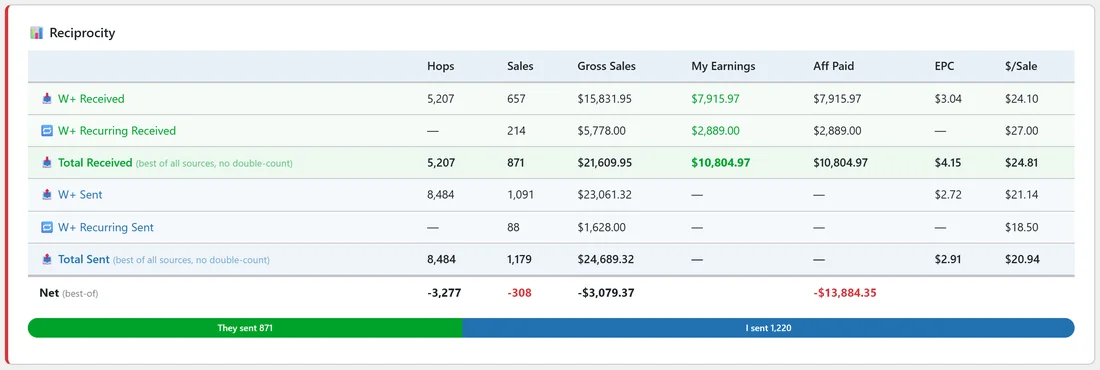
This table puts both directions side by side. The rows are W+ Received, W+ Recurring Received, Total Received, W+ Sent, W+ Recurring Sent, Total Sent and Net. The columns are Hops, Sales, Gross Sales, My Earnings, Aff Paid, EPC and $/Sale. A bar underneath compares what they sent you with what you sent them.
Sales they sent you:
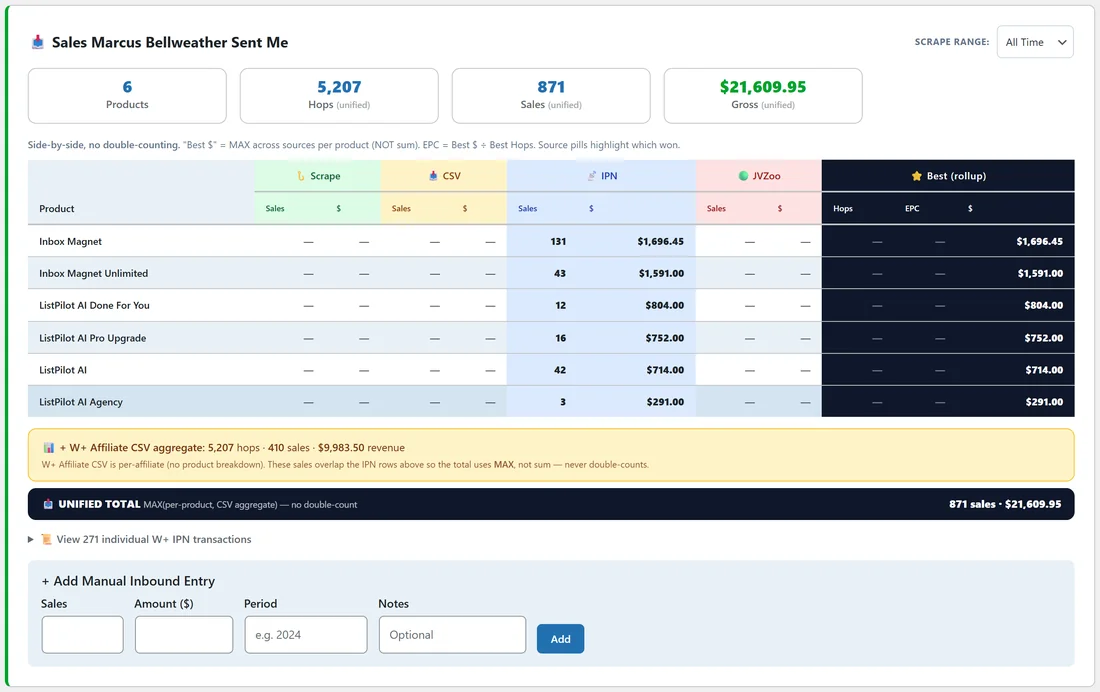
The Sales section for what the partner sent you shows totals (products, hops, sales and gross), then a table of every product they promoted for you. Each product has a column per data source (Scrape, CSV, IPN and JVZoo) and a Best column. Launch Manager takes the best figure per product instead of adding the sources together, so nothing is counted twice. The Scrape range menu chooses which period of scraped W+ data to use.
Under the table you can add a manual inbound sale for sales that came in another way, such as a deal paid by invoice. Enter Sales, Amount, Period and Notes, then click Add.
Sales you sent them:
The last section shows every product of theirs you promoted, with the same source columns.
A real example:
Dana opens Marcus Bellweather. His WarriorPlus card shows Top 1% Affiliate and Superstar Affiliate badges and his JVZoo card shows Premium Affiliate and Premium Seller. His notes say he prefers Facebook Messenger and mails on Tuesdays and Thursdays. The Reciprocity table shows he has sent 871 sales and she has sent him 1,220, so her relationship with Marcus is in good shape.
Tips:
- Keep notes on how each partner likes to be contacted. It saves time on every launch.
- Use tags such as vip, video or email to group partners for filters and launches.
- If a partner has more than one account, merge them so all sales add up on one page.