Some tasks happen every single day: the support desk, emails, Facebook messages. Instead of typing them each morning, make them recurring. Launch Manager adds them to Today as fresh, unticked checkboxes on every matching day.
Where to find it:
Open Today. The Recurring Tasks panel sits under Smart Insights. Click its title to open it. The title also shows how many active templates you have.
Adding a recurring task:
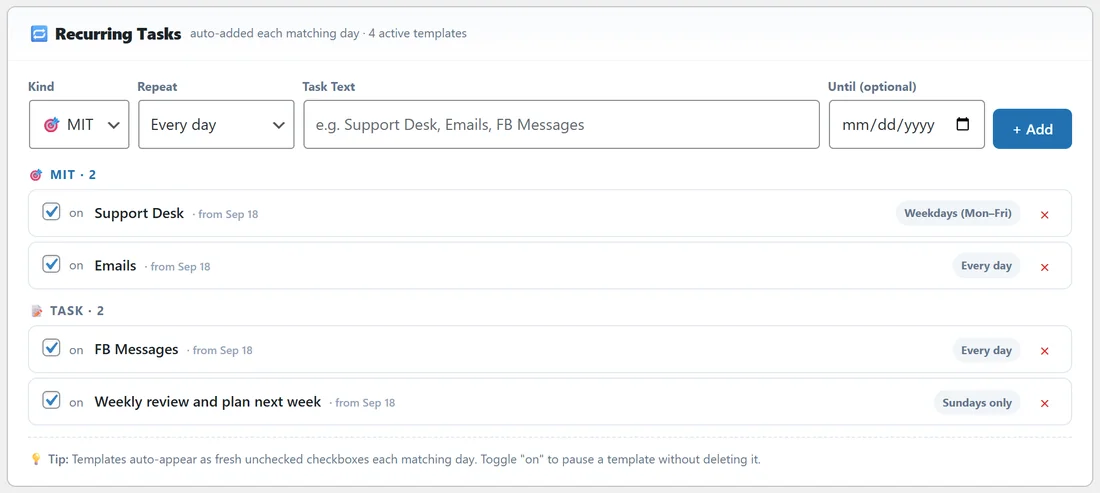
- Open the Recurring Tasks panel.
- Choose the Kind: MIT, MPA or Task.
- Choose how often it repeats.
- Type the Task Text, for example Support Desk.
- If it should stop on a date, set Until (optional). Leave it empty for no end date.
- Click + Add, or press Enter.
The task appears in the list straight away and on Today from then on.
Repeat options:
- Every day
- Weekdays (Mon to Fri)
- Weekends (Sat and Sun)
- Mondays only, Tuesdays only, and so on for each day of the week
Making an existing task recurring:
Hover any MPA, MIT or Task on Today and click the 🔁 button. The Make Recurring box opens with the task text, a Repeat menu and an Until (optional cut-off) date. Click Save. The task becomes a template from that day on.
Editing, pausing and removing:
In the Recurring Tasks panel each template has an on switch. Untick it to pause the template without deleting it, and tick it again to resume. The cross removes a template. A template whose end date has passed shows EXPIRED and stops adding tasks.
You can also click the 🔁 button on a recurring task in Today. The box opens with the current text, rule and end date. Save your changes, or click Remove Recurrence to stop future copies. Tasks already added to past days stay as they are.
A real example:
Dana sets up four templates: Support Desk as an MIT on weekdays, Emails as an MIT every day, FB Messages as a Task every day, and Weekly review and plan next week as a Task on Sundays only. Every Monday morning Today already lists Support Desk and Emails, and every Sunday the weekly review is waiting.
Days you are away:
When you mark days as time off with Suppress auto-tasks switched on, recurring tasks are not added on those days. See Time Off, Plan Your Days Away.
Tips:
- Good first templates: Support Desk (weekdays), Emails (every day), FB Messages (every day), Weekly review (Sundays only).
- Keep recurring MPAs rare. Money work is usually different every day.
- If a recurring item is no longer needed for a few weeks, pause it rather than deleting it.