IPN (Instant Payment Notification) is how WarriorPlus and JVZoo tell your site about a sale the moment it happens. Once it is set up, every sale flows into Launch Manager on its own: no more CSV exports and no gaps.
Why IPN is the best source:
- Instant: sales appear right away, not after the next export.
- Complete: each sale carries the affiliate, product, offer, amount, gateway and buyer details.
- Free sign-ups too: $0 opt-ins to your free offers are recorded as well.
- No duplicates: each sale is keyed by its sale ID, so receiving the same IPN twice is harmless.
- Refunds and rebills: a refund updates the original sale, and every rebill is recorded as its own payment.
Where to find the addresses:
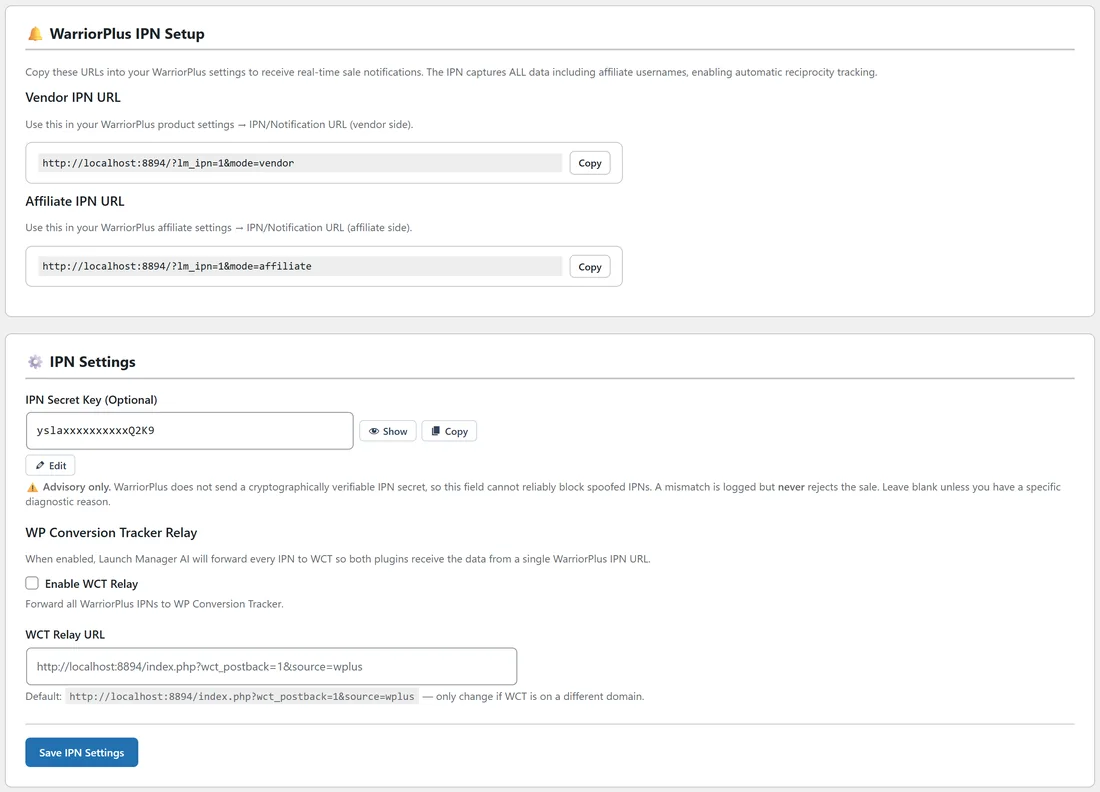
Open System, then Settings. The WarriorPlus IPN Setup card has the Vendor IPN URL and the Affiliate IPN URL, each with a Copy button. The JVZoo IPN Setup card has the JVZoo Vendor IPN URL and the JVZoo Affiliate IPN URL. The Setup Wizard shows the same four addresses.
WarriorPlus vendor IPN, for your own products:
- Copy the Vendor IPN URL from Settings.
- In WarriorPlus, open your product's settings and find the IPN or notification address.
- Paste the address and save.
- Repeat for each of your products.
WarriorPlus affiliate IPN, for sales you make as an affiliate:
On WarriorPlus the affiliate IPN is set for each offer you promote.
- Copy the Affiliate IPN URL from Settings.
- In WarriorPlus, find an offer you promote and click Get Link.
- In the Your Affiliate Link window, paste the address into Webhook (IPN) URL.
- Click Send Test. You should see a 200 response.
- Click Save.
- Repeat for every offer you promote. It is the same address every time.
WarriorPlus also tells Launch Manager whether an IPN is a vendor or an affiliate notification. If an address ends up in the wrong place, Launch Manager files the sale correctly anyway and notes the correction in the IPN Log.
JVZoo IPN:
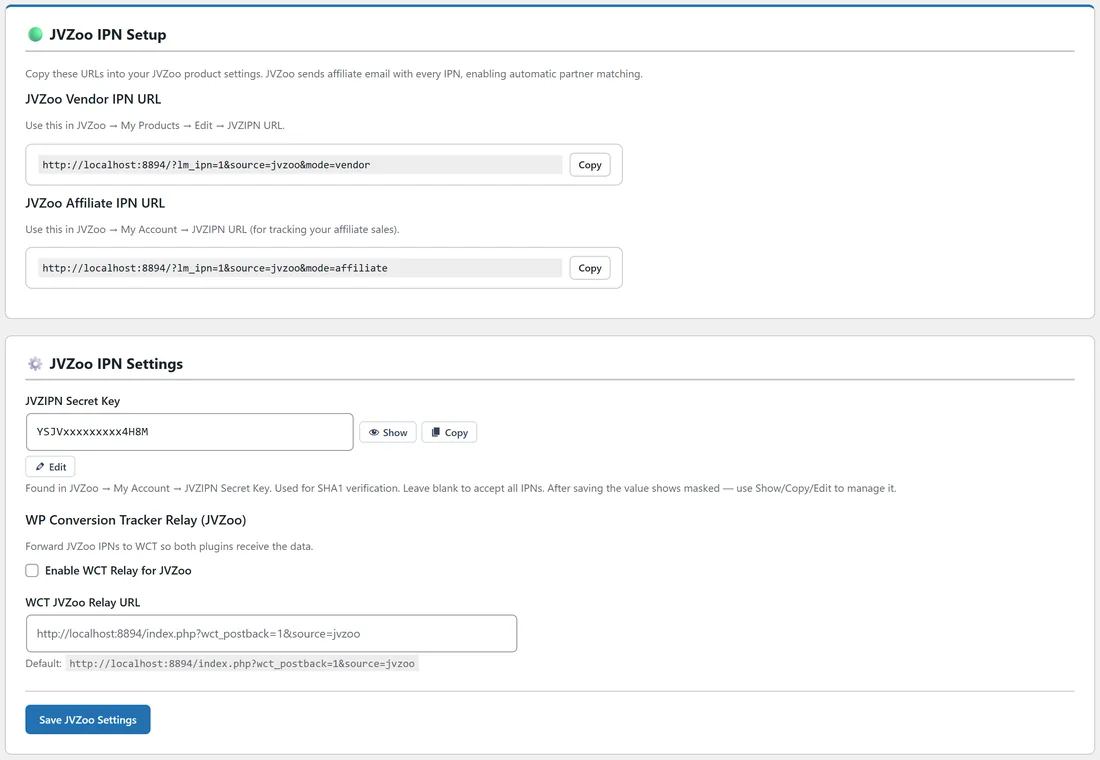
- Copy the JVZoo Vendor IPN URL.
- In JVZoo, open My Products, click Edit on your product, and paste it into JVZIPN URL. Save.
- Copy the JVZoo Affiliate IPN URL.
- In JVZoo, open My Account and paste it into JVZIPN URL. Save.
- Copy your JVZIPN Secret Key from JVZoo, My Account, and paste it into JVZIPN Secret Key under JVZoo IPN Settings. Click Save JVZoo Settings.
JVZoo signs each IPN, and Launch Manager checks the signature with your secret key. JVZoo sends the affiliate's email address, so Launch Manager matches the sale to the partner with that email, or creates a new partner named after the email.
The IPN settings:
- IPN Secret Key (Optional), for WarriorPlus: WarriorPlus does not send a secret that can be checked reliably, so this field is advisory only. A mismatch is noted in the log and the sale is still recorded. Most people leave it empty.
- Enable WCT Relay: forwards every WarriorPlus IPN to WP Conversion Tracker, so both plugins get the data from one address.
- WCT Relay URL: where to forward it. The default is your own site. Change it only if WP Conversion Tracker runs on a different domain.
- The JVZoo card has its own Enable WCT Relay for JVZoo and WCT JVZoo Relay URL.
Click Save IPN Settings or Save JVZoo Settings after changes.
If you also use WP Conversion Tracker:
WarriorPlus allows only one IPN address per setting. Use Launch Manager's address and switch on the WCT Relay. Launch Manager receives each IPN first and forwards it to WP Conversion Tracker, so both plugins have every sale. Use one address per product, not both.
The IPN Log:
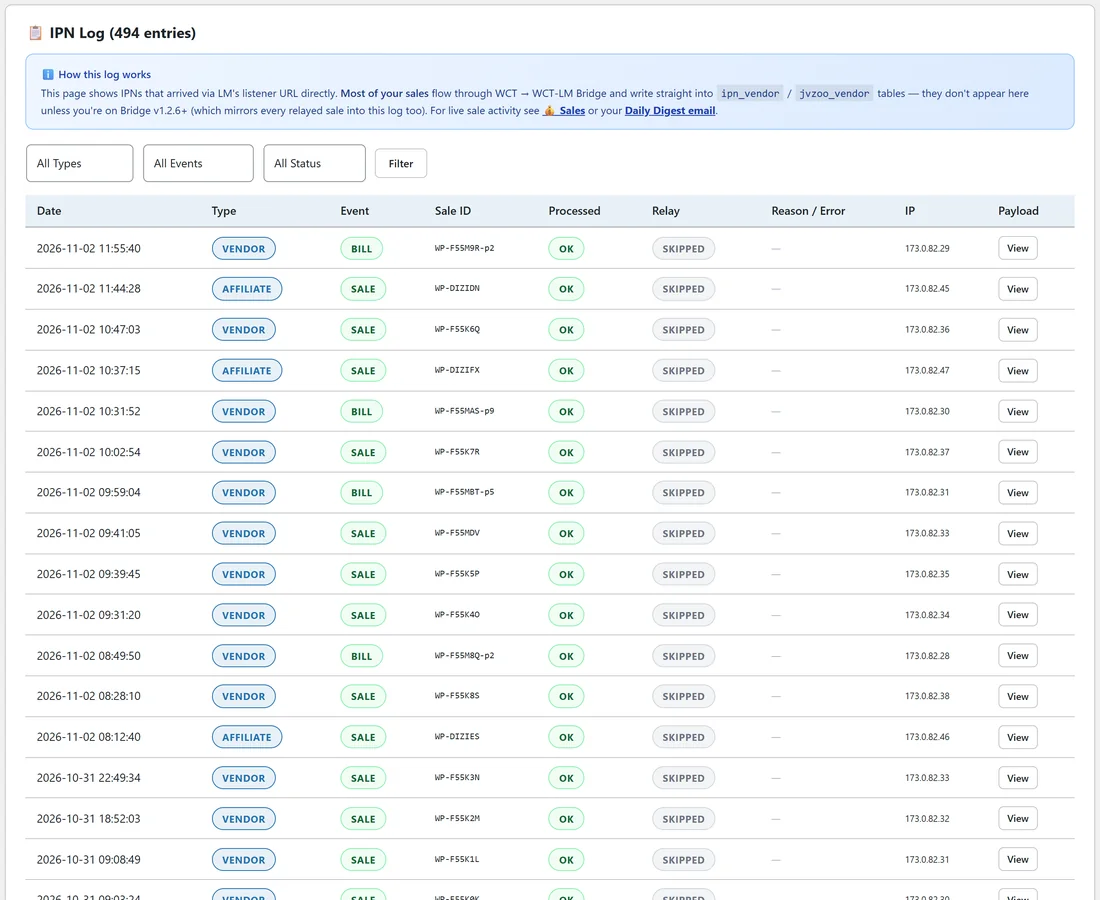
Open Revenue, then IPN Log, to see every IPN that arrived at Launch Manager's address. Each row shows the Date, Type, Event (SALE, BILL for a rebill, REFUND and so on), Sale ID, Processed, Relay, Reason / Error and IP, with a View button for the full payload. Filter by type (W+ Vendor, W+ Affiliate, JVZoo Vendor, JVZoo Affiliate), event and status, then click Filter. The log shows 50 rows per page.
Testing your setup:
- Make a test purchase, or use Send Test in WarriorPlus.
- Open the IPN Log. The newest row should show your IPN with Processed OK.
- A test with no buyer and no sale ID shows as skipped, which is normal. A real sale shows as processed.
A real example:
Dana pastes the Vendor IPN URL into ListPilot AI, Inbox Magnet and the ListPilot AI Club on WarriorPlus, and the Affiliate IPN URL into Traffic Tide 2 and Video Vault Kit. The next morning the IPN Log shows overnight ListPilot AI sales as SALE, Club payments as BILL, and her Funnel Sprint commission as an AFFILIATE sale, all processed.
Tips:
- Set up IPN on day one. Everything else in Launch Manager gets better with live data.
- Add the affiliate IPN to each new offer as you take on a promotion.
- Your sales also show on the Sales page and the Revenue overview. See Income Overlay & Revenue Tracking.