Settings is where you set up Launch Manager once and adjust it later: your licence, look and branding, real-time tracking, the Commerce feed and your data.
Where to find it:
Open the System tab and click Settings.
License Status:
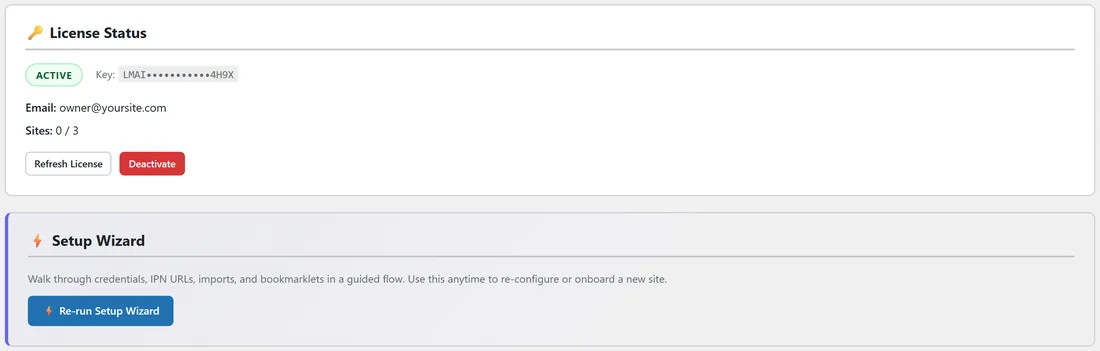
Shows whether your licence is ACTIVE, your key (partly hidden), the email it belongs to and how many sites use it. Refresh License checks the licence again and confirms your update connection. Deactivate frees this site so you can enter a different key.
Setup Wizard:
Re-run Setup Wizard walks you through credentials, IPN addresses, imports and bookmarklets again. Useful when you set up a new site.
Color Scheme & Branding:
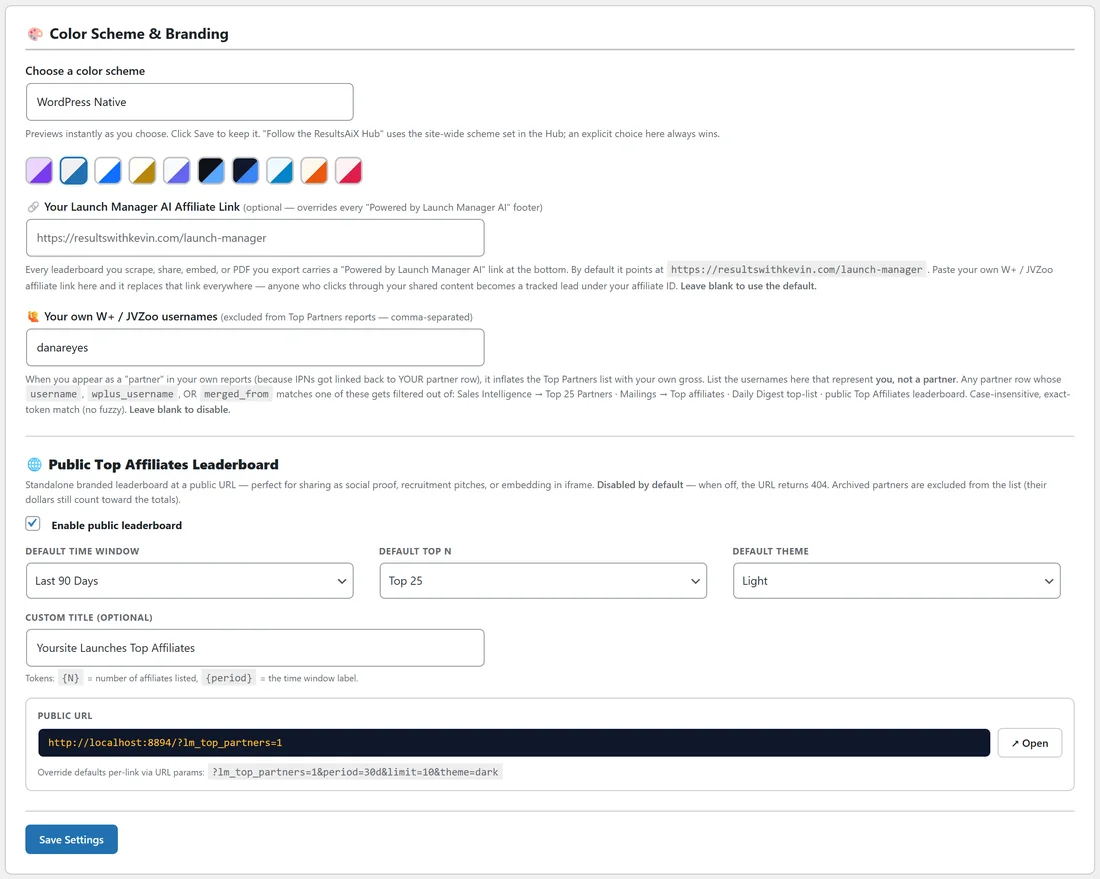
- Choose a color scheme: Follow the ResultsAiX Hub, WordPress Native, Clean White, Ivory Cream, Snow Light, Developer Dark, Midnight Blue, Ocean Blue, Sunset Warm or Rose Pink. The page previews your choice as you pick. Follow the ResultsAiX Hub uses the site-wide scheme set in the Hub. A choice here always wins.
- Your Launch Manager AI Affiliate Link: every leaderboard, embed and PDF you share carries a Powered by Launch Manager AI link at the bottom. Paste your own affiliate link here and it replaces that link everywhere. Leave it empty to keep the default.
- Your own W+ / JVZoo usernames: list the usernames that are you, separated by commas. Those records are left out of Sales Intelligence Top 25 Partners, the top affiliates in mailings, the Daily Digest top list and the public Top Affiliates leaderboard, so you never show up as your own top partner. Matching is exact and ignores capital letters.
Public Top Affiliates Leaderboard:
A standalone, branded leaderboard page at a public address, for social proof or recruiting. Tick Enable public leaderboard, then choose the Default time window (All Time, This Year, Last Year, This Month, Last Month, Last 90 Days, Last 30 Days, Last 7 Days, Yesterday or Today), the Default Top N (10 to 500), the Default theme (Light or Dark) and an optional Custom title. In the title, {N} becomes the number of partners listed and {period} the time window. The Public URL is shown with an Open button, and you can override the defaults per link with period, limit and theme in the address. Click Save Settings.
It is off by default, and the address shows a not found page until you switch it on. Archived partners are left off the list, while their sales still count in the totals.
WarriorPlus IPN Setup and JVZoo IPN Setup:
Your four IPN addresses with Copy buttons, the WarriorPlus and JVZoo secret keys, the WP Conversion Tracker relay for each platform, and a quick setup guide. See IPN, Real-Time Sales Tracking.
ResultsAiX Commerce:
The address and token for sending Commerce sales to Launch Manager, with counters. See Commerce Feed, Daily Digest, AR Enrich, Link Map And Shortcodes.
Data Management:
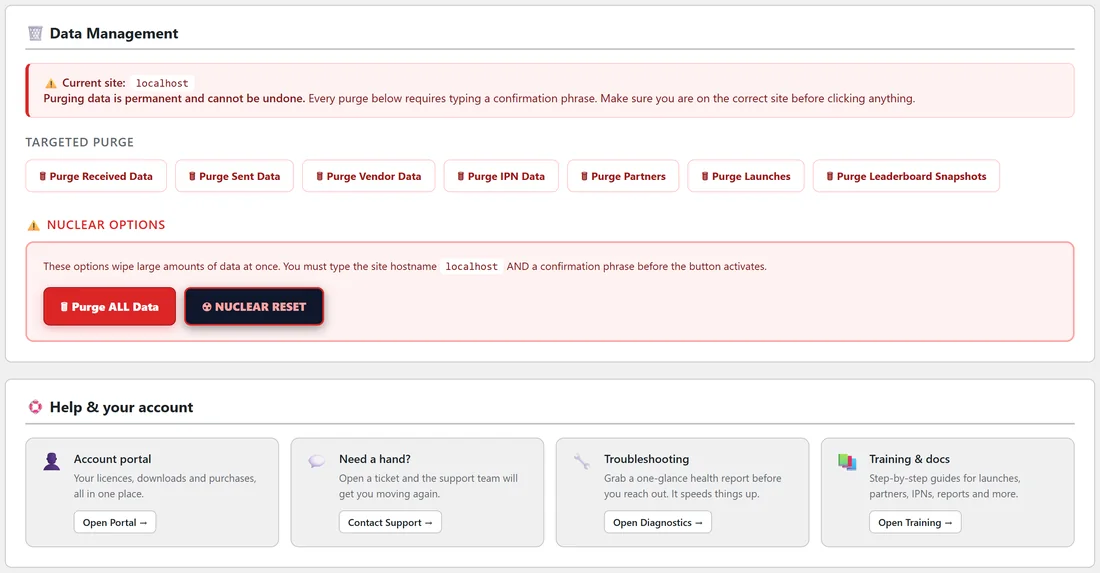
The card shows the site you are on, so you always know where you are working.
- Targeted purge: Purge Received Data, Purge Sent Data, Purge Vendor Data, Purge IPN Data, Purge Partners, Purge Launches and Purge Leaderboard Snapshots. Each one clears a single kind of data.
- Larger options: Purge ALL Data and NUCLEAR RESET clear large amounts of data at once. These need you to type the site name and a confirmation phrase before the button works.
Every purge asks you to type a confirmation phrase first, and a purge cannot be undone. Make a backup of your WordPress database before you use any of them.
Help & your account:
Four cards at the bottom: Account portal (your licences, downloads and purchases), Need a hand? (open a support ticket), Troubleshooting (open Diagnostics) and Training & docs (open Training).
A real example:
Dana picks Clean White as her colour scheme, adds her own username danareyes so her test sales never show her as her own partner, and switches on the public leaderboard for the last 90 days, top 25, with the title Yoursite Launches Top Affiliates. She copies the Public URL into her JV page.
Tips:
- Add your own usernames on day one. It keeps every top list honest.
- Use the purge options only when you truly want to start over, and always after a backup.
- Most settings save with their own button in each card, so save each card before moving on.