ResultsAiX Video can put a picture behind every slide. You direct the look once, test it on one image, and then fill the whole video. Images show in every theme, with a readable wash over them so your words stay clear.
Where to find it:
On Create Video, the Direct The AI Images panel sits under Preview VSL and Export MP4. The Test Style (1 Image) and Generate Images buttons are in the button row under your script. Each slide card also has its own image controls.
Direct The AI Images:
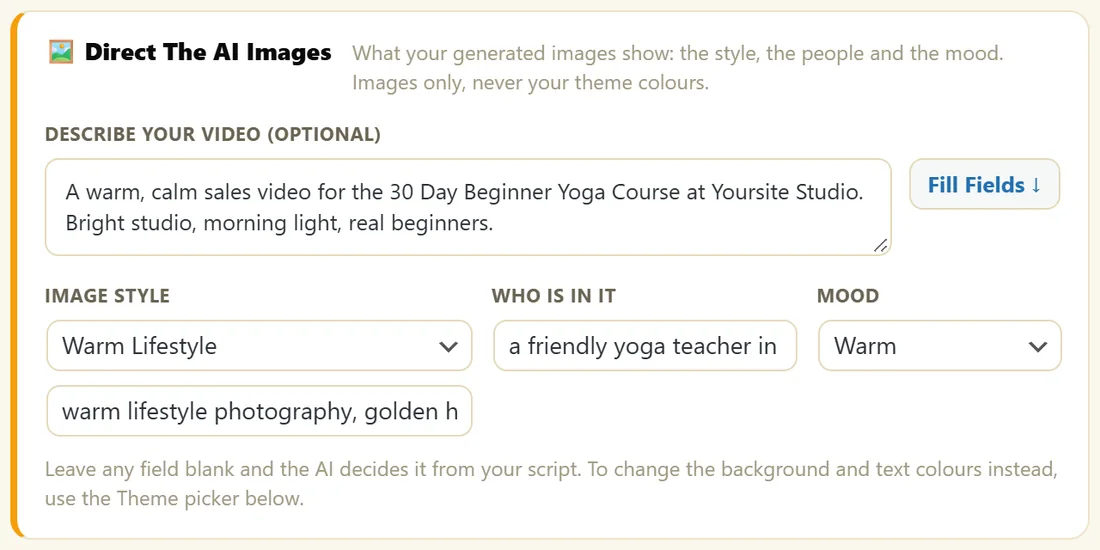
This panel shapes what your images show. It changes the pictures only, never your theme colours.
- Describe your video (optional): one or two sentences about the video. With an AI key connected, Fill Fields reads it and fills in the three fields below.
- Image Style: pick a preset, or type your own style in the box under it. Presets: Bright Photo, Warm Lifestyle, Corporate Photo, Dark Cinematic, Flat Illustration, Cartoon and 3D Render.
- Who Is In It: the kind of people to show, for example two men in their 30s. Blank means the AI decides from your script.
- Mood: Auto (from script), Funny, Exciting, Serious, Warm, Corporate, Dramatic or Inspirational.
Leave any field blank and the AI decides it from your script.
The Image Director:
With an AI key connected, Generate Images first asks your AI to read the whole script and write a picture idea for every slide, in your style, cast and mood. Without a key, each image is made from its slide's own text.
Step by step:
- Fill in Direct The AI Images, or type one sentence in Describe your video and click Fill Fields.
- Click Test Style (1 Image). One image is made for slide 1, so you can check the look.
- Happy with it? Click Generate Images. It asks how many images it will make, then makes them two at a time while the status bar counts.
- Not quite right? Change the style or mood and test again before you make the rest.
Every slide's image controls:

- Image note for this slide (optional): steer this one picture. Blank uses the slide text.
- Generate Image, or Regenerate once there is an image: make just this slide's picture again.
- Upload Image, or Replace Image: use your own picture, such as a screenshot or a real photo.
- Full Frame: show the image clean, with the slide text as a small caption. See Full Frame Slides For Screenshots And Demos.
- Clear: take the image off this slide.
When every slide already has an image, Generate Images asks before it makes them all again from your new direction. To change one picture, use Regenerate on that slide.
Where the images go:
Every image is saved to your Media Library and linked to its slide, so it is there when you reopen the video, when you export, and when you duplicate the video. A slide with an image shows a small thumbnail and a green image chip on its card. A slide without one shows no image.
A real example:
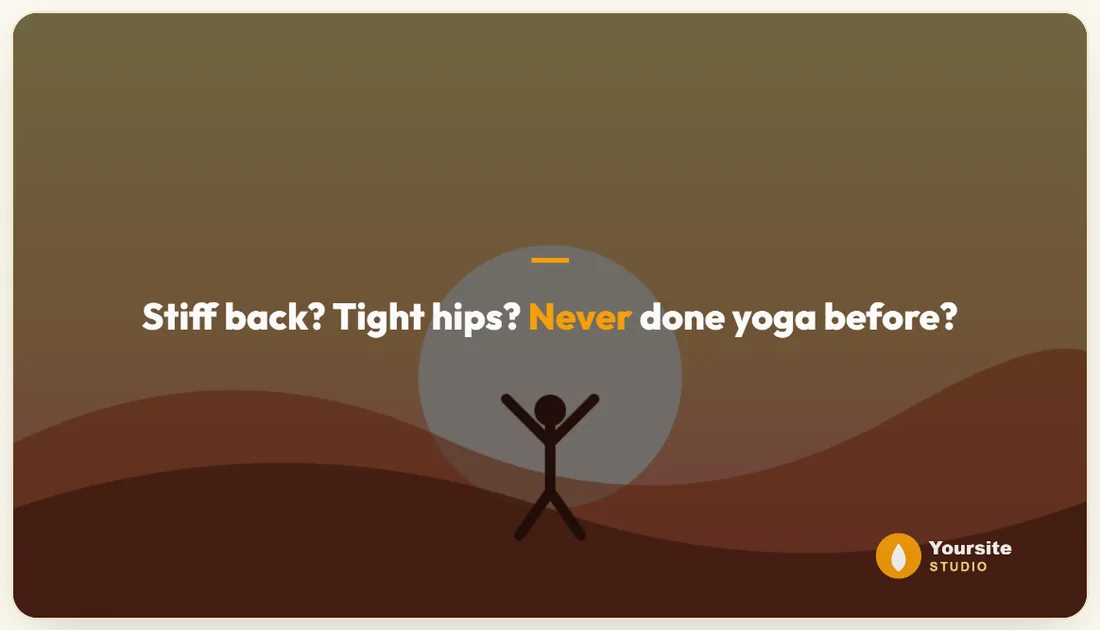
Yoursite Studio types A warm, calm sales video for the 30 Day Beginner Yoga Course, bright studio, morning light, real beginners, and clicks Fill Fields. The panel fills with Warm Lifestyle, a friendly yoga teacher in her 30s, and Warm. She runs Test Style (1 Image), likes it, and uses Generate Images. For slide 7 she types the image note a 30 day planner with ticked days, bright and clean, and clicks Regenerate.
Writing a good image note:
- Say what is in the picture, not what the slide says. A rolled teal yoga mat beside a window plant works better than This is for you.
- Add one detail about light or place: morning light, a bright studio, a kitchen table.
- Keep people consistent with Who Is In It, and use the note for the scene.
- For a screenshot or a real photo, skip the note and use Upload Image.
A test before a big batch:
On a 100 slide video, Generate Images makes a lot of pictures. Test Style (1 Image) first, look at it in the Preview, and adjust the style or mood until you like it. Then generate the rest in one go and fix single slides with Regenerate.
Tips:
- Images are optional. Many great videos use only text, colours and a strong font.
- Your images are saved in your Media Library, so they stay with the video.
- To pick the engine that makes your images, read Image Engines, Free Options And Image Fit.