Before you export, watch your video in the builder. Then, if you want it on your own site, the living VSL plays your slides and narration right on the page and shows your buy button at the moment you choose.
Preview VSL:
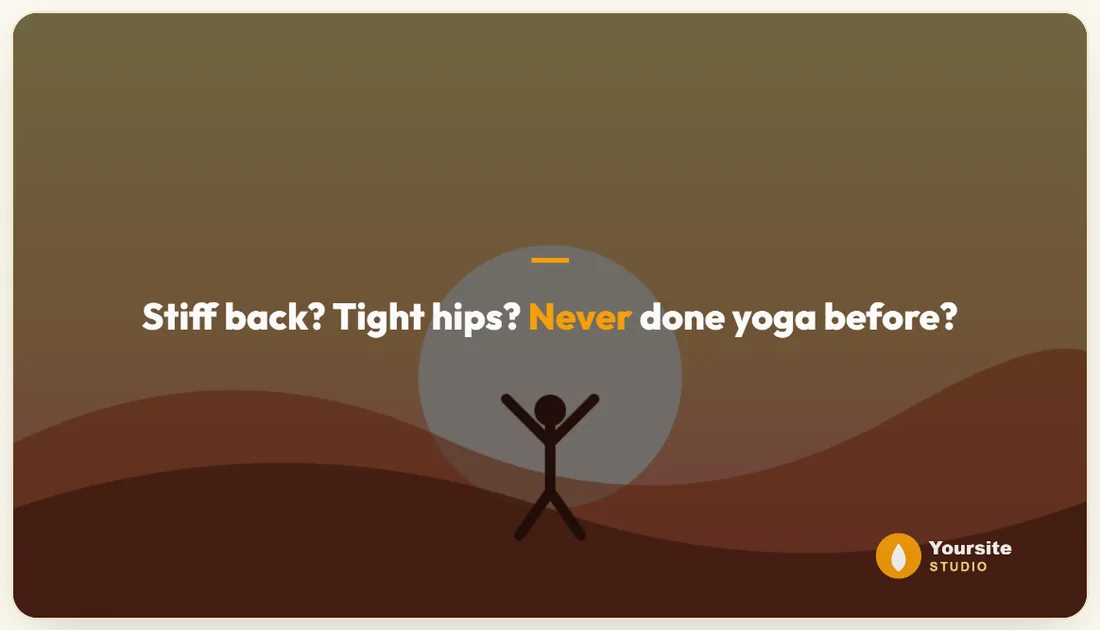
Preview VSL sits under the status bar on Create Video and switches on once every slide has a voice. Click it to watch the whole video in the Preview on the right, with narration, Voice Polish, your look and, with PRO, Motion, Captions, your logo and music. The button reads Stop Preview while it plays. You can also press the play button on the Preview itself.
The Call To Action:

The Call To Action (living VSL embed only) box is under Output, at the bottom of the left column.
- Button text: for example Get Instant Access.
- Button link: your checkout or sign up page.
- Show at slide #: the button appears once playback reaches this slide. 0 means never.
All three are needed for the button to show. The button belongs to the living VSL on your pages. Exported MP4 files have no clickable button.
Put the living VSL on a page:
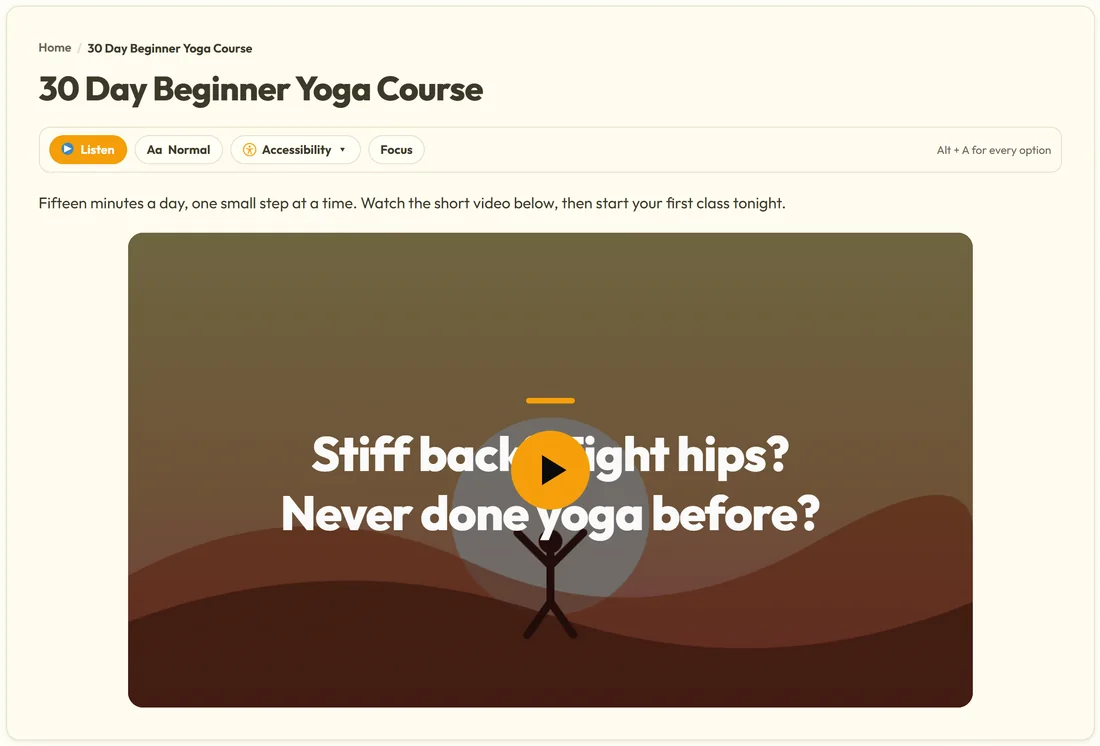
- Fill in the Call To Action box and click Save.
- Find the video's number. Open the video from My Videos and look at the page address: it ends with vsl= and the number.
- Edit any page or post and add a shortcode block with [results_video id="123"], using your own number.
- Publish or update the page.
What visitors see:
- Your first slide in your theme, with a round play button.
- Click to play: each slide shows with your theme colours, font size, text position and images, and its narration plays.
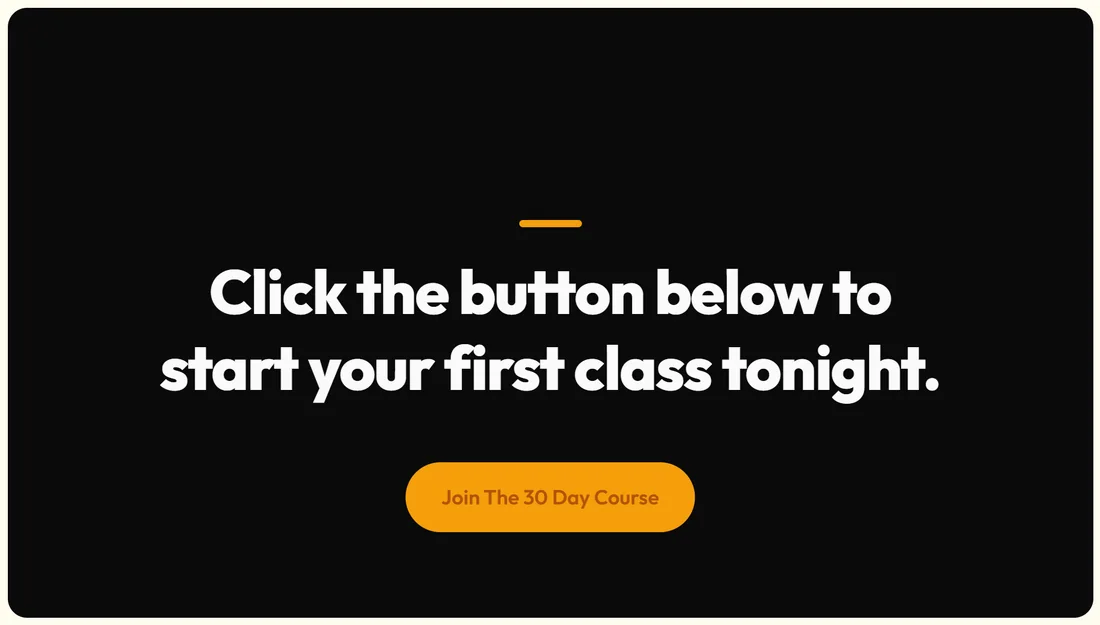
- At the slide you chose, your button rises into view and stays clickable.
- Click again to pause.
The living VSL keeps the page light: visitors load a few small audio files, never a large video file. For music, Motion, captions and your logo, use the exported MP4 on YouTube or in ads. The living VSL shows the Tick accent and works best with one of the nine core fonts.
Switch it on from the theme:
If your site uses the ResultsAiX Theme, the Family Actions box on a page can switch ResultsAiX Video on for that page. The first time the page is viewed, a draft video linked to that page is added to My Videos, named For: and the page title. Once you build it with real slides, the player appears at the end of that page's content by itself. Until then the page looks exactly as before.
Using Family Actions in the ResultsAiX Theme:
- Edit the page in WordPress and find the Family Actions box.
- Switch ResultsAiX Video on for that page and update the page.
- View the page once. A draft video named For: and the page title appears in My Videos.
- Open that draft on Create Video, paste the script, build the slides, narrate them and save.
- View the page again. The player now sits at the end of the page content.
A real example:
Yoursite Studio adds Join The 30 Day Course, links it to https://yoursite.com/beginner-yoga/ and sets Show at slide # to 10. She adds the shortcode to the 30 Day Beginner Yoga Course page. Visitors press play, listen to the course story, and on slide 10 the amber Join The 30 Day Course button appears under Click the button below to start your first class tonight.
A good sales page around your living VSL:
- A headline above the player that matches the first line of the video.
- One or two short sentences that invite people to press play.
- The player.
- Nothing that competes with it nearby: the button inside the video does the selling at the right moment.
Tips:
- Show your button after the offer is explained, not at the very start.
- Use the same video twice: the living VSL on your sales page, and the MP4 on YouTube.
- Read Exporting Your MP4 for the file version.